.png)
Please bear in mind that this feature is not available for team-managed projects in Jira Cloud.
You can set Multiple Checklists for Jira to enforce that certain conditions are met before a status transition is allowed. For example, you can make sure that all items have been checked off or that all items have a status set. It can be done by Jira’s global administrator.
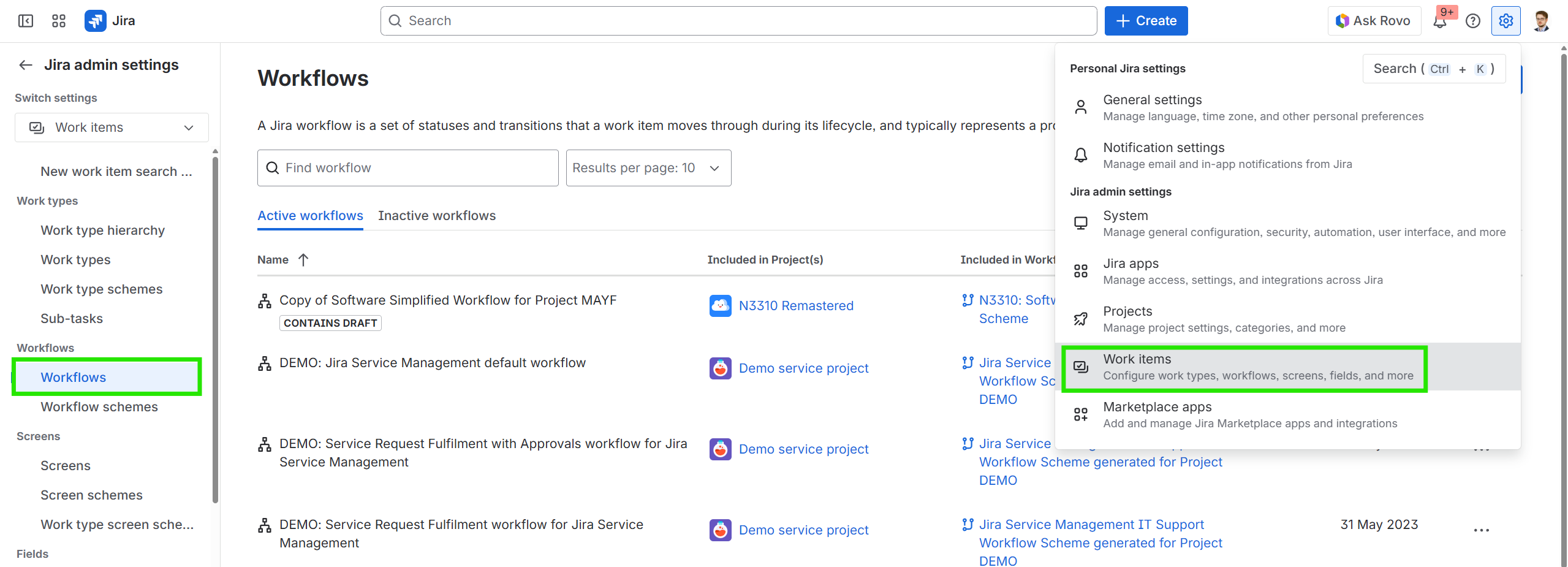
It’s configured by editing the workflow. To do it, access the Workflow settings by going to the Jira settings, selecting Work items and clicking on Workflows:
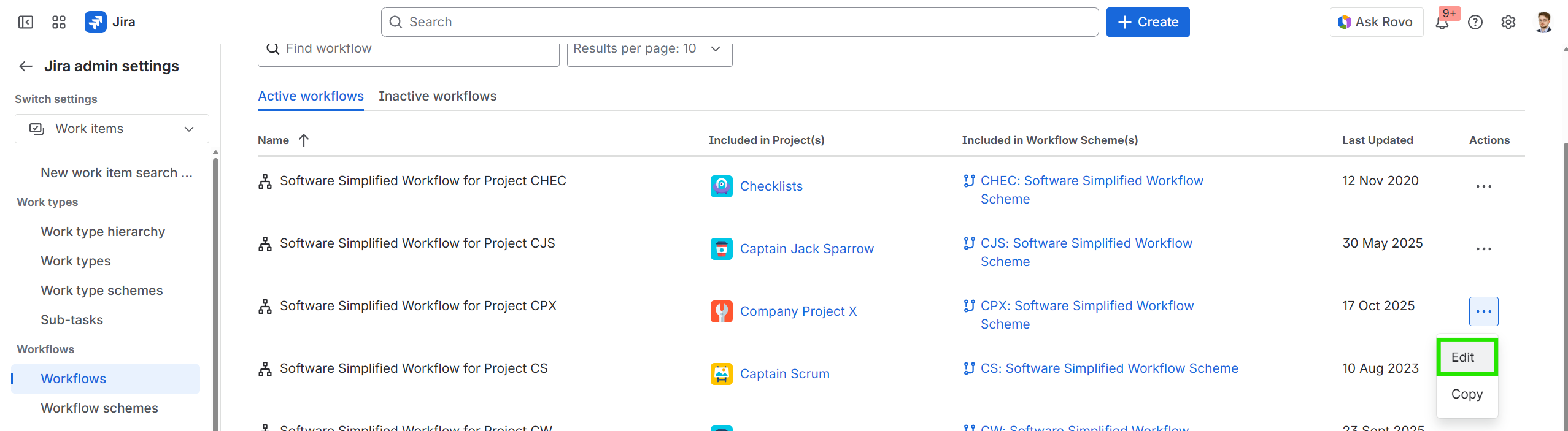
Find the workflow of the project you are working on and click on three-dot menu button and then on Edit:
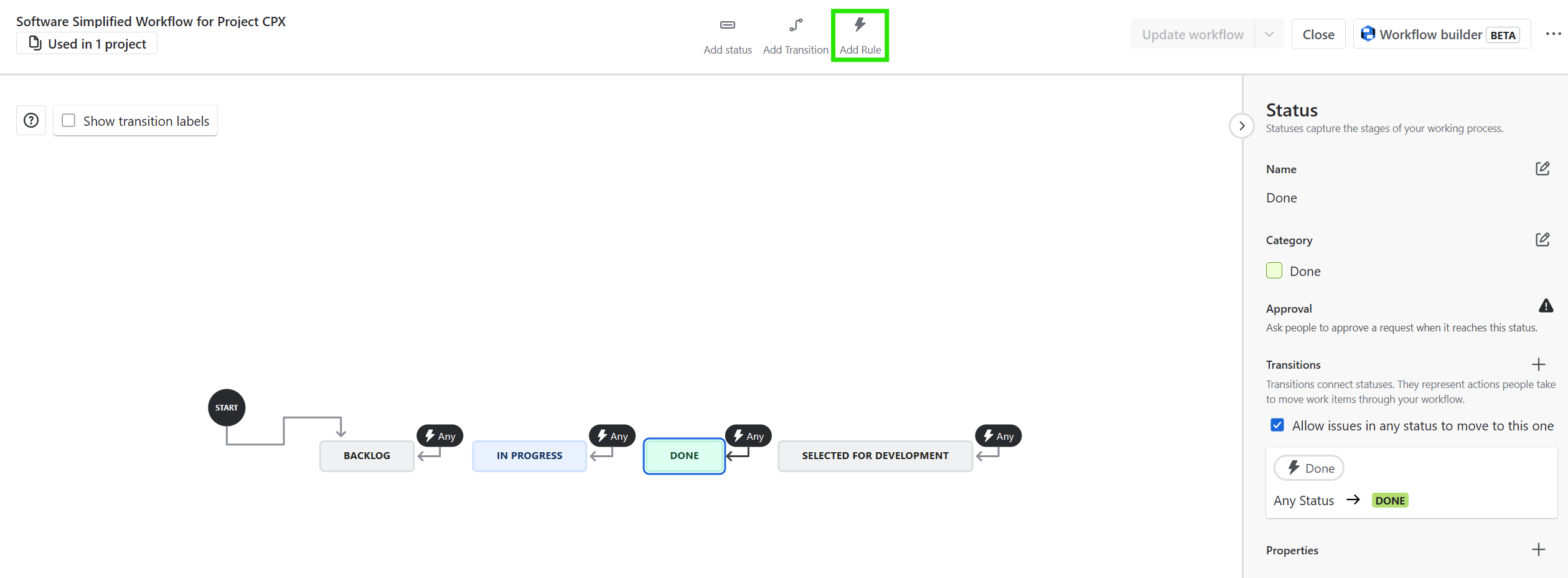
In the entered workflow, choose the transition you want to add a validator to and at the top of the page, click Add Rule:
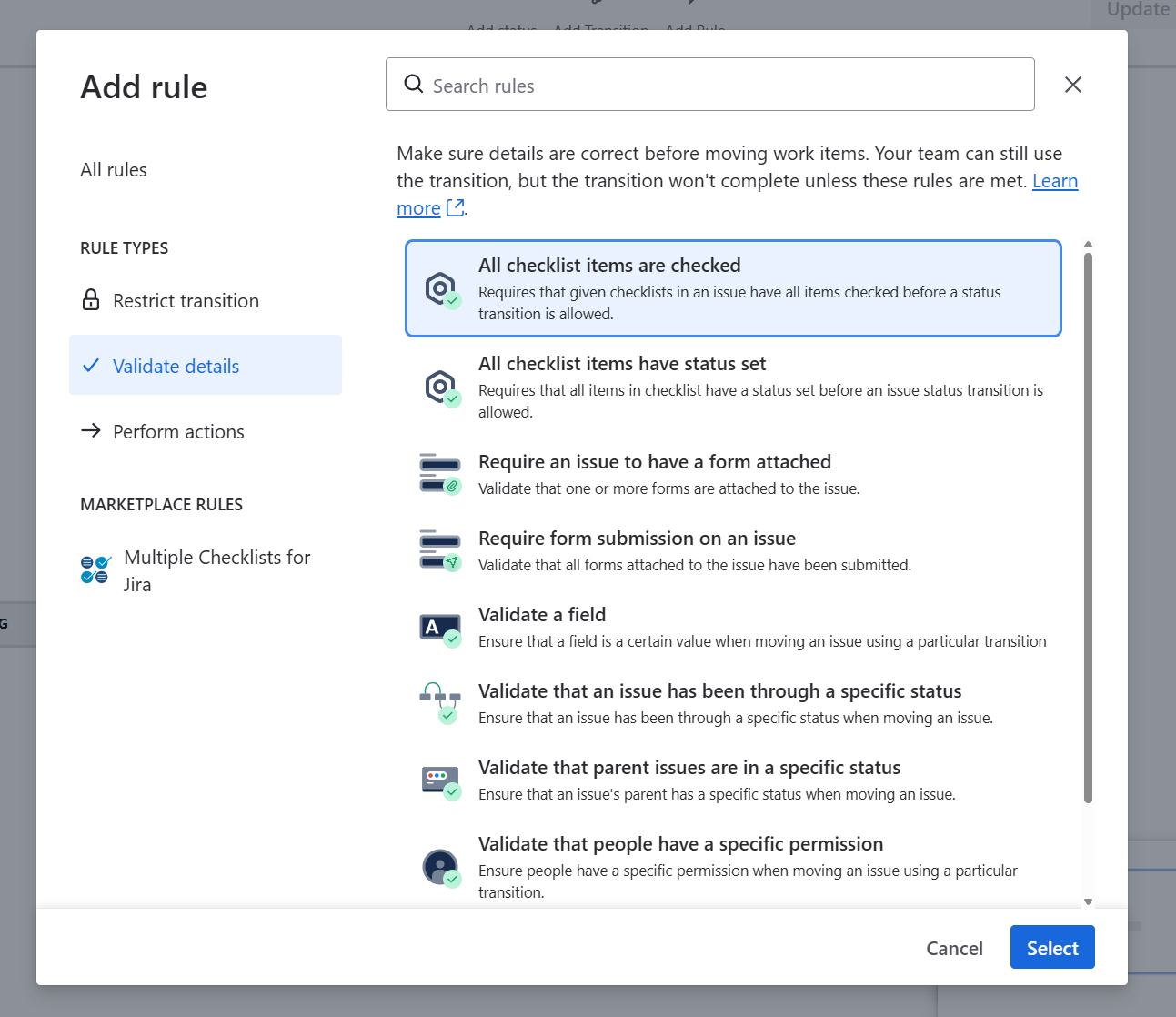
Under Validate Details tab, select ‘All checklist items are checked’ and click on Select:
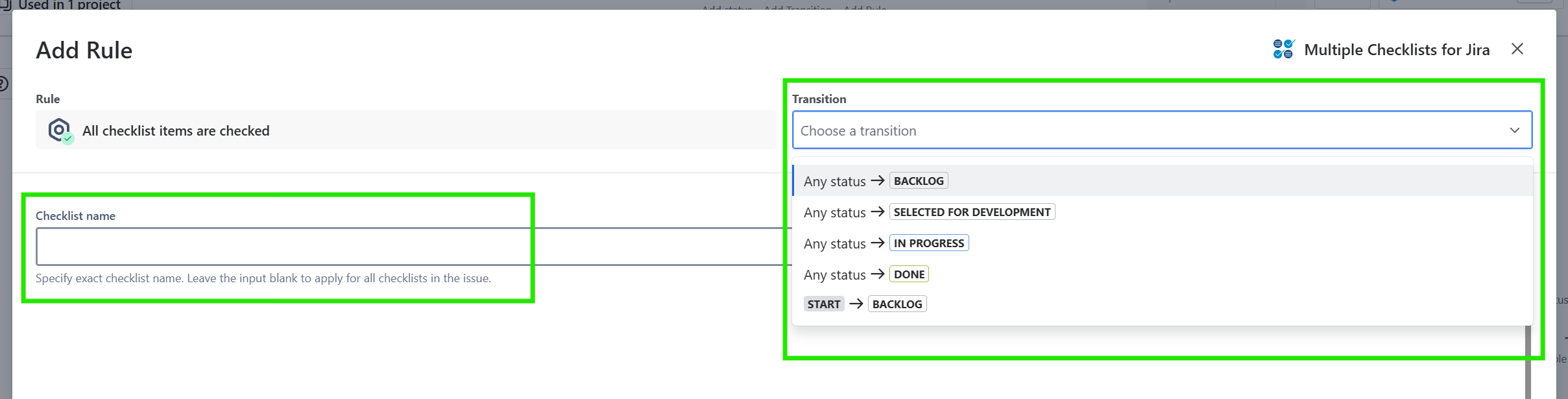
Specify which transition path should obey the newly created rule. In addition, you can select which checklist will be considered by this validator by providing the checklist’s name or leave empty to apply to all checklists.
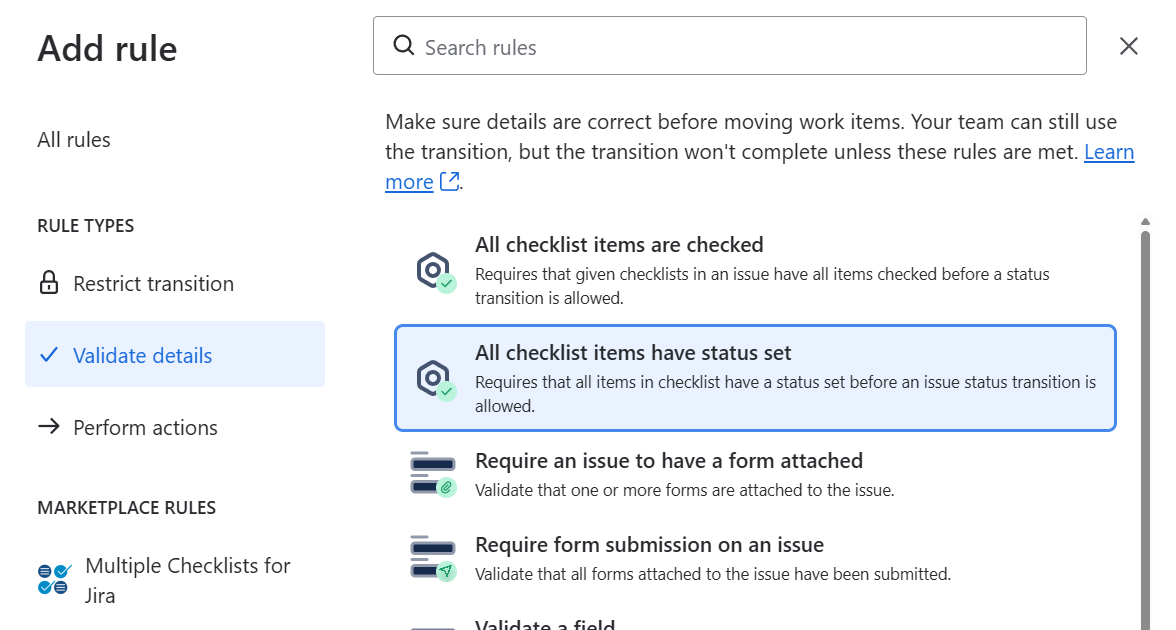
You can also select our second validator: ‘All checklist items have status set’, and click Select.
Similarly to the previous validator provide the transition path and, optionally, the name of the checklist if you want the validator to work for all checklists in the issue.
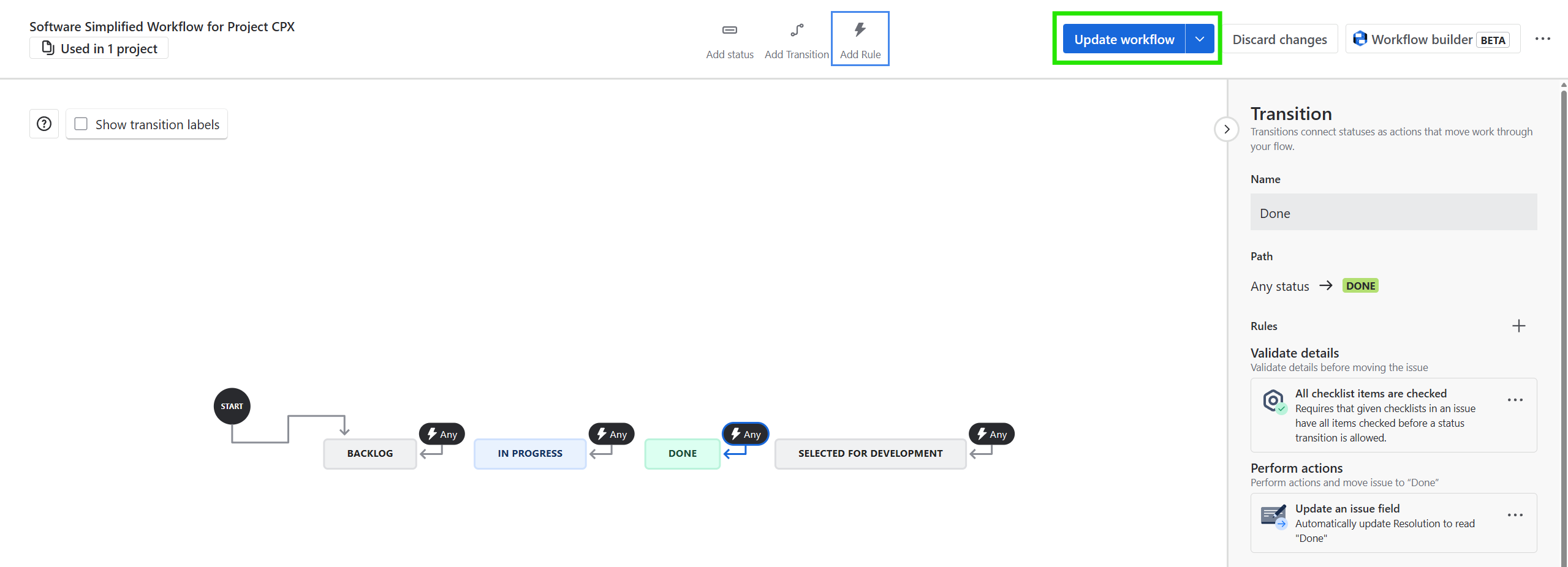
The final step is to click Update workflow to activate your validator in the workflow.
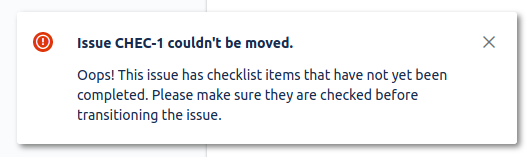
From now on, the transition will require that all checklist items are checked. An error message will be displayed informing that all items in the checklist need to be completed before this operation is possible.
If checklists are disabled in the project or in the issue type, the validation will not be used.
Do you have any questions or feedback? Feel free to contact us here 💡