
This page lists the most common problems you might encounter when using Worklogs – Time Tracking and Reports, along with their likely causes and step‑by‑step solutions. If your reports or issue views show missing or inconsistent time logs, start with the scenarios below.
General
Missing time logs under Worklogs tab in the work item view
Problem: Time logs are missing under the Worklogs tab in the Jira issue view.
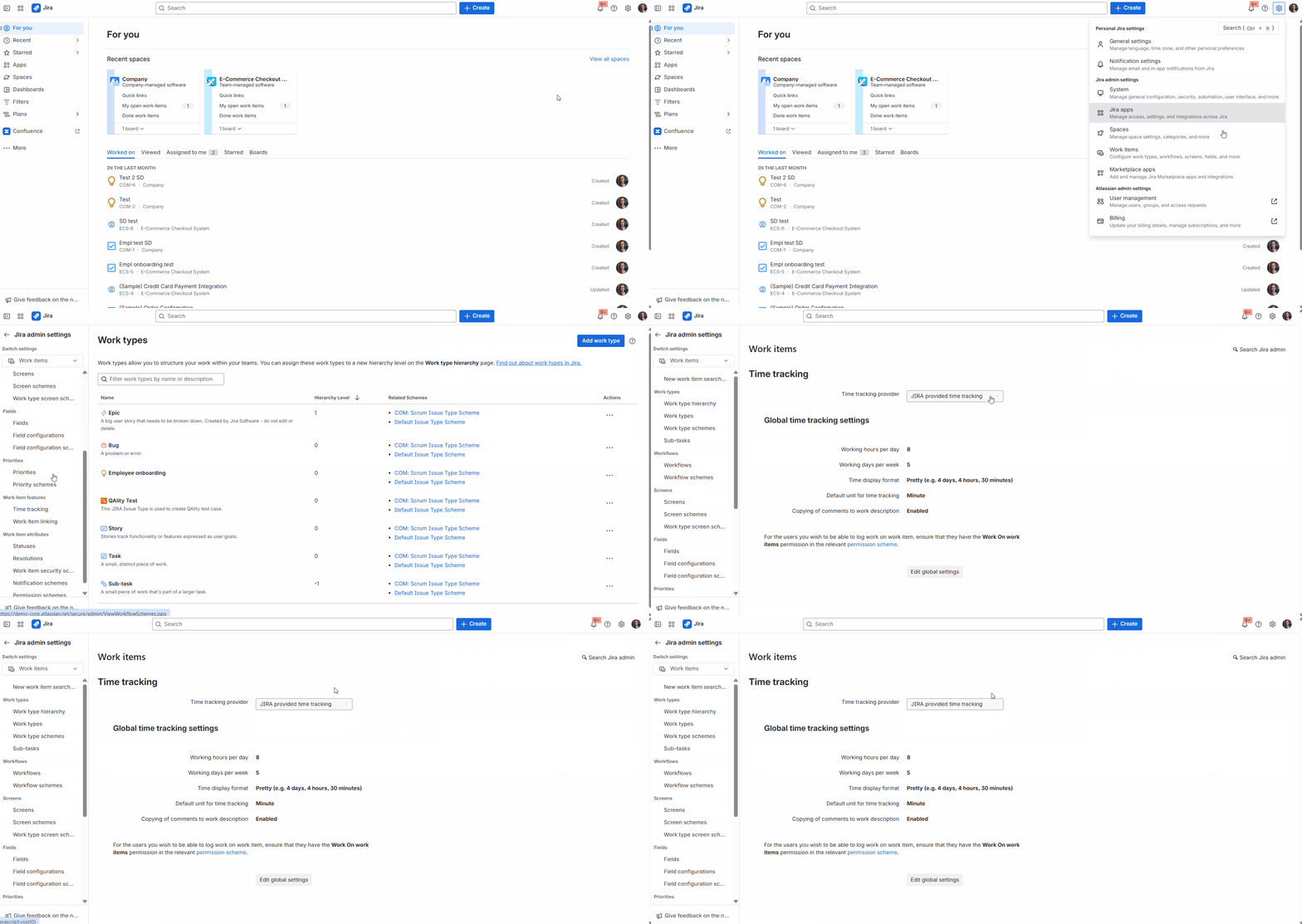
Solution: (Jira Admin) Switch the time-tracking provider to Worklogs time tracking provider or a JIRA provided time tracking in Jira's Time Tracking settings.
A different time‑tracking app is still configured as the time tracking provider. In a case when you had been using another time-tracking app, for example, Timesheets by Tempo, and then you started using our app, you might have a situation where under the work log tab in a Jira work item, you cannot see your time logs. For example:
In such a situation, you need to switch the time-tracking provider to the Worklogs time tracking provider or a native Jira one to fix it.
To change it:
-
Go to Settings (the gear icon ⚙️ in the top right).
-
Select work items (issues).
-
Under the Time Tracking section, select Time tracking provider.
-
Choose JIRA provided time tracking from the options.
Cannot access the Worklogs app
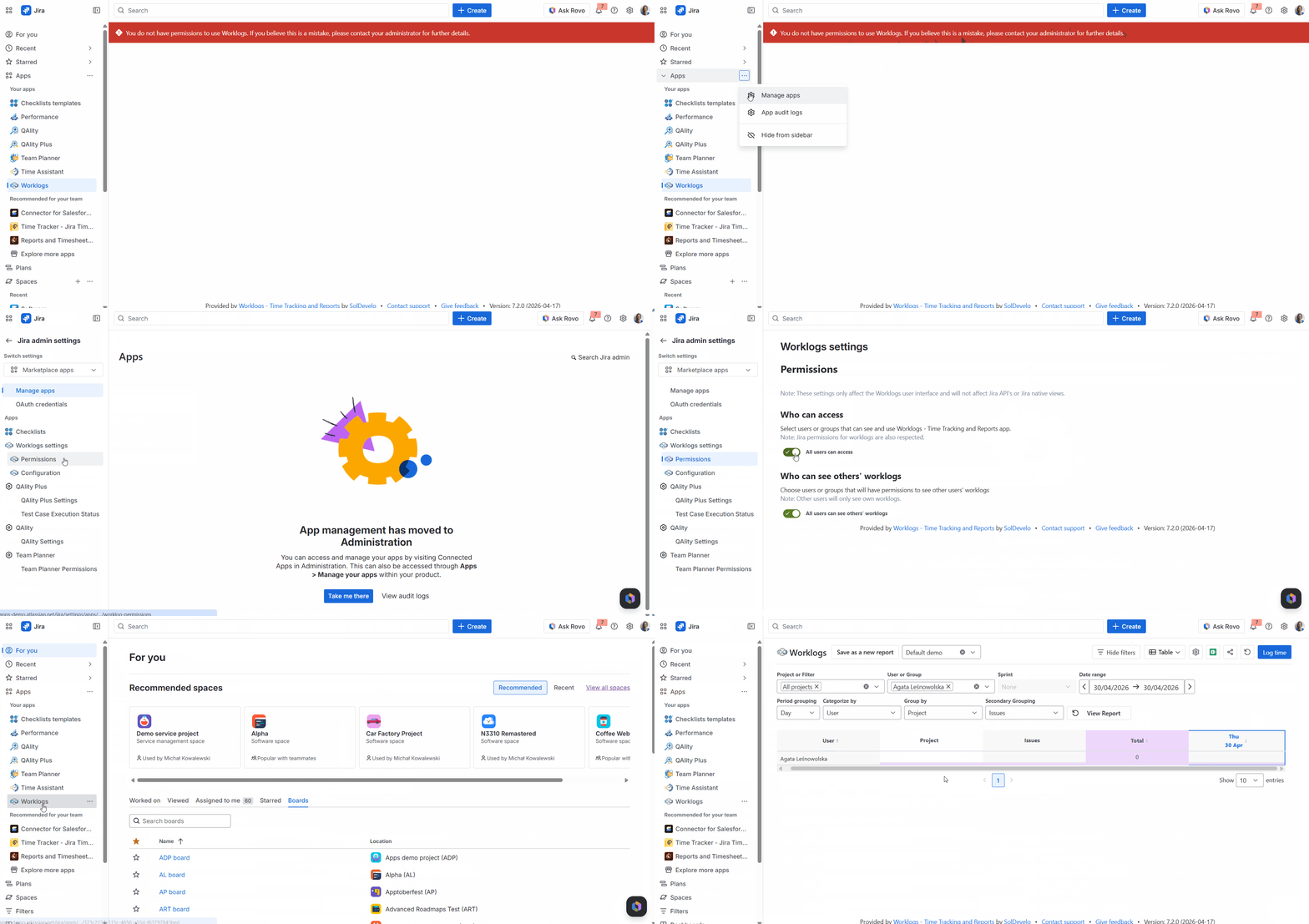
Problem: User cannot access the Worklogs app. When trying to access the app they get the following message: "You do not have permissions to use Worklogs. If you believe this is a mistake, please contact your administrator for further details."
Solution: (Jira Admin) Add the affected user (or their group) to the app's Who can access list.
The user does not have Who can access in-app permission. This error appears when a user tries to open Worklogs from the Jira sidebar (Your apps → Worklogs) but has not been granted access at the app level. Instead of the app loading, a notification is displayed explaining that the user does not have permission and should contact their Jira administrator.

By default, all users on the Jira instance have access to the Worklogs app. However, a Jira administrator may have restricted access to specific users or groups. When this restriction is active, only the selected users and groups can open and use Worklogs — everyone else will see the error message described above. Users who haven't been granted access will also not see the Worklogs link in the Jira sidebar.
To resolve this, a Jira administrator needs to add the affected user (or their group) to the app's access list:
-
Navigate to the Jira side panel
-
Click on Apps
-
Locate the Worklogs app and click the three dots (⋯) icon next to its name.
-
Select Permissions
-
Under the Who can access section, either:
-
Toggle the switch on to grant access to all users, or keep it off and add the specific user or their group to the access list.
-
Save the changes.
Once updated, the user should be able to access the Worklogs app immediately after refreshing the page.
Company-managed projects
Missing worklogs in the report
Problem: Some worklogs are missing from the report for a specific project/projects.
Solution: (Jira Admin) Add or unhide the Log Work field in the field configuration associated with the affected project.
The Log Work field is hidden in the field configuration used by that project. If it happens, first of all, make sure that the filters are correct. For example, you could have selected a user who hasn’t logged any time, the report filters exclude the users you expect or the selected date range does not cover the days when work was logged.
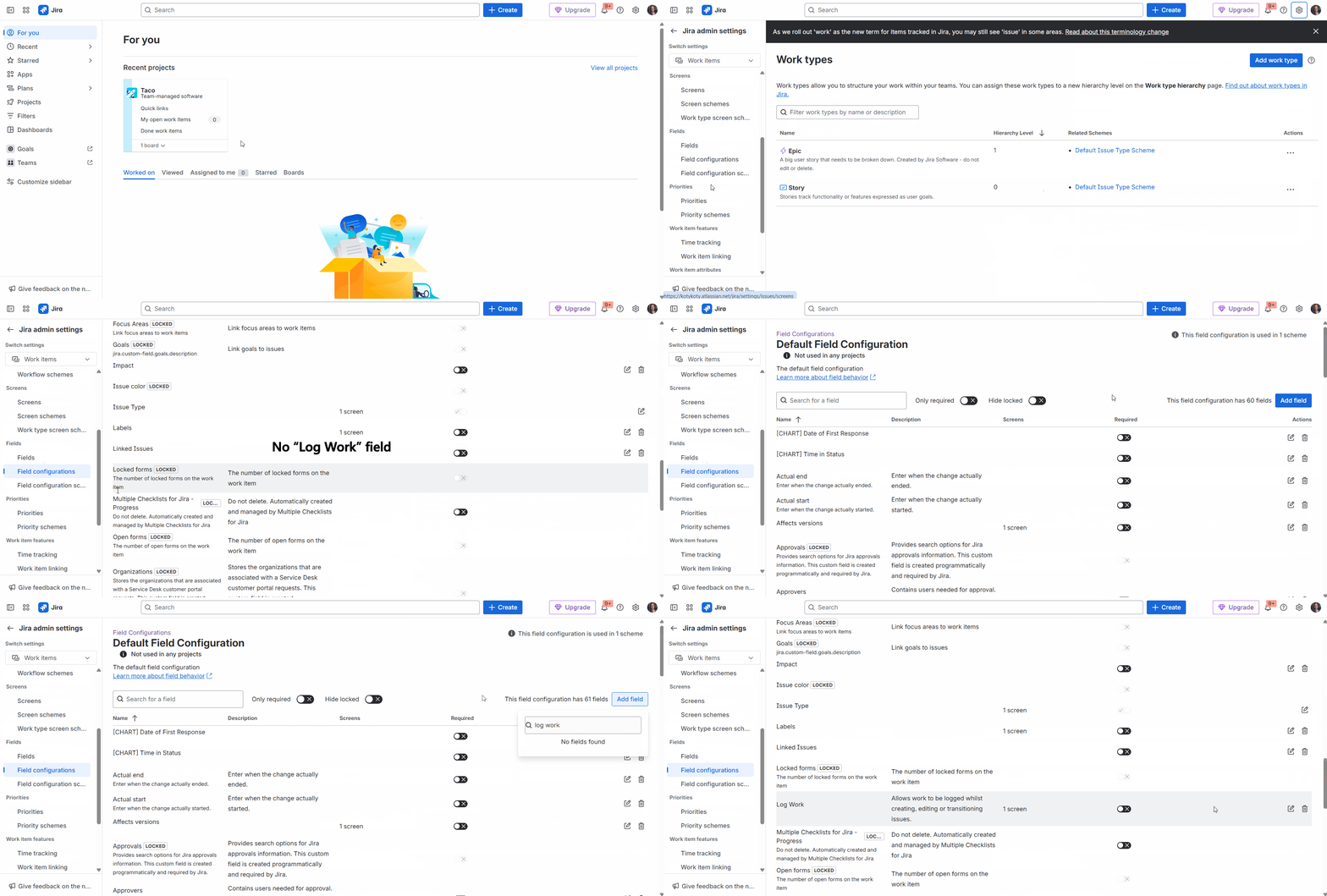
If work logs for a certain space (project) are missing, there is a big chance that you have hidden the log work field in the settings (it's visible in the work item screen, but not to the app). To solve this, follow these steps:
-
Go to Jira settings → Work items (Issues) → Field Configurations (under the Fields section).
-
Locate the field configuration associated with the space (project) where work logs are missing and click on it.
-
Check if the Log Work field is included.
-
If it’s missing, click Add field (top-right corner) and select Log Work.
-
Cannot edit or delete worklogs in reports
Problem: User can view Worklogs reports but cannot modify existing worklogs (edit or delete).
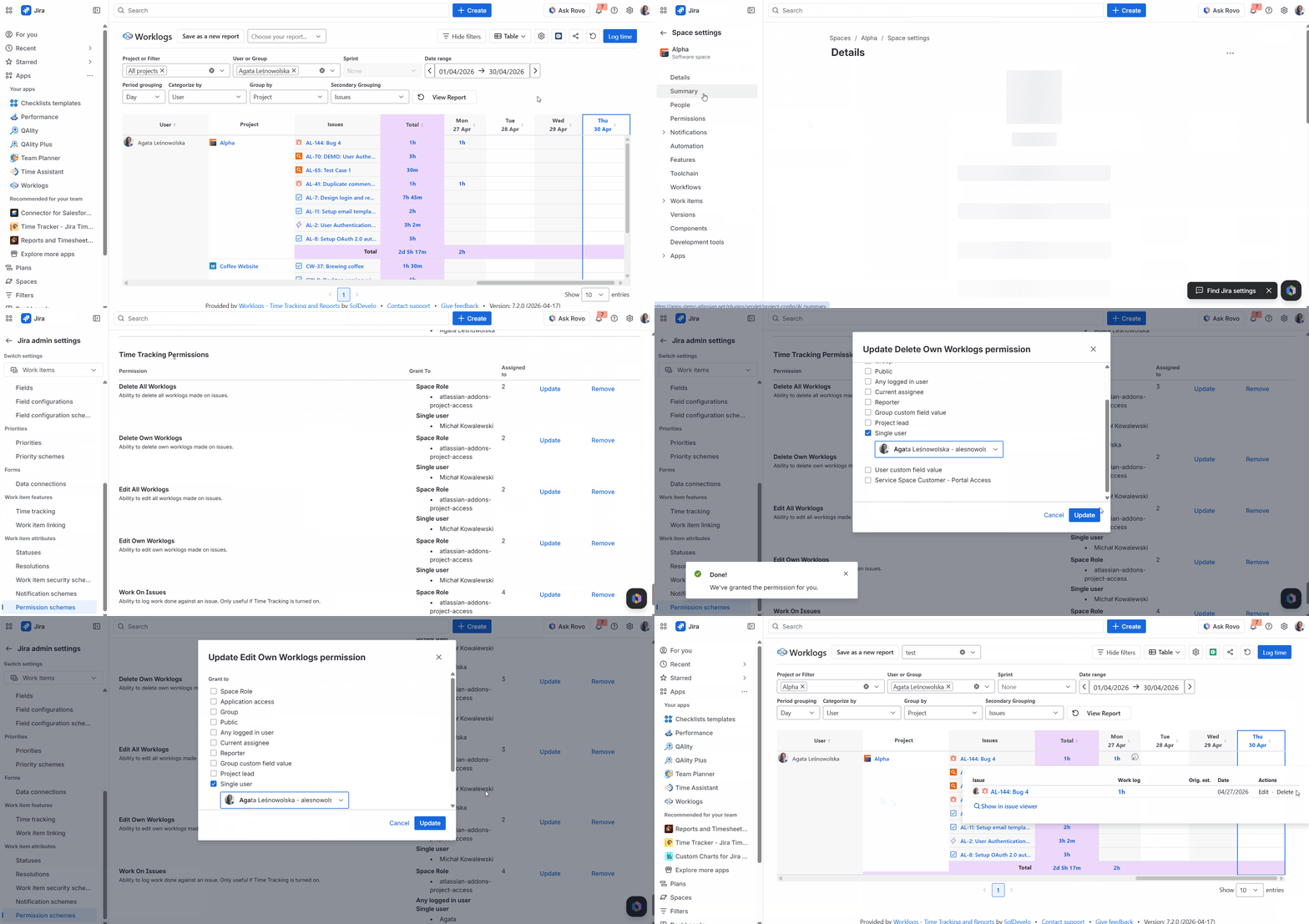
Solution: (Jira Admin) Grant the user the appropriate Edit All/Own Worklogs and/or Delete All/Own Worklogs permissions in the project's permission scheme.
The user sees all data in the Worklogs report and may even be able to log new time, but when they try to update or delete existing worklogs, the action is blocked or unavailable.
-
Go to your project in Jira and click Project settings in the left sidebar.
-
Select Permissions from the settings menu. This will show you the Permission Scheme currently applied to the project.
-
Click Edit permissions (or the pencil/edit icon) to modify the scheme.
-
Scroll down to the Time Tracking Permissions section and locate the following four permissions:
-
Edit All Worklogs - allows editing worklogs created by any user.
-
Edit Own Worklogs - allows editing only the worklogs the user themselves created.
-
Delete All Worklogs - allows deleting worklogs created by any user.
-
Delete Own Worklogs - allows deleting only the worklogs the user themselves created.
-
-
For each permission the user needs, Update it by adding the appropriate user, group, or project role, and confirm.
Missing projects in Project or Filter in reports
Problem: User does not see a given project in Worklogs (main page or dashboard gadget) and cannot generate reports for it.
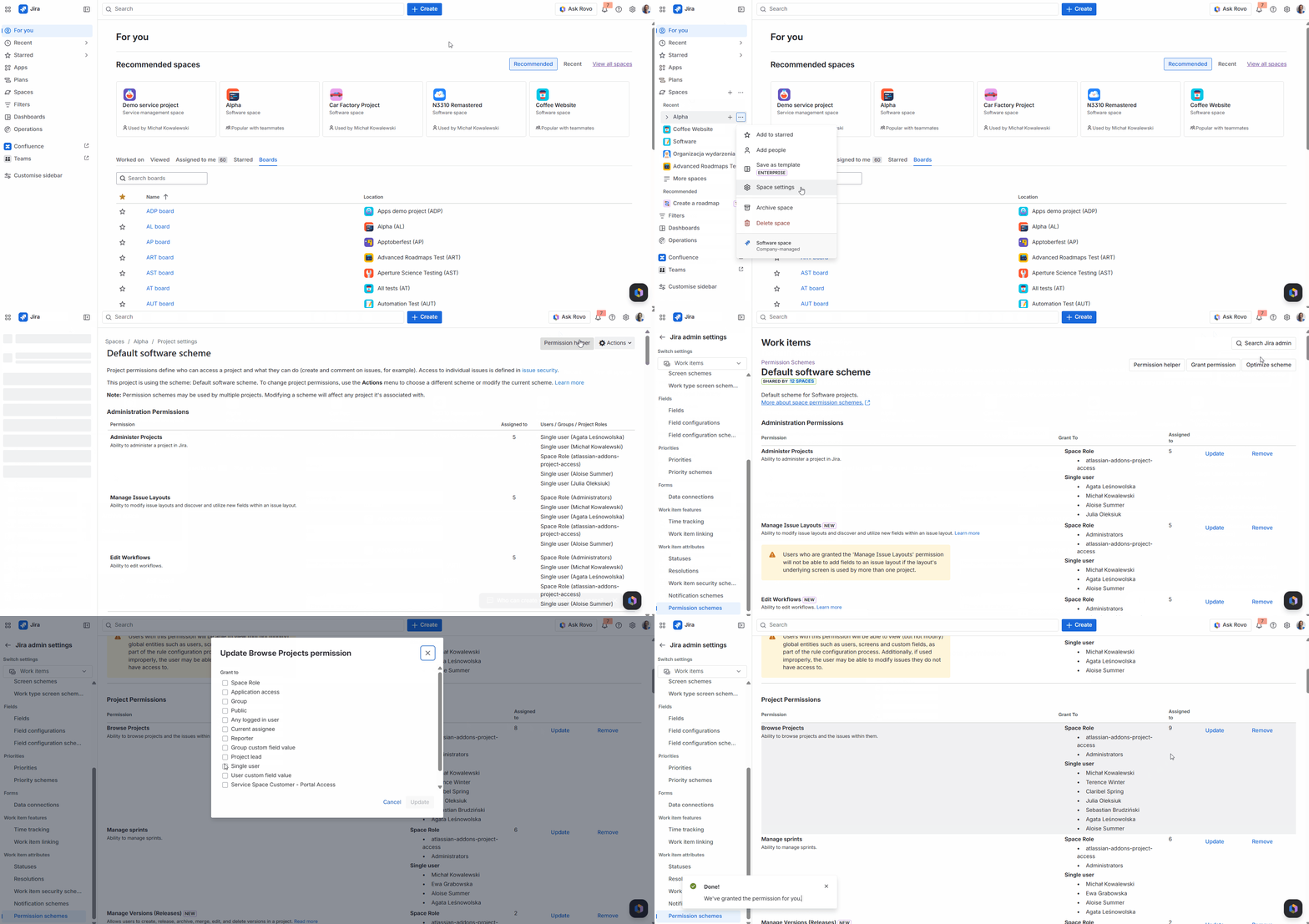
Solution: (Jira Admin) Grant the user Browse Project permission in the project's permission scheme.
The user has access to Jira and uses Worklogs, but a specific project is missing from the Project / Filter field. They cannot select this project and therefore cannot view or report on its worklogs within the app or the dashboard gadget.
-
Go to your project in Jira and click Project settings in the left sidebar.
-
Select Permissions from the settings menu. This will show you the Permission Scheme currently applied to the project.
-
Click Edit permissions (or the pencil/edit icon) to modify the scheme.
-
Find the Browse Project Permission and Update it by adding the appropriate user, group, or project role, and confirm.
Team-managed projects
Missing work logs in the report
Problem: Work logs are not visible in the Worklogs app reports for a specific team-managed project, even though the user has the correct project role.
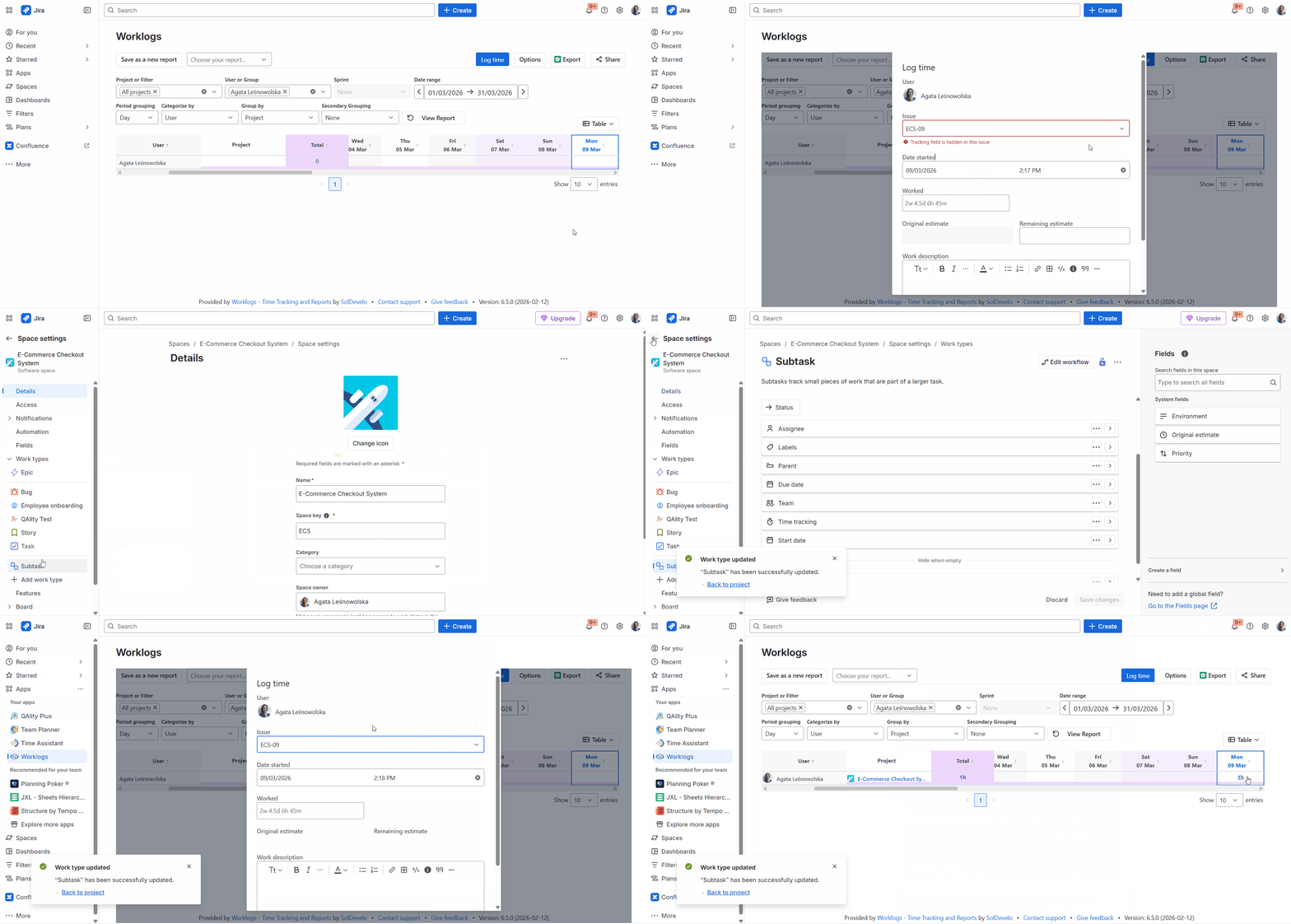
Solution: (Jira Admin) Re-enable the Time tracking field in the project's work type field settings.
In team-managed projects, project Administrators can customize which fields are available. If the Time tracking field is removed or hidden from the project's field configuration, users will not be able to log time on issues in that project, and existing worklogs may not appear correctly in the Worklogs app or the dashboard gadget.
To re-enable the Time tracking field:
-
Open the relevant team‑managed project in Jira.
-
Click Project settings in the left sidebar.
-
Go to the Work types section and select the work type where you want to log time.
-
In the list of available fields on the right, find Time tracking and click it to add it to the selected work type.
-
Click Save to apply your changes.
Missing worklogs or inability to log time
Problem: Worklogs are missing from reports for a team-managed project, or the user cannot log time despite having access to the Jira instance.
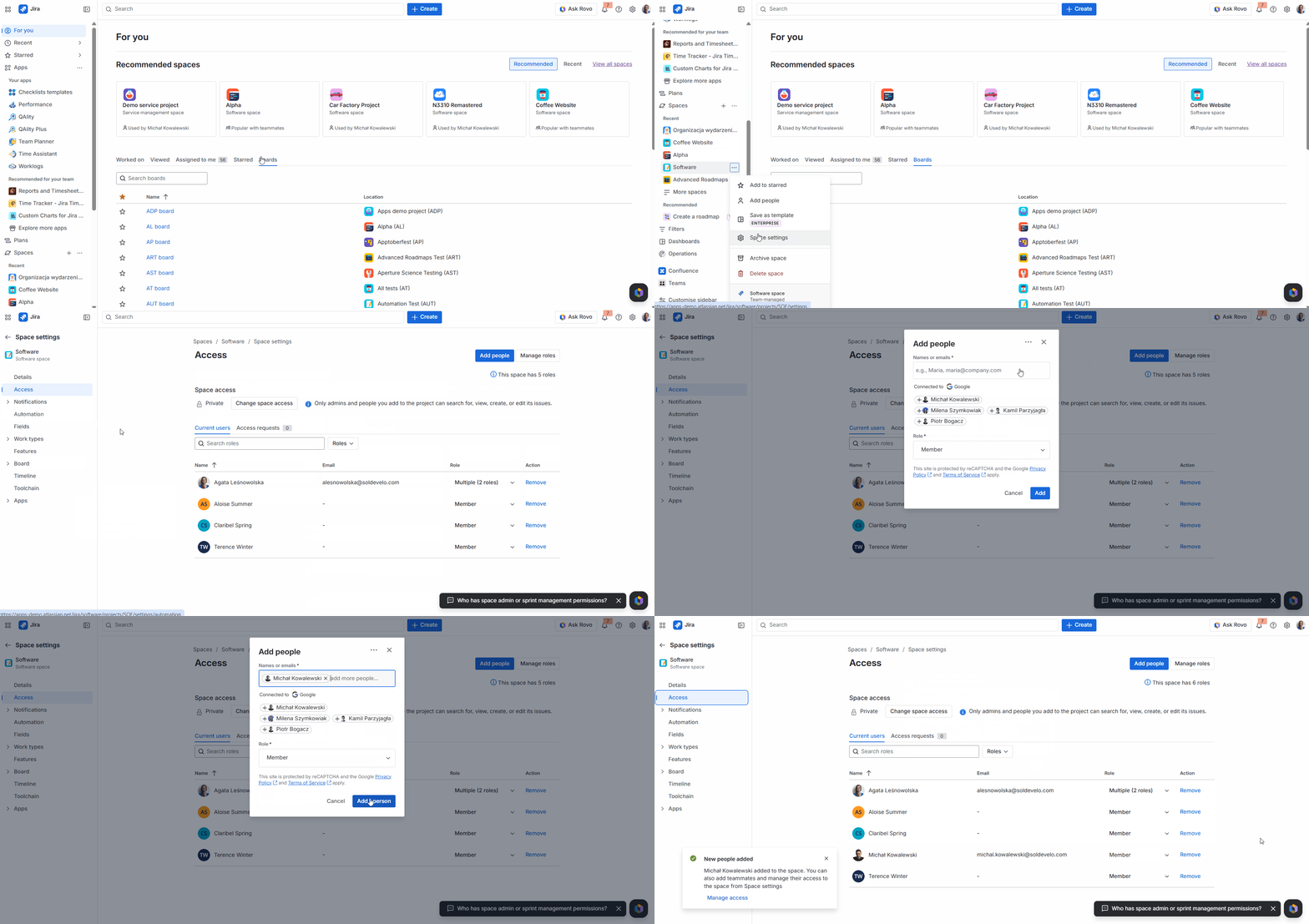
Solution: (Jira Admin) Assign the user at least the Member role in the team-managed project's Access settings.
In team-managed projects, access is controlled through project-level roles (Viewer, Member, Administrator) rather than permission schemes. If a project is set to Private, users without any assigned role cannot see or interact with the project at all - worklogs from that project will be completely absent from reports. Users with only the Viewer role in a Private or Limited project can see some data, but may not be able to log, edit, or delete worklogs.
To ensure a user can fully log and manage time in a team-managed project, a project Administrator needs to assign them at least the Member role:
-
Open the team-managed project in Jira.
-
Click Project settings in the left sidebar.
-
Select Access from the settings menu.
-
Find the affected user or click Add people to add them.
-
Change their role from Viewer to Member (or Administrator if full control is needed).
-
Save the changes.
Missing worklogs in DC
Problem: Some worklogs are missing from reports, especially on work items with a very large number of work logs.
Solution: Adjust Index Safeguards.
Affects Server/Data Center customers on version 8.22.2 or higher, with a large number of work logs in issues.
Users using Jira Server or Data Center version might notice some of the data missing from their reports. Starting from 8.22.2 Jira indexes only the top N of the following issue-related entities: comments, change history, and work logs.
Any operation that triggers full issue re-index will re-index a limited number of related entities like work logs and the remaining ones won’t show in reports. The default limits are listed here: https://community.atlassian.com/t5/Data-Center-articles/Introducing-Safeguards-for-Jira-index/ba-p/2037880#M433
For instances that have issues with larger amount of work logs it’s recommended to tweak the default indexing limit to ensure that Worklogs - Time Tracking and Time Reports app has access to all the required data.
The system property name is as follows: jira.safeguards.indexing.issue.worklogs
You can use the steps described in the Setting properties and options on startup article to change the values. For example, limit the number of indexed worklogs to 10000 per issue.
JVM_SUPPORT_RECOMMENDED_ARGS="-Djira.safeguards.indexing.issue.worklogs=10000"
The exact number depends on your reporting needs and can be set to -1 if you want to disable index safeguards completely.
ℹ️ Can't find your issue on the list?
If you don't see a solution for your problem below, our team is here to help:
-
Submit a ticket: https://soldevelo.atlassian.net/servicedesk/customer/portal/2
-
Book a call: Schedule a live troubleshooting session (best for complex or blocking issues)
-
Phone: Call us directly at +48 500 403 337
-
Email: apps-support@soldevelo.com