.png)
Project permissions and their settings affect the use of the QAlity Plus app. Incorrectly configured, they can lead to a situation where the user cannot perform a certain action related to the app.
Even if you're a Jira Admin, it doesn't mean you have all the required permissions for a project, which can cause problems when using the app.
It’s important to understand how a given permission affects a function in the app. Therefore, the most common cases are listed in the table below, showing how the absence of certain permissions impacts functions in the app.
The most common cases reported by our clients
Problem
-
The user in the Test Cycle Overview panel tries to view the Test Cycles from a given project, but nothing is shown to them (Request failed with status code 400).
-
The user cannot create a test case, for example, from the Test Case Repository page or in the work item Jira (The Jira server was contacted but has returned an error response. We are unsure of the result of this operation. Close this dialog and press refresh in your browser).
-
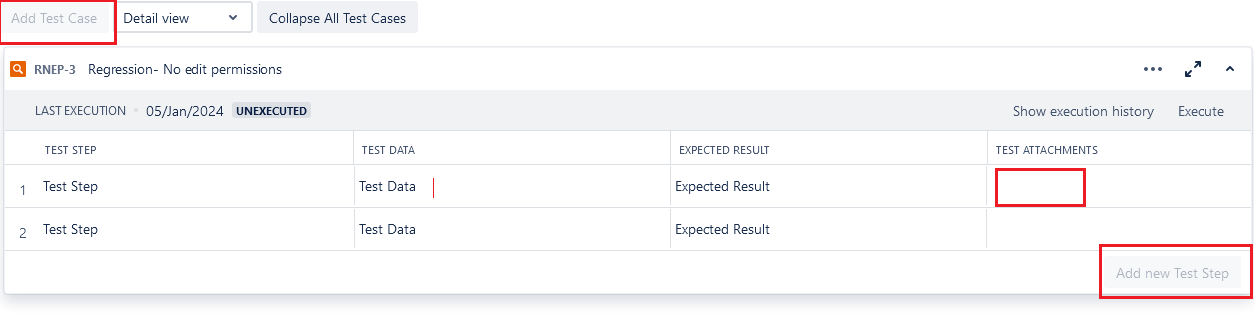
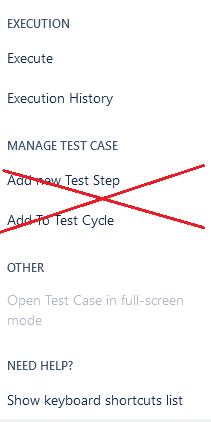
The user cannot add test steps to an existing test case (the button is grayed out).
-
The user has different user groups in a Team Managed project - the internal team and the client’s team. The client's team is not able to manage and edit test cases.
-
The user would like to link the test case to the selected requirements (e.g., Story), but does not see such an option in the list under the +Add button.
Solution
-
No Browse Project permission in the project the user is trying to filter.
-
No Create Issues permission for the project where the user attempted to create a test case.
-
No Edit Issues permission in the project where the test case was created.
-
The client's team members are marked as View role in the Project Settings instead of Member role, which includes Edit Any Issue permission.
-
No Link Issues permission in the project where the user links the test case.
Table of permissions and their impact on QAlity Plus
This part presents the matrix of the impact of disabling a given permission occurring in QAlity and QAlity Plus depending on the given page/subpages or the roles played in the project (divided into project types). Cloud (Company-managed software) projects and server: (Business and Software) projects. Before you start analyzing the table, please take a look at the video explainer and read the legend below.
Legend:
🔴 - When a given permission is restricted, it means actions cannot be performed by the user.
🟢 - When a given permission is restricted, it means actions can be performed by the user.
🟠 - When a given permission is restricted, it means some actions can be performed by the user and some cannot. The description contains a detailed explanation.
|
Pages/'Subpages' |
No browse ‘projects’ permission |
No create ‘issue’ permission |
No edit ‘issue’ permission |
No create attachments permission |
No delete All attachments permission |
|---|---|---|---|---|---|
|
Jira issue view/QAlity issue type 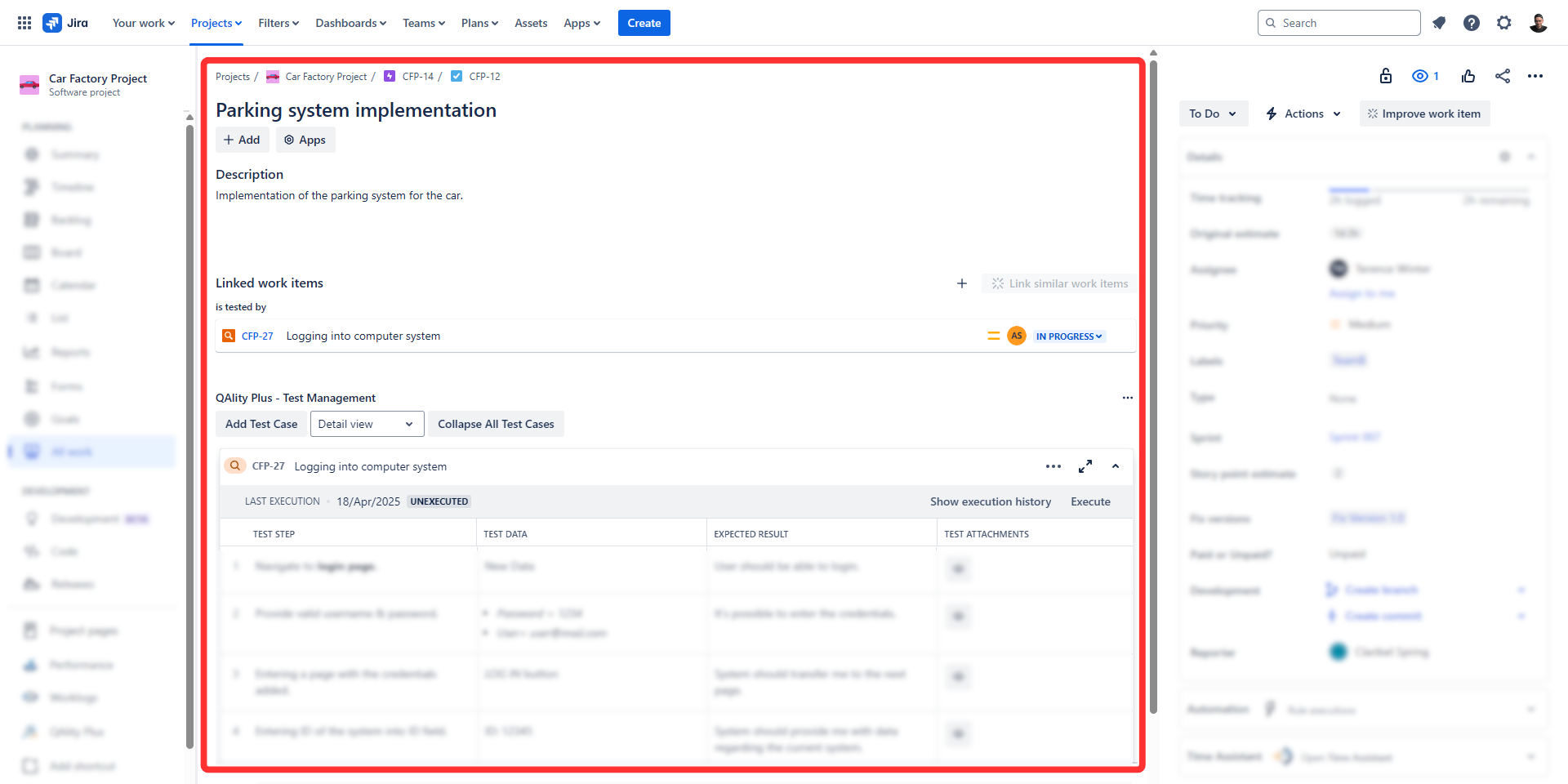
|
n/a
|
🟠 Description
🔴 1. The user cannot create a test case. 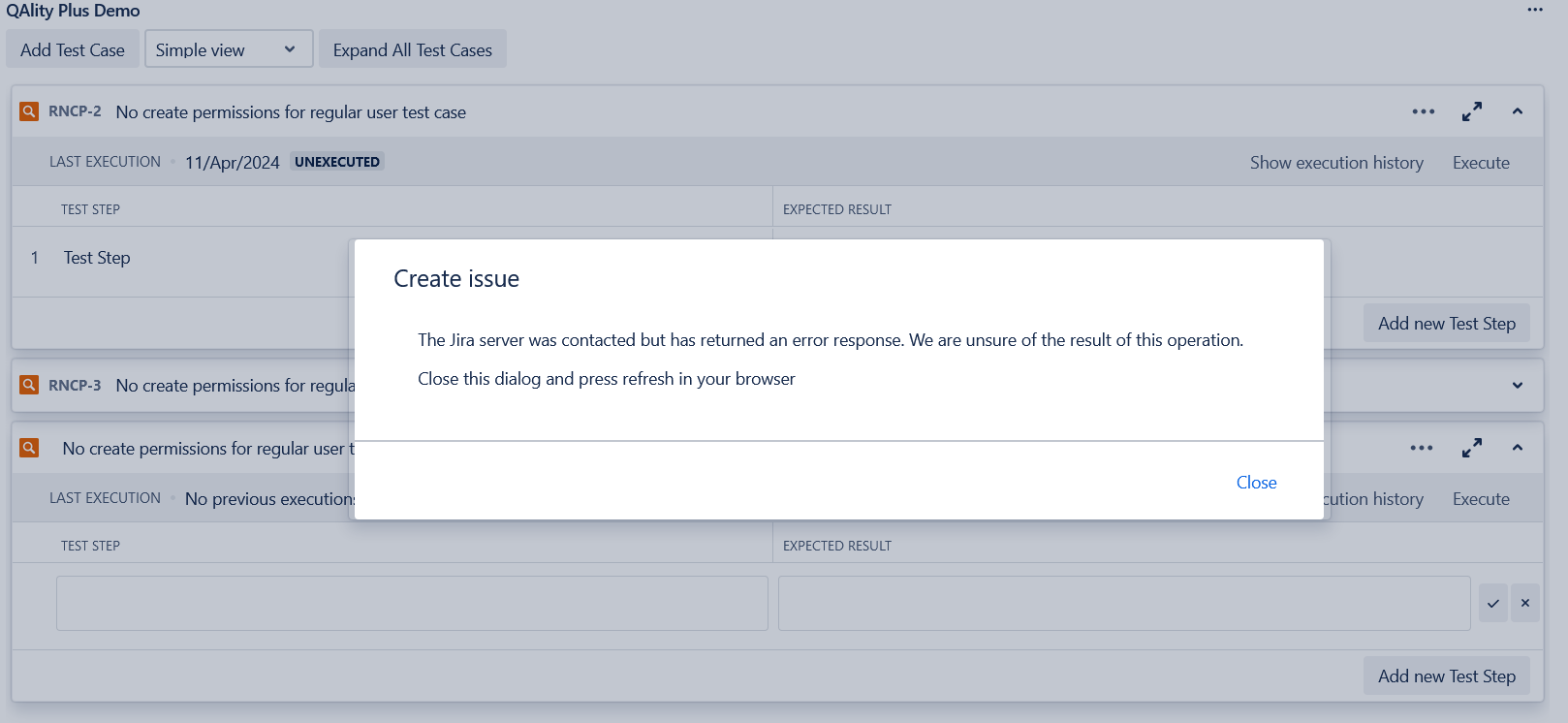
🔴 2. The user cannot add attachments - to add an attachment in a test case, the user must have create ‘issue' permission and create 'attachments’ permissions.
|
🔴 Description
|
🔴 DescriptionThe user cannot add an attachment to the test case. To add an attachment in a test case, the user must have create permission and create attachments permissions. 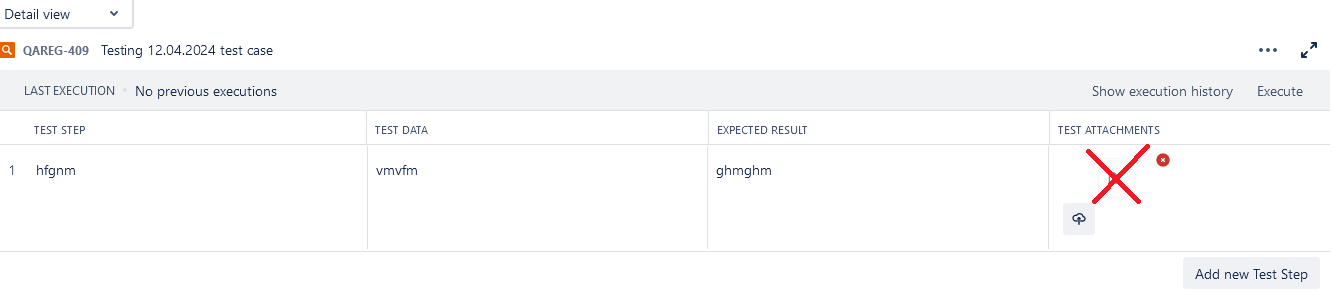
|
🔴 DescriptionThe user cannot delete attachment to the test case. To remove an attachment added by other users, the user must have two permissions: edit permission and delete all attachments permission. 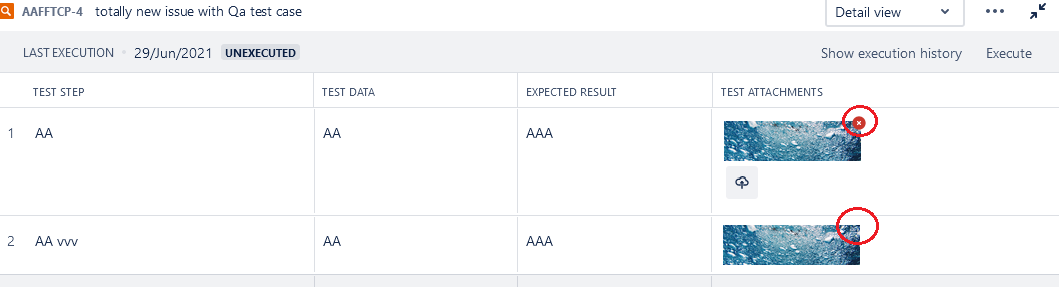
|
|
Execution page -20250509-120325.png?cb=7d4ef54f3ccf6ca1eb5885309861a51d)
|
🔴 |
🟠 |
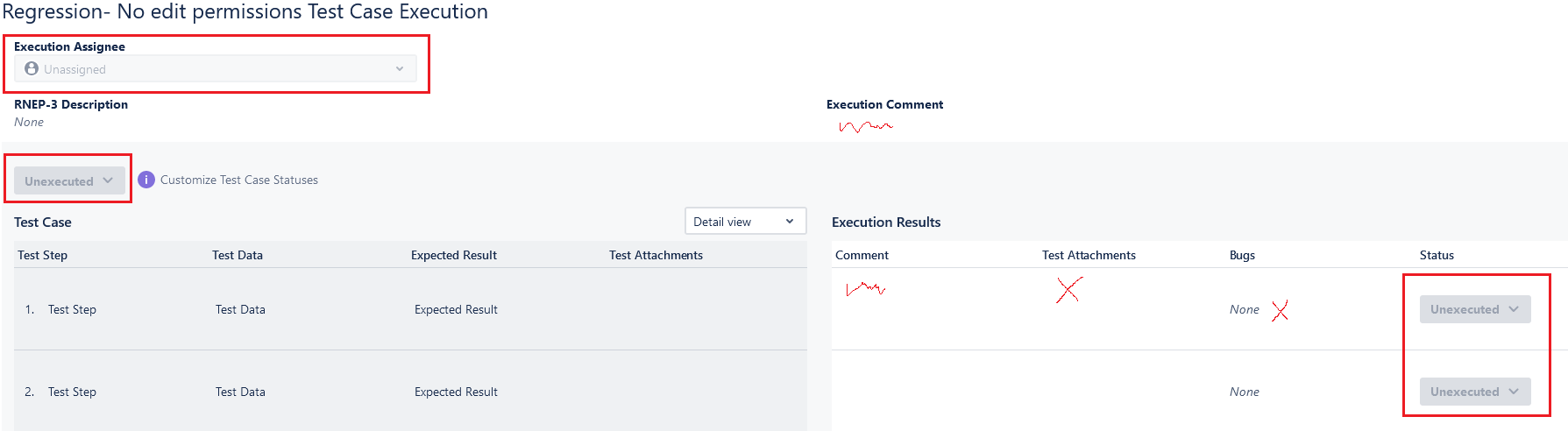
🔴 DescriptionThe user cannot:
|
🔴 DescriptionThe user cannot add an attachment to the test case. To add an attachment in a test case, the user must have create issue permission and create attachments permissions. 
|
🔴 DescriptionThe user cannot delete attachment to the test case. To remove an attachment by other users, the user must have two permissions: edit permission and delete all attachments permission. 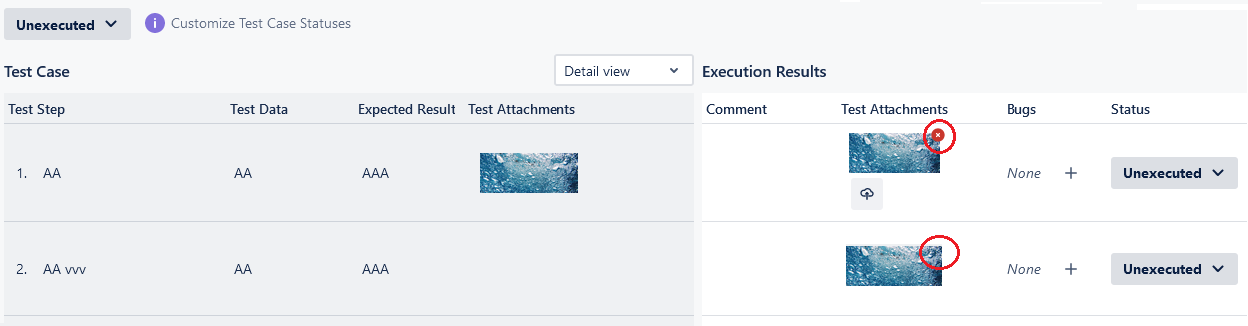
|
|
Execution history page -20250509-120333.png?cb=58a5cfdb5421264249b297bce32ccac0)
|
🔴 |
🟢
|
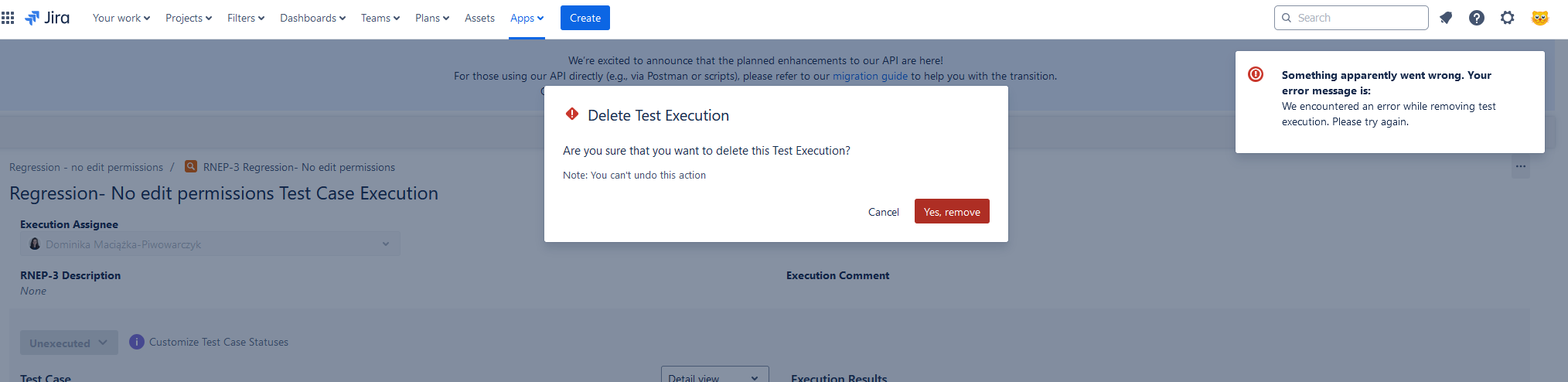
🟠 Description🟢 1. The user can go to the execution history page 🟢 2. Go to the execution page of a test case that does not have edit permission through the execution history page. 🔴 The user cannot delete the execution. 
|
n/a |
n/a |
|
Test cycle Overview page -20250509-120342.png?cb=2fcbe464471a0a7e6a8373167bb702c5)
|
🔴 |
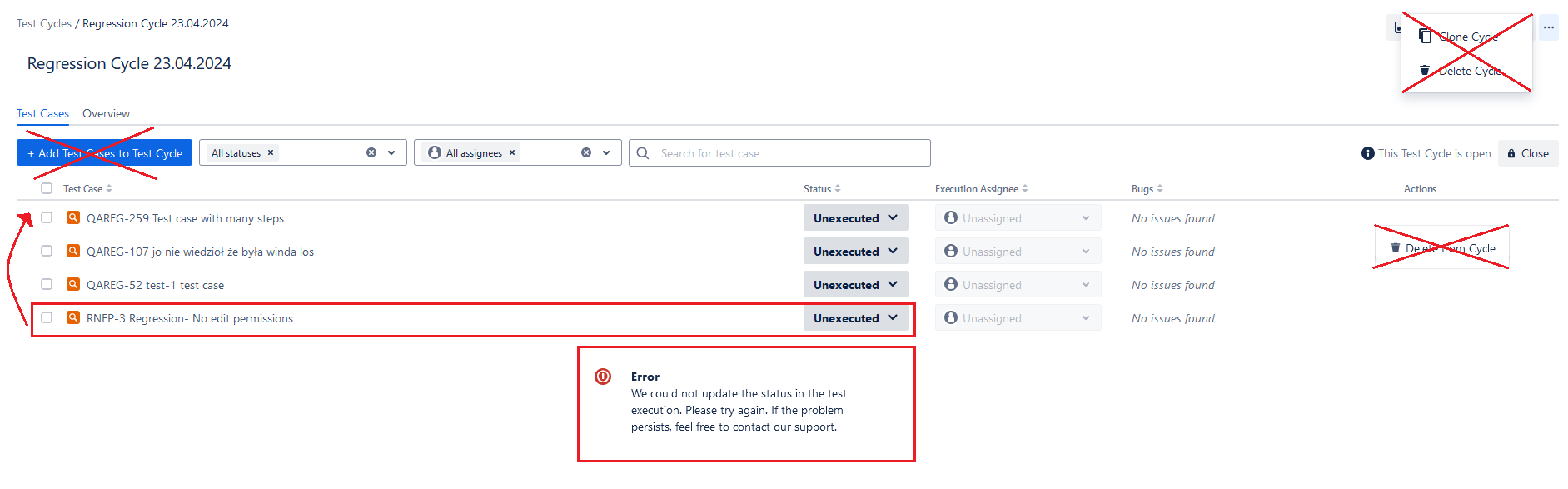
🟠 Description🟢 The user can close/reopen and delete the test cycle. 🔴 1. Create test cycle modal - project filter: The selected project won’t be visible on the project filter. 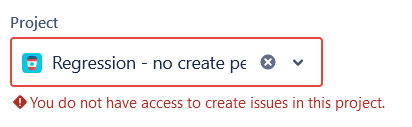
🔴 2. Clone test cycle: The user cannot clone the test cycle. 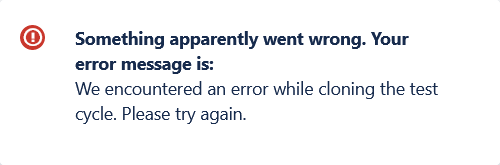
|
🟠 |
n/a |
n/a |
|
Test Cycle Details page -20250509-120350.png?cb=b37903f250d5e8884e6ddbf2eee755fe)
|
🔴 |
🟠 Description🟢 The user can:
🔴 The user without create permission cannot clone the test cycle. 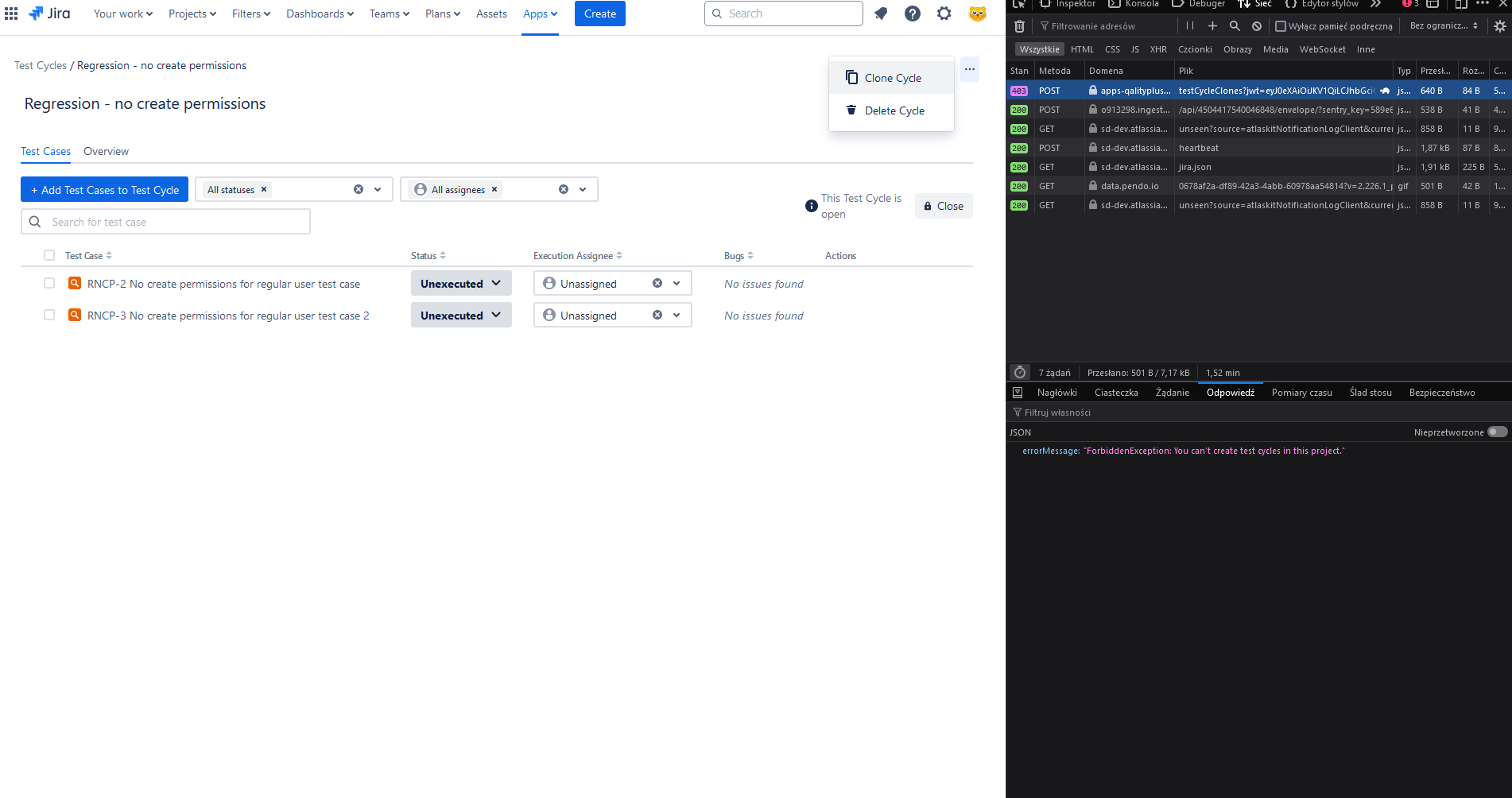
|
🔴 DescriptionThe user cannot:
|
n/a |
n/a |
|
Execution report page -20250509-125337.png?cb=c352b1ebe49d56b2b775f6954d85ce24)
|
🔴 |
n/a |
n/a |
n/a |
n/a |
|
Traceability report page -20250509-131644.png?cb=f86236502324496968ae28e9757a5448)
|
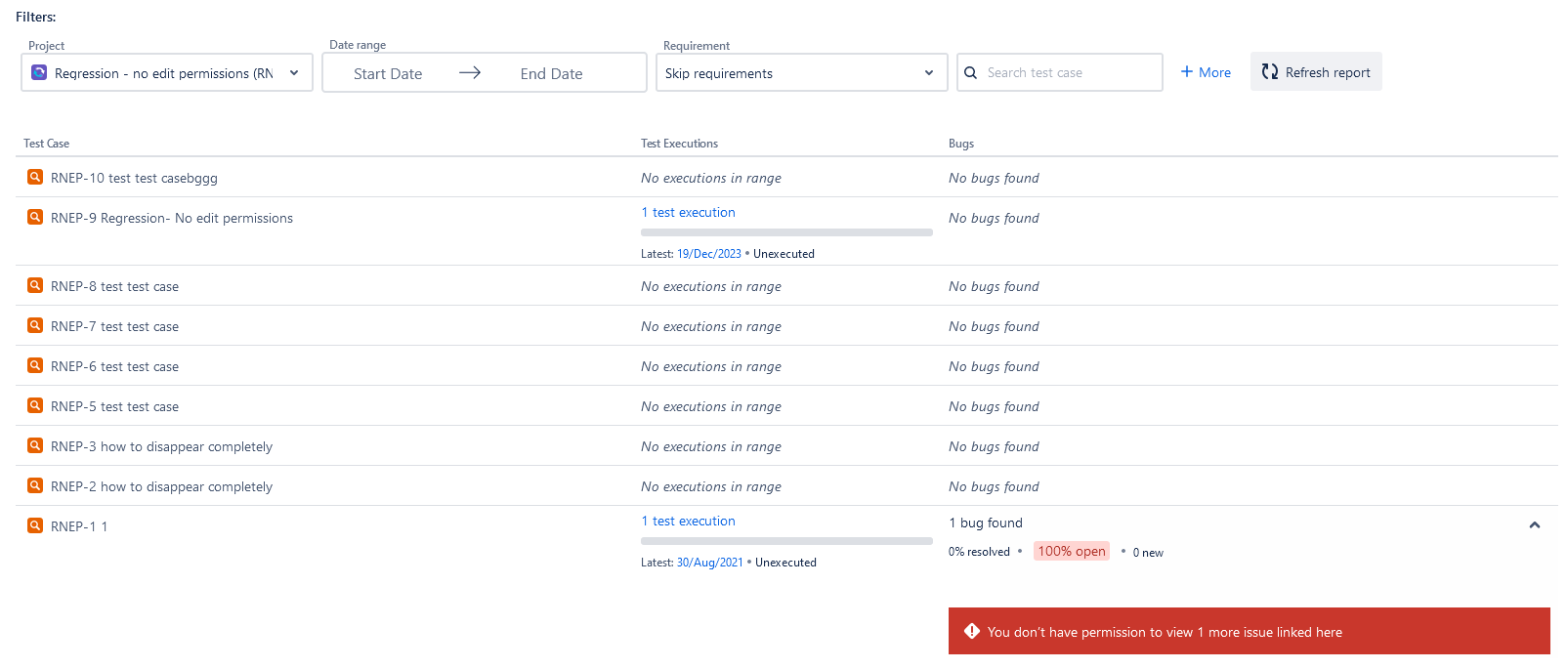
🔴 Description
|
n/a |
n/a |
n/a |
n/a |
|
Test Case Repository page - all test cases -20250509-125930.png?cb=4d1c3578753bc42117154aa435284cd8)
|
🔴 DescriptionProject filer: 1. The selected project won’t be visible on the project filter. Test case menu/bulk bar - Add test case to folder/subfolder: 2. The selected project won’t be visible on the select folder modal. 
Bulk bar: 3. Add to test cycle: The selected test cycle won’t be visible for the project without browse permission. a. Create a new test cycle: The user cannot create a test cycle for this project. Display folder/subfolder on side menu: 4. If the Admin creates a folder in which the main project is selected without browse permission for the Regular user, then the regular user won't see this folder/subfolder in the side panel. Create a folder/subfolder 5. Side menu/bulk bar: the selected project won’t be visible on the project filter. 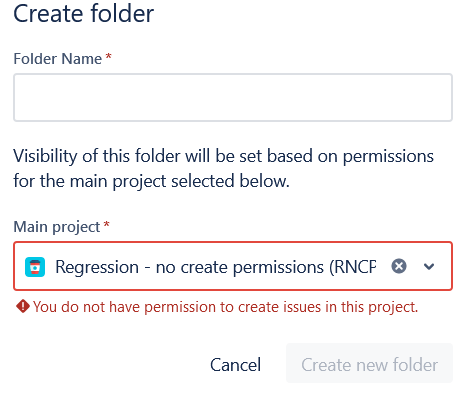
|
🟠 DescriptionProject filer: 🟢 1. the selected project will be visible on the project filter. Test case menu/bulk bar - Add test case to folder/subfolder: 🟢 2. the selected project will be visible on the select folder modal. Bulk bar: 🟢 3. The user can add any test case to that folder/subfolder. Display folder/subfolder on side menu: 🟢 4. If the Admin creates a folder in which the main project is selected without create permission for the Regular user, then the regular user will see this folder in the side panel. DnD 🟢 5. The user can dnd test case to the folder/subfolder with create permissions. Create folder/subfolder (side menu/bulk bar): 🔴 1. The user cannot create a folder/subfolder.
Bulk bar: 🔴 2. The user cannot create a test cycle using the bulk bar
Create Test Case: 🔴 3. The user cannot create a test case while clicking the button. 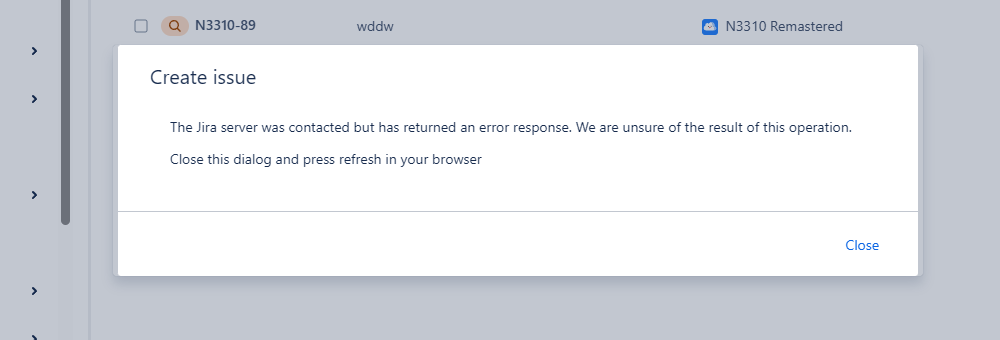
|
🟠 DescriptionProject filer: 🟢 1. the selected project will be visible on the project filter. 🟢 2. The user can create a folder. Display folder on side menu: 🟢 3. If the Admin creates a folder in which the main project is selected without edit permission for the Regular user, then the regular user will see this folder in the side panel. 🔴 Test case menu/bulk bar - Add test case to folder/subfolder: 1. The user cannot add test case by menu/bulk bar to folder the selected project won’t be visible on the folder (the user doesn’t have edit permission for the main project folder) 🔴 DnD 2. The user cannot dnd a test case to the folder/subfolder without edit permissions. 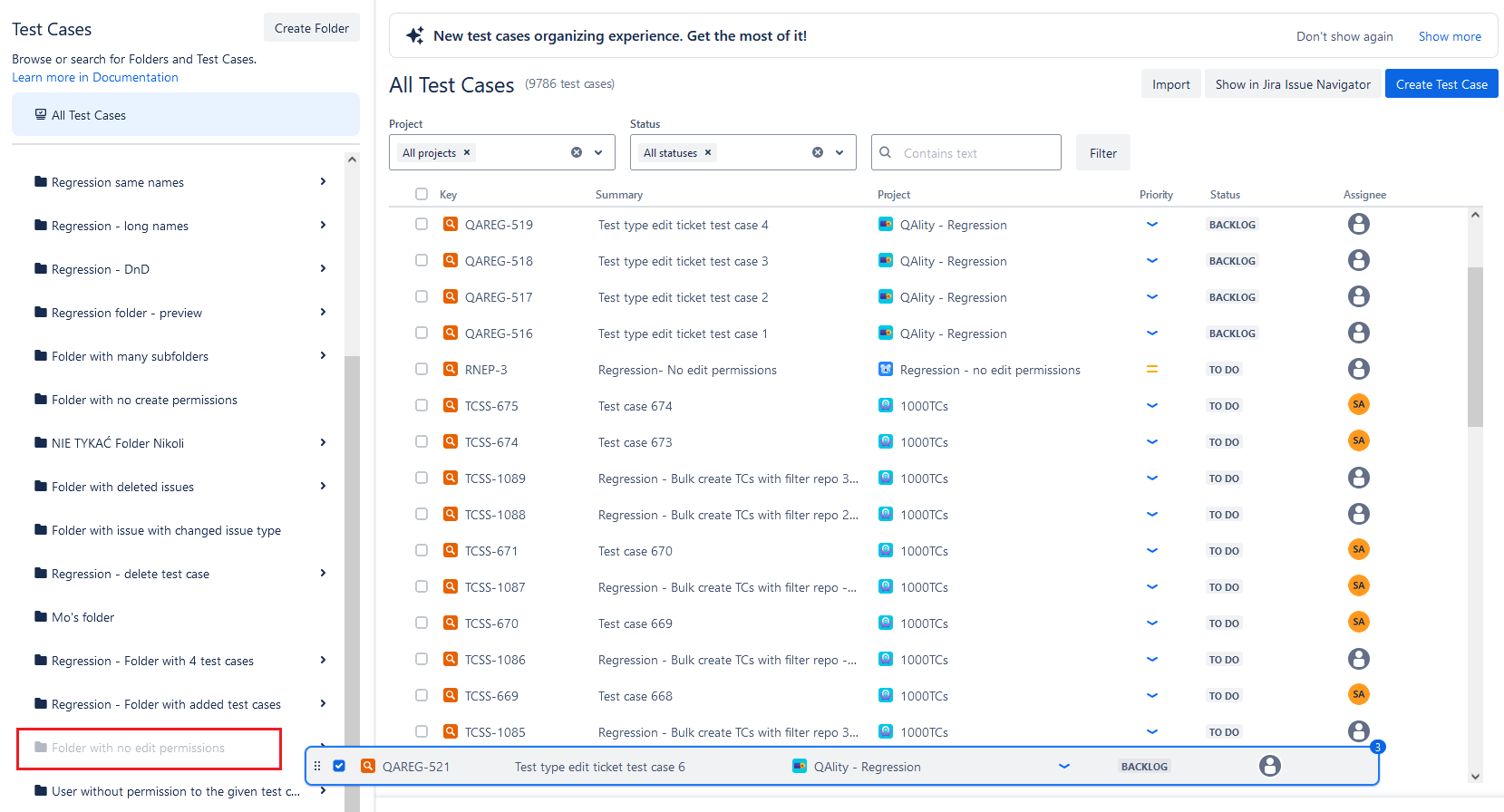
|
n/a |
n/a |
|
Test Case Repository page Repository - folder view -20250509-130232.png?cb=84ecc6f8e84e3dd99bcf13b9bce5ac2a)
|
🔴 |
🟠 |
🔴 Description🔴 Create test case in folder/subfolder 1. The user cannot create a test case in this folder. 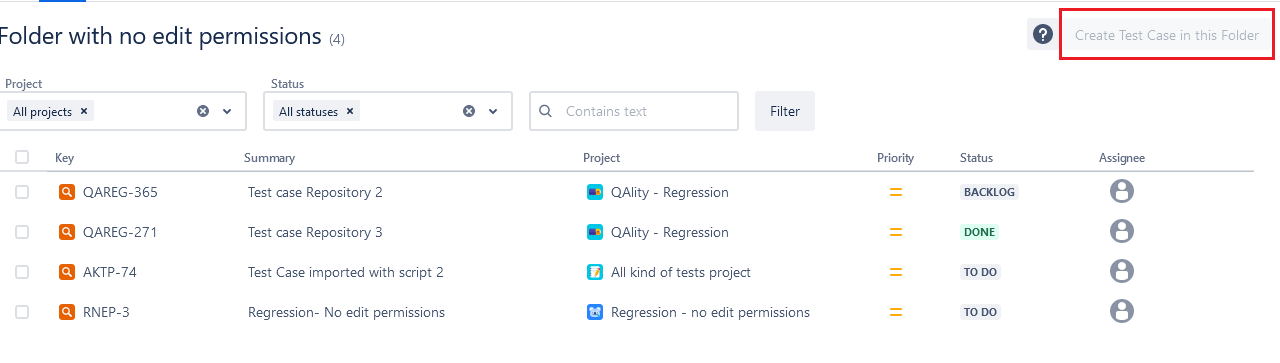
🔴 DnD 2. The user cannot dnd test case to the folder/subfoler without edit permissions. 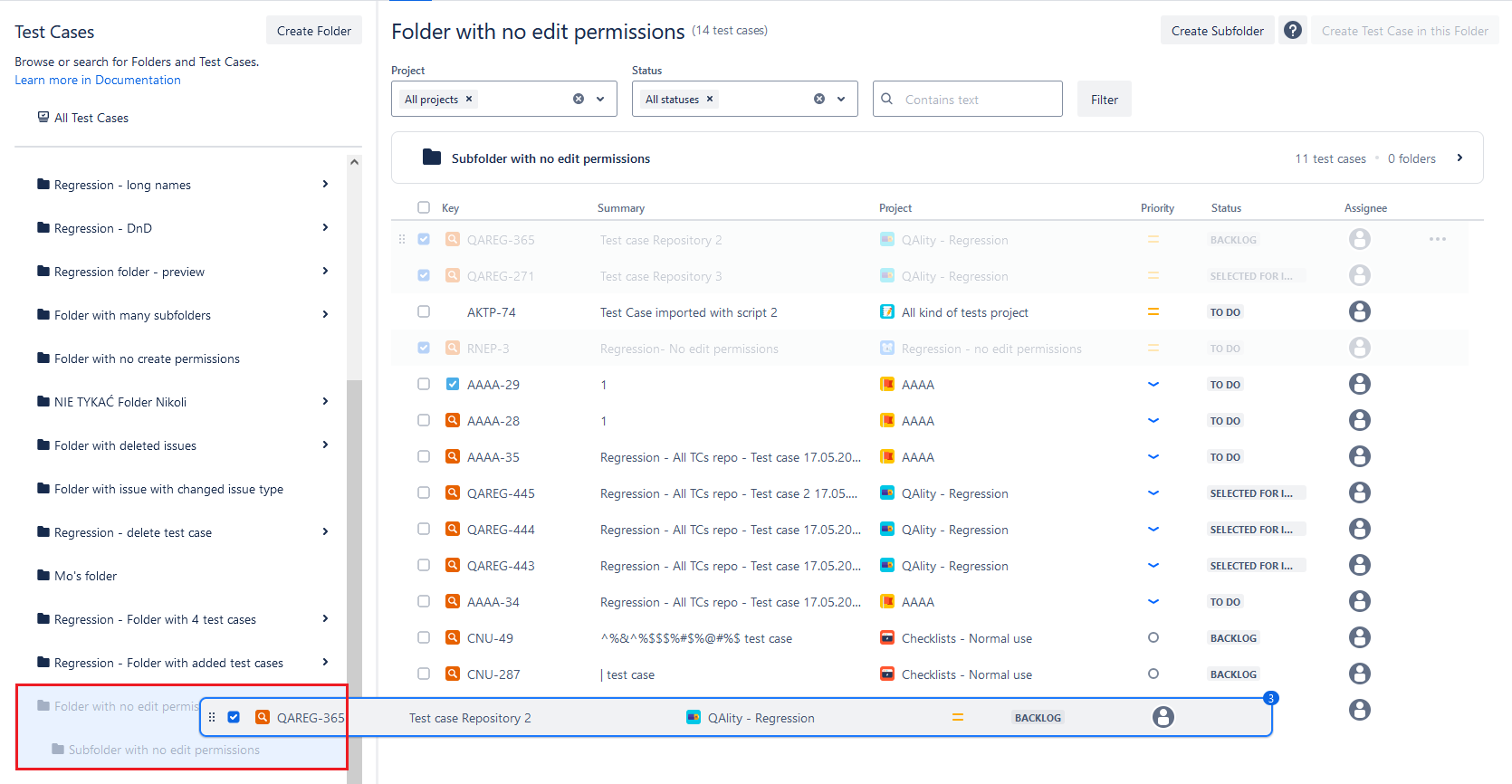
|
n/a |
n/a |
|
Dashboard page
|
🔴 |
🔴 |
n/a |
n/a |
n/a |
|
Bulk test case page 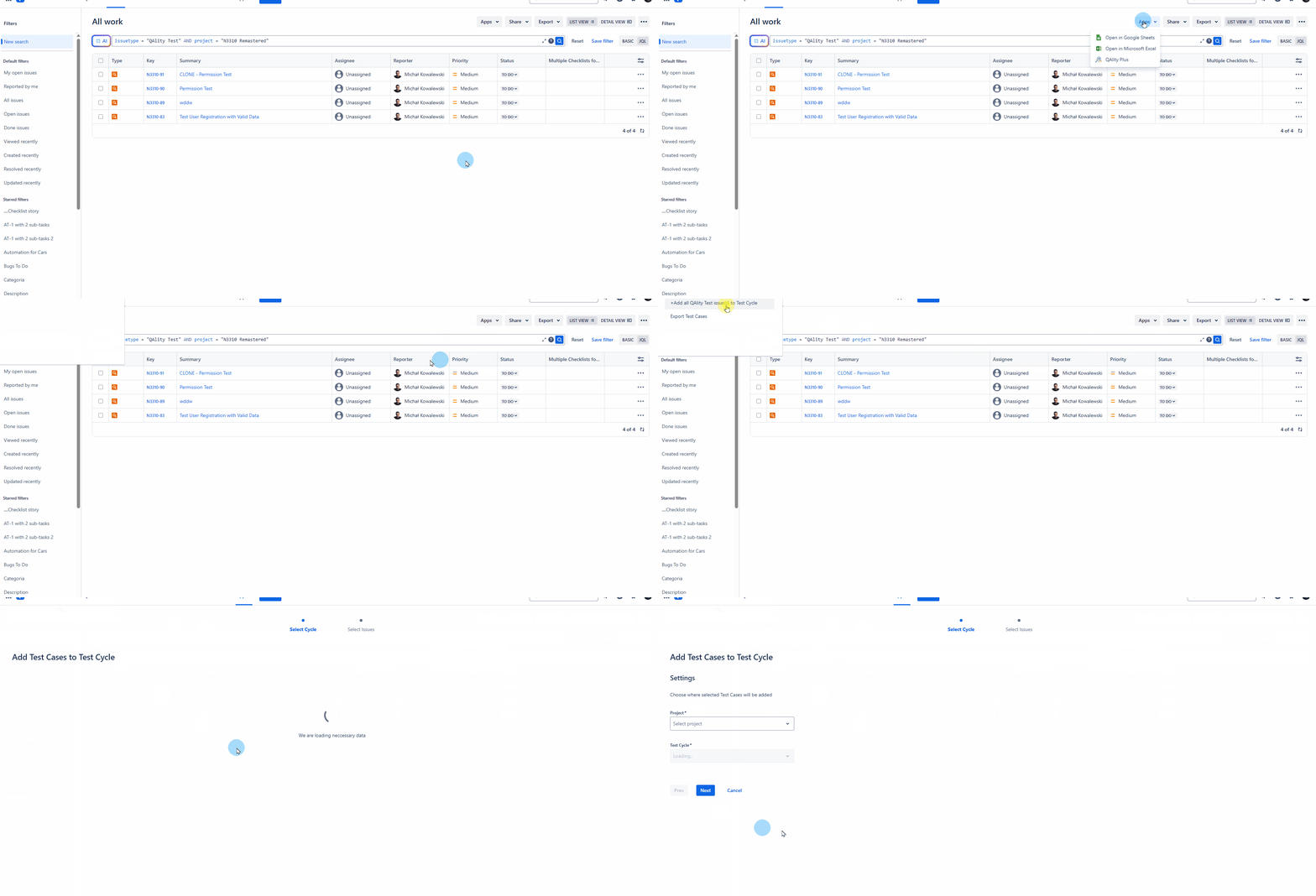
|
🔴 |
n/a |
🔴 DescriptionThe user cannot select project without edit permissions. 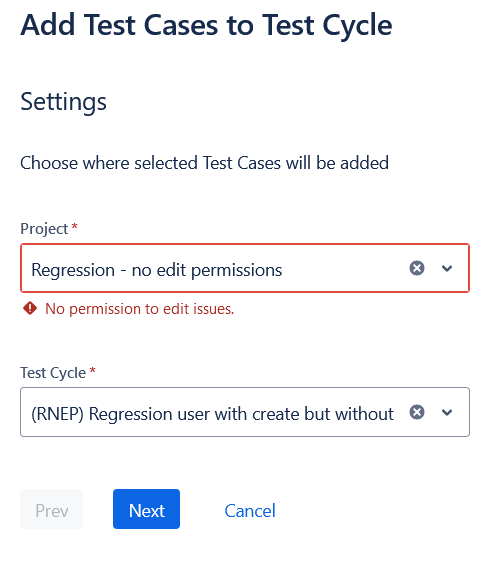
|
n/a |
n/a |
|
Import page .png?cb=feaf2f17fa60d9a7a4373d357af0de00)
|
🔴 |
🔴 DescriptionThe user cannot import test cases to that project. 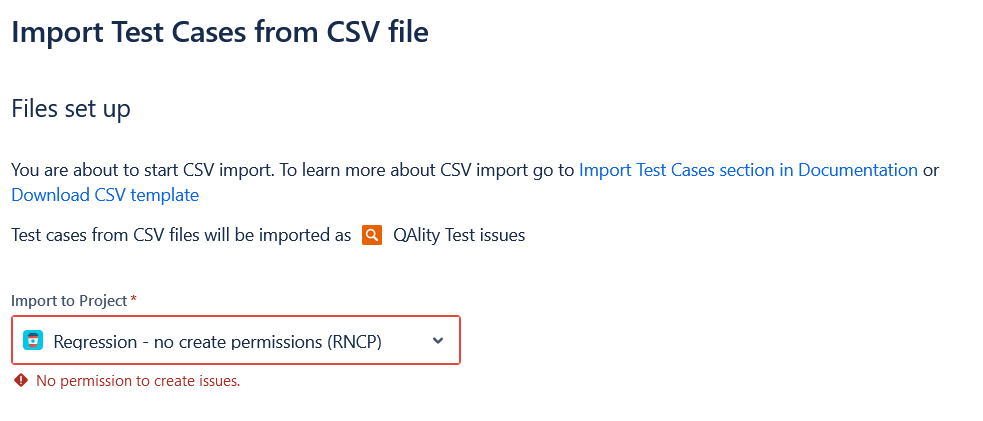
|
n/a |
n/a |
n/a |
|
Export page |
n/a |
n/a |
n/a |
n/a |
n/a |
|
QAlity settings page .png?cb=251098cdf870224215e873cfe7db17f2)
|
🟢 |
n/a |
n/a |
n/a |
n/a |
|
Test Case Execution Status Scheme .png?cb=36b10c706cee2872373922c522ae6571)
|
🟢 |
n/a |
n/a |
n/a |
n/a |
|
Test Type page (Plus Advanced version) .png?cb=117d3c06df35c2f8bd7ec9830ea76e94)
|
🟢 |
|
|
|
|
Cloud: Team-managed software projects.
Legend:
🔴 - When a given permission is restricted, it means actions can not be performed by the user.
🟢 - When a given permission is restricted, it means actions can be performed by the user.
🟠 - When a given permission is restricted, it means some actions can be performed by the user and some cannot. The description contains a detailed explanation.
|
Project Access |
No defined role |
Viewer -20250512-091432.png?cb=f9c3f08cd7a63803e65a42dc93c54ab3)
|
Member -20250512-091543.png?cb=2c0f6cc031fb0137788d104231552cfd)
|
Administrator -20250512-091709.png?cb=21da4535855239f922b45b5db8656d3d)
|
|---|---|---|---|---|
|
Private .png?cb=69879474f051a7649d3fe9d0a4aeb1e9)
|
🔴 |
🟠 |
🟠 |
🟢 |
|
Limited .png?cb=e891ae45653cadcec1f2a0615759d992)
|
🔴 |
🟠 |
🟠 |
🟢 |
|
Open .png?cb=e9d1366c4c0b3c72dbe35a937911d636)
|
🟠 |
🟠 |
🟠 |
🟢 |