
Additional features are available in the QAlity Plus app. You can check them by going to this page.
Switch between simple and detail view
Since different users need different levels of detail concerning testing, QAlity comes with two views: simple and detail. By default, the view of the test case is set to ‘Simple view’, which only includes the ‘Test Step’ and the ‘Expected Result’ fields.
If you need more details, change the view to the ‘Detail view’. This will add additional columns to your test case view: ‘Test Data’ and ‘Attachments’.
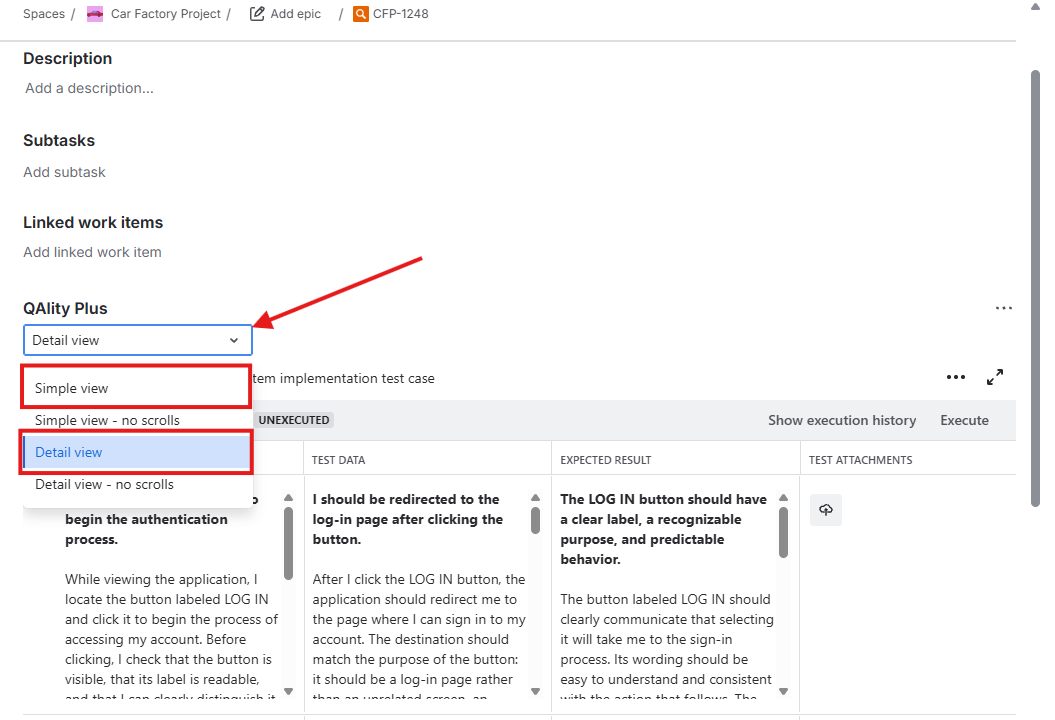
In Simple view and Detail view, cells containing longer content use internal scrollbars. To display the full contents without scrolling inside individual cells, select Simple view - no scrolls or Detail view - no scrolls. These options show the same columns as their corresponding standard views, but allow cells and rows to expand to fit their contents.
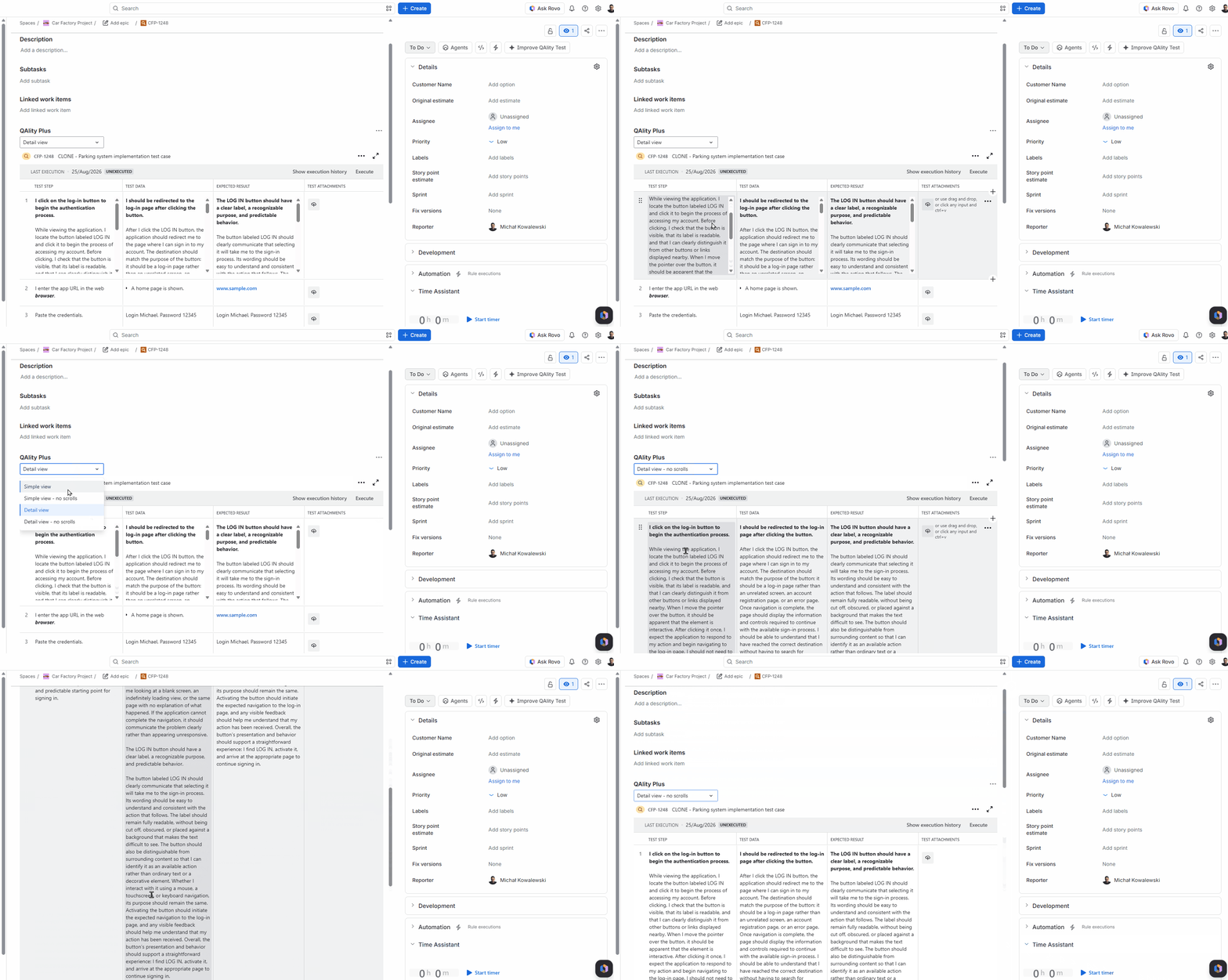
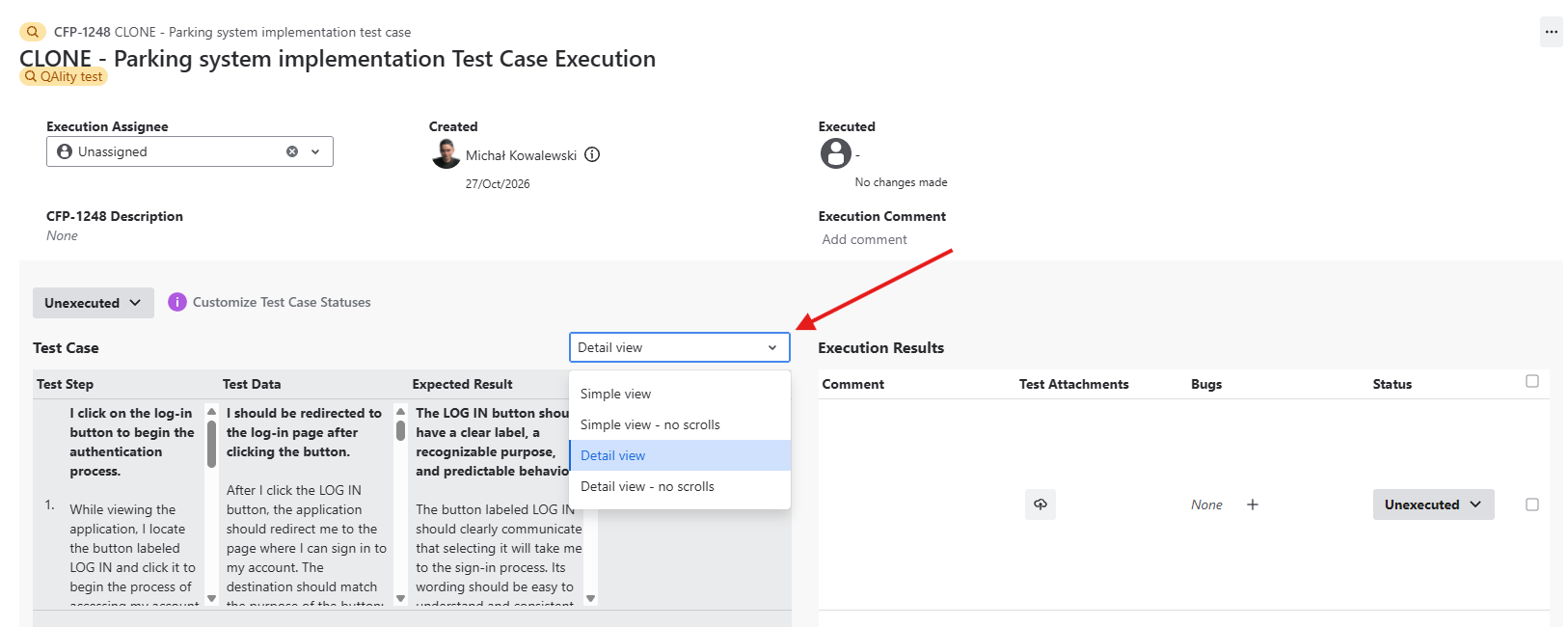
These options are available in test cases, including full-screen mode, and in test executions. In executions, they also apply to execution comments and attachments. Your selection is remembered for your user separately for each work item and test execution, including after refreshing or reopening it.
Collapse and expand test cases
You can expand all test cases at once when you need to use them and collapse them if you're not working on the test cases.
You can also expand and collapse a single test case by clicking on the icon wrapper on the left of the test case.

Do you have any questions or feedback? Feel free to contact us here 💡