.png)
The Advanced File Gallery helps you manage and interact with attachments from your items in a visual and intuitive way.
Please note that the Advanced File Gallery displays only files added to the Files and monday Docs columns from the table view on the board and files added as updates in the item view.
Files added in the Files tab from the item view are not supported.
.png?cb=3c8615c5434aaeb0560ca3316b0034e3)
Here’s what you’ll find on this page.
🔍 Browse Attachments Easily
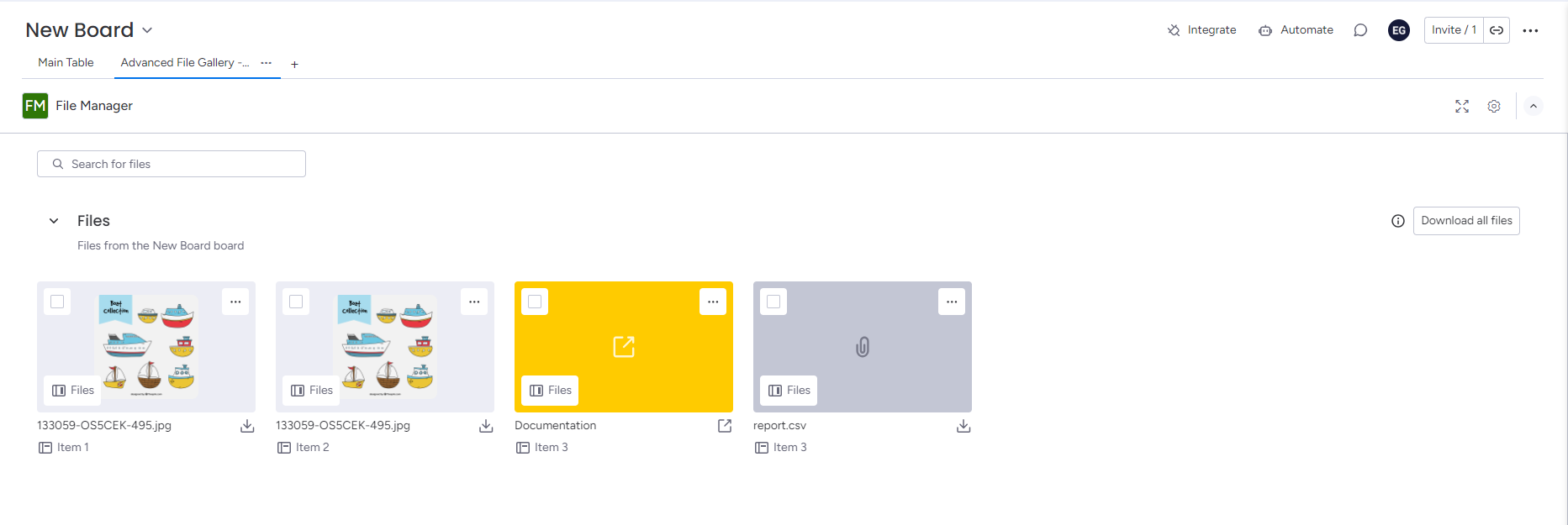
Click to open the Advanced File Gallery app and view all attachments from your items. The app automatically displays files from all columns that use a file-type field.
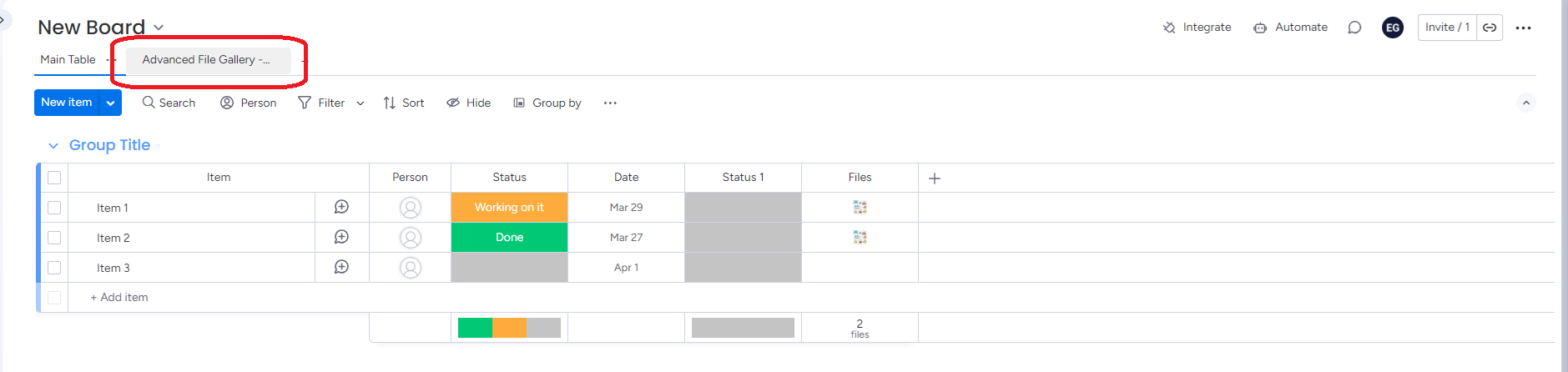
You can include multiple file-type columns in your items. Advanced File Gallery will consolidate and show files from all those columns in one view.
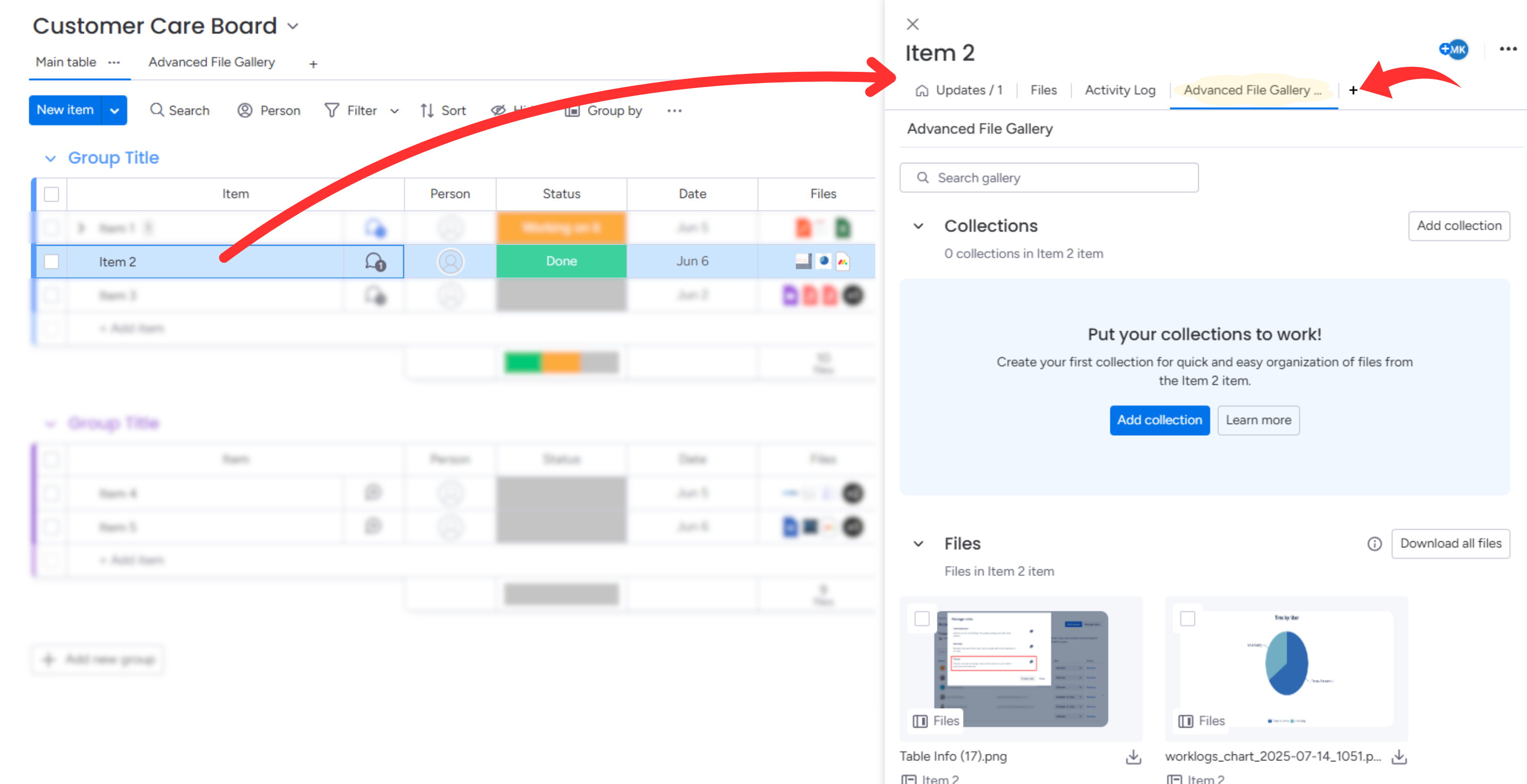
You can also open the app from the item view by clicking on the “+” button → Explore more views → Advanced File Gallery.
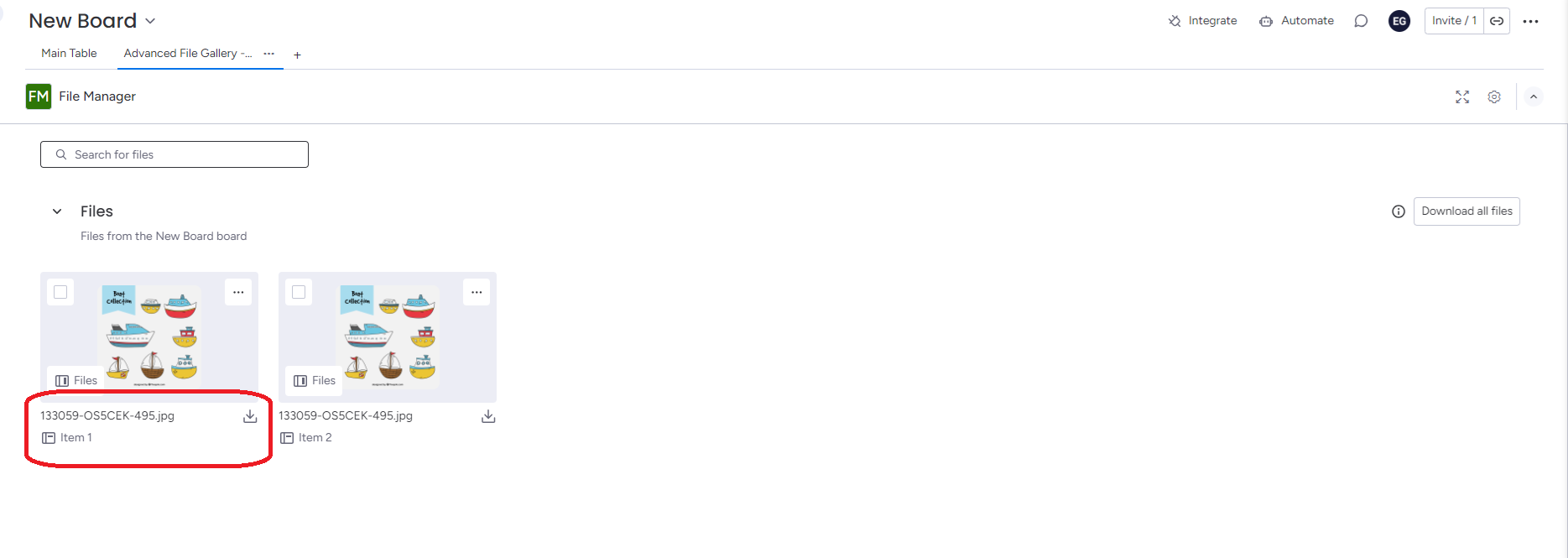
Under the file name, you can see the title of the item in which the file is located.
Click on any file to open a detailed view and preview its contents (when supported).
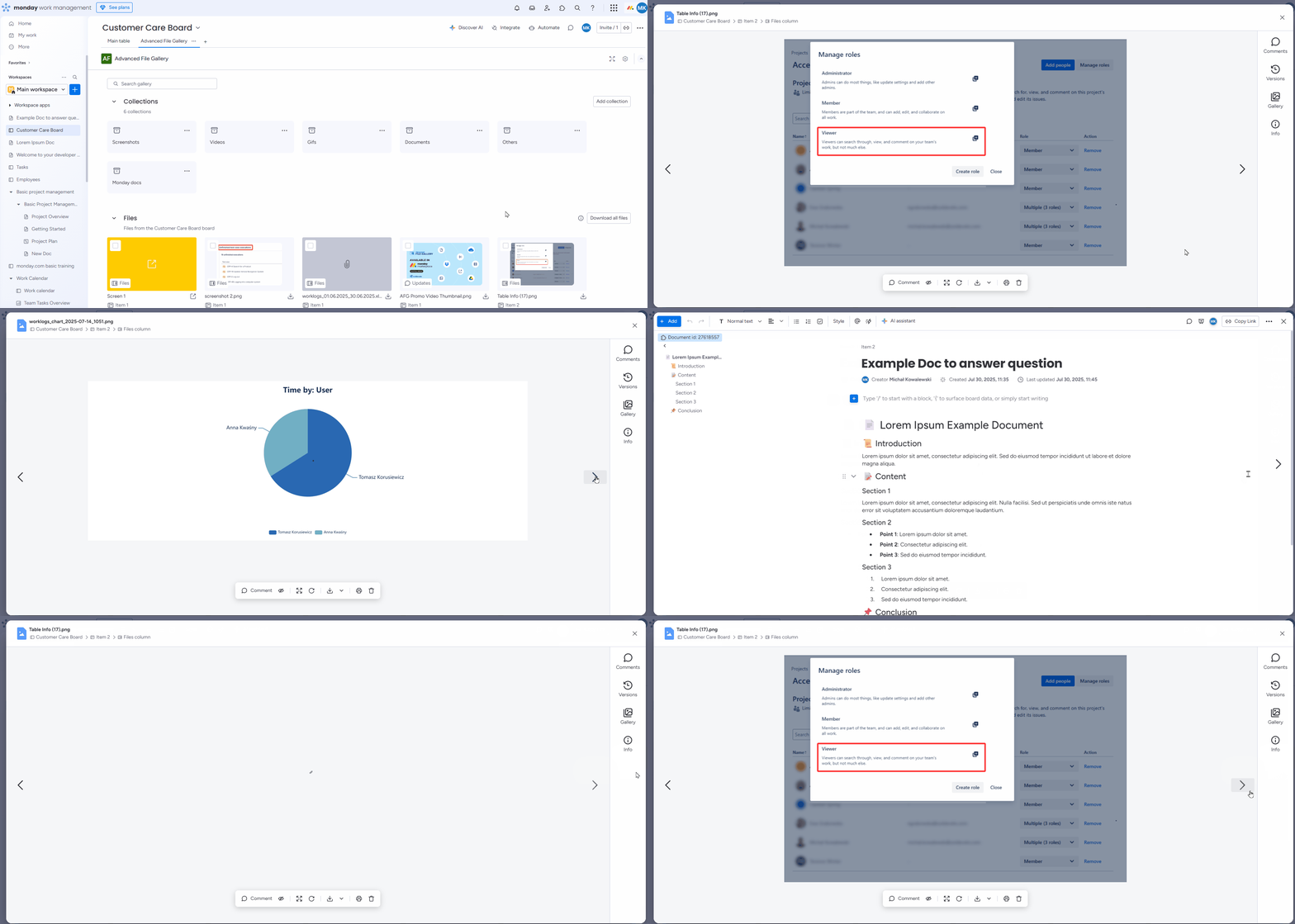
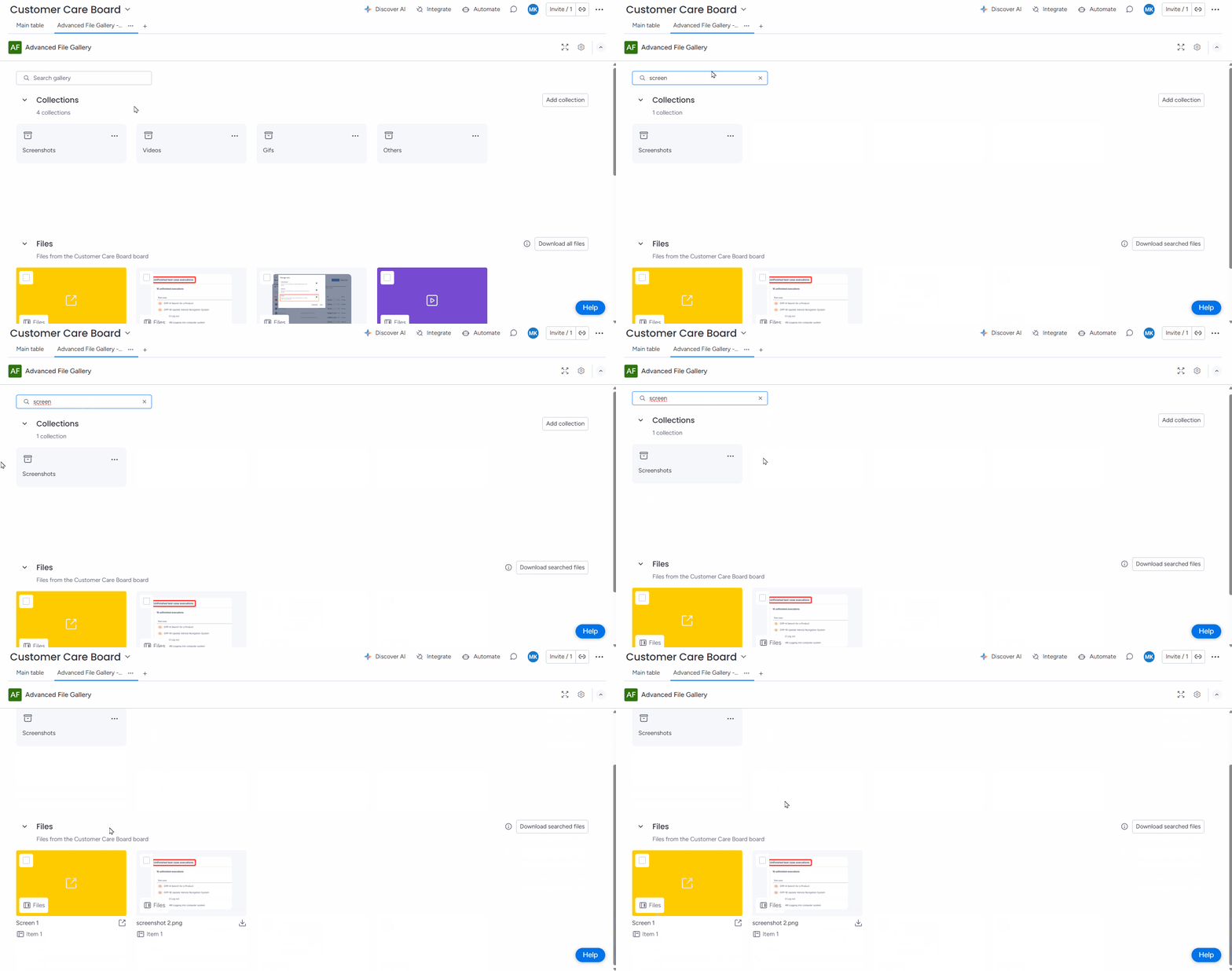
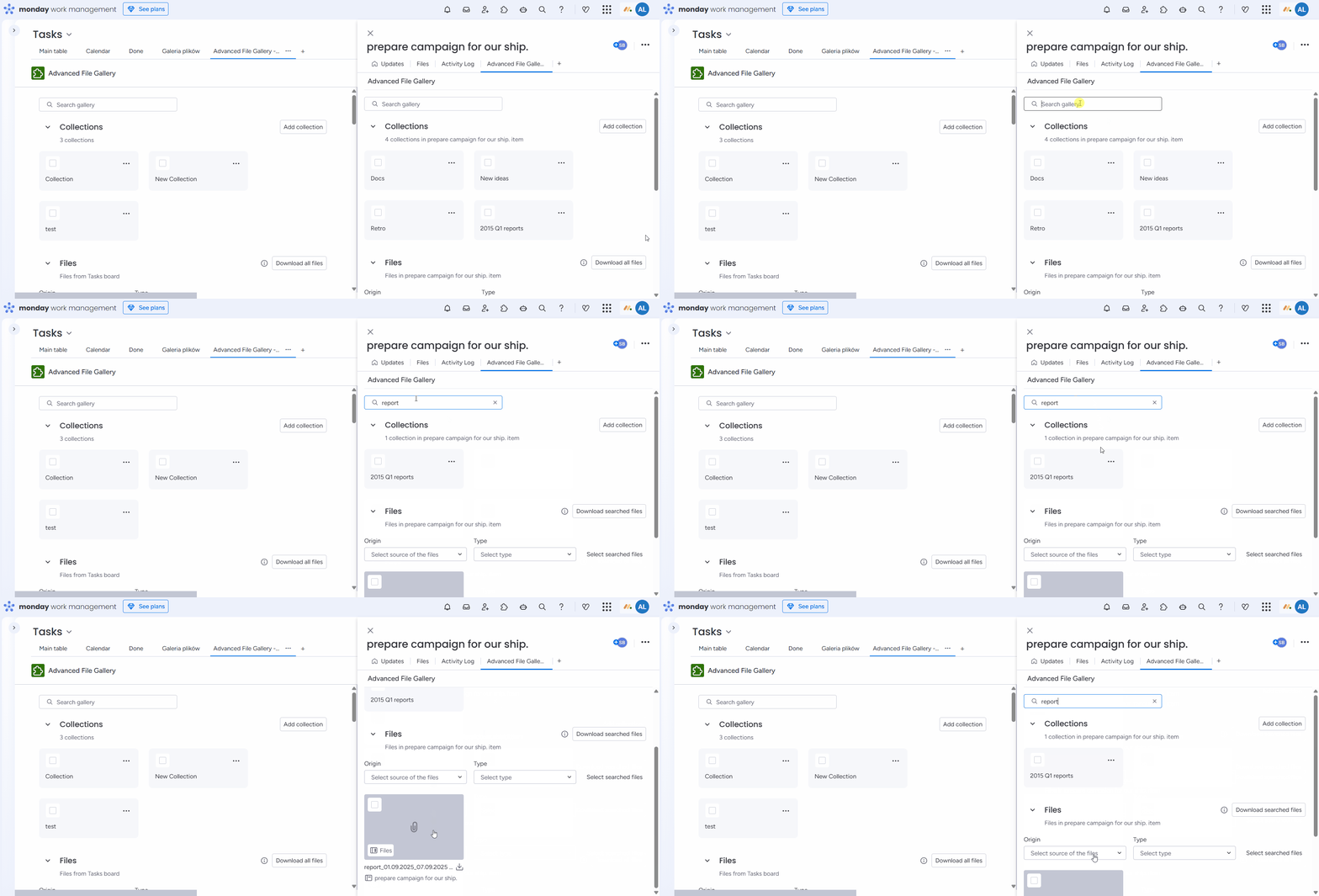
By using the search function you can display particular collections or/and files.
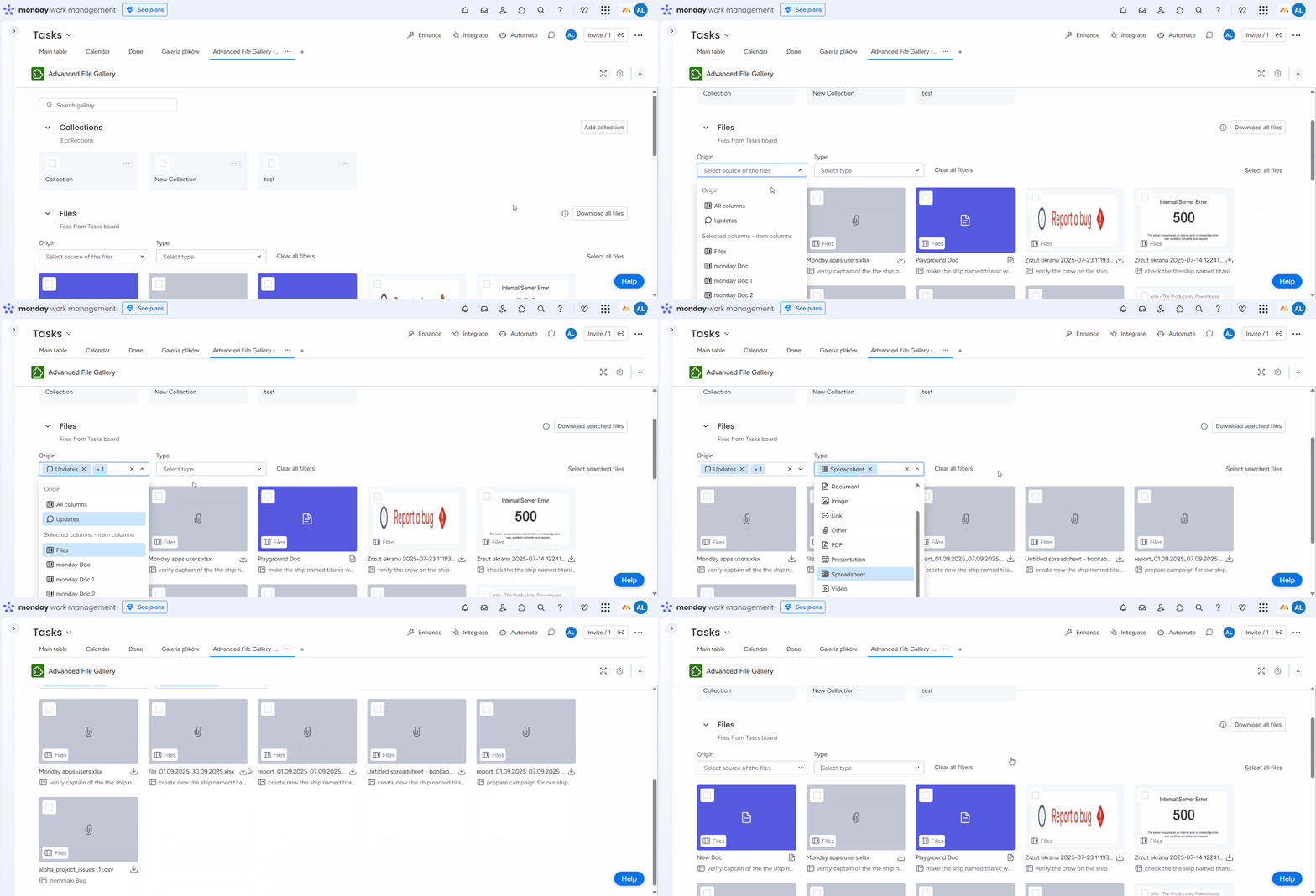
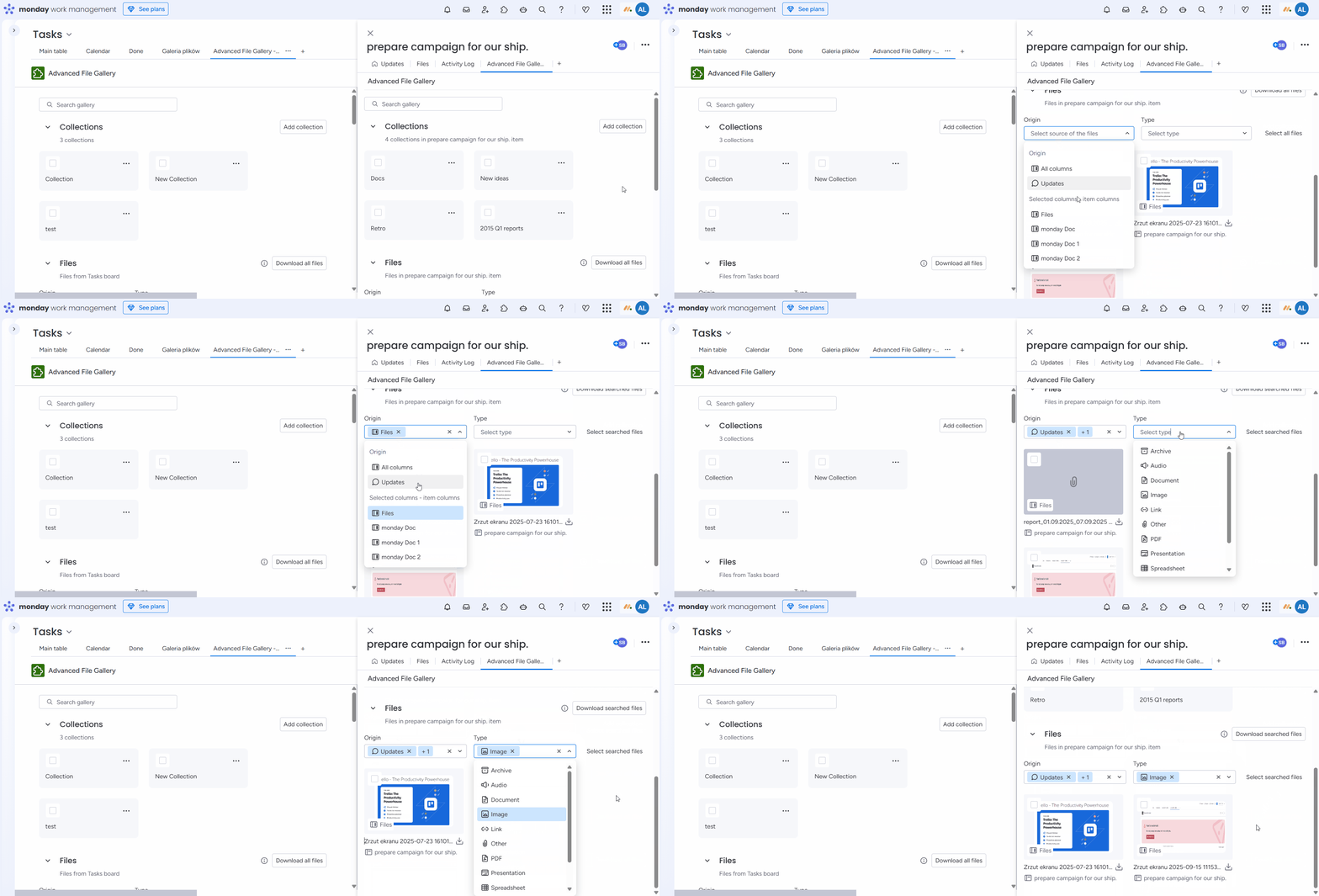
You can use filters at the top of the Files section to quickly find the files you need. You can filter:
-
By origin – All file columns, Updates, or a specific file column.
-
By file type – Archive, Audio, Document, Image, Link, Other, PDF, Presentation, Spreadsheet, Video, Workdoc.
You can add one or multiple filters in one search bar.
When you’re done, use Clear all filters to reset your view.
The search field located in the top-left corner applies to both the Collections and Files sections, allowing you to search across both areas at once. The search bar within the Files section is limited to searching only within that section.
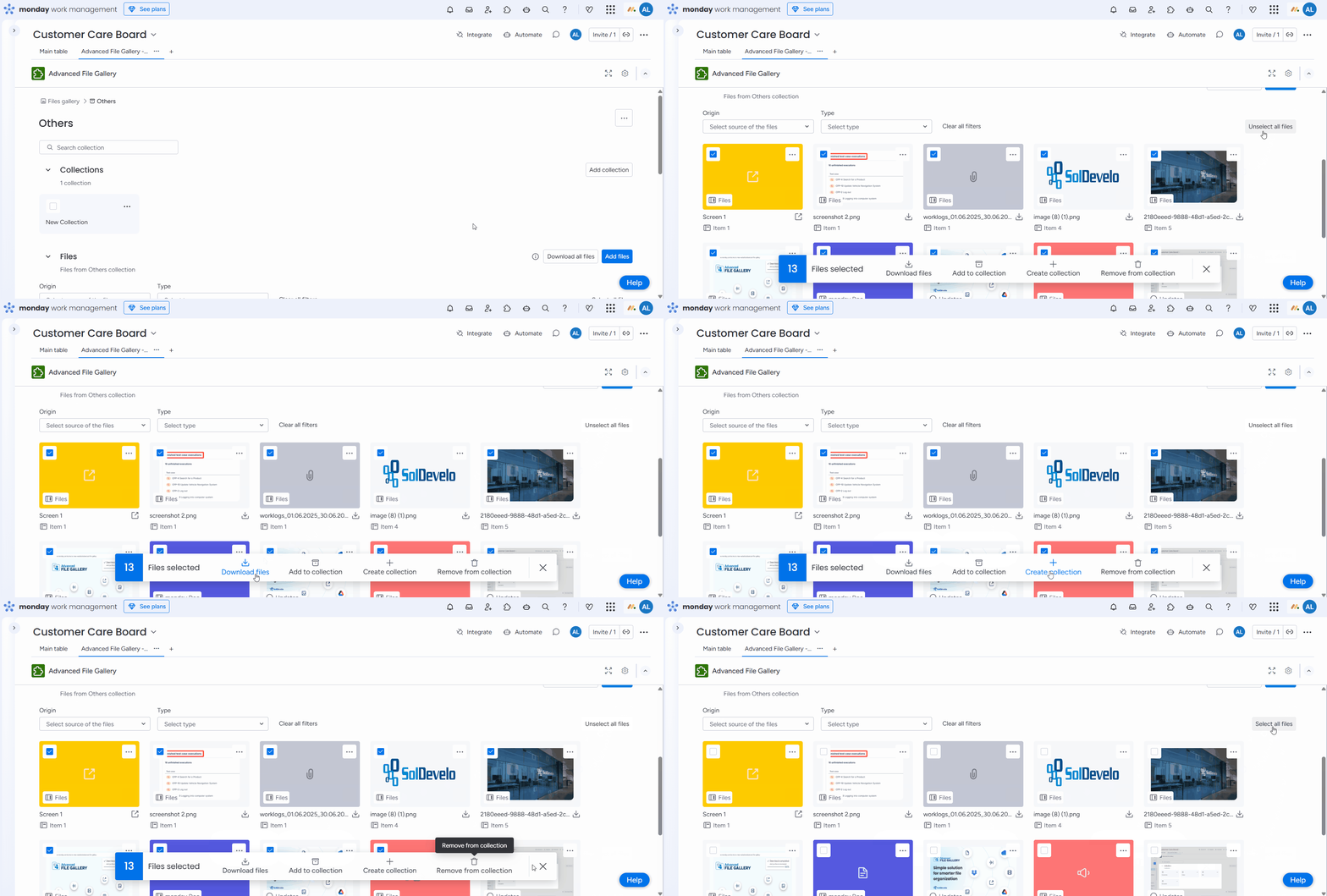
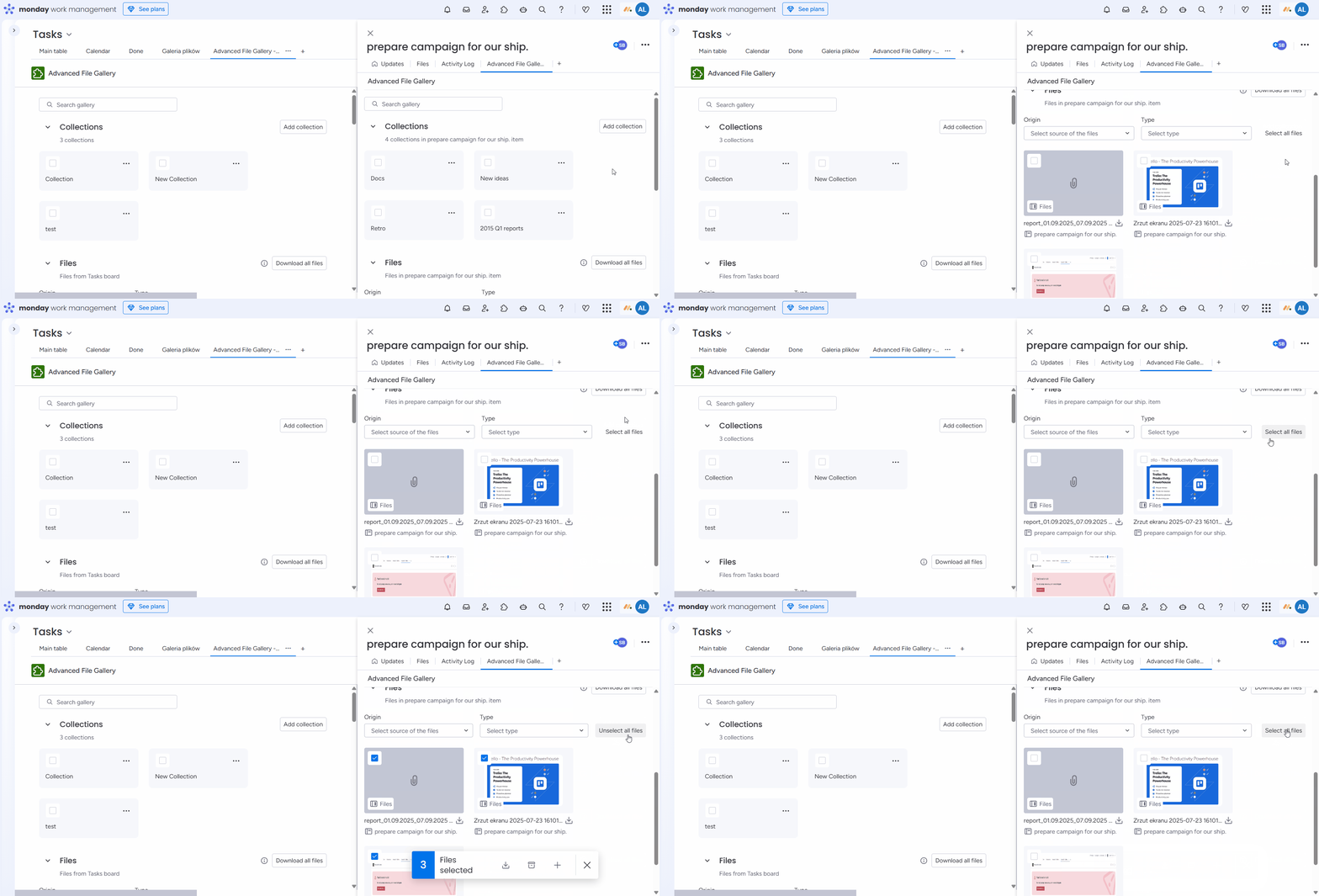
To quickly manage your files, use the Select all files option in the top-right corner of the Files section. Once all files are selected, you can download them, add them to collections, create a new collection, or remove them from a collection. To clear the selection, choose the Unselect all files option.
📁Collections
Collections help you organize your files more effectively within the Advanced File Gallery app.
Create Collection
You can create a collection directly from the app view or the work item view.
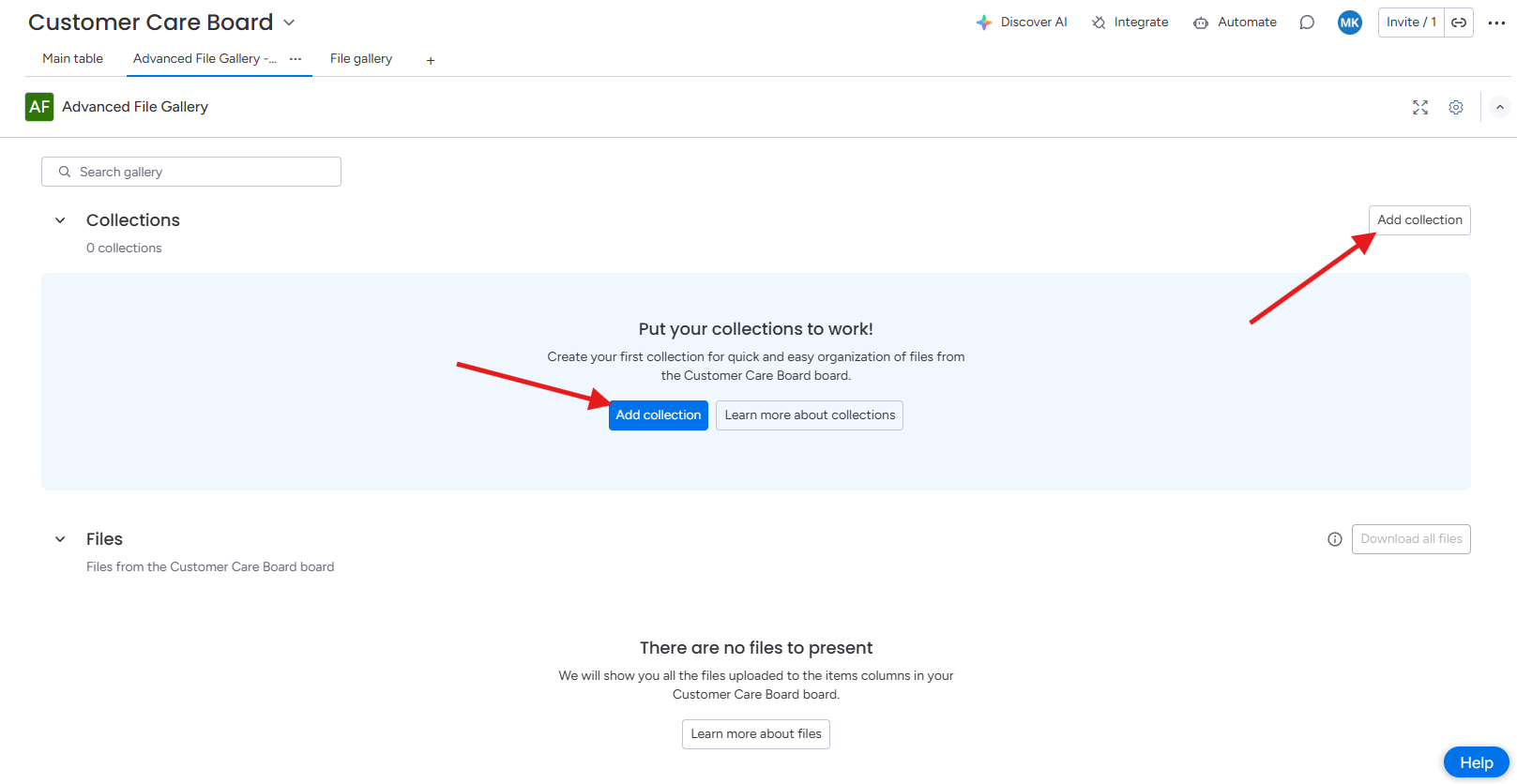
Once you open the Advanced File Gallery app, you will find two Add collection buttons.
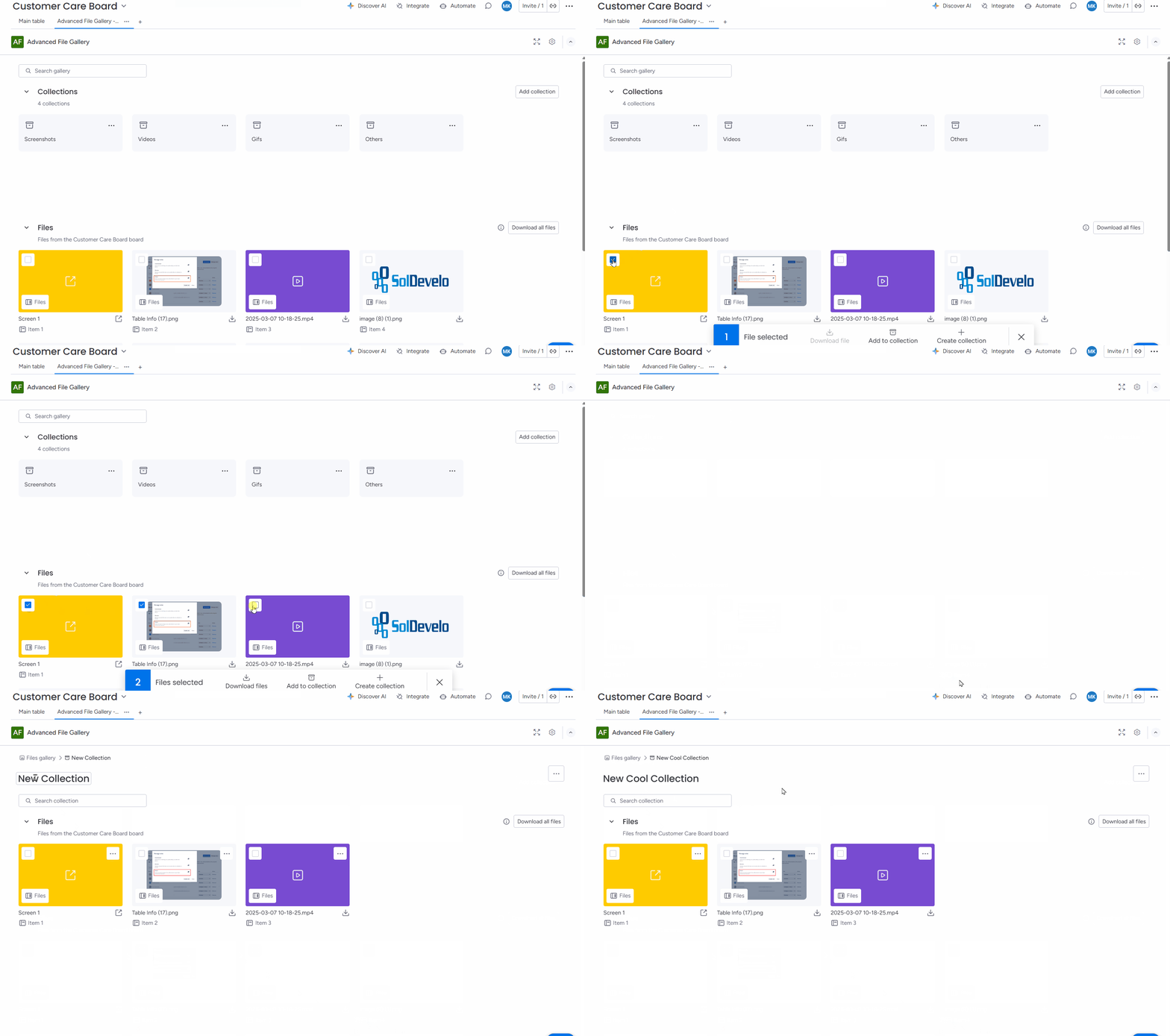
The collection can be also created by selecting files.
To create collection from the work item view click on the “+” and choose Advanced File Gallery app, then click on the Add collection button.
.png?cb=e12c1af569cbdd43bdddb617ab31e7ba)
Please note that files and collections listed in the item view are coming only from the item.
Create Nested Collection
You can also create nested collections in your parent collection. When in the collection, click on the Add collection button.
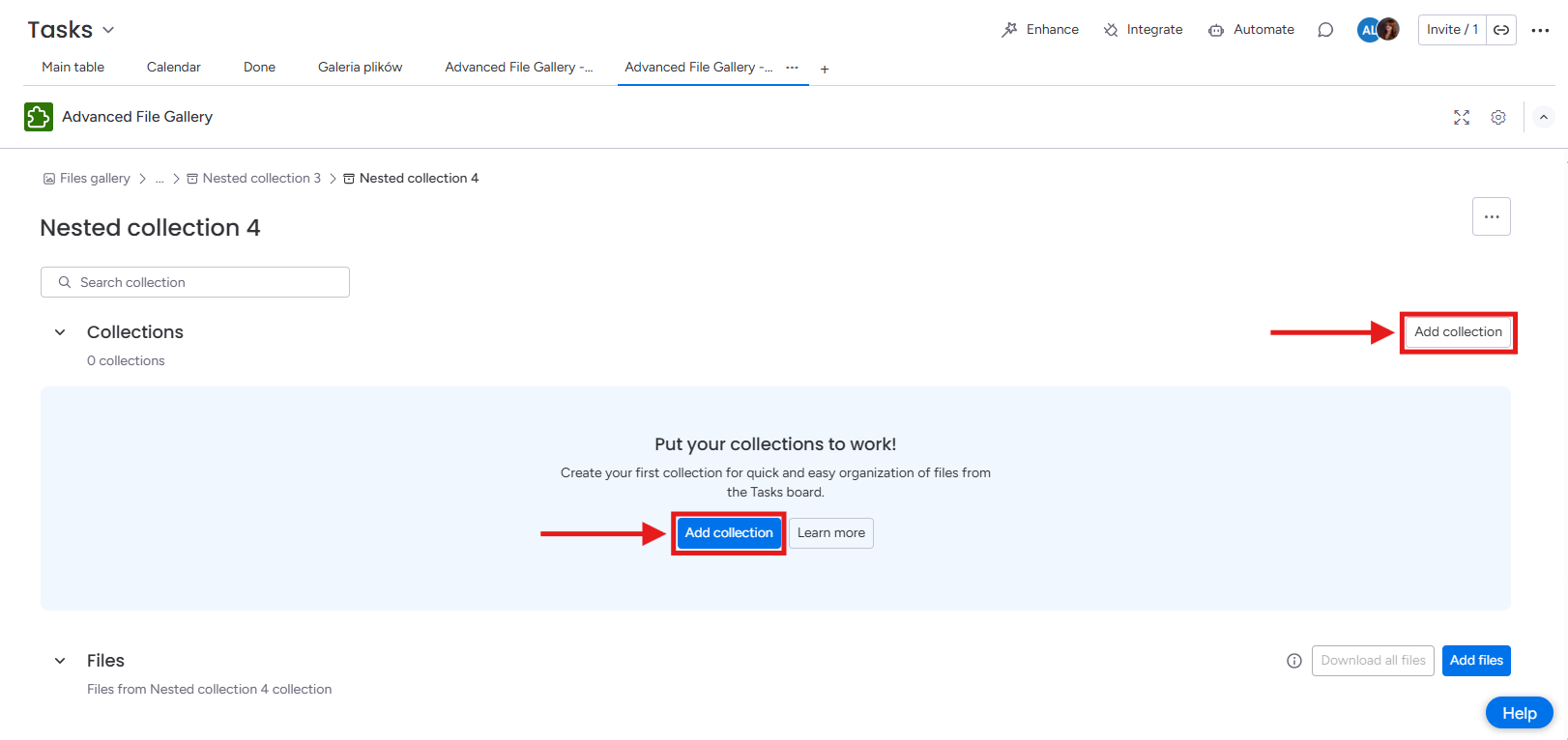
Once you’ve created a new nested collection, it will appear at the top of the parent collection view, positioned below the search bar and above the Files section.
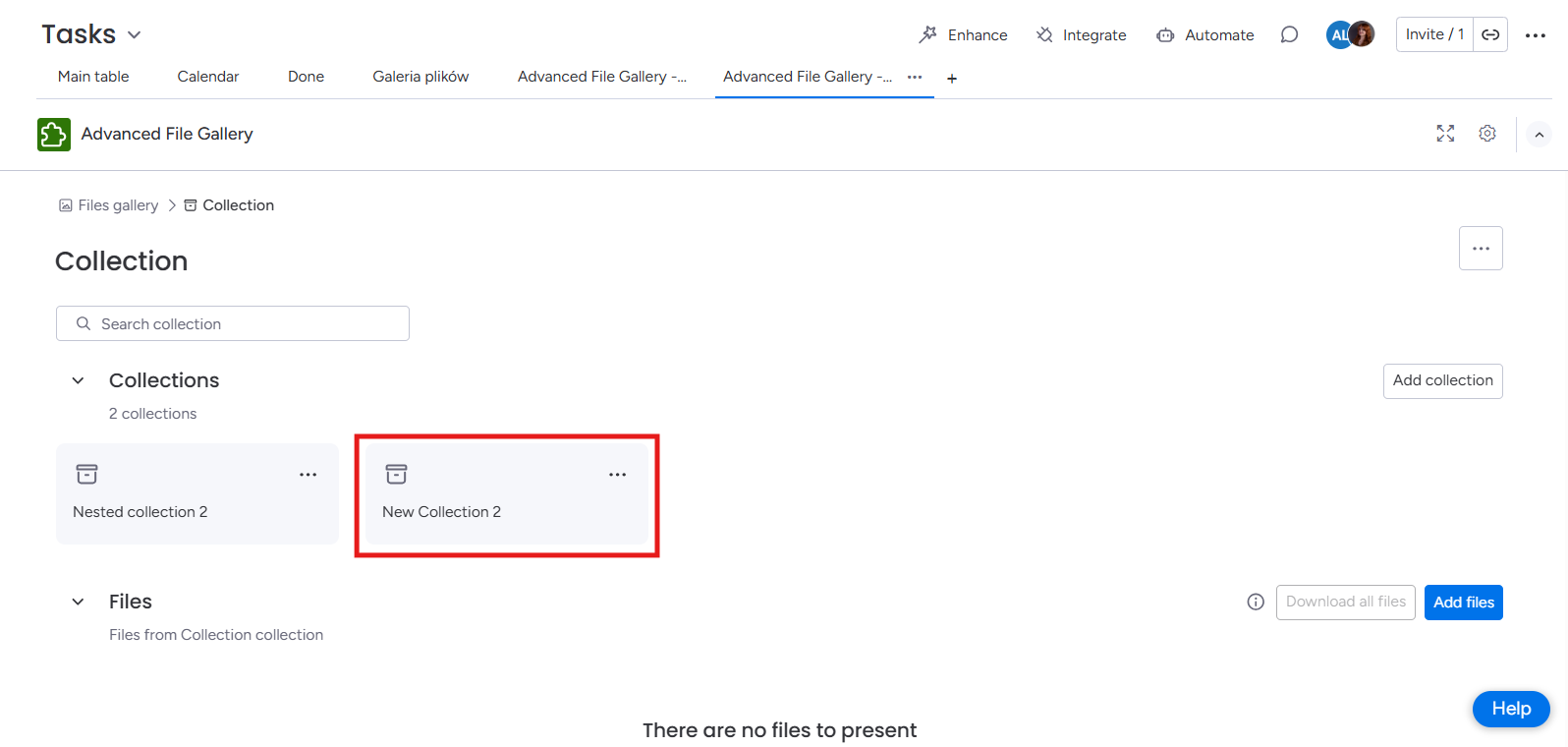
You can create an unlimited number of nested collections within a parent collection. Each nested collection can be added directly under the parent collection or within any other nested collection inside it.
Open Collection
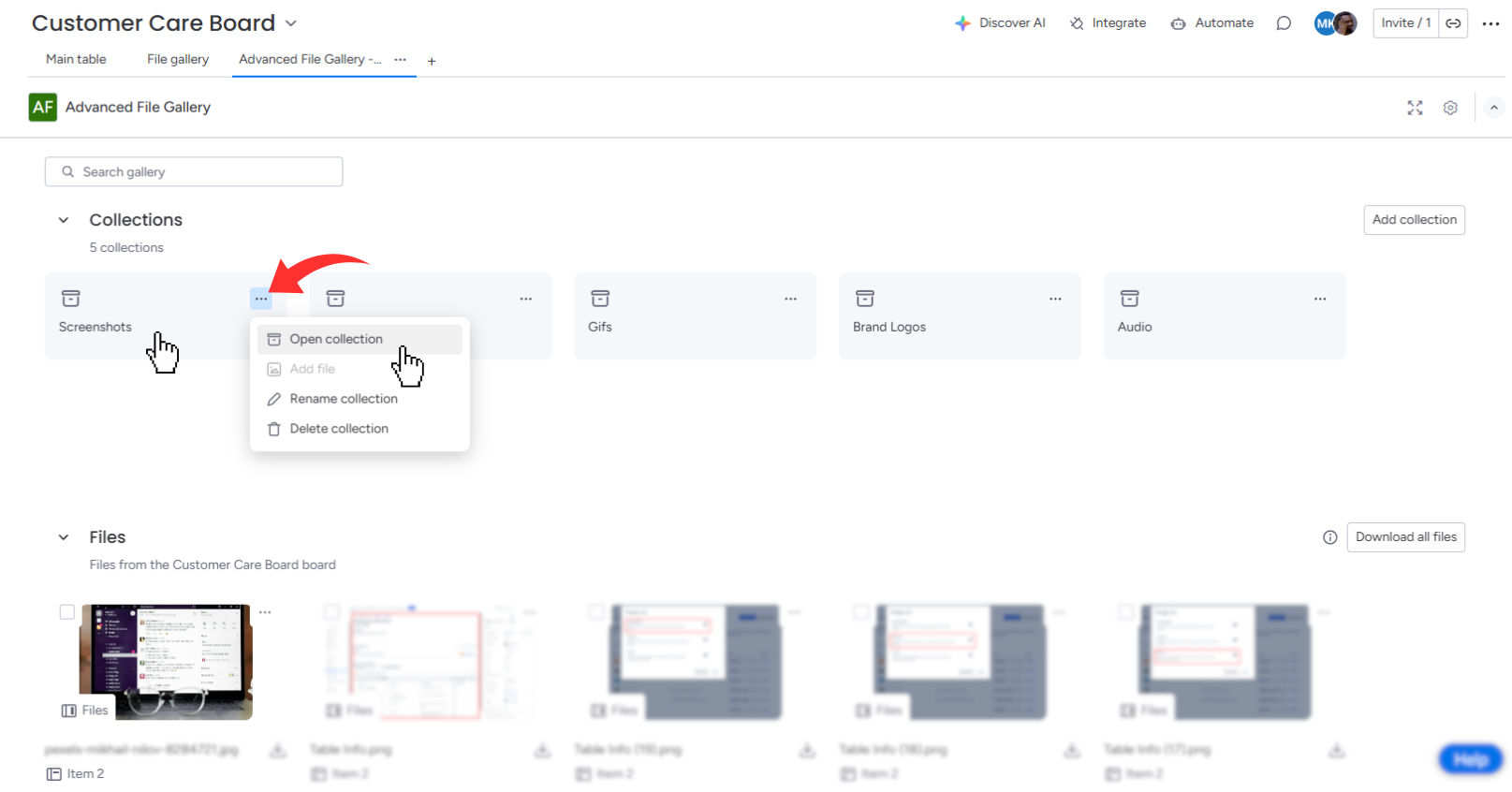
You can open the collection by clicking on it or by choosing three dots (…) next to the collection name and selecting Open collection.
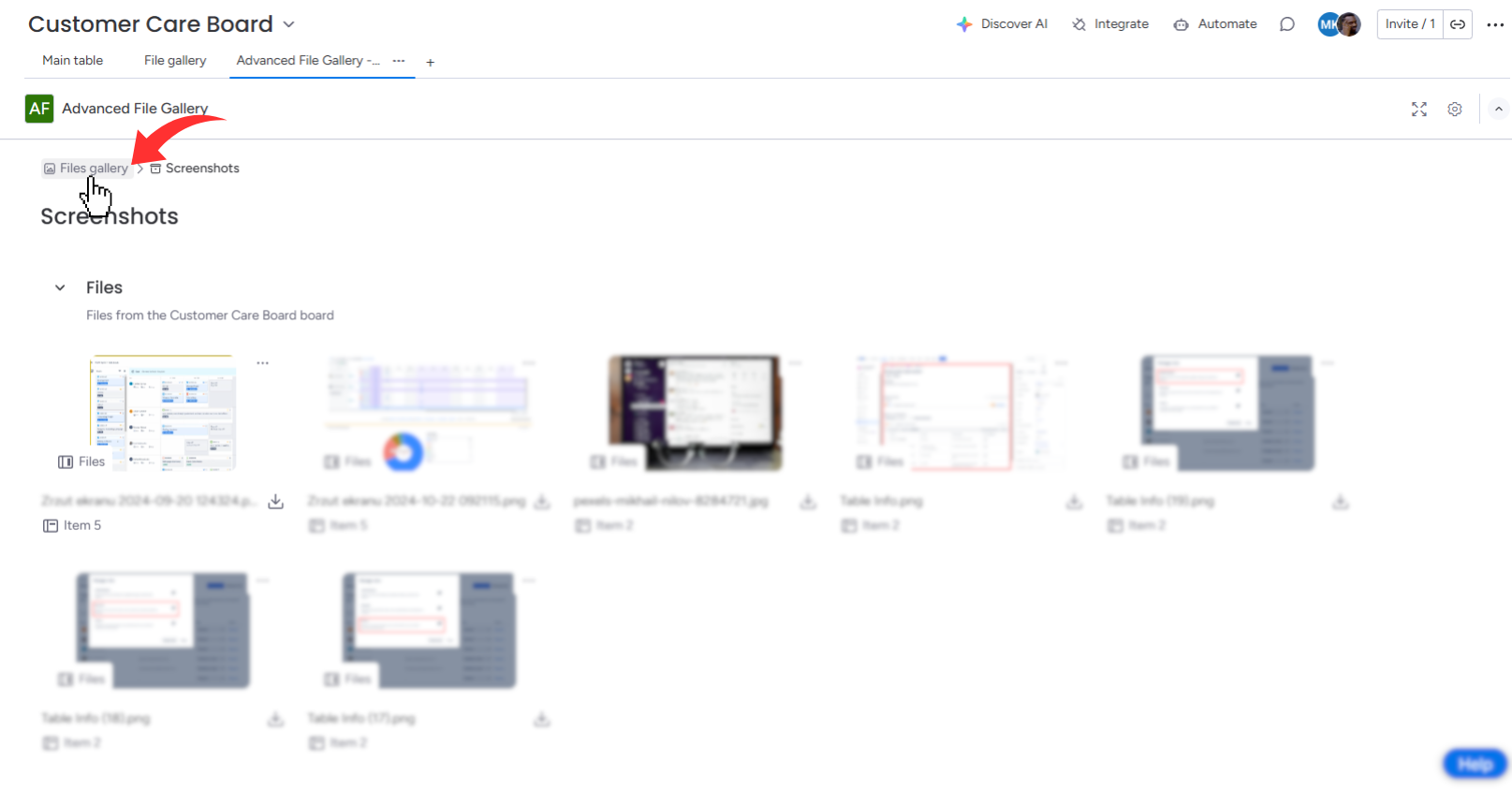
To return to the main collections page, choose the File gallery option in the navigation panel located above the collection name.
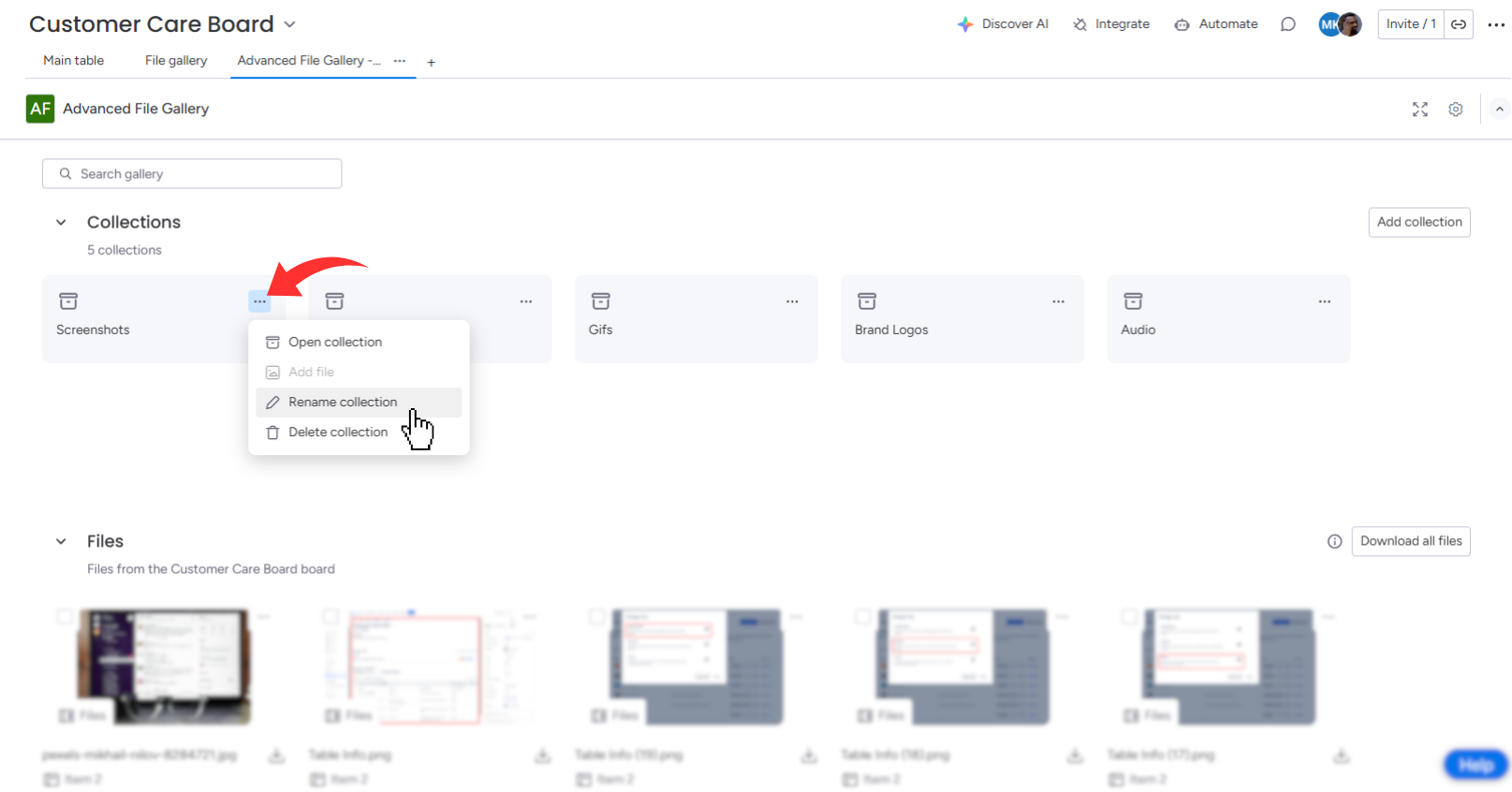
Rename Collection
By clicking on the three dots (…) next to the name of the particular collection, you can rename the collection. To save the new name, click outside the name edit area.
Add File to Collection
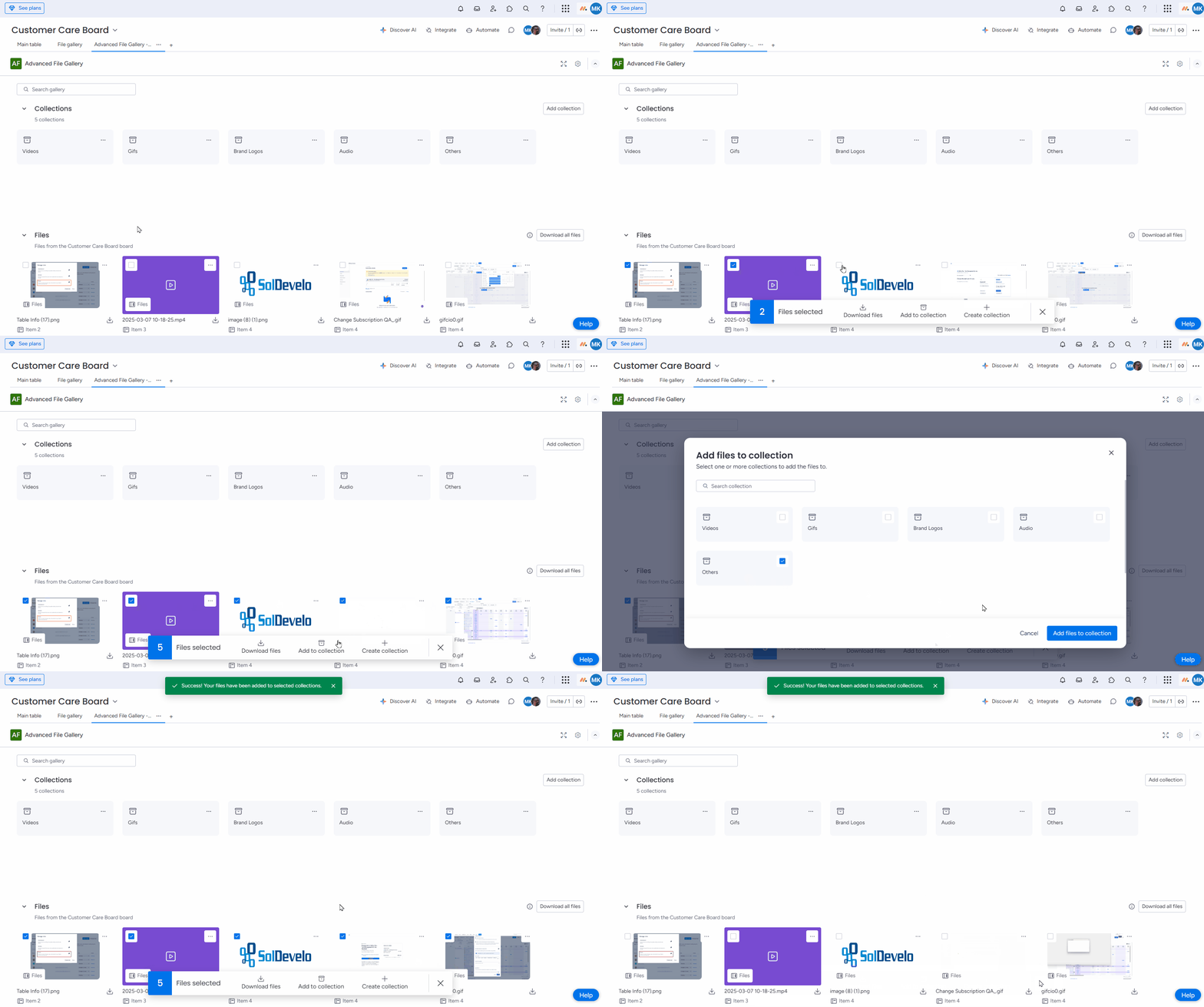
To add files to the collection, select files and click the Add files to collection button.
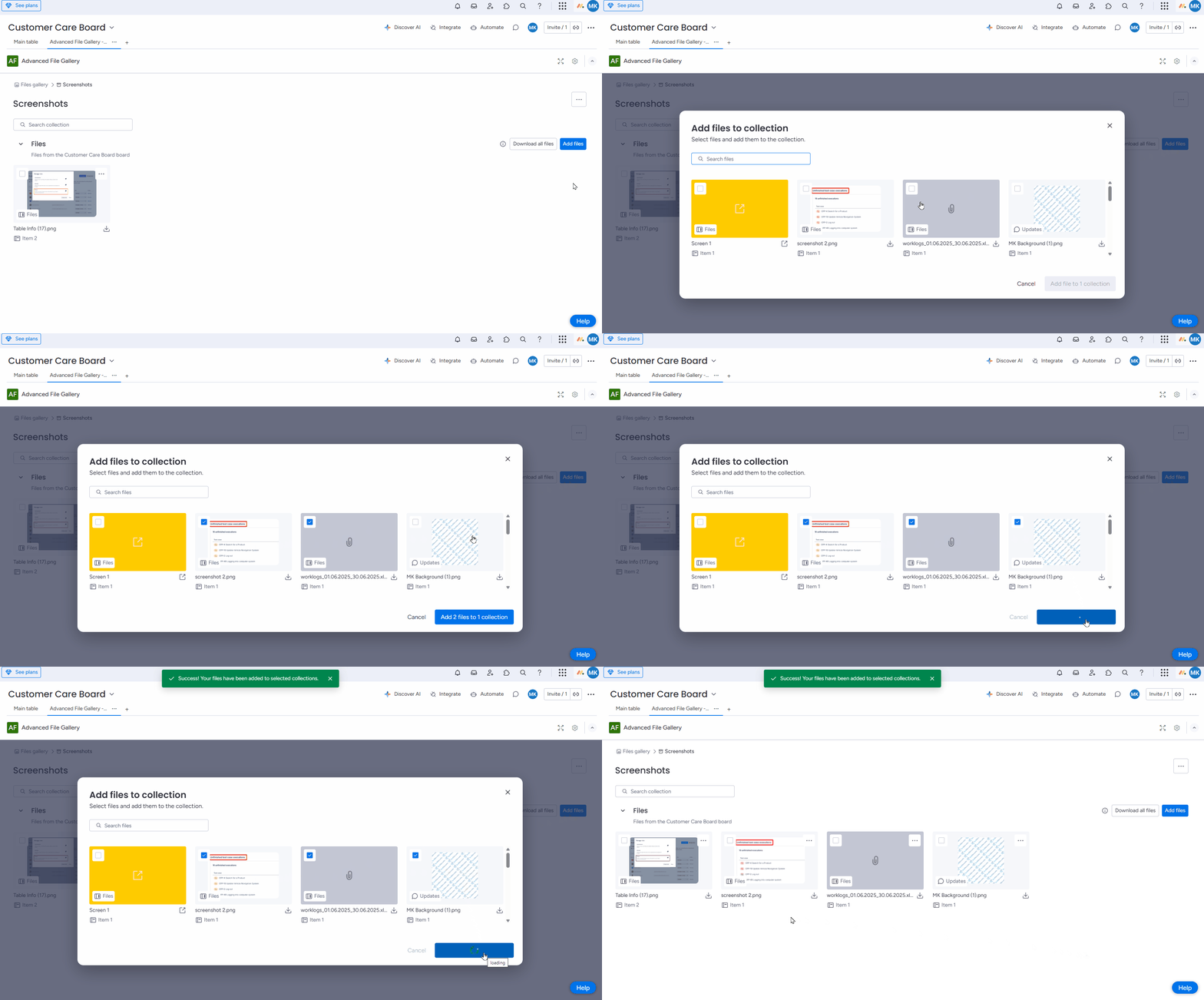
Files can also be added directly from the collection level by clicking the Add Files button.
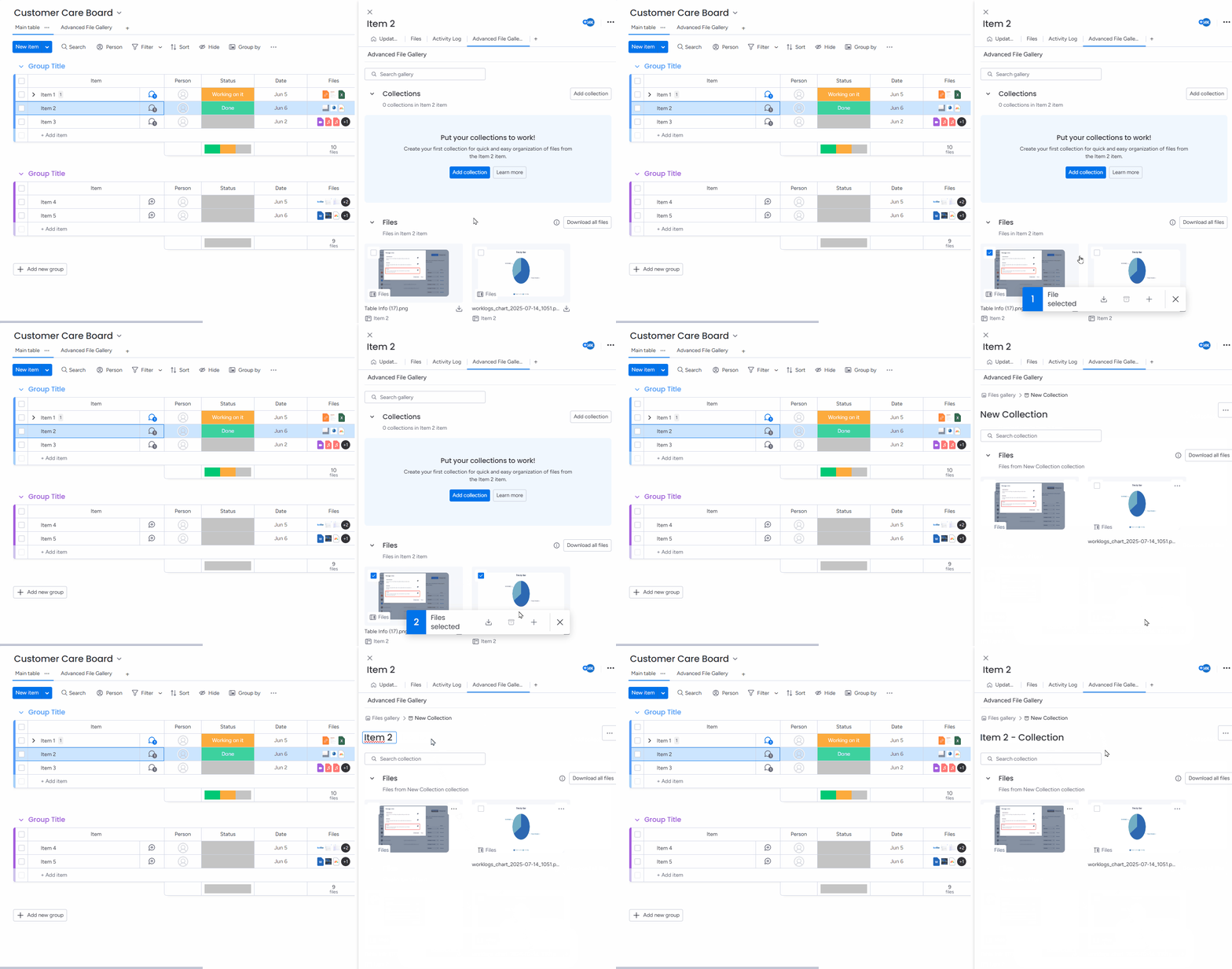
You can also add files to the collection from the work item level.
Search Files
While you are in a collection, use the search tool and type in key words to display the files you are looking for.
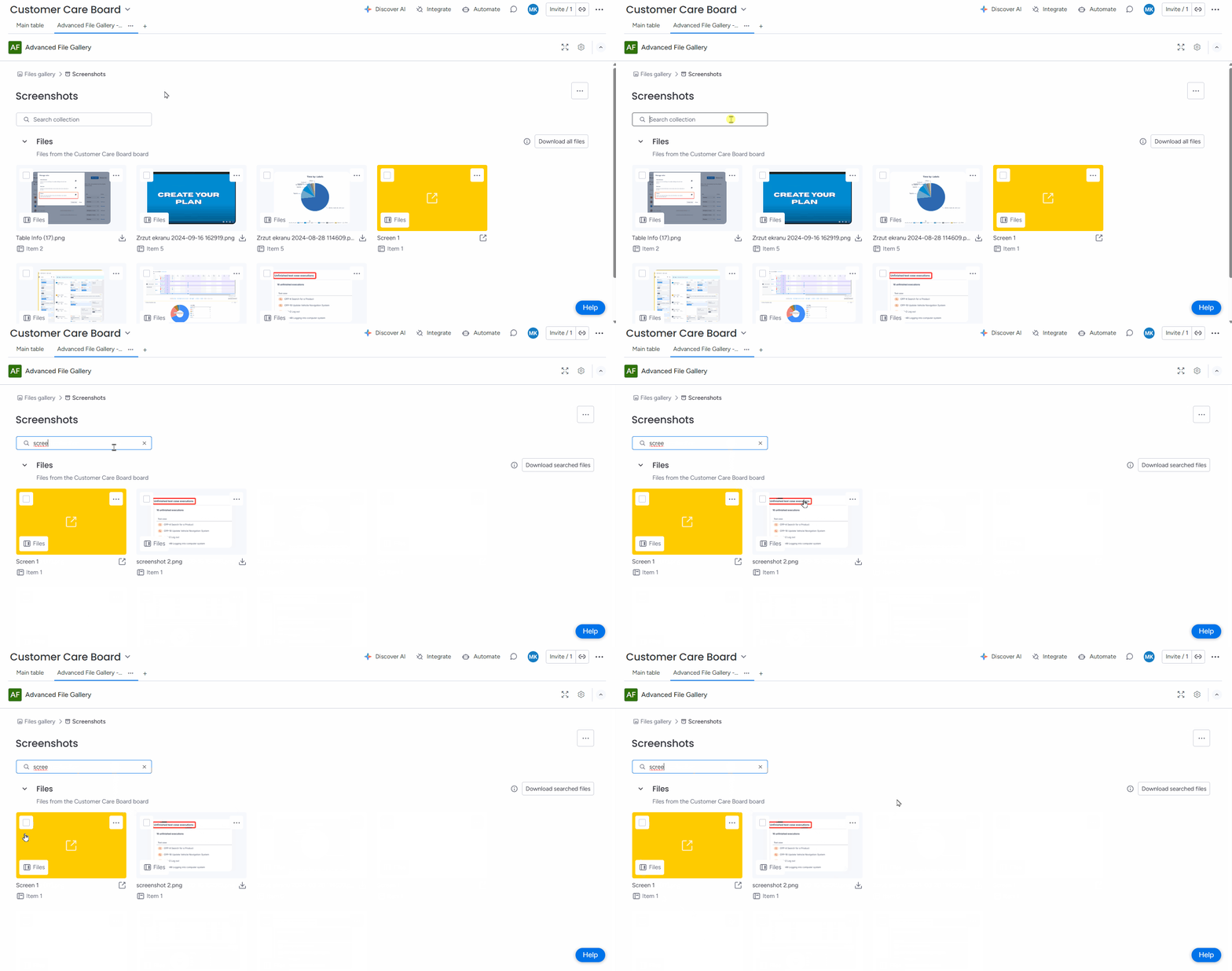
Please note that the search works based on file names only - it does not analyze file content or display images based on descriptions
Filter Files
You can use filters at the top of the Files section to quickly find the files you need and organize them in your Collections. You can filter:
-
By origin – All file columns, Updates, or a specific file column.
-
By file type – Archive, Audio, Document, Image, Link, Other, PDF, Presentation, Spreadsheet, Video, Workdoc.
You can add one or multiple filters in one search bar.
When you’re done, use Clear all filters to reset your view.
The search field located in the top-left corner applies to both the Collections and Files sections, allowing you to search across both areas at once. The search bar within the Files section is limited to searching only within that section.
Remove Files from Collection
To delete files from a particular collection, select them and choose Remove from collection.
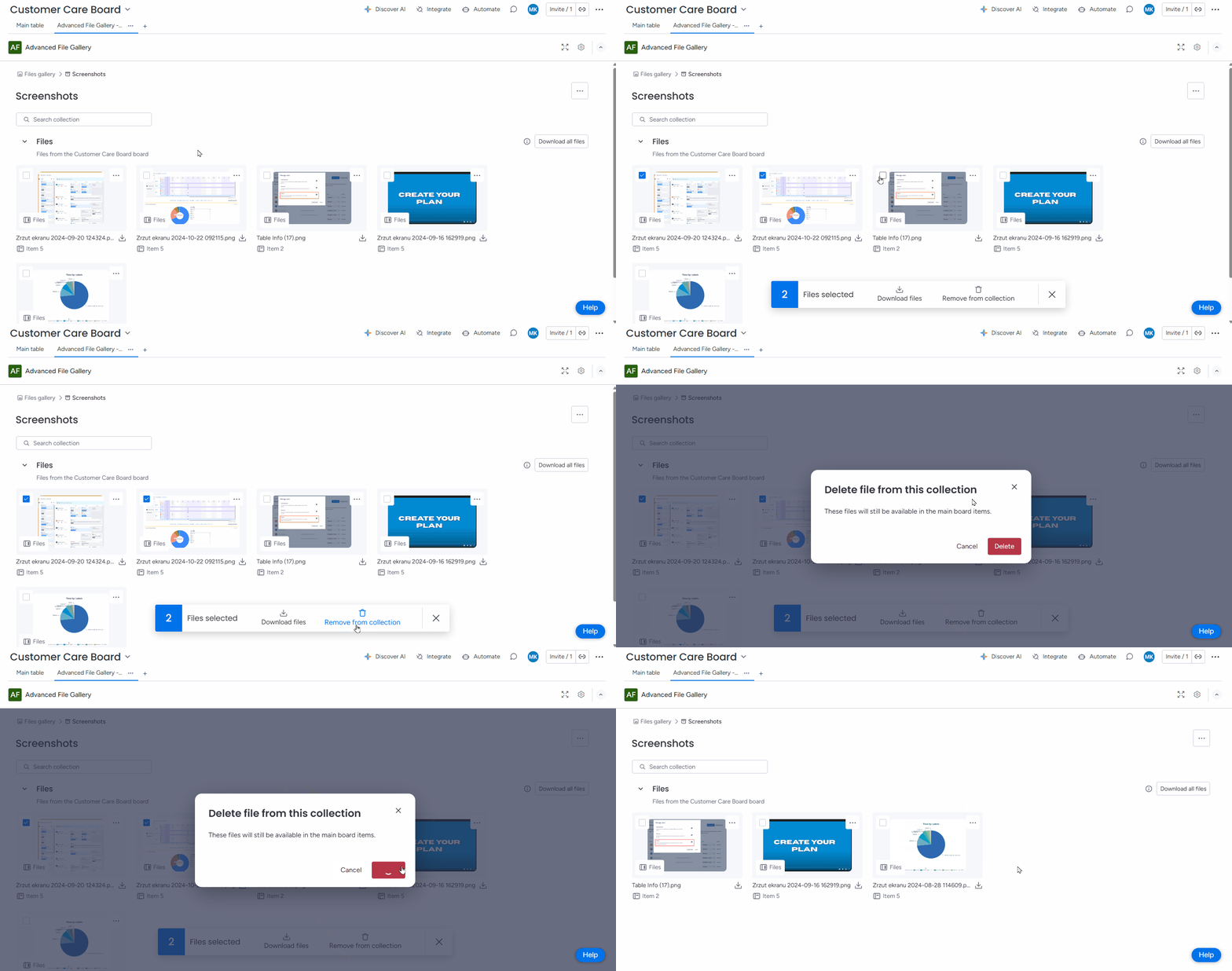
Select All Files
To quickly manage your files in your Collections, use the Select all files option in the top-right corner of the Files section. Once all files are selected, you can download them, add them to collections, create a new collection, or remove them from a collection. To clear the selection, choose the Unselect all files option.
Remove Collection
You can remove a Collection in two ways:
-
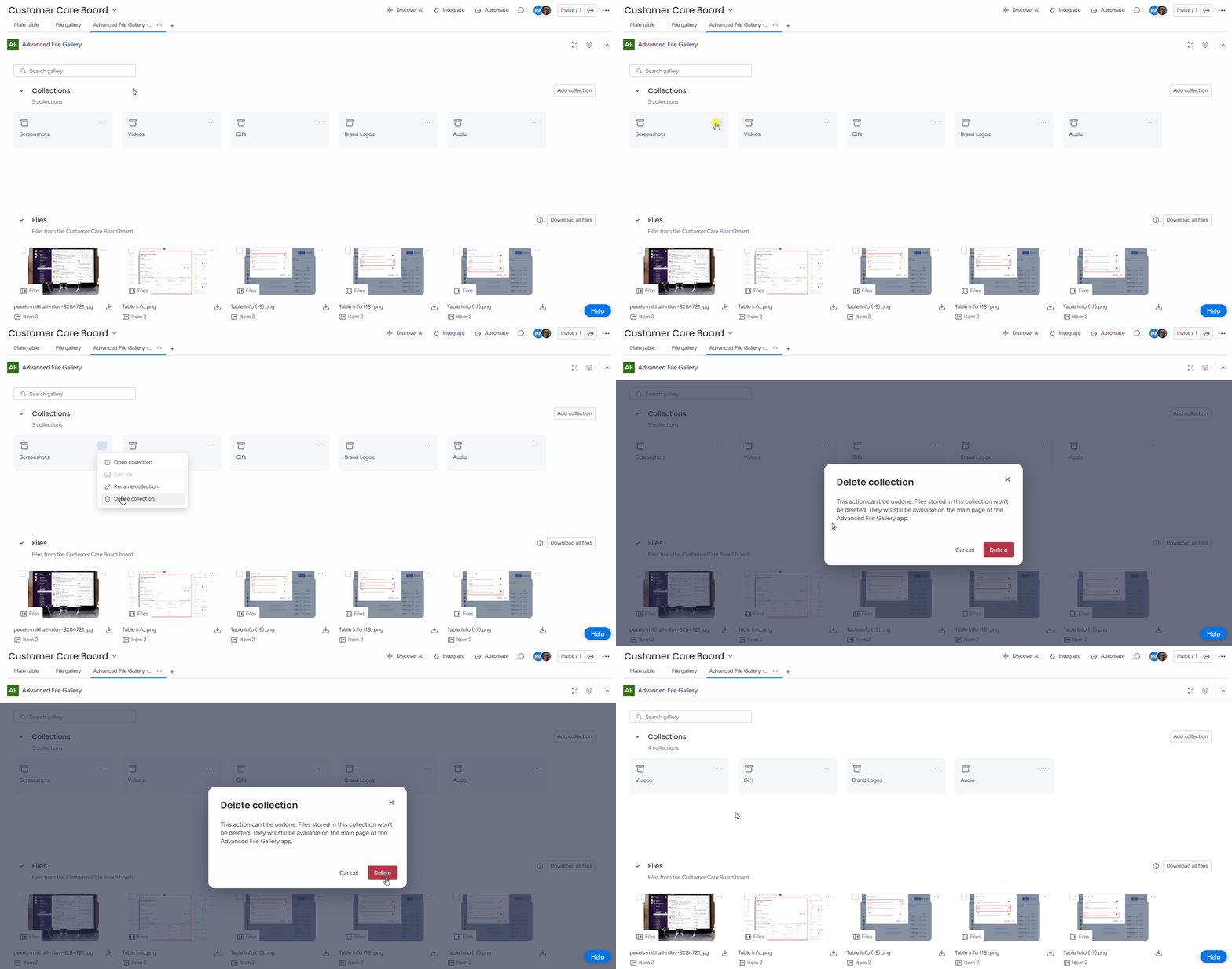
From the Collection menu: Click the three dots (…) next to the collection name and select Delete collection.
-
From the selection menu: Select one or more collections, then choose Delete collections. This option allows you to delete multiple collections at once.
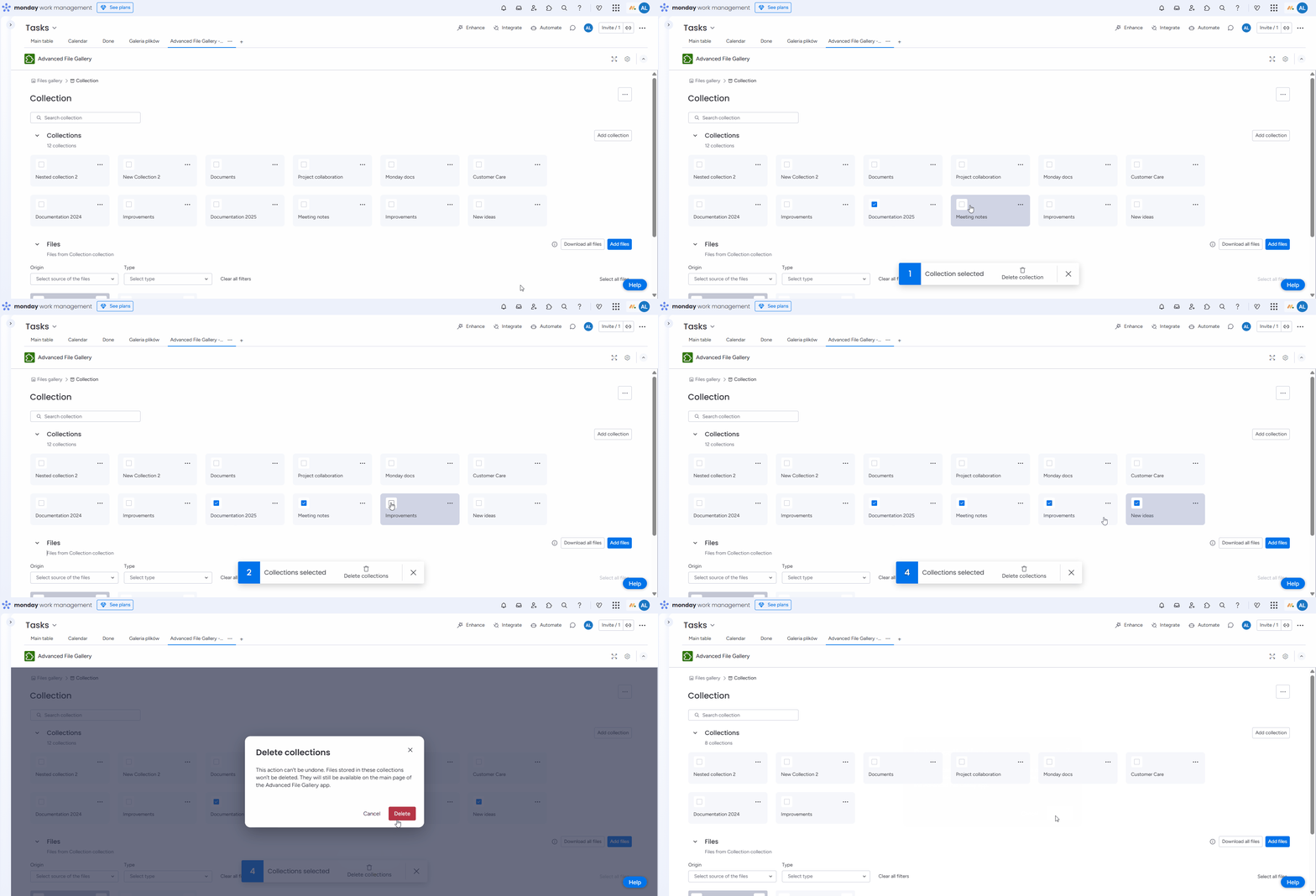
Files stored in removed collections won’t be deleted. They will still be available on the board and the main page of the Advanced File Gallery app.
🧩 Supported files
The gallery lists all attachments and provides previews for the following formats:
-
Images (JPG, PNG, etc.)
-
GIFs
-
Videos (MP4, etc.)
Files that can't be previewed (such as CSVs, text documents, or links to external drives) will still be listed, but without a preview.
⬇️ Download files
To download files, either select the ones you need and choose the Download files option, or click Download all files to get everything at once. The downloaded files will be provided in a compressed folder.
.gif?cb=5df980add345f8356ec8018d1f5b6918)
If your total file size exceeds 1 GB, the app will automatically split the content into multiple compressed folders and download them sequentially. The download will be processed only when the Advanced File Gallery is open.
The download will only proceed while the Advanced File Gallery is open. Do not exit the app until you receive a confirmation that the download is complete.