.png)
When assets are scattered across items and boards, finding what you need slows everyone down. Below, you'll find practical use cases showing how centralized file management helps teams - from marketing to HR - stay organized and work more efficiently.
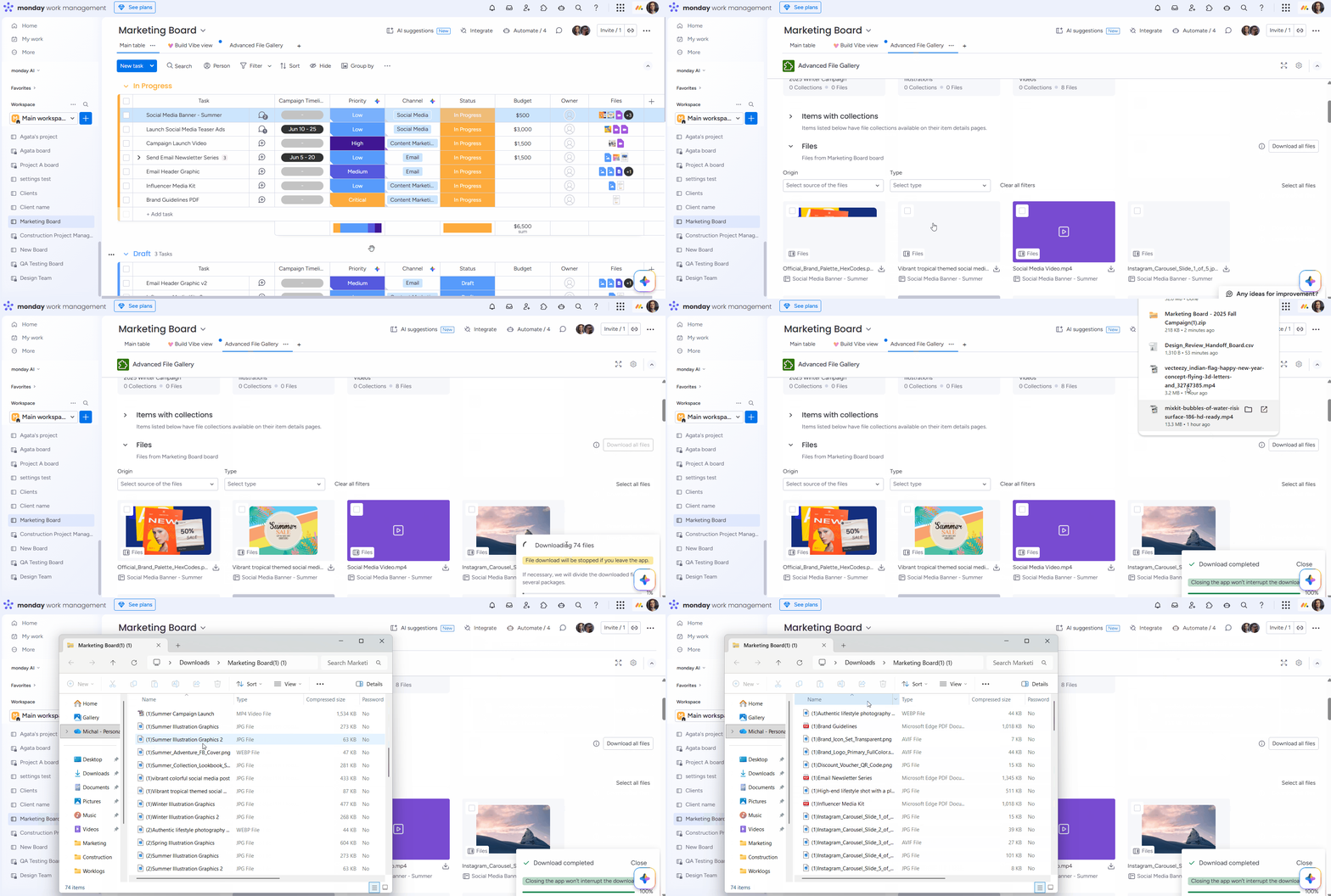
Marketing Team - Campaign asset management
Use case: Your marketing team runs multiple campaigns simultaneously, with creative assets - images, videos, PDFs - scattered across dozens of items on a board. Instead of clicking into each item, you need a single view of all assets, with the ability to group them by campaign and download everything at once for an external agency.
Who it's for: Marketing teams managing high volumes of visual content across campaigns, especially when collaborating with external partners or agencies who need packaged deliverables.
Here's how it looks in practice:
-
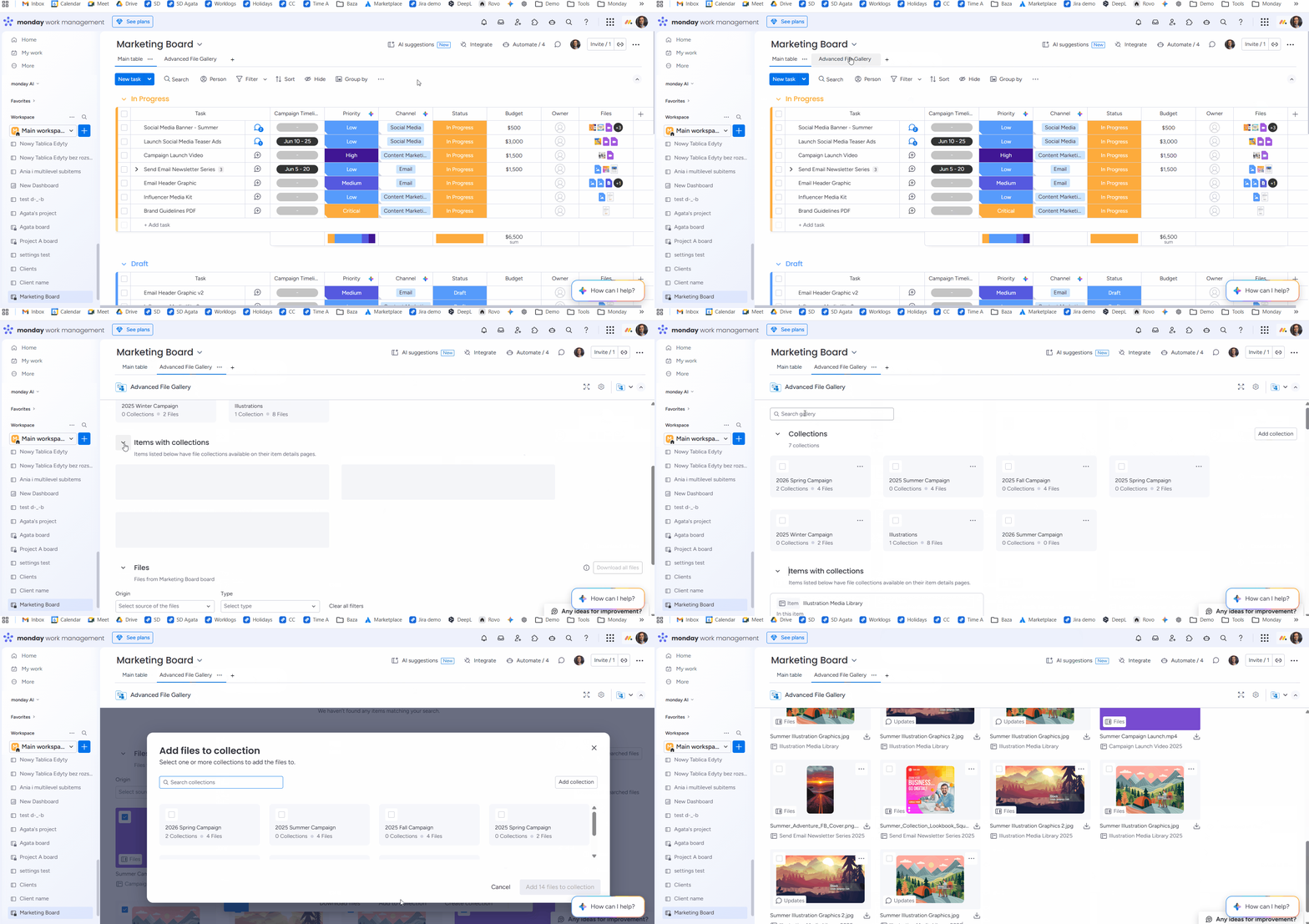
Setting up a campaign collection and adding files to it by searching for keywords
-
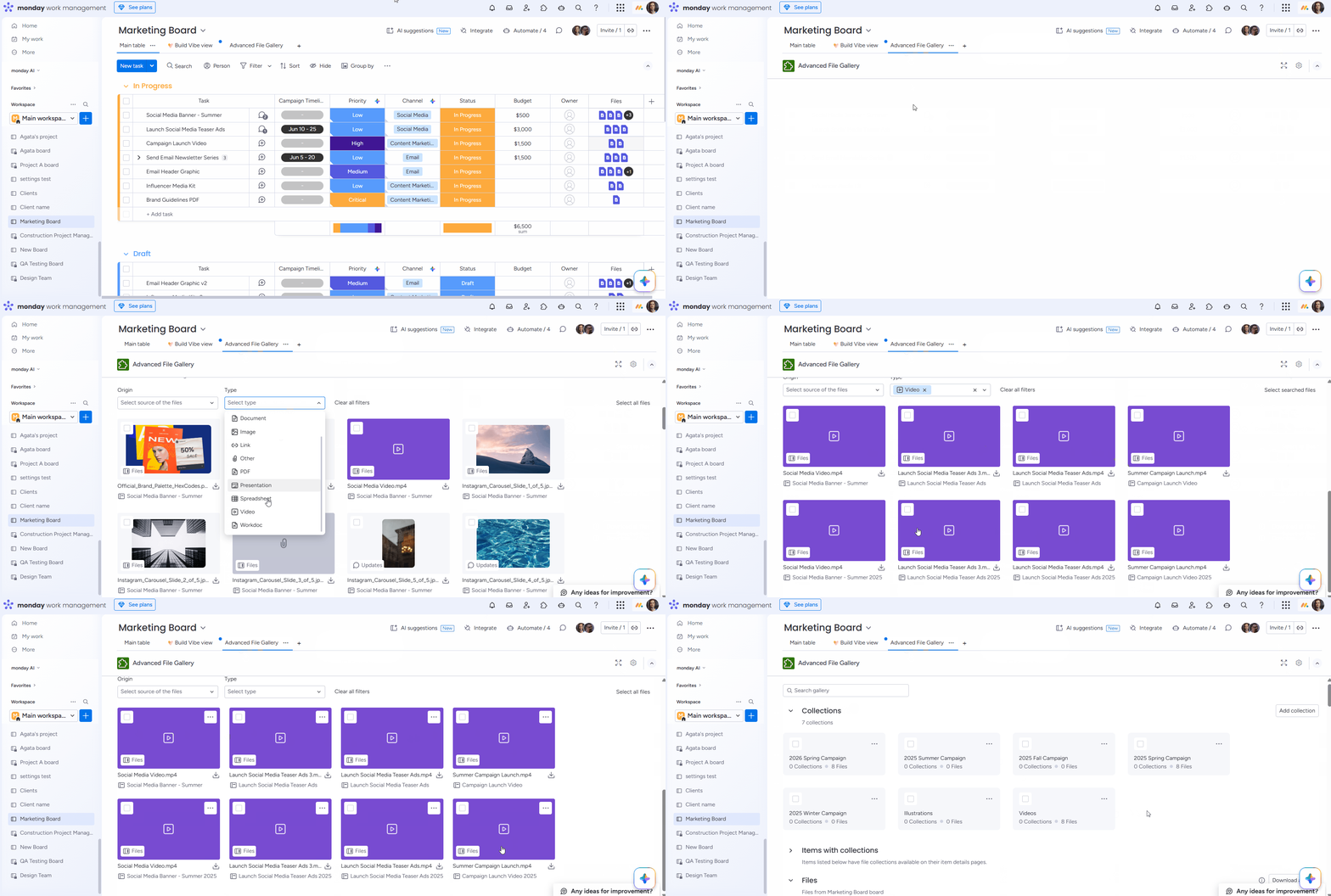
Creating a "Videos" subcollection and adding files by filtering for a specific file type
-
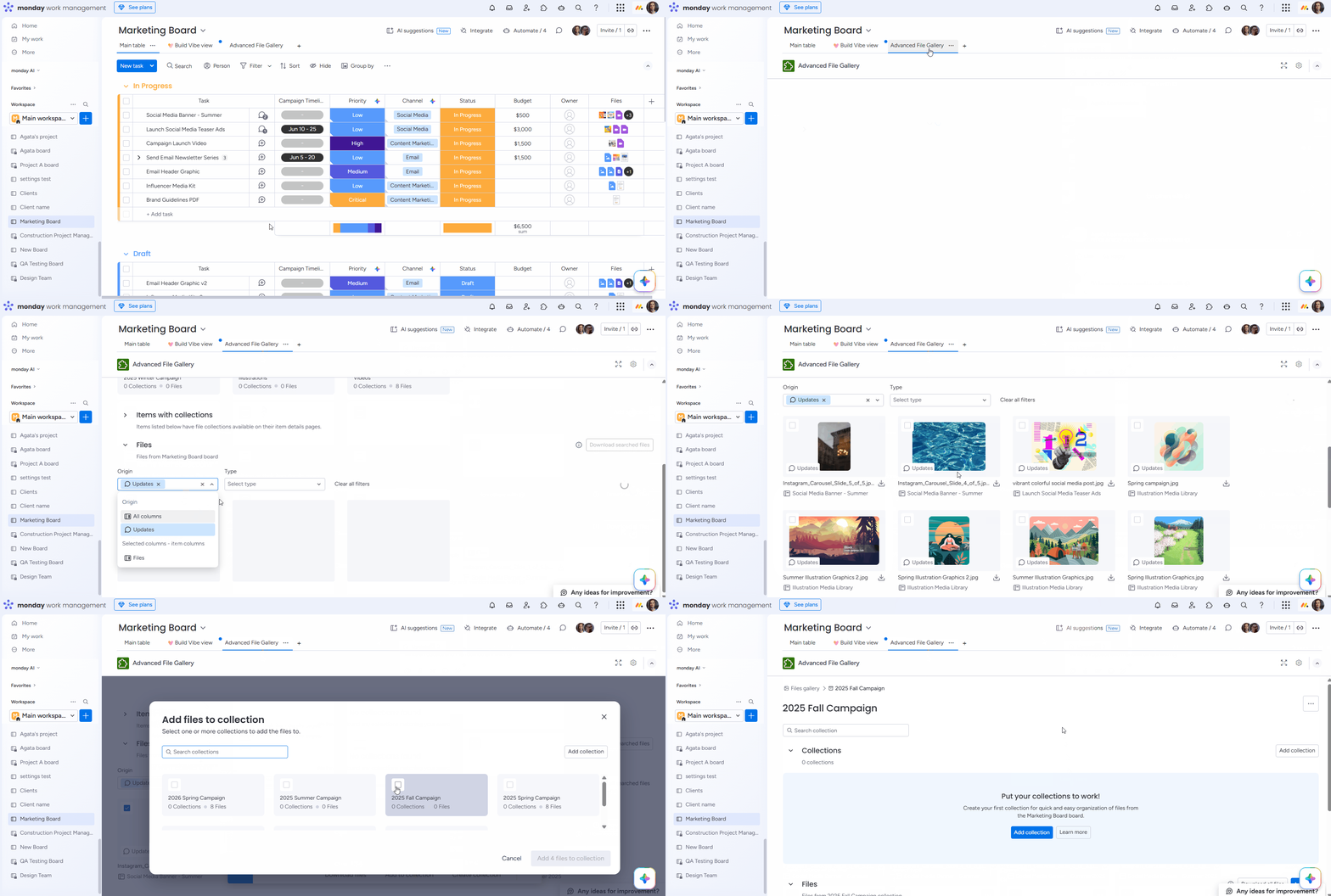
Setting up an "Updates" subcollection and pulling in files from the Updates column
-
Downloading all collection files at once as a compressed package ready to send to an external agency.
Construction / Real Estate - Site documentation
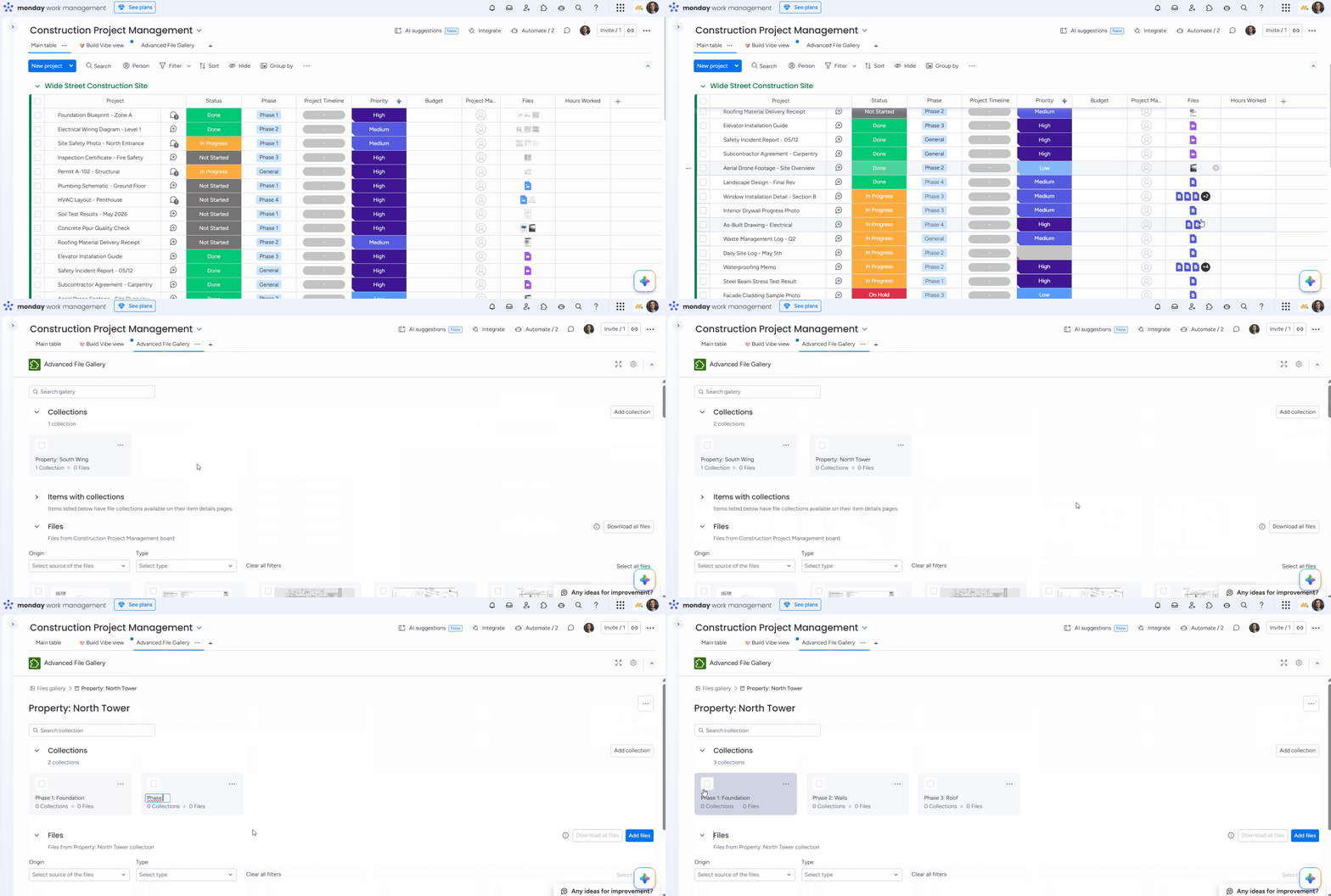
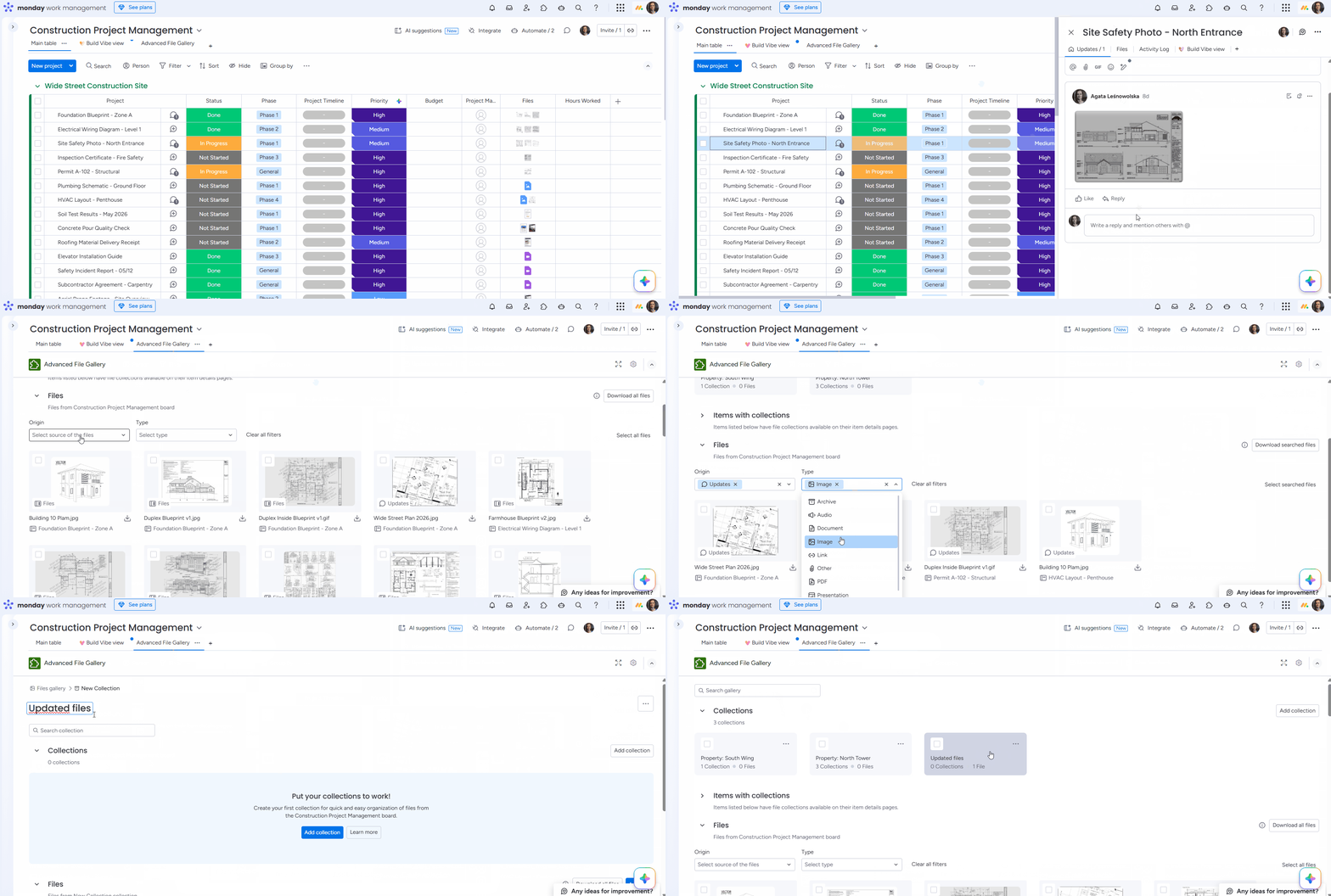
Use case: Your project involves extensive site documentation - blueprints, inspection reports, progress photos - attached to items representing different locations or phases. You need to organize these files into a clear hierarchy (e.g., by property, then by phase) and quickly preview photos without downloading them.
Who it's for: Construction, real estate, and field operations teams that rely on visual documentation and need structured file organization across complex, multi-phase projects.
Here's how it looks in practice:
-
Organizing site documents into collections and nested collections - structured by property and project phase
-
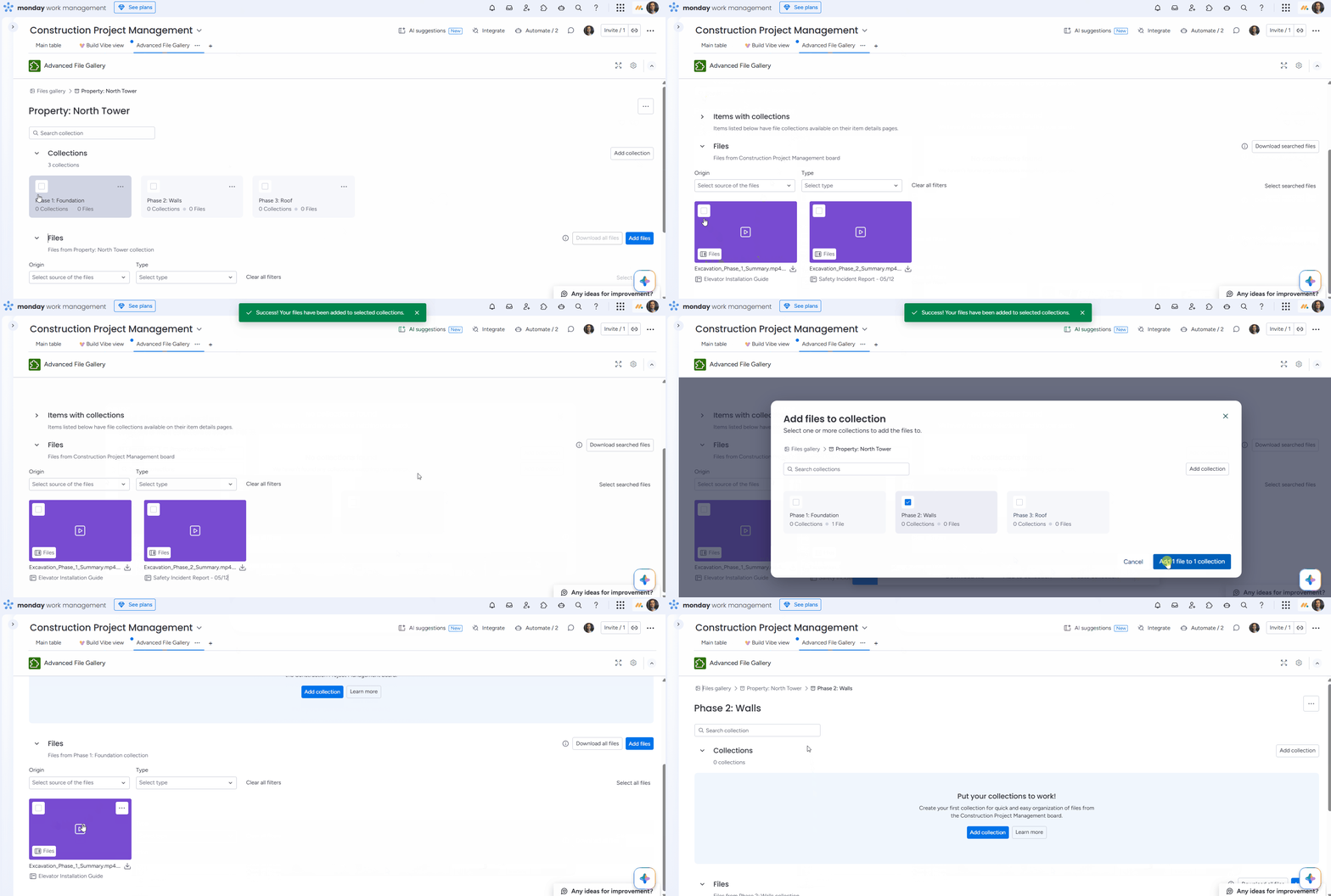
Adding files to collections organized by property and project phase
-
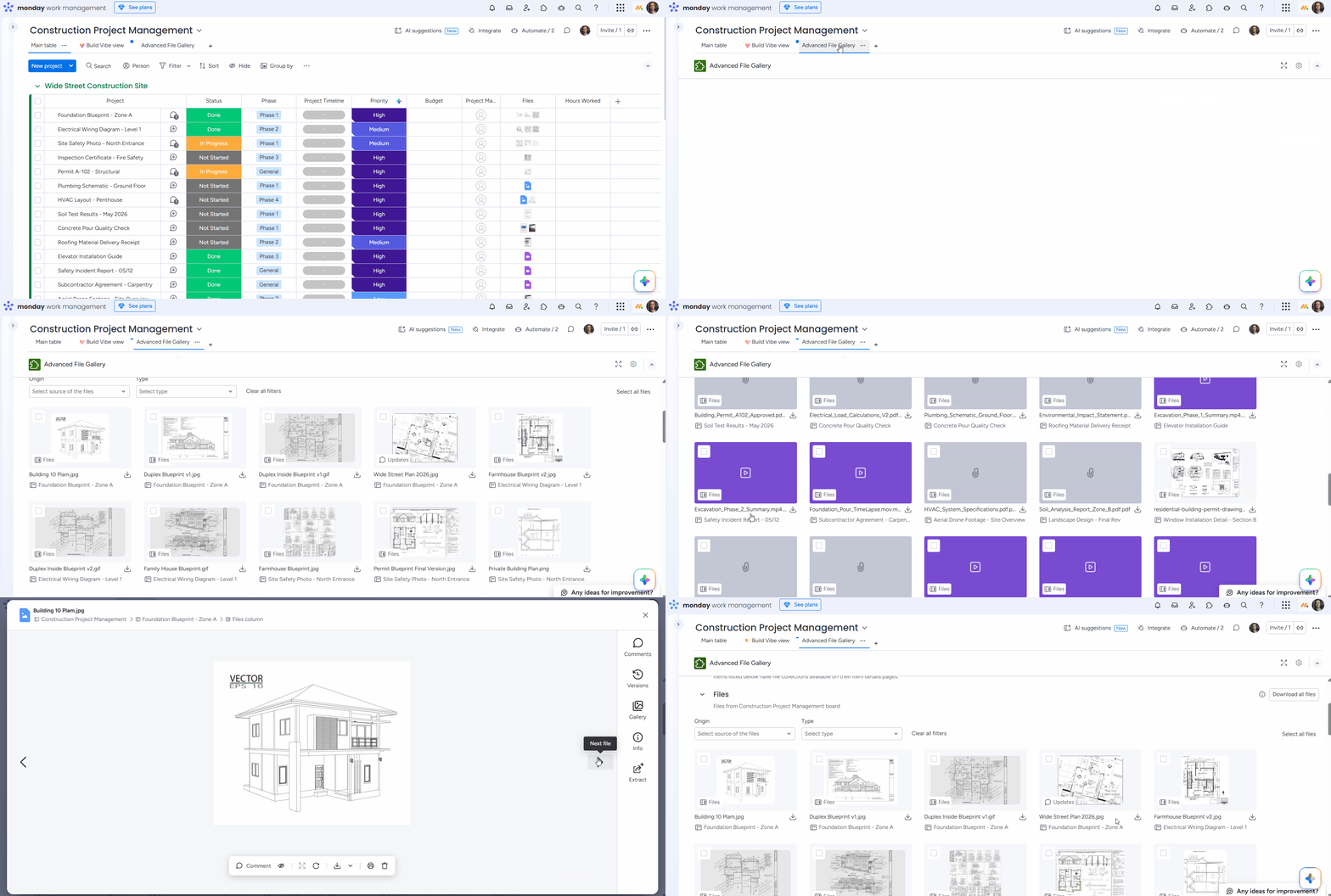
Quickly previewing your photos without downloading them
-
Filtering files by source to display only updated attachments and organizing them into a dedicated collection
QA Team - Bug report evidence
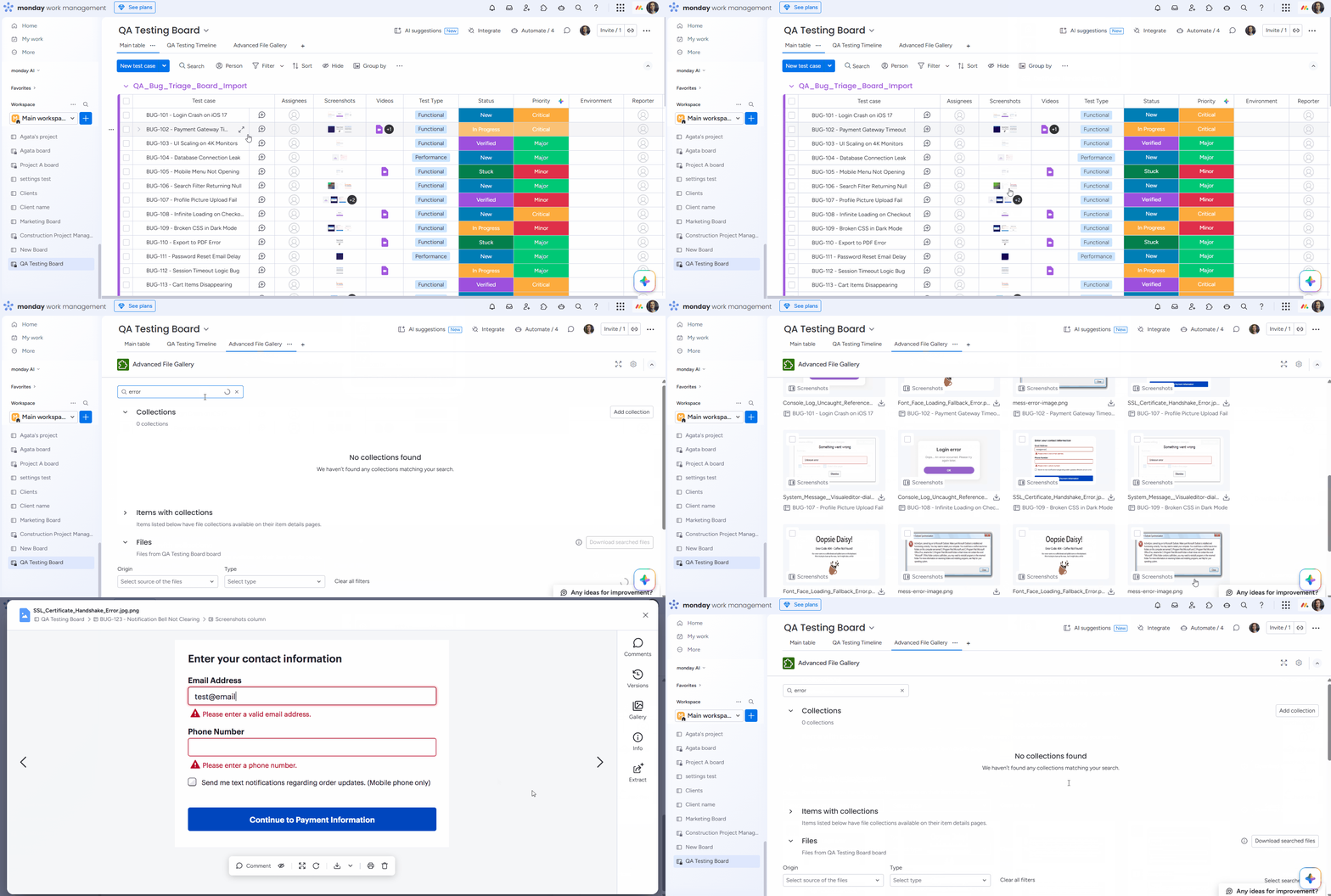
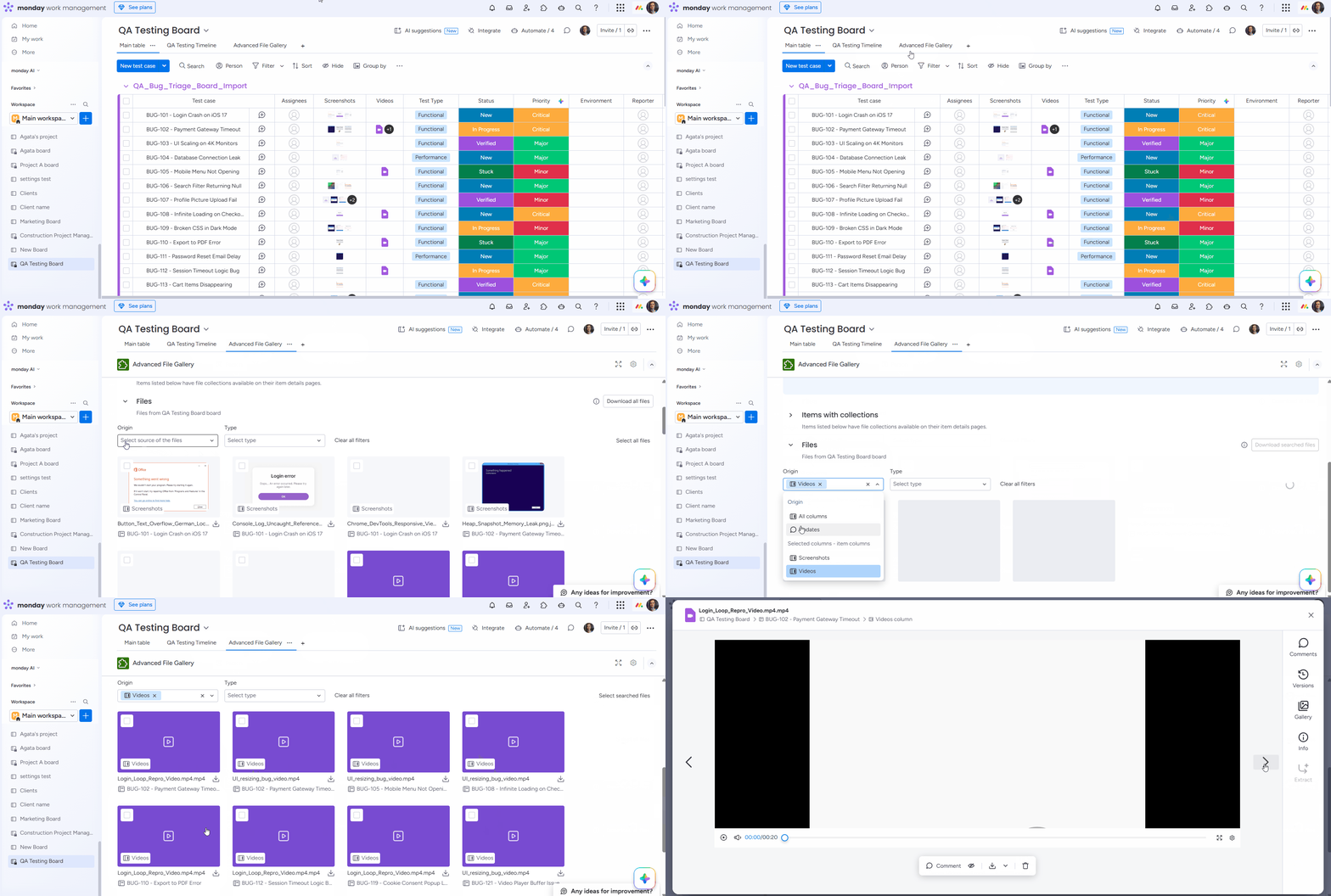
Use case: Your QA team attaches screenshots and screen recordings to bug reports across a board. During triage meetings, the QA lead needs to quickly pull up evidence for specific bugs - searching by file name and filtering by the "Screenshots" file column - without opening each item individually.
Who it's for: QA and testing teams that attach visual evidence to bug reports and need fast, filtered access to files during review or triage sessions.
Here's how it looks in practice:
-
Finding a specific bug's evidence across dozens of items using file name search
-
Filtering the file view to show only attachments from a specific column
Design Team - Visual review & feedback
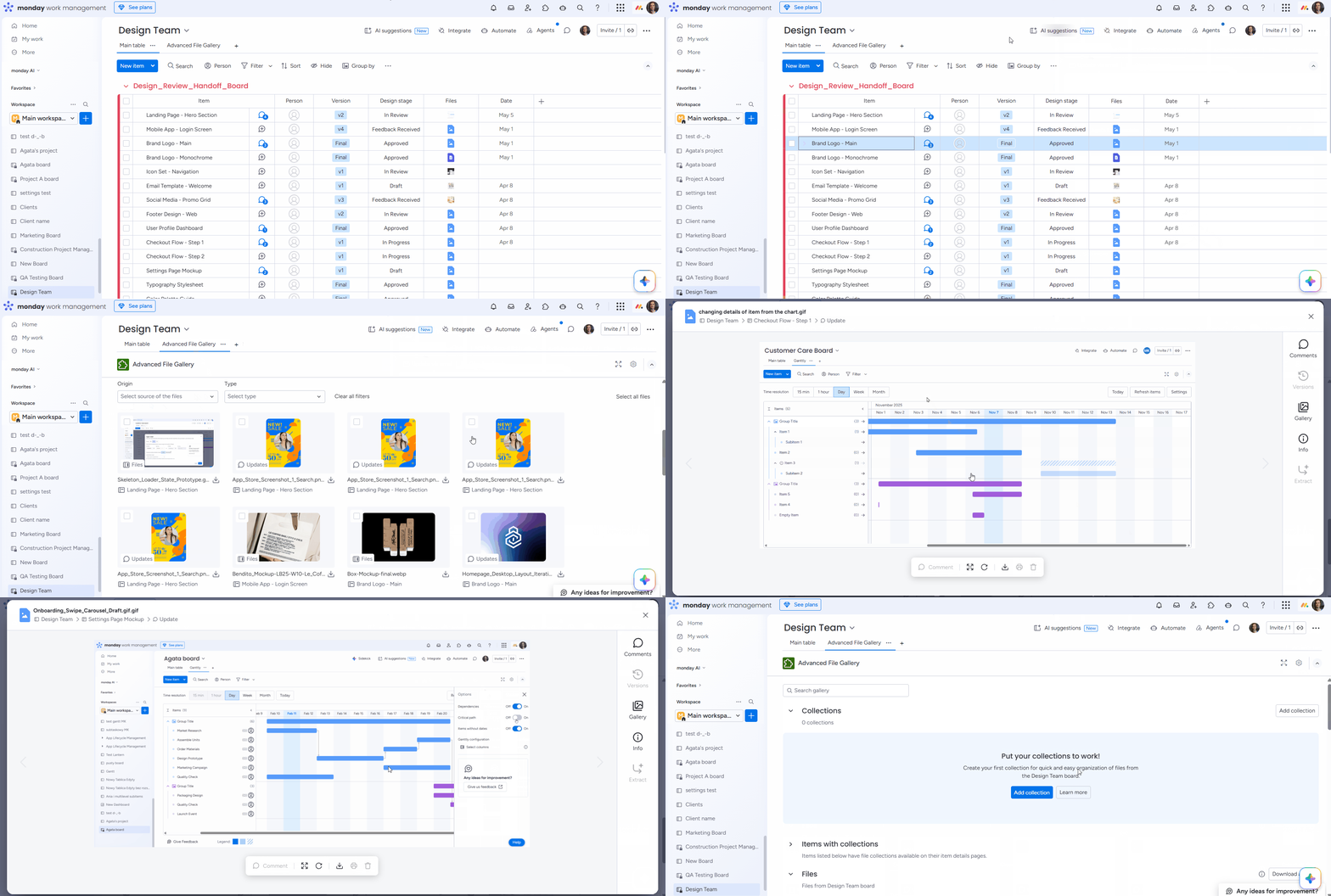
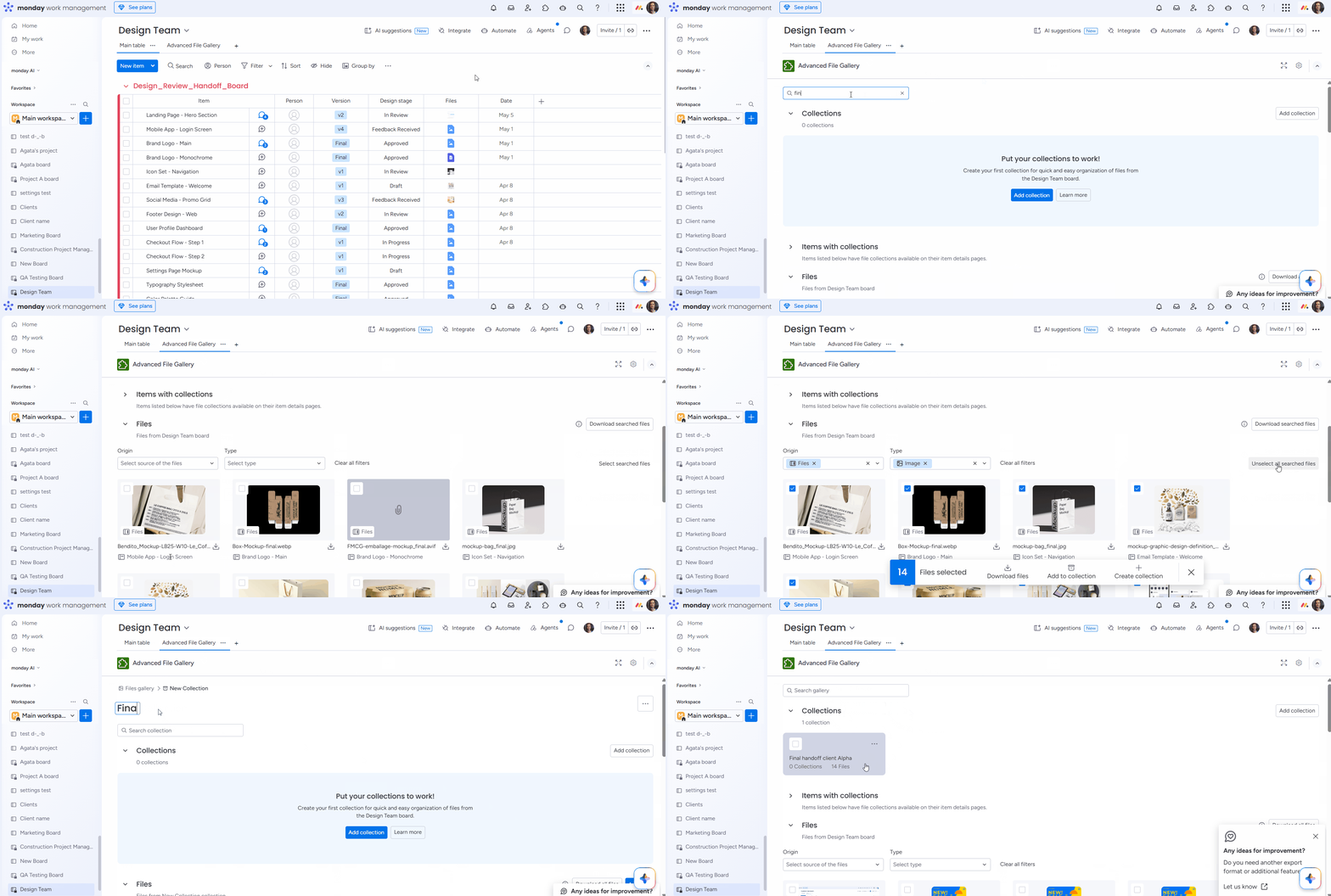
Use case: Your design team uploads multiple iterations of mockups to items on a project board. Reviewers need to preview images and GIFs directly in the app, and once designs are approved, move final assets into a dedicated collection for a clean handoff to development.
Who it's for: Design and creative teams that go through iterative review cycles and need a visual way to preview, compare, and organize approved deliverables.
-
Previewing images and GIFs in the app
-
Searching, filtering, and organizing files into a final handoff collection
Client Services - Deliverable packaging
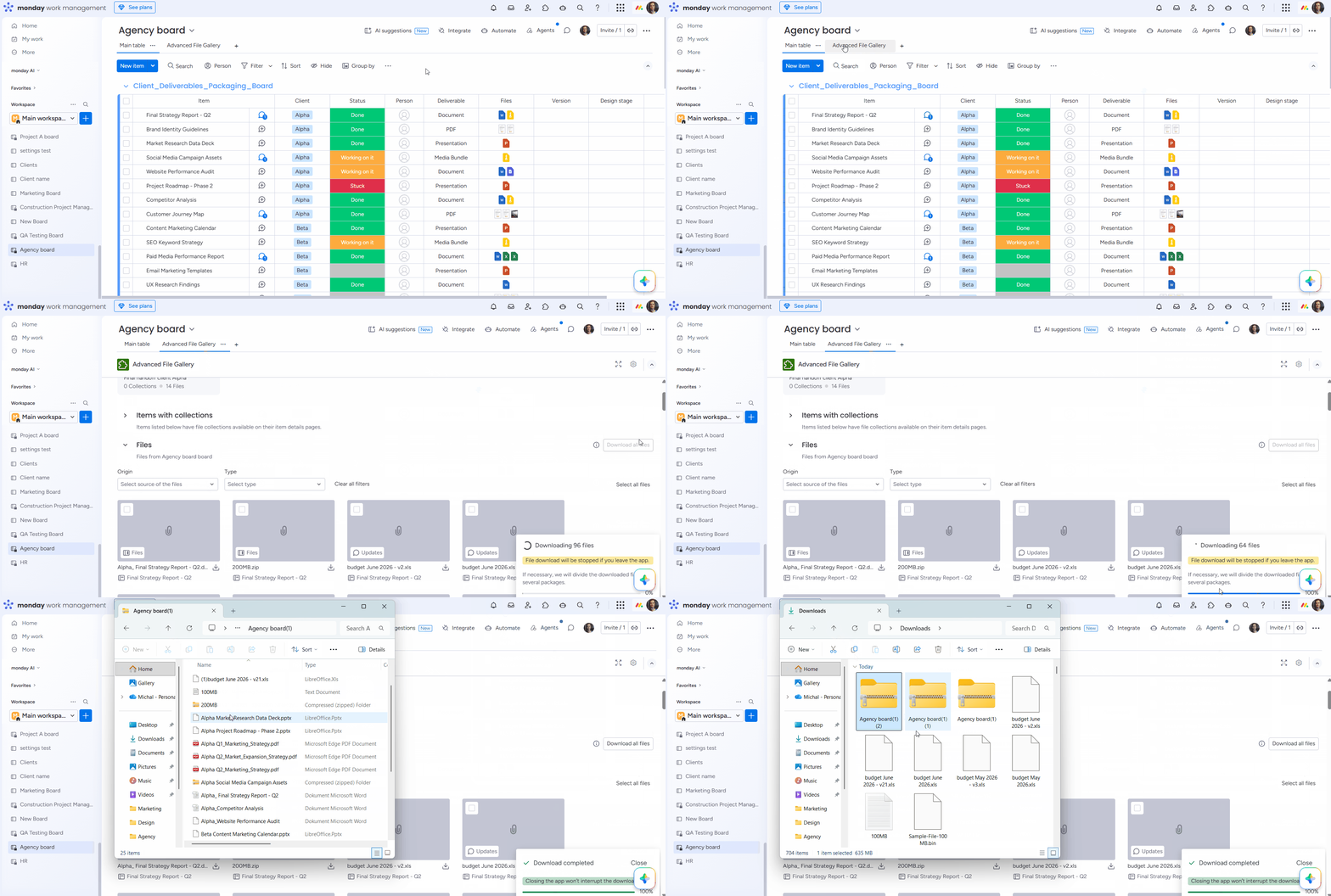
Use case: At the end of a project, your account manager needs to compile all client deliverables - documents, presentations, PDFs - from across the board into a single download. The total file size exceeds 1 GB, so the download needs to be handled automatically in multiple compressed folders.
Who it's for: Client services, consulting, and agency teams that regularly package and deliver large sets of files to clients or stakeholders at project milestones.
-
Bulk download: Client deliverables exceeding 1 GB
-
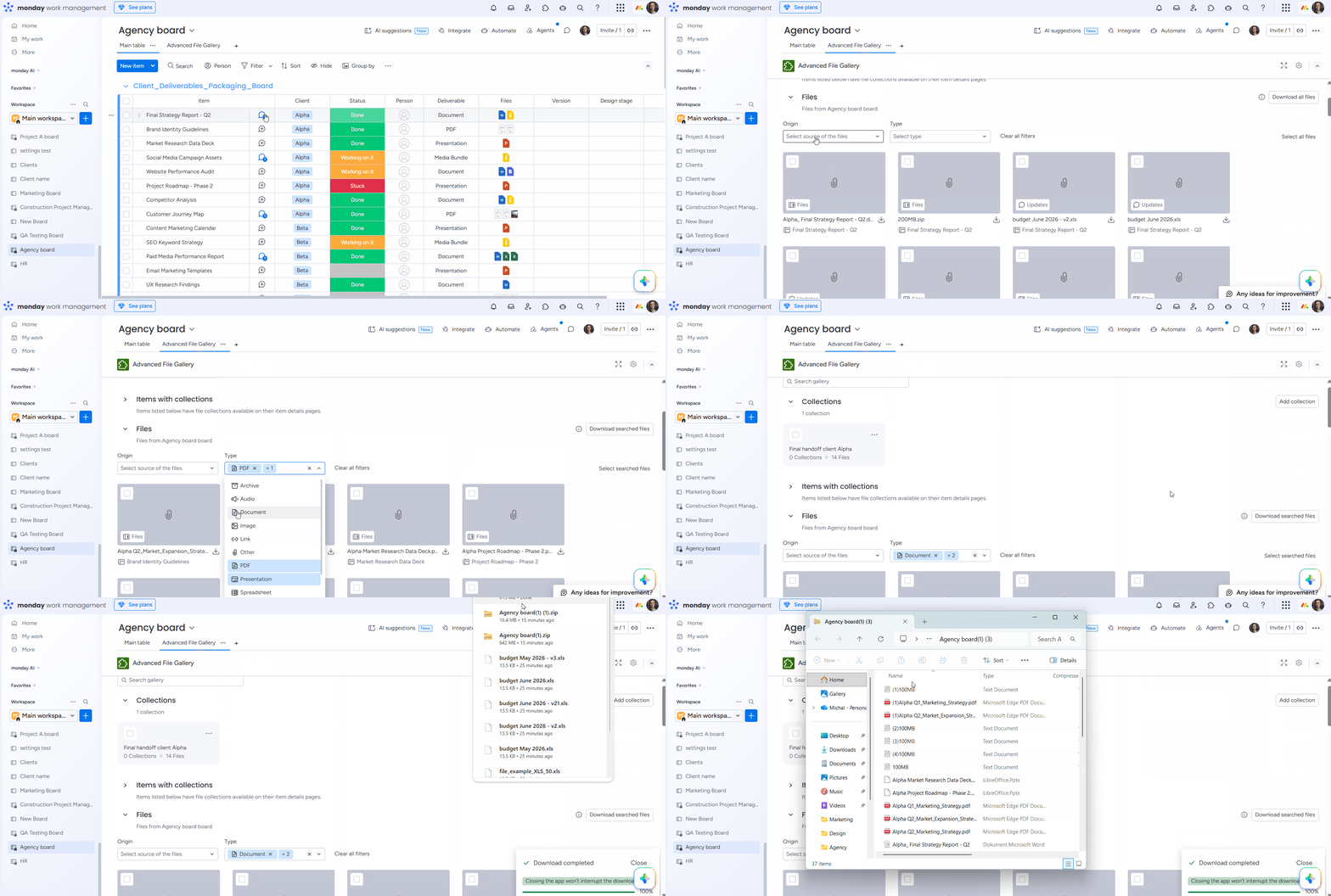
Filtering and downloading only PDF, PPT, and DOC files
HR / People Ops - Onboarding material organization
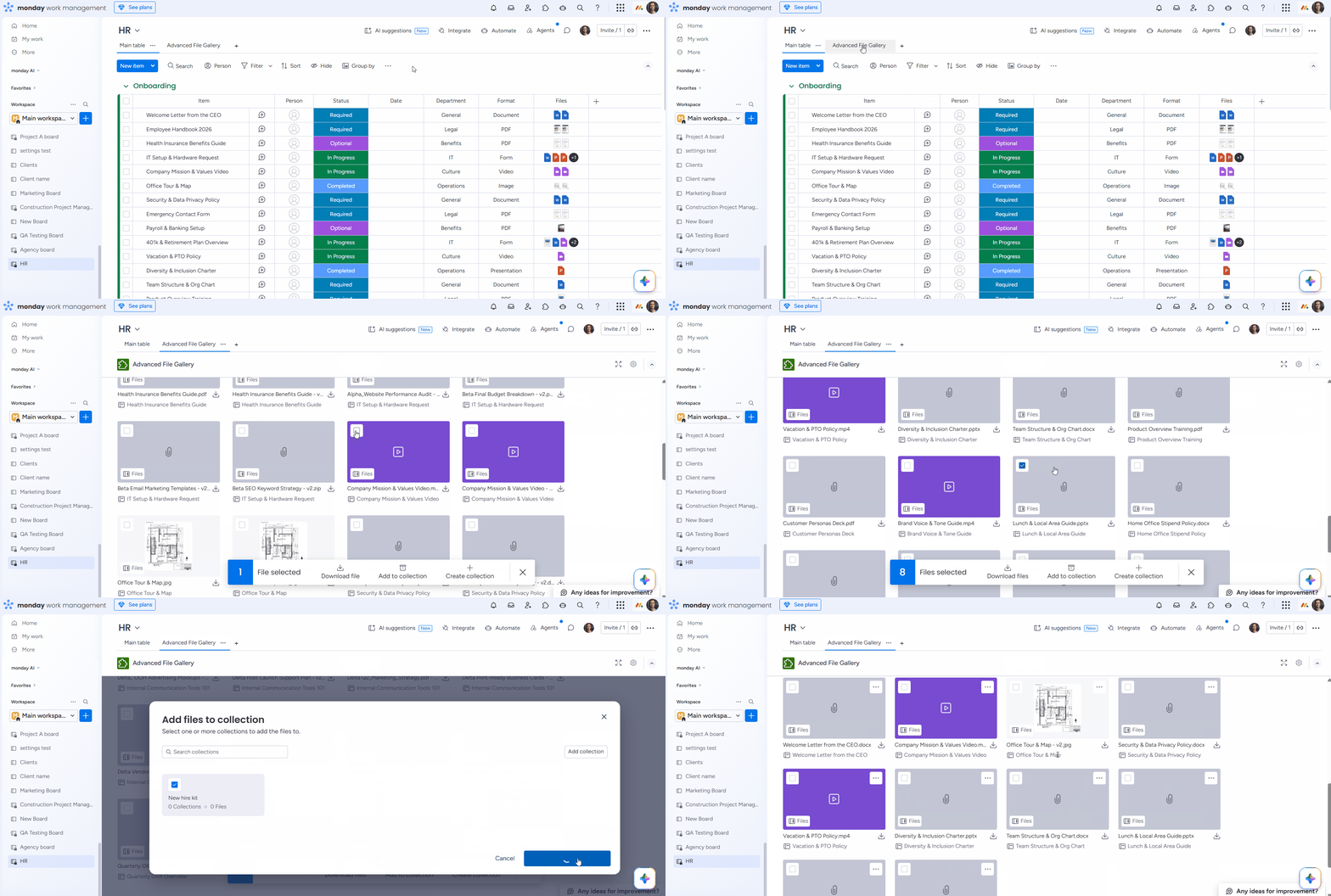
Use case: Your HR team manages onboarding tasks on a board, with training documents, policy PDFs, and welcome videos attached to various items. You need a single "New Hire Kit" collection that aggregates all relevant files, so new employees or their managers can find everything in one place instead of hunting through individual items.
Who it's for: HR and People Ops teams that coordinate onboarding across multiple tasks and need a curated, easy-to-access set of materials for new hires.
-
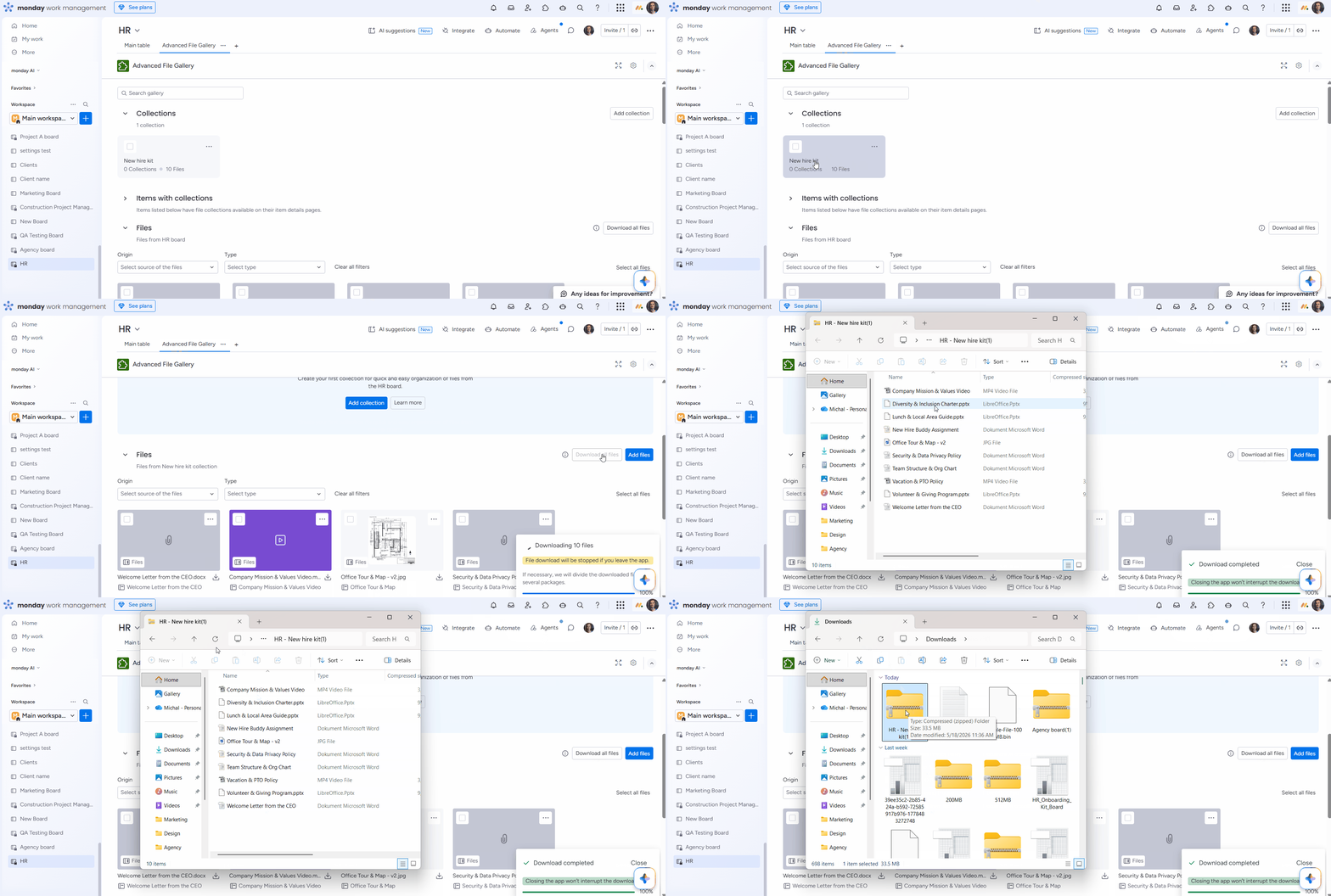
Setting up a “New hire kit” collection and adding relevant files
-
Downloading “New hire kit” files to send to new employees
Operations - Cross-board file audit
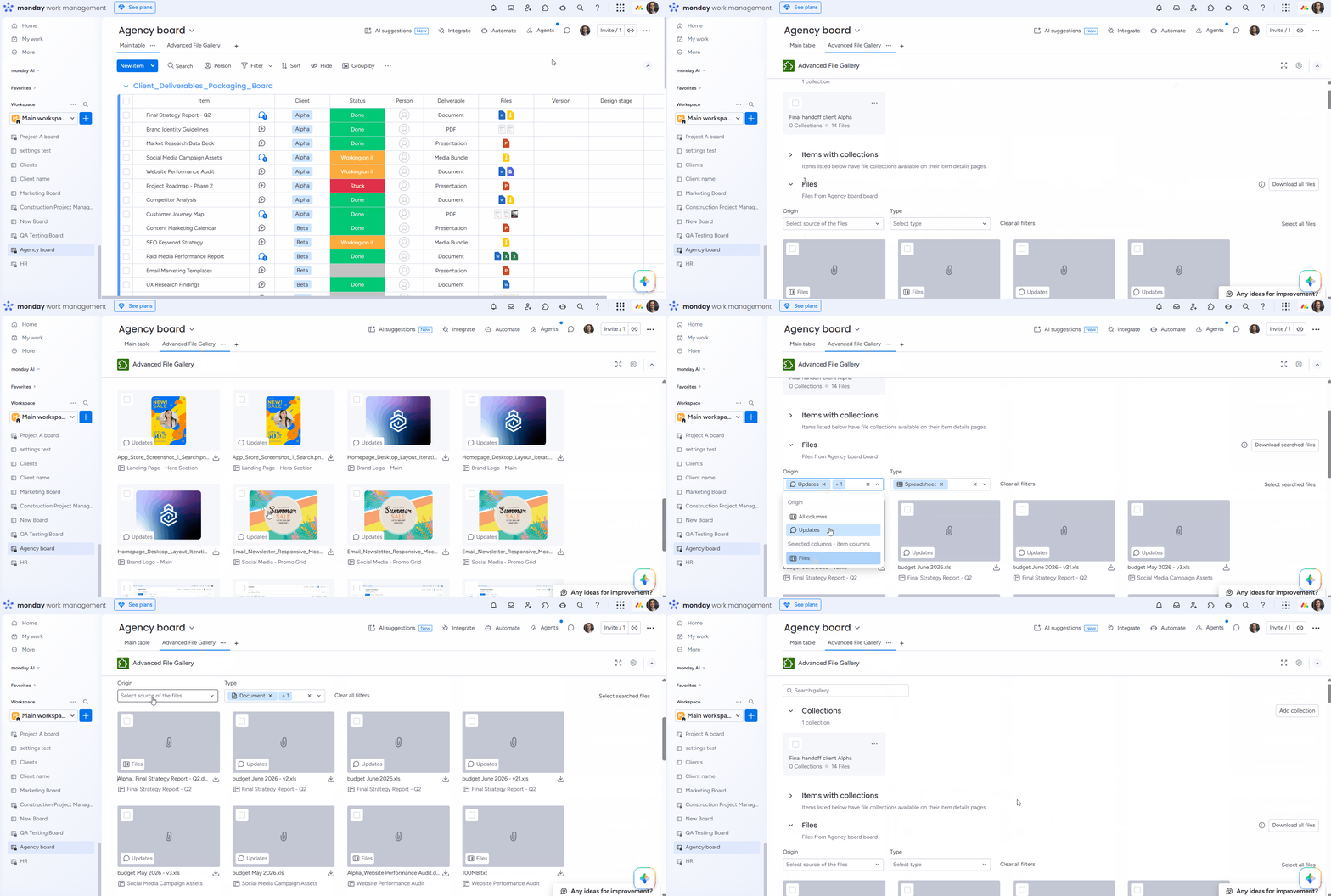
Use case: Your operations team wants to audit what types of files exist across a large board - for example, identifying all spreadsheets or archives. You need to filter by file type and by origin (specific file columns vs. updates) to understand where documentation lives and spot inconsistencies in how teams attach files.
Who it's for: Operations, compliance, and project management teams that need visibility into file distribution across boards for auditing, standardization, or governance purposes.
-
Filtering by file type and origin
Content Team - Organizing media libraries
Use case: Your content team produces articles, videos, and social media posts, attaching media assets to items on an editorial board. You need a nested collection structure - organized by content type, then by month - and a way to quickly search for a specific asset by file name when repurposing content.
Who it's for: Content and editorial teams managing large media libraries who need a structured, searchable way to organize and retrieve assets across an ongoing publishing calendar.
-
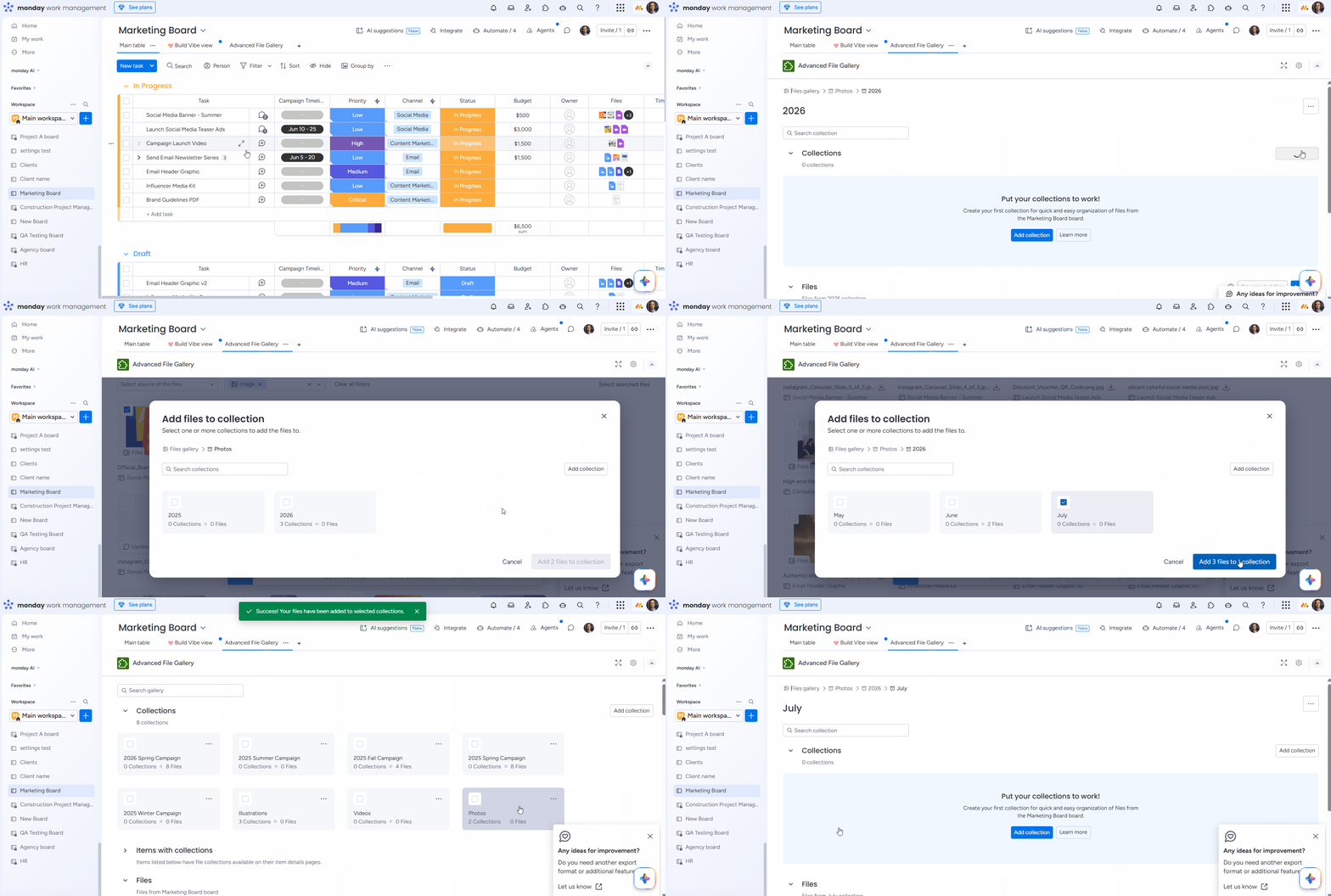
Organizing files into content type, year, and month using collections, nested collections, and filters