.png)
Problem: Checklists are added only to work items that meet the JQL conditions after the automation is created.
For example, if your JQL targets all Bugs in In progress, the checklist will be added only to Bugs that are moved to In progress after the automation is set up. Bugs that were already in the In progress status when you created the automation will not be affected.
This article explains how Multiple Checklists automation works and how you can add checklists to already existing Jira work items using a simple workaround based on JQL automation + Jira bulk update.
How Multiple Checklists automation works
When you create an automation in Multiple Checklists, it applies to newly created or newly updated work items. There are two types of automation in the app:
-
Basic (by work type) - When you create a new Jira work item, the app checks its work type.
If it matches the configured work type, the template is automatically added. Trigger: creating a new work item. -
Advanced (by JQL filter) - The app verifies if the work item matches your specified JQL filter, and if it does, the template is added. Trigger: when a Jira work item is updated.
This is why templates are not automatically added to your previously created work items - the automation primarily works on work item creation or work item update.
Workaround: Add Checklists to existing work items
To add a checklist to already existing work items, you can use this workaround of setting up JQL automation in Multiple Checklists and using Jira’s bulk edit to update those existing work items.
Once those work items are updated, the JQL automation will trigger and apply your template.
Step 1: Create a JQL filter for target work items
Create a JQL filter that returns exactly the work items you want to update (“older” work items without checklists). Save this filter in Jira. You will reuse it in the automation and in bulk edit.
Step 2: Prepare/choose the Checklist template
-
Go to the Manage templates page by going to Apps → Manage apps → Checklists.
-
Either:
-
Create and save a new checklist template, or
-
Choose an existing template you want to apply to your work items.
-
Step 3: Automate the template using the JQL filter
On the Manage templates page:
-
Open your chosen template.
-
Select the option to automate this template with a JQL filter.
-
Pick the JQL filter you created in Step 1.
-
Save the automation.
From now on, whenever a work item that matches this JQL filter is updated, the template will be added.
Step 4: Use Jira bulk update to trigger the automation
Now you need to update the existing work items so the automation can run on them.
-
In Jira, open the work item navigator.
-
Run the same JQL filter you used for the automation.
-
From the More actions menu, choose Bulk change work items or select your work items and click Edit fields.
-
Choose any safe, reversible change, for example:
-
Add a temporary label,
-
Change a status and then change it back,
-
Add a temporary comment (you can remove it later).
-
-
Confirm and run the bulk update.
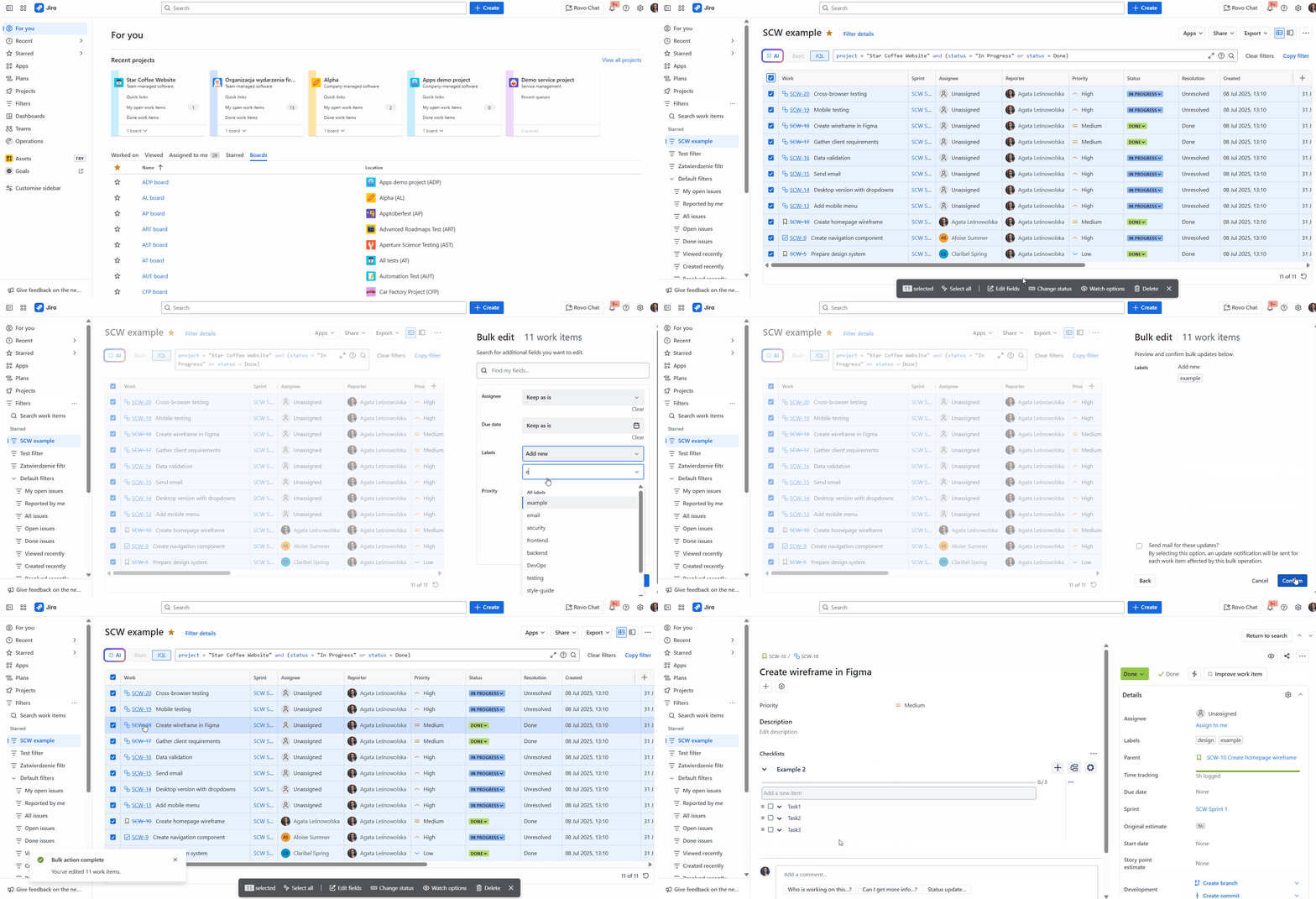
Once those work items are updated, the Multiple Checklists automation will detect that they match the JQL and will add the template.
Step 5: Turn off the automation (optional)
If you created this JQL automation only as a one-time workaround to update older issues, you may want to disable it afterwards to avoid adding the template to future issues that match the same JQL.
-
Go to the Manage templates page by going to Apps → Manage apps → Checklists.
-
Find the template that you automated with the JQL filter.
-
Click Edit automation.
-
Remove the JQL automation rule for this template.
-
Save your changes.
After this, the template will no longer be automatically added based on that JQL filter, but it will remain on all issues where it was already created.
To avoid adding the same checklist twice to the same work item, either:
-
Build a JQL that returns only work items without the checklist already added, or
-
When bulk editing, manually select only work items that do not yet have the checklist.
Do you have any questions or feedback? Feel free to contact us here 💡