
Display preferences
The Options drawer menu allows you to tweak what is and how it is displayed on the Worklogs page.
Please note that these are individual user preferences, not global application settings. Any changes you make here are visible only to you.
When you share a report configuration using the Share option, the recipient will view the data according to their own display preferences. For example, if you have "Hide non-working days" enabled but your teammate does not, they will still see those days when they open your shared report.
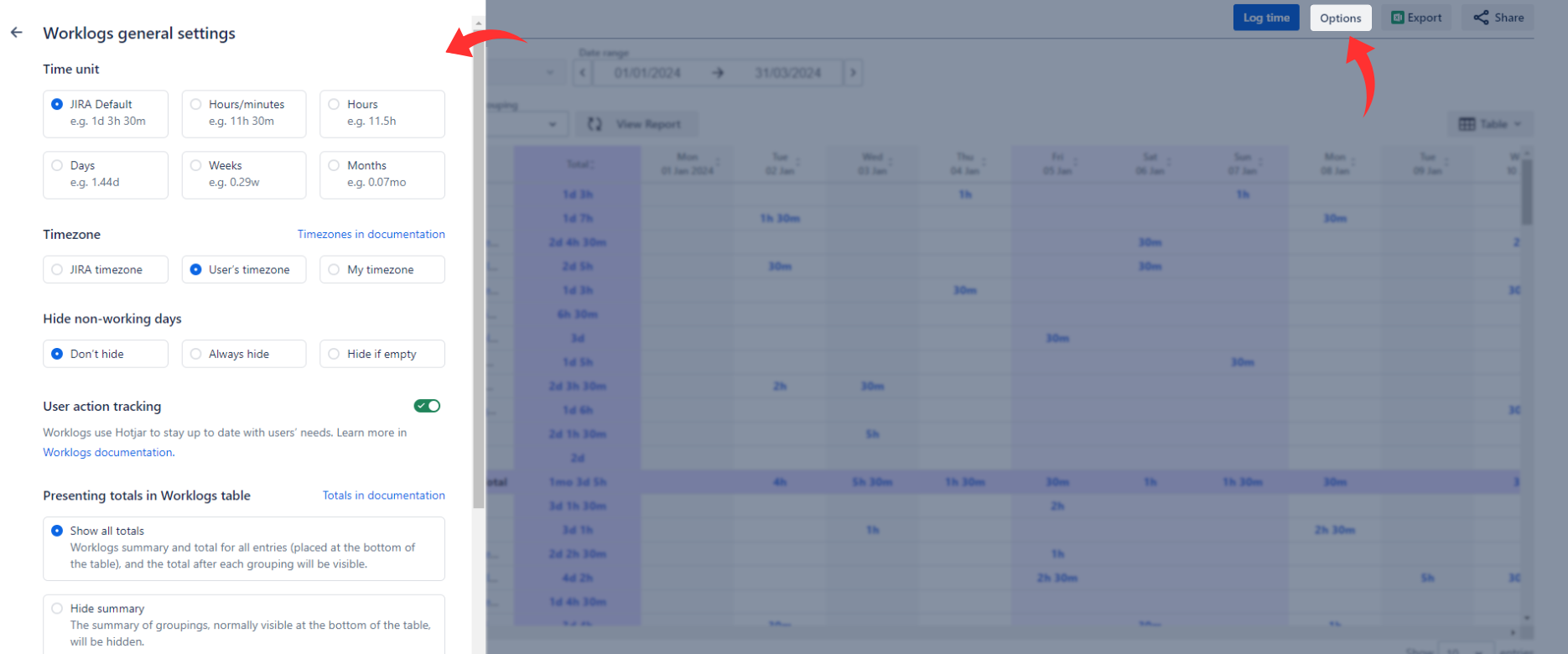
Time unit
For a quick walkthrough of this feature, watch the video below 📽️.
You can choose to display the logged time using various time units. In addition to Jira standard time units, Worklogs also allow displaying the time in months (1 month = 4 weeks).
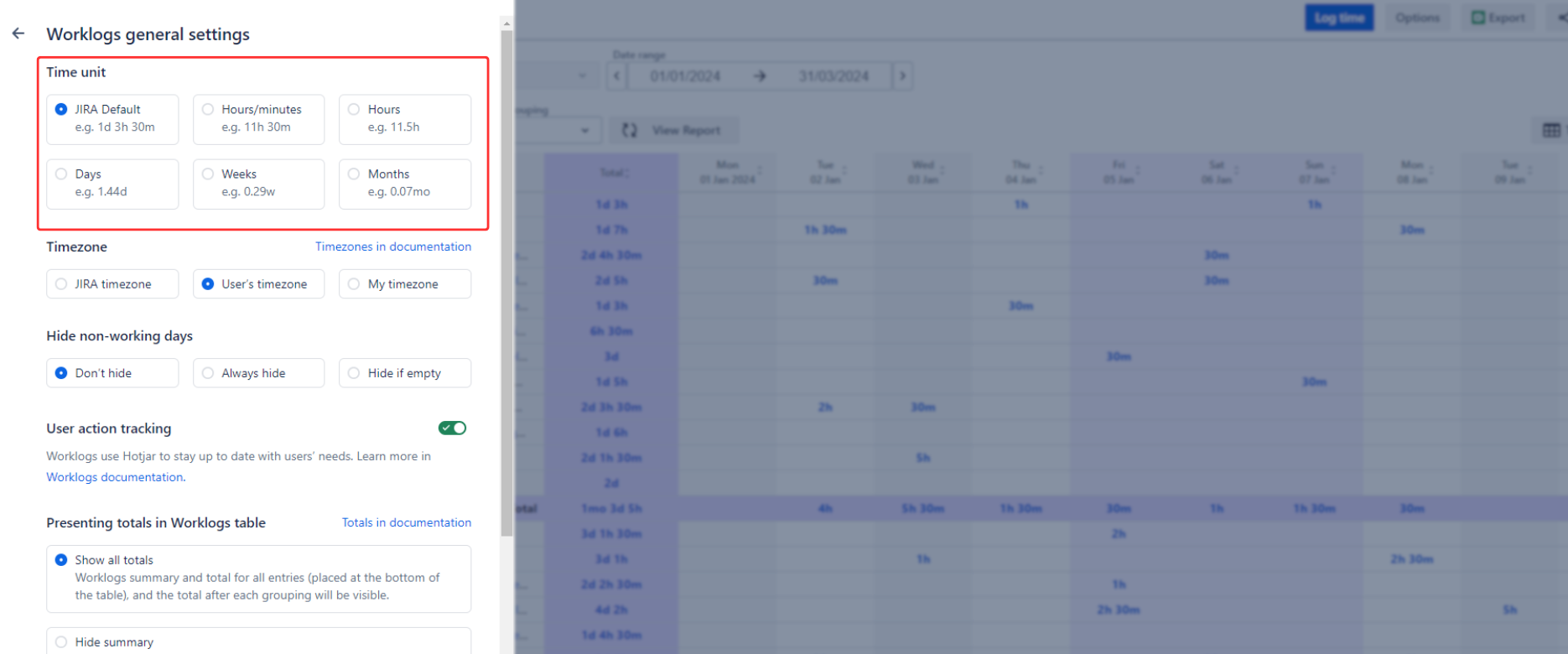
The table below demonstrates an example of how the display changes for the time of 4 days, 2 hours, and 30 minutes for all time units.
|
Jira Default |
Hours |
Hours/Minutes |
Days |
Weeks |
Months |
|---|---|---|---|---|---|
|
4d 2h 30m |
34.5h |
34h 30m |
4.31d |
0.86w |
0.22mo |
Timezone
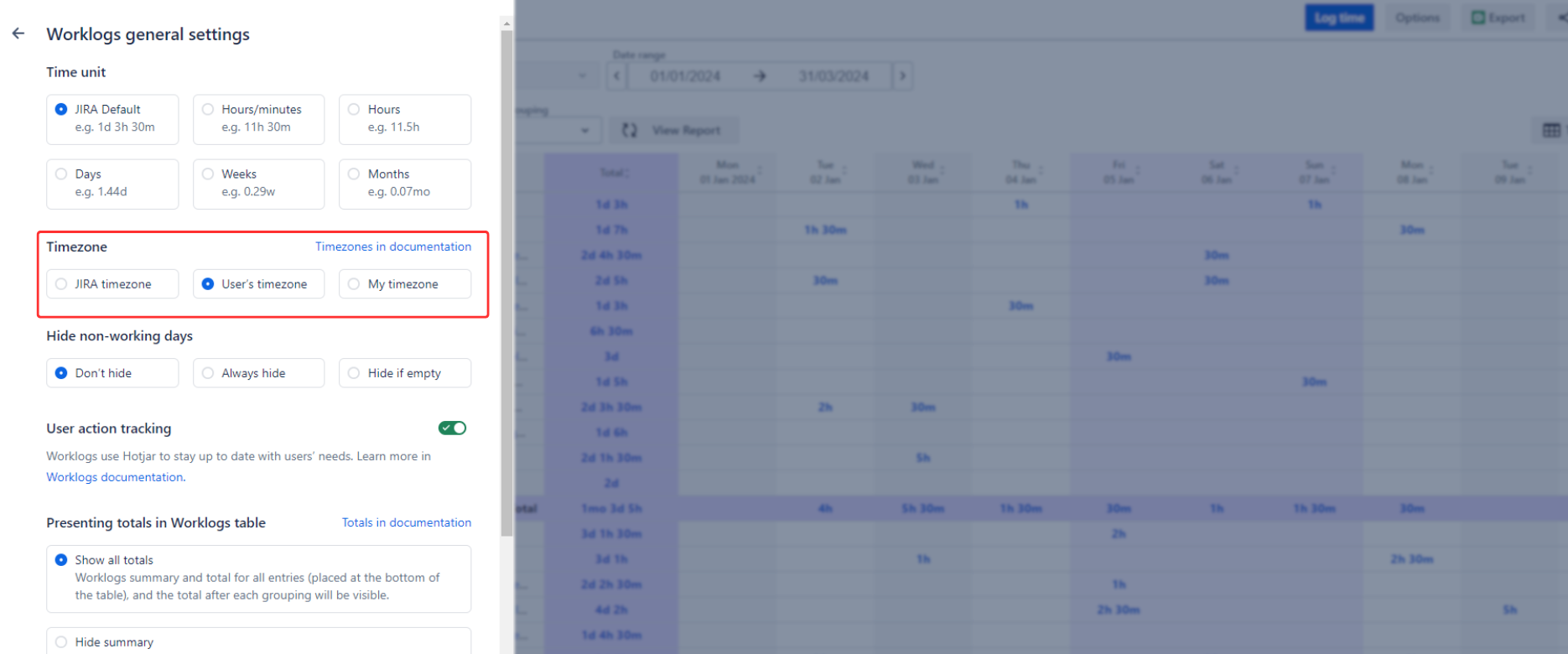
Worklogs allow you to select which timezone will be used, in case your users log time from different time zones. In our documentation, we have a dedicated section that explains the Timezone handling with different options selected.
Hide non-working days
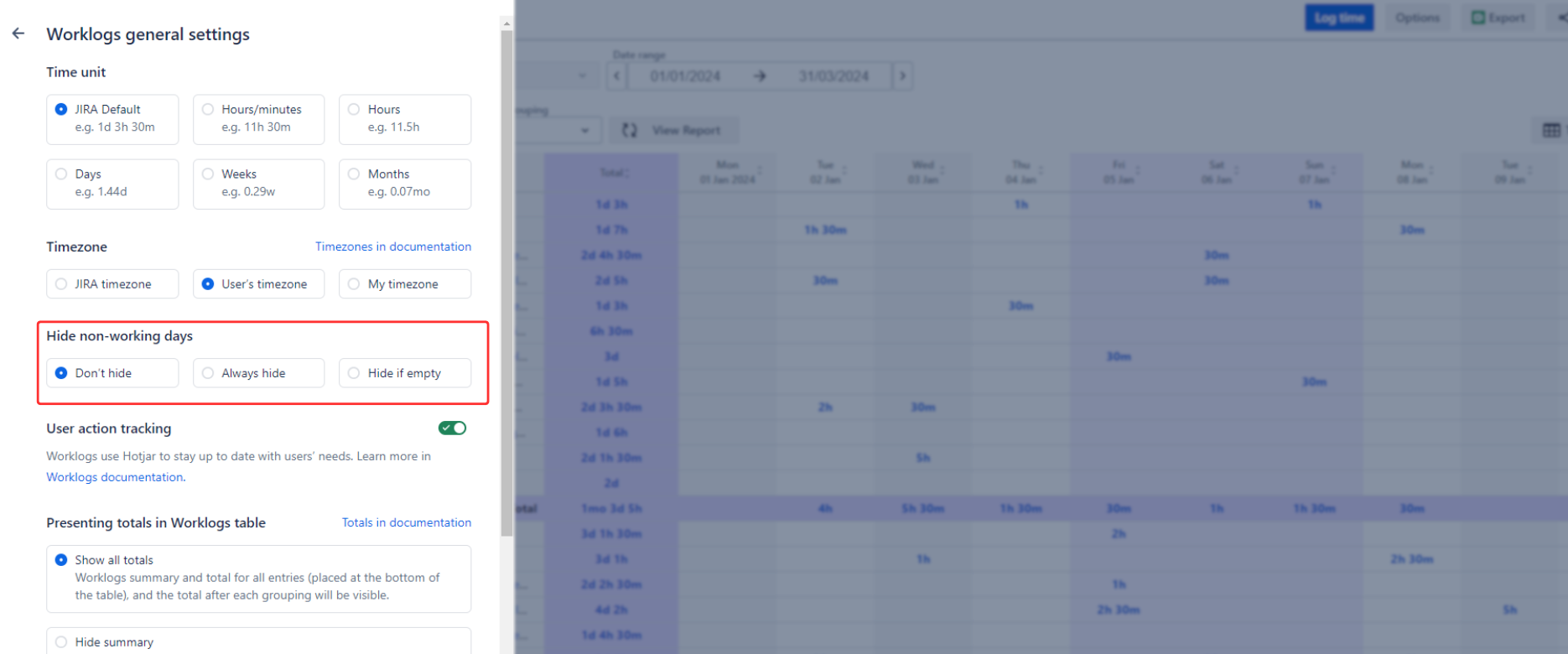
You can choose to display or hide days that are configured as non-working days in the Worklogs configuration. Optionally, you can also choose to hide them only if there’s no time logged in those days. This option is only applied if you use Period grouping set to ‘Days’.
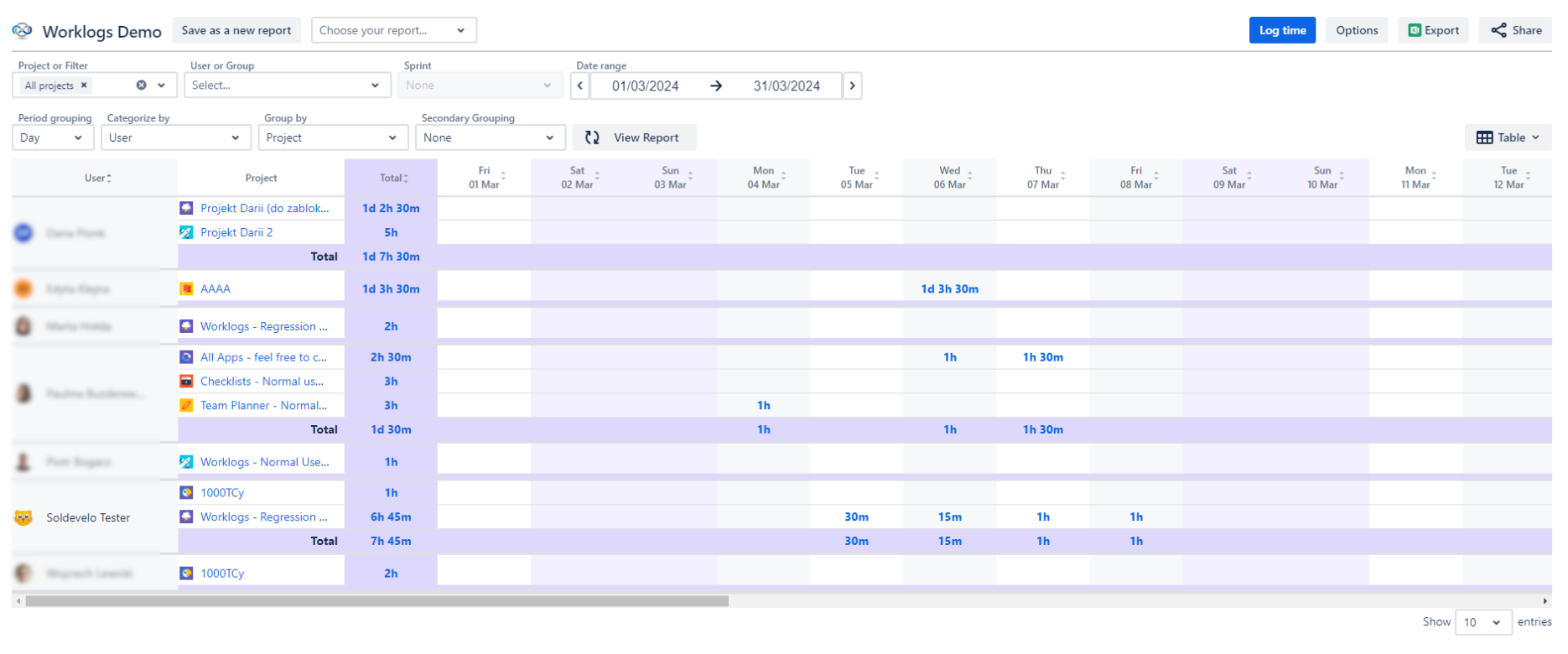
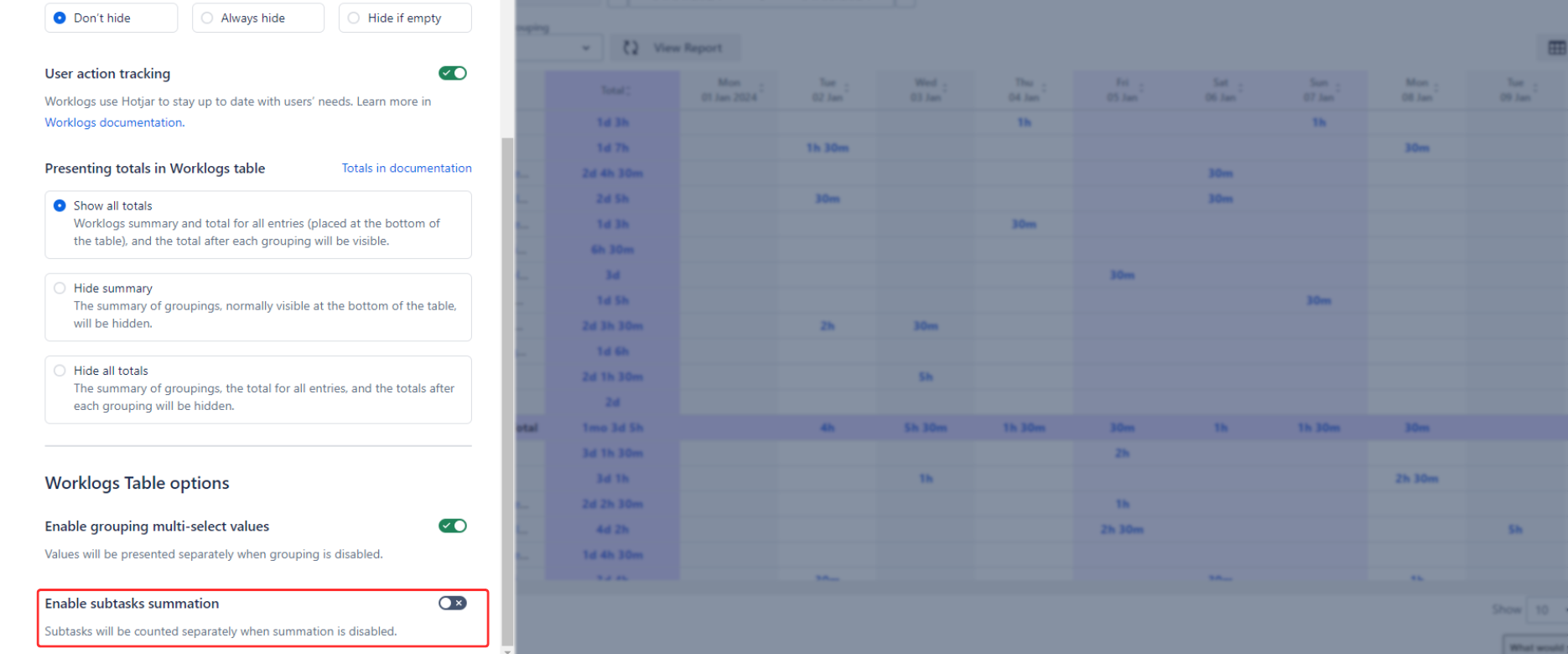
Totals in Worklogs table
There’s a possibility to display or hide the Total and Summary of logged times in the Worklogs table.
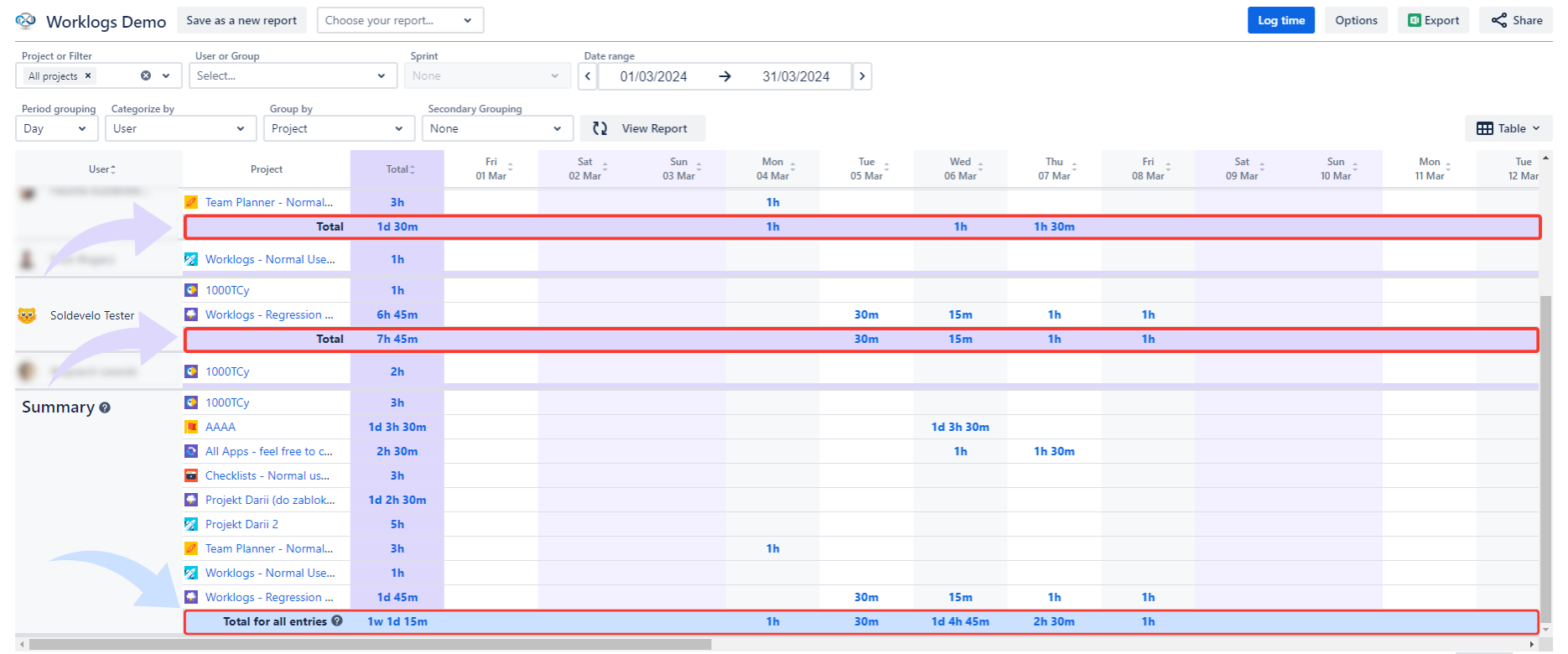
Total shows the summed logged time in Jira issue that, for example, was logged by a given user or in the given space (project) - depends on your settings and filters.
Summary includes all logged time for the selected period and, according to your filters, will be counted into one, and will be displayed at the very bottom of the table.
There are three viewing options that you can choose from.
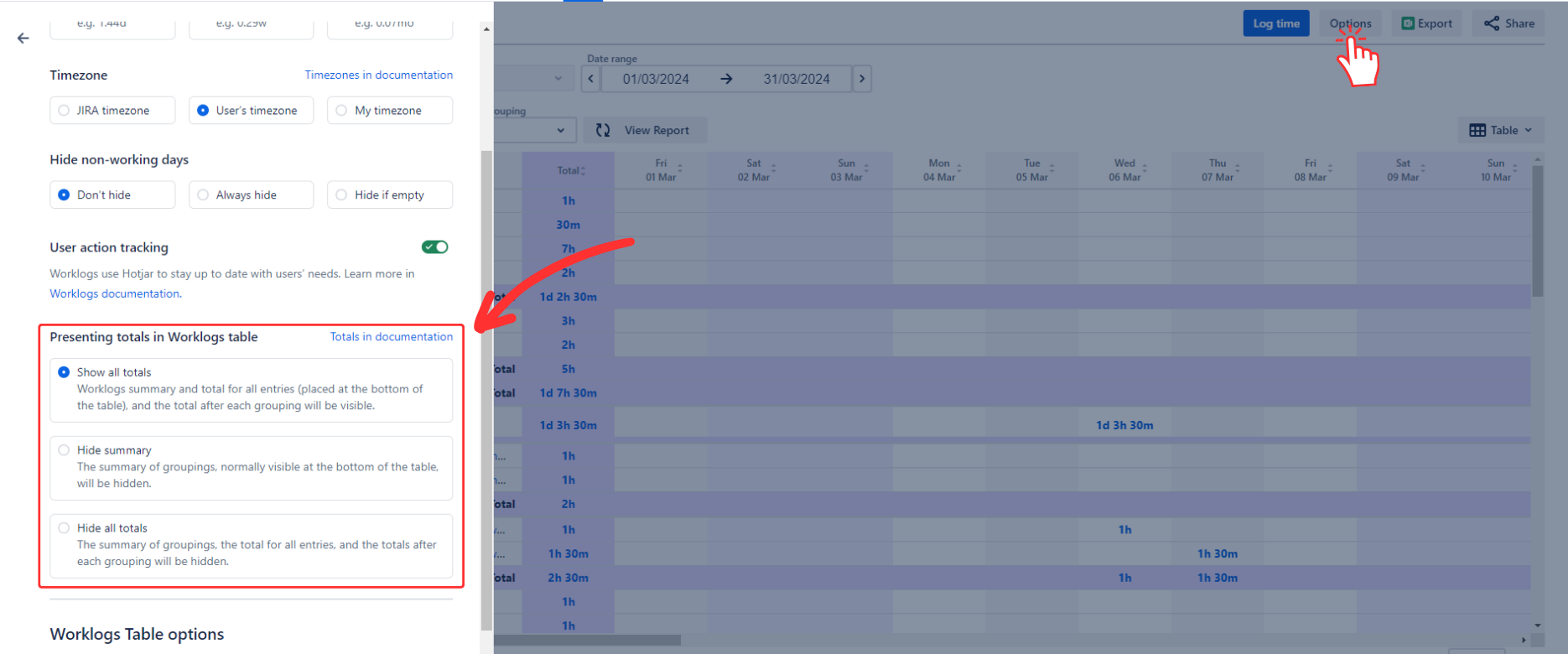
Show all totals
If this setting is selected, both Totals and Summary will be displayed in the table.
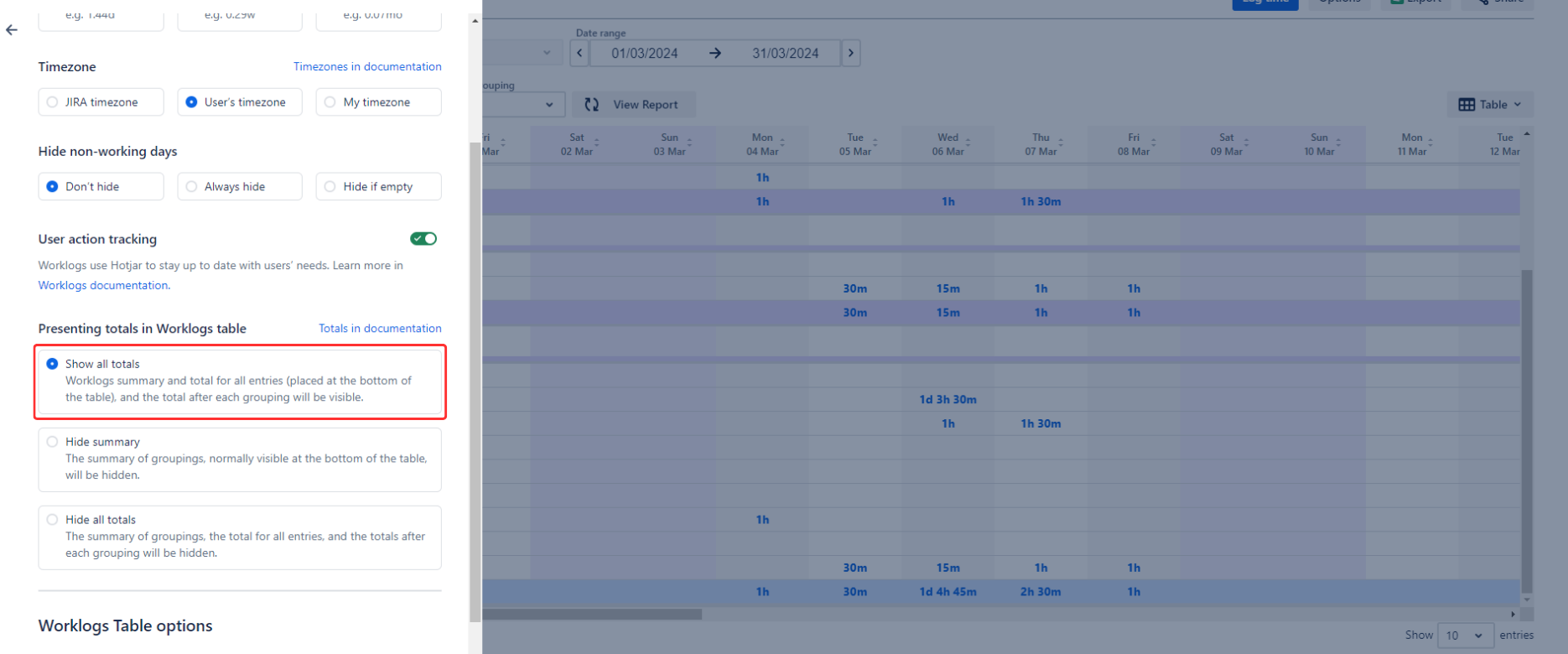
Hide summary
If this setting is selected, Summary, normally located at the bottom of the table, will be hidden. Totals are still visible.
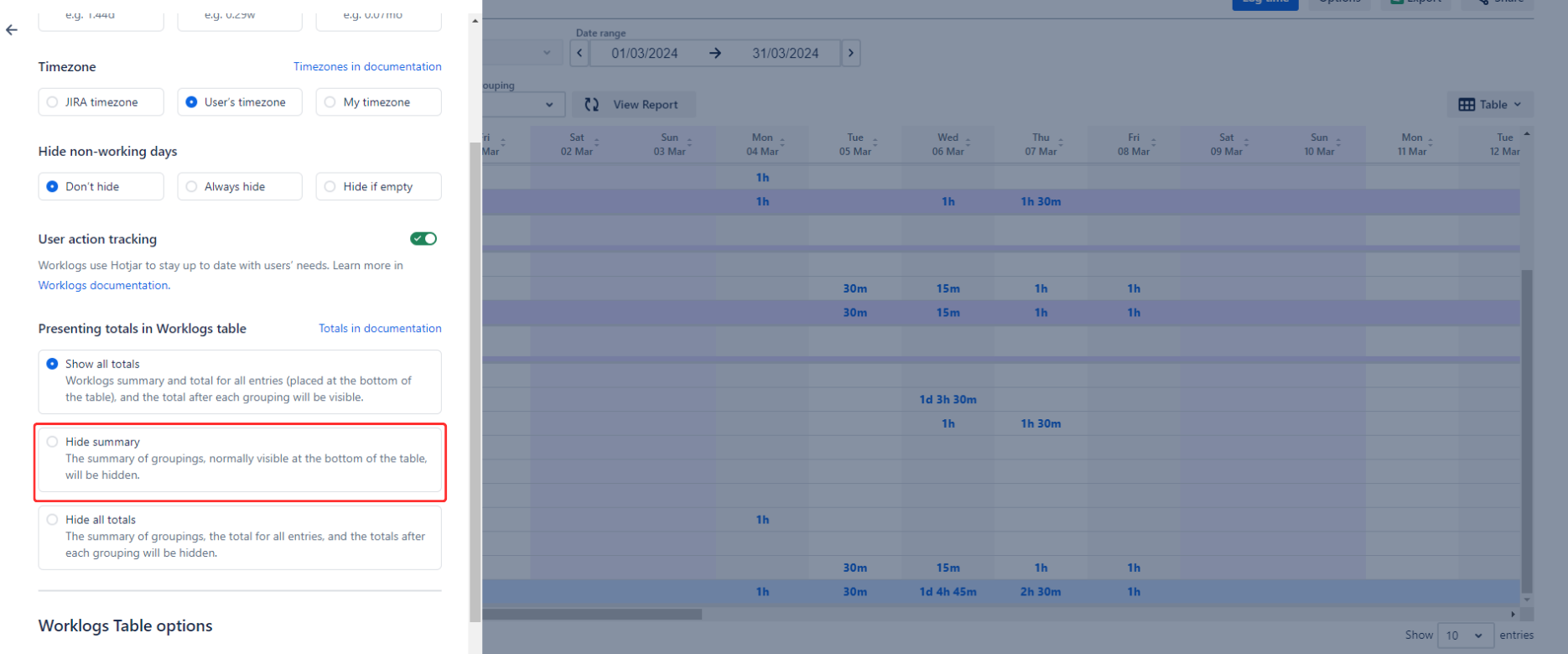
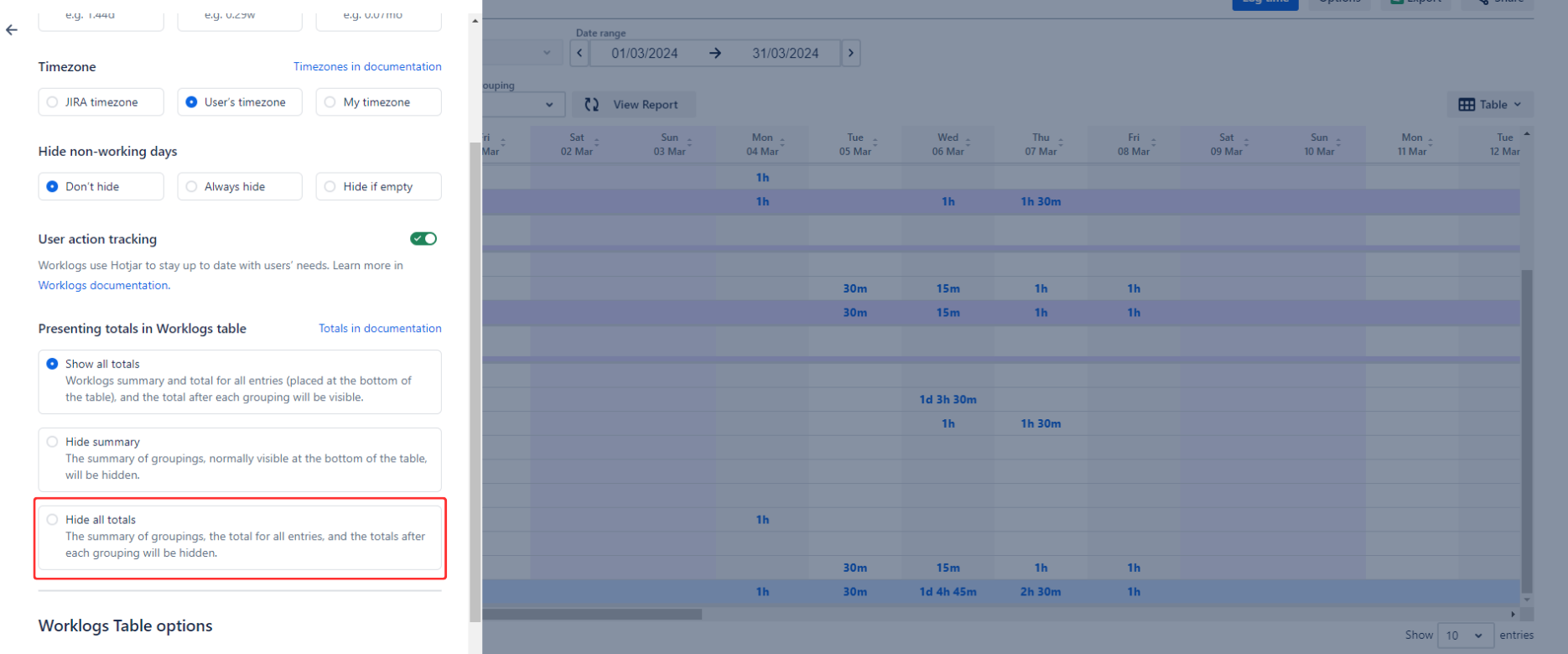
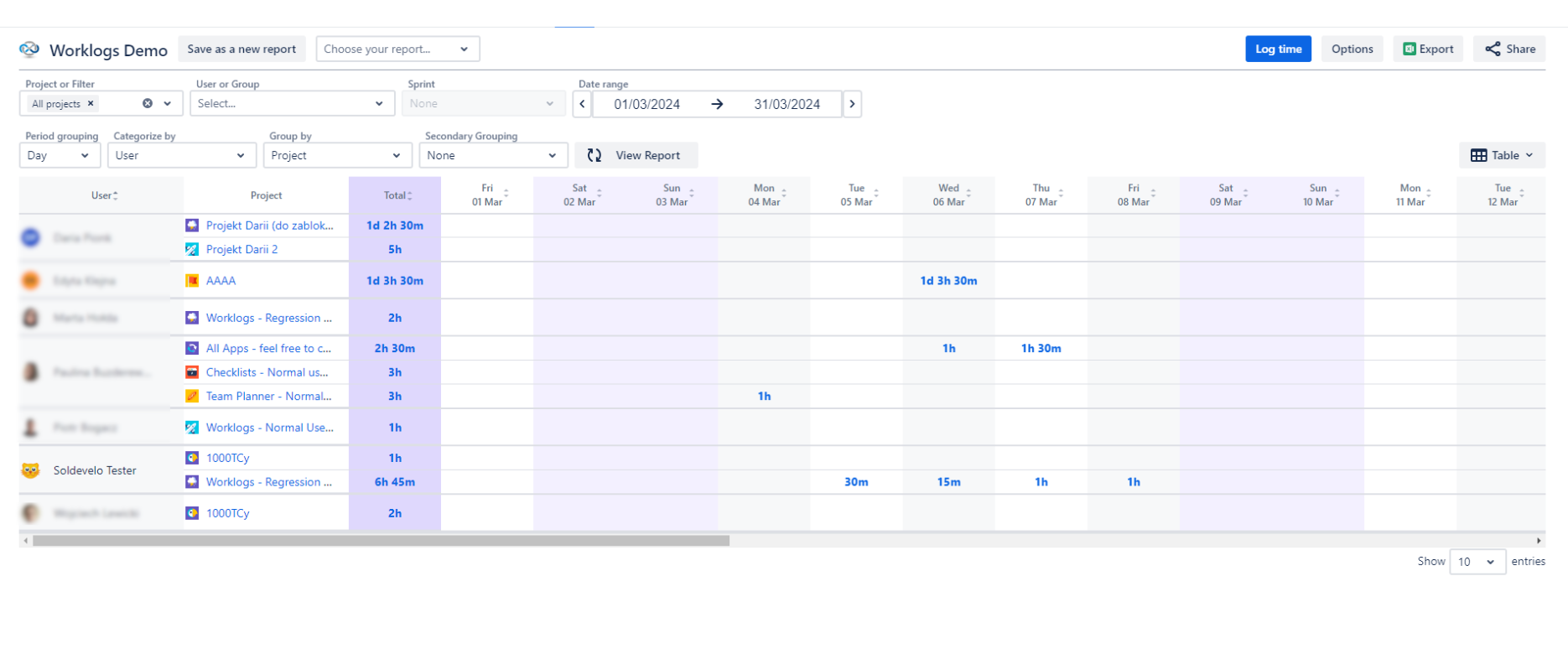
Hide all totals
If this setting is selected, both Summary and Totals will be invisible.
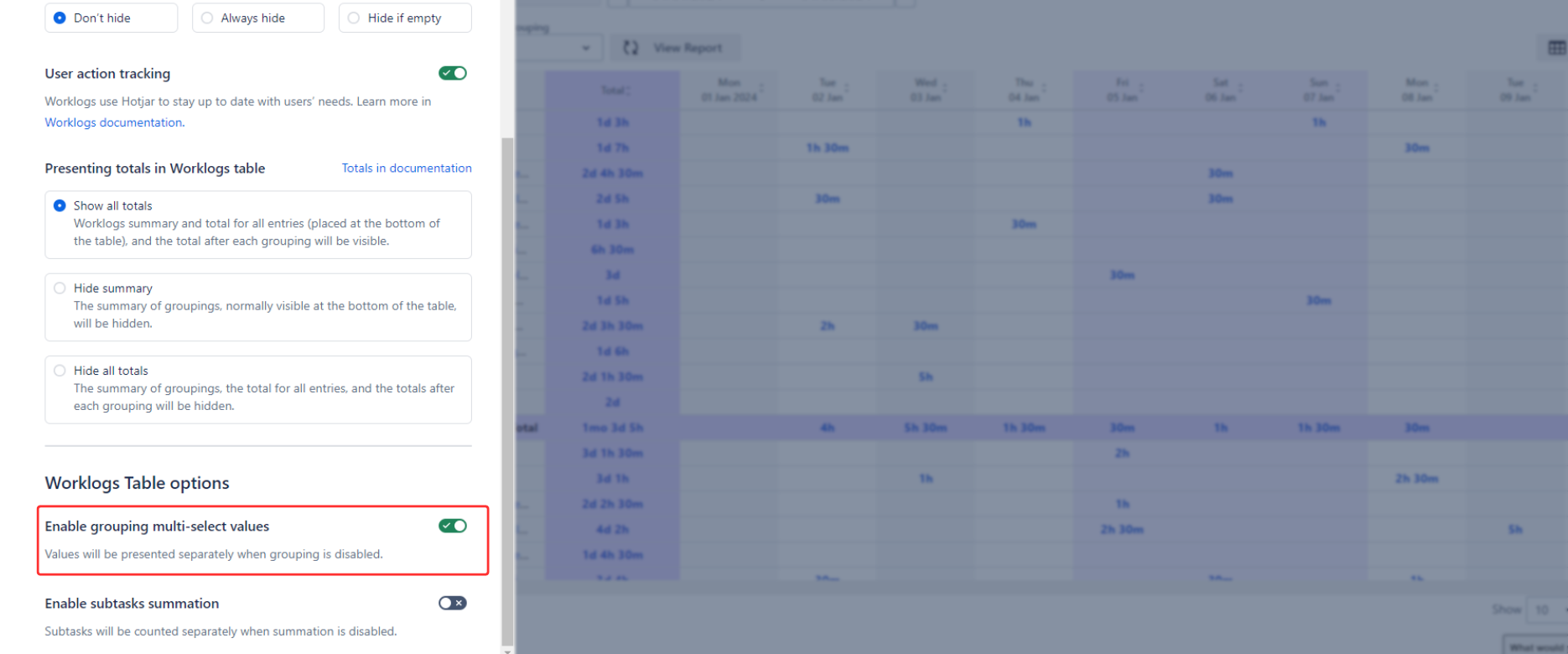
Enable grouping multi-select values
Some Jira field inputs, for example, ‘Labels’, allow you to select more than one value. With this option, you can decide how Worklogs will behave when you use grouping and categorization with such inputs. When using ‘Show grouped’, you can see how much time was logged into tickets with exactly the same set of labels.
You might also want to learn about the total time logged into tickets with one particular label. To achieve that, you should use the ‘Show each value separately’ option.
Please note that in this mode, the total time at the bottom of the page will not sum up to the values reported per label. This is because the time logged into a Jira issue that has several labels will be counted for each of these labels.
Enable subtasks summation
You can also choose how the time logged in subtasks is handled and displayed in Worklogs. If you select ‘Count separately’, it will treat and display the time logged into subtasks the same way as any other ticket and display that time separately. If you choose ‘Sum’, the time on subtasks will not show up. Instead, that time will be added to the time logged to the parent ticket of the subtask.
Do you have any questions or feedback? Feel free to contact us here 💡