
Once you’ve configured your filters, groupings, and columns in Worklogs, you can easily share the results with others or take them outside Jira:
-
Share your report to generate a link to your current Worklogs view, so teammates with Worklogs access and the same Jira permissions will see the exact same table.
-
Export your report to an Excel file for external sharing, further analysis, or distribution outside your organization’s Jira environment.
Share your report
For a quick walkthrough of this feature, watch the video below 📽️.
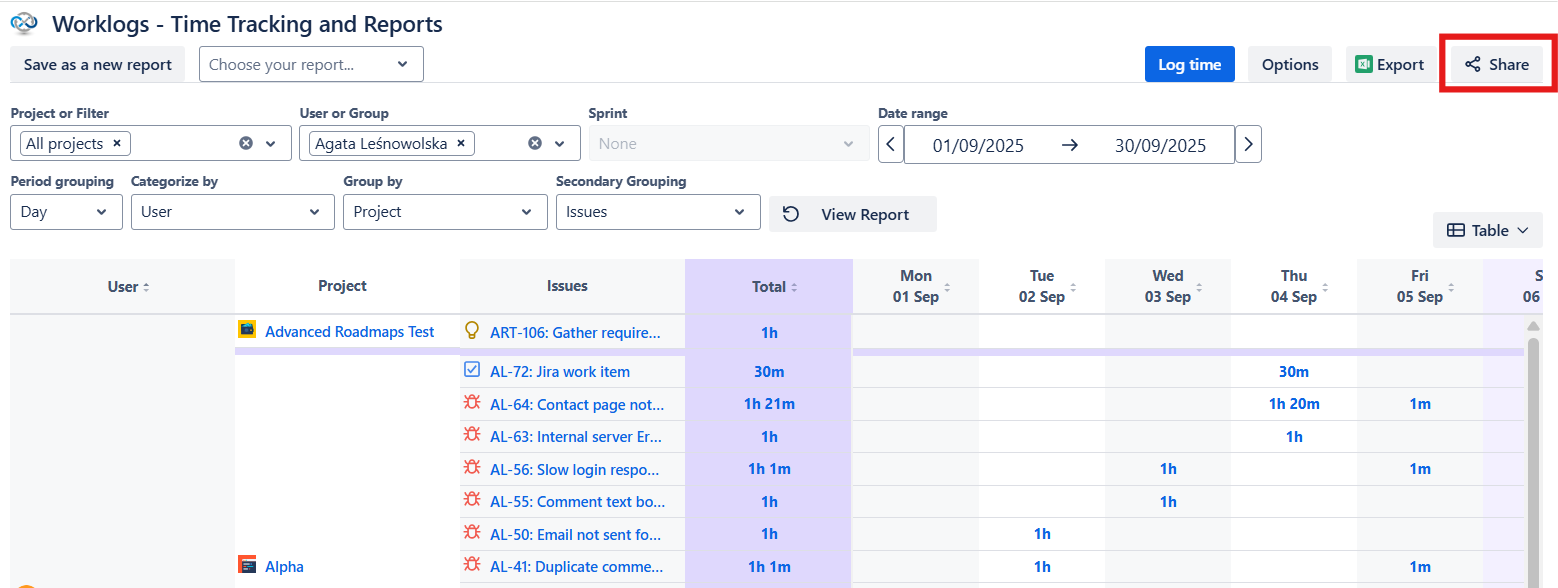
You can also share your Worklogs page with all the settings of filters and groupings by clicking Share. The link will be automatically copied to the clipboard. You can then send it to anyone and they will immediately get to view the same Worklogs table as you.
Export your report
For a quick walkthrough of this feature, watch the video below 📽️.
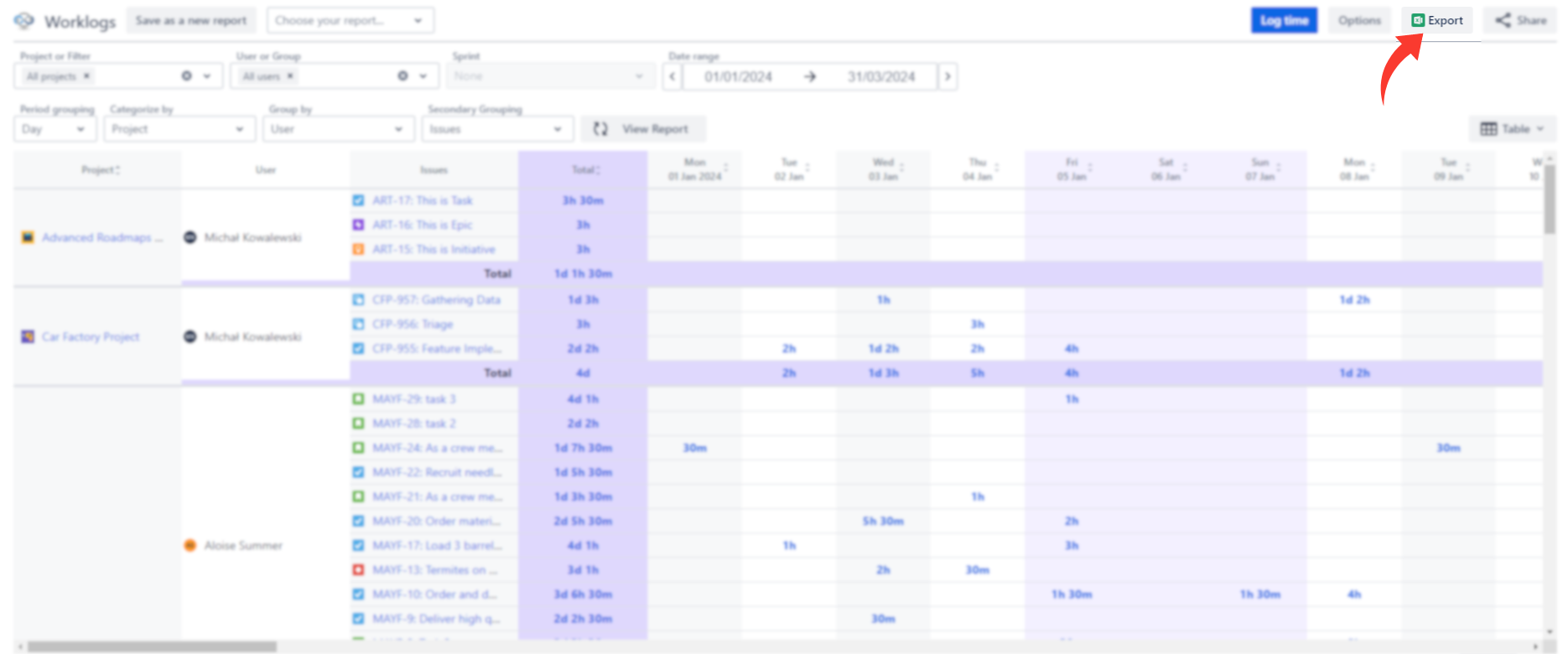
The export option allows sharing your Worklogs data outside of the app. In order to do that, set the table view of your Worklogs and click Export on the right.
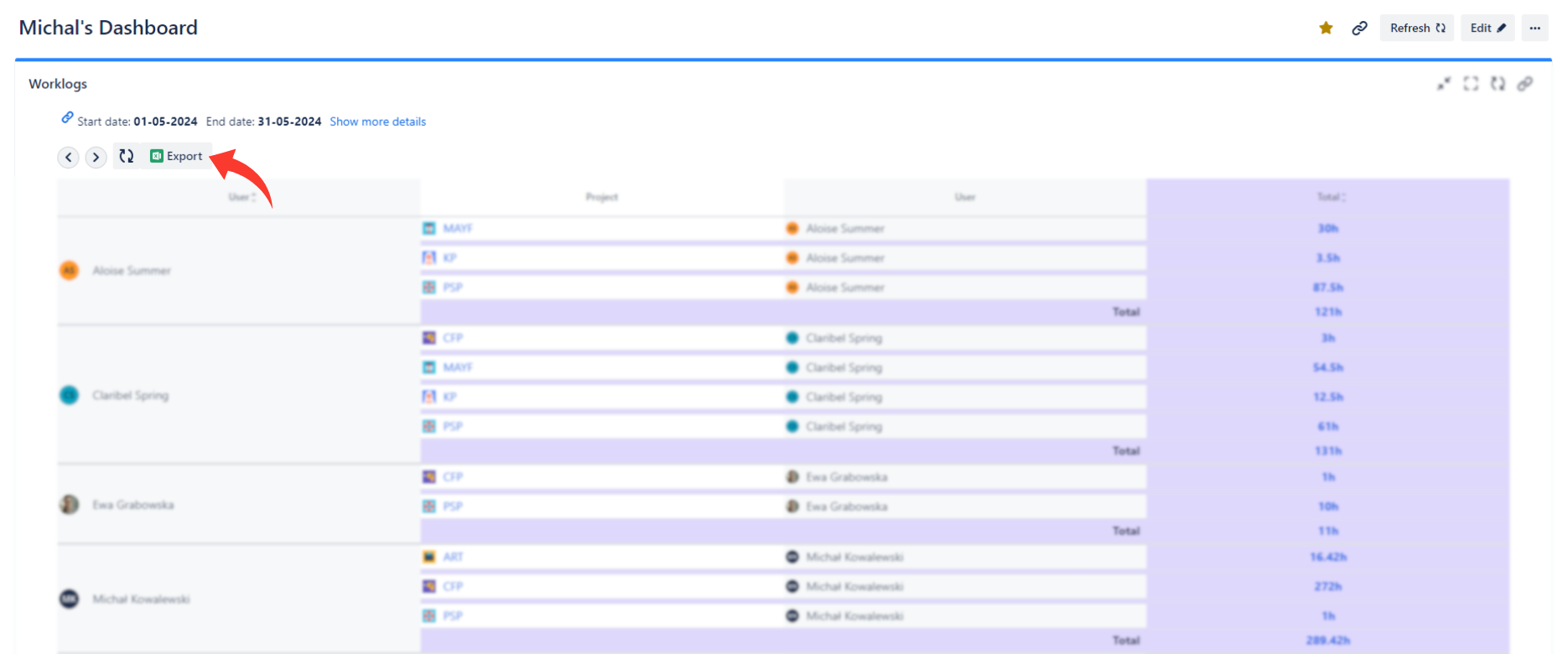
You can also export data from the gadget.
After clicking the Export button the export modal will appear.
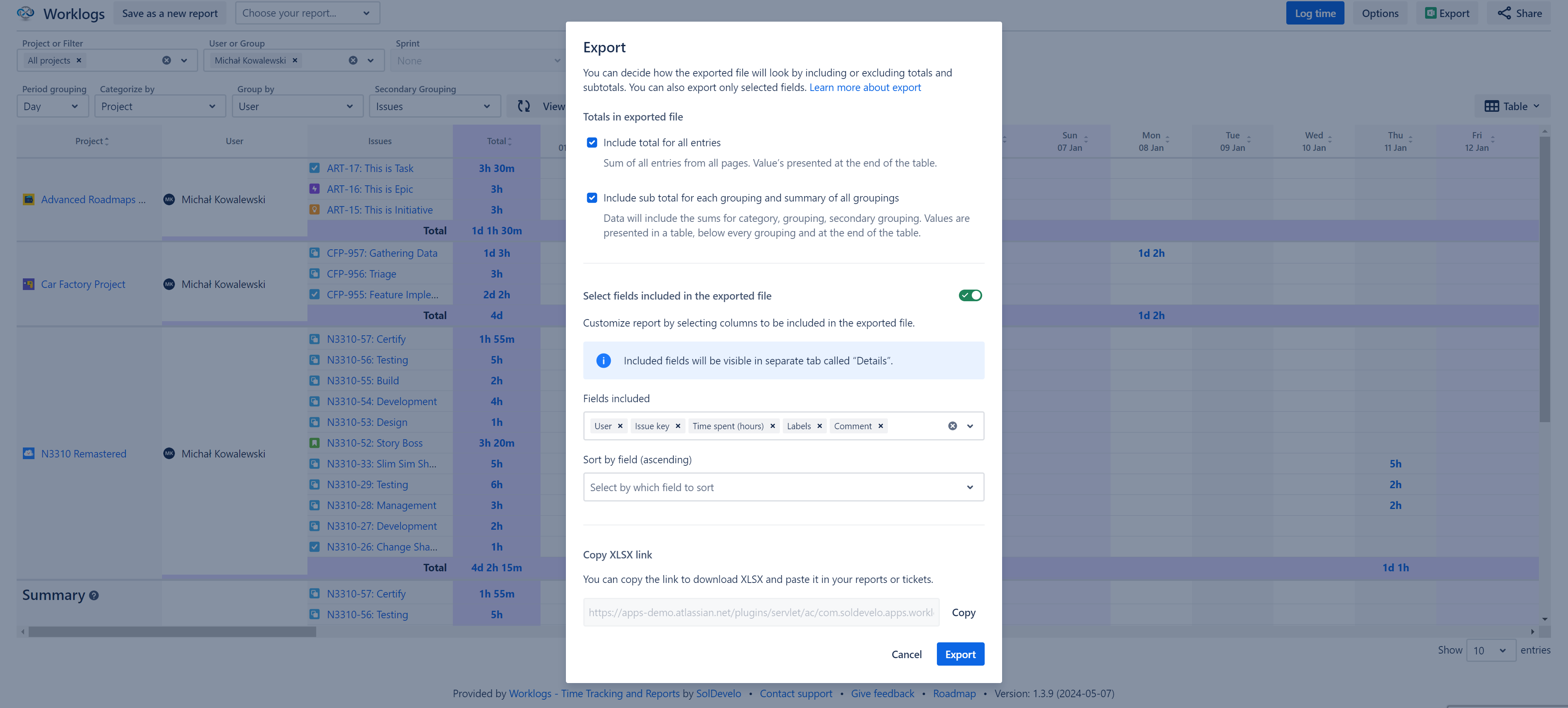
The first section, ‘Totals in exported file’ allows you to choose which totals should be included in the exported file:
-
The total for all entries is the very last row in the exported data, containing the sum of all entries for the selected period.
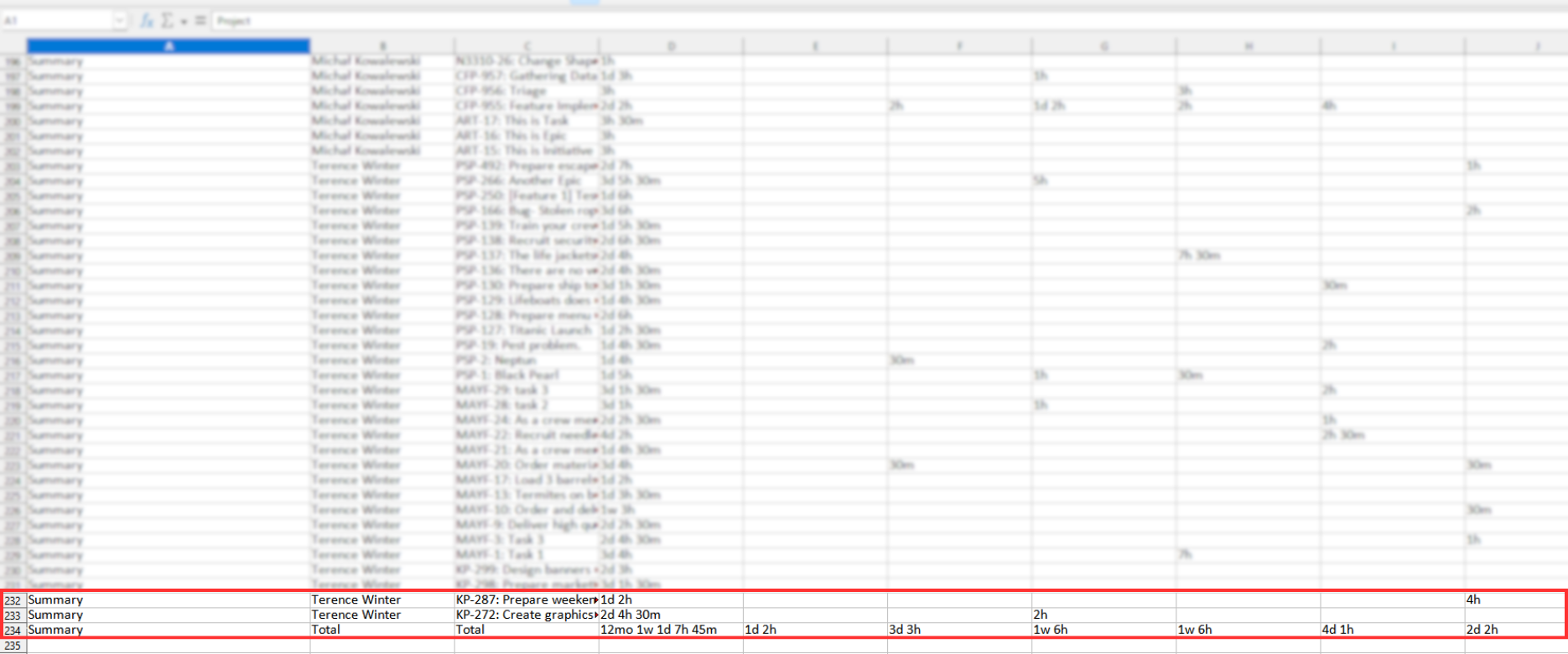
-
The subtotals are calculated for the data described by category, grouping, and secondary grouping filters. In the exported file, the rows will appear directly after the data rows for the given category, grouping, or secondary grouping.
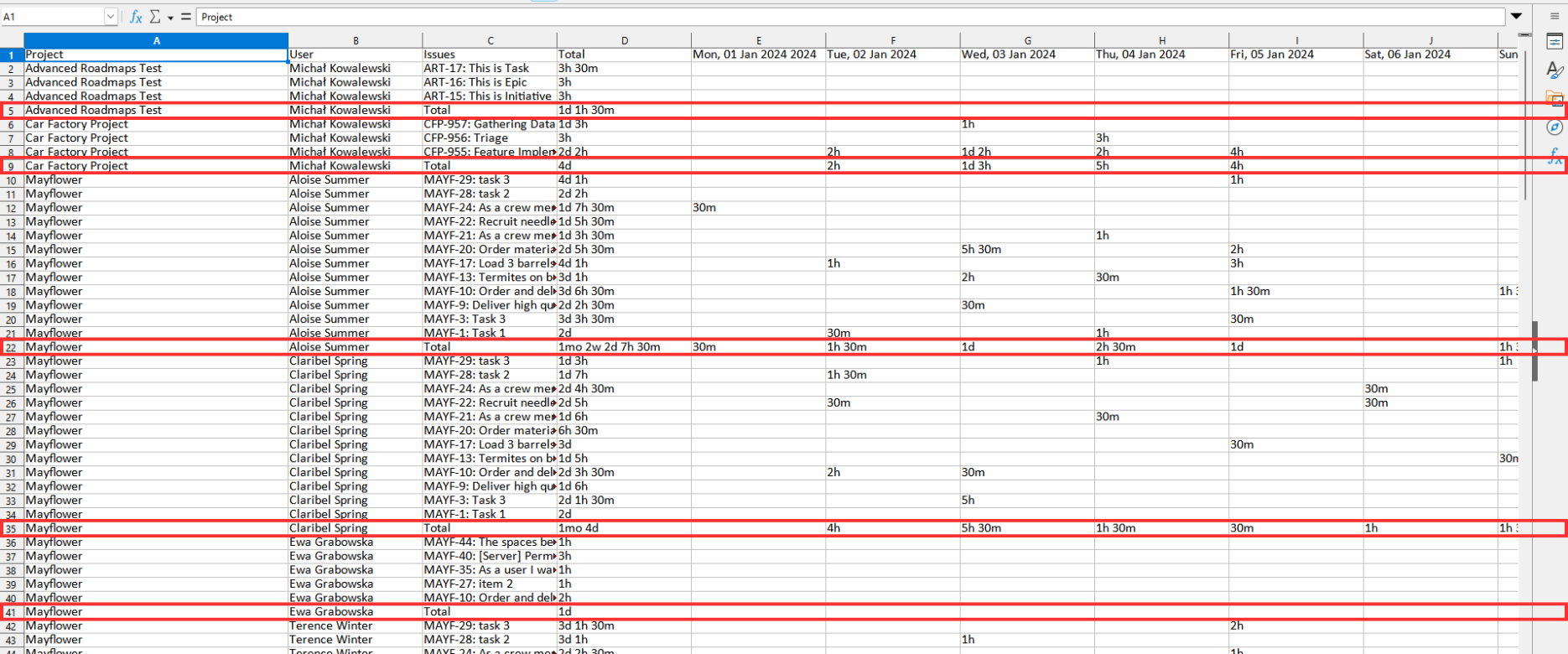
Selecting both the ‘Include total for all entries’ option and the ‘Include sub total’ option will result in generating an XLSX report that is an exact representation of the Worklogs table. Note: there must be at least two rows of data to calculate a total. Otherwise, the total row is skipped.
In the second section, ‘Select fields included in the exported file’ you can configure which fields will be included in your report. By default user, time spent, and issue key are selected. You can also select one field to sort the data by. Disabling the section using the switch button will result in exporting all available fields.
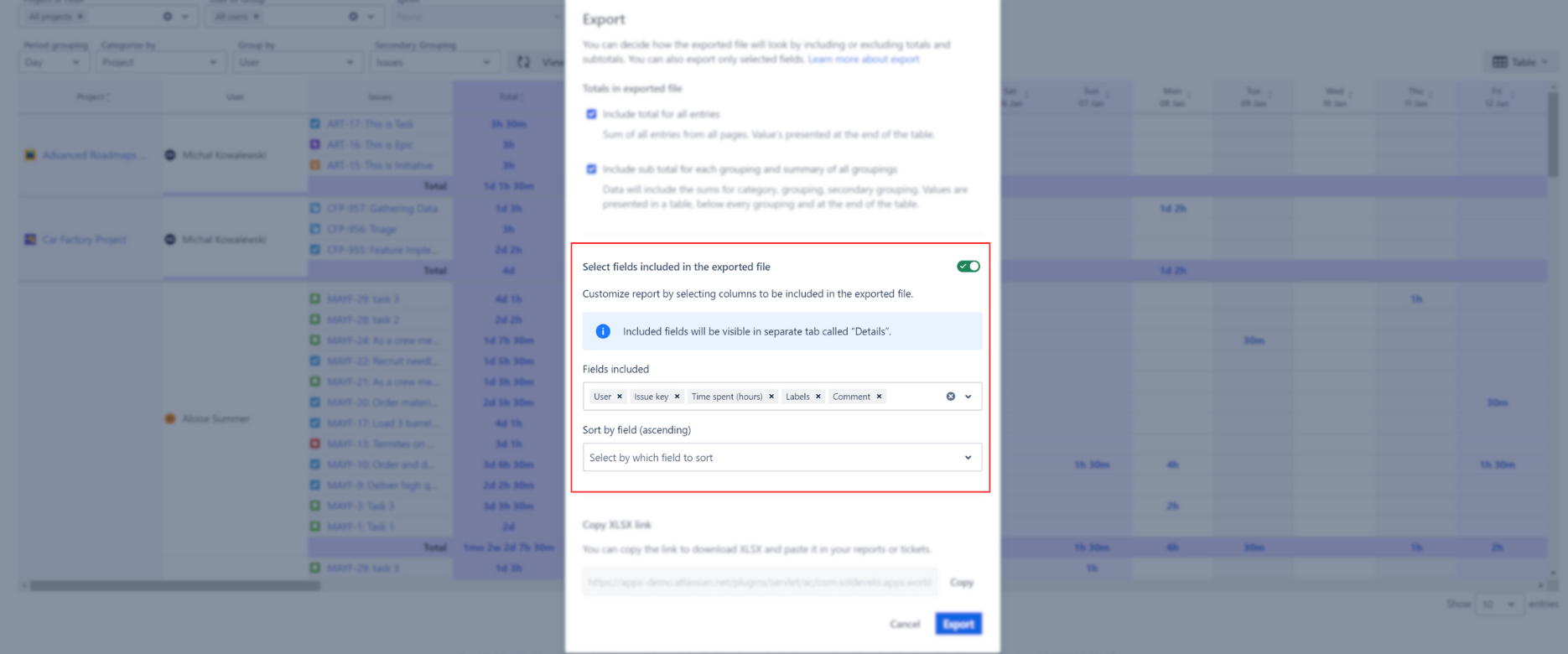
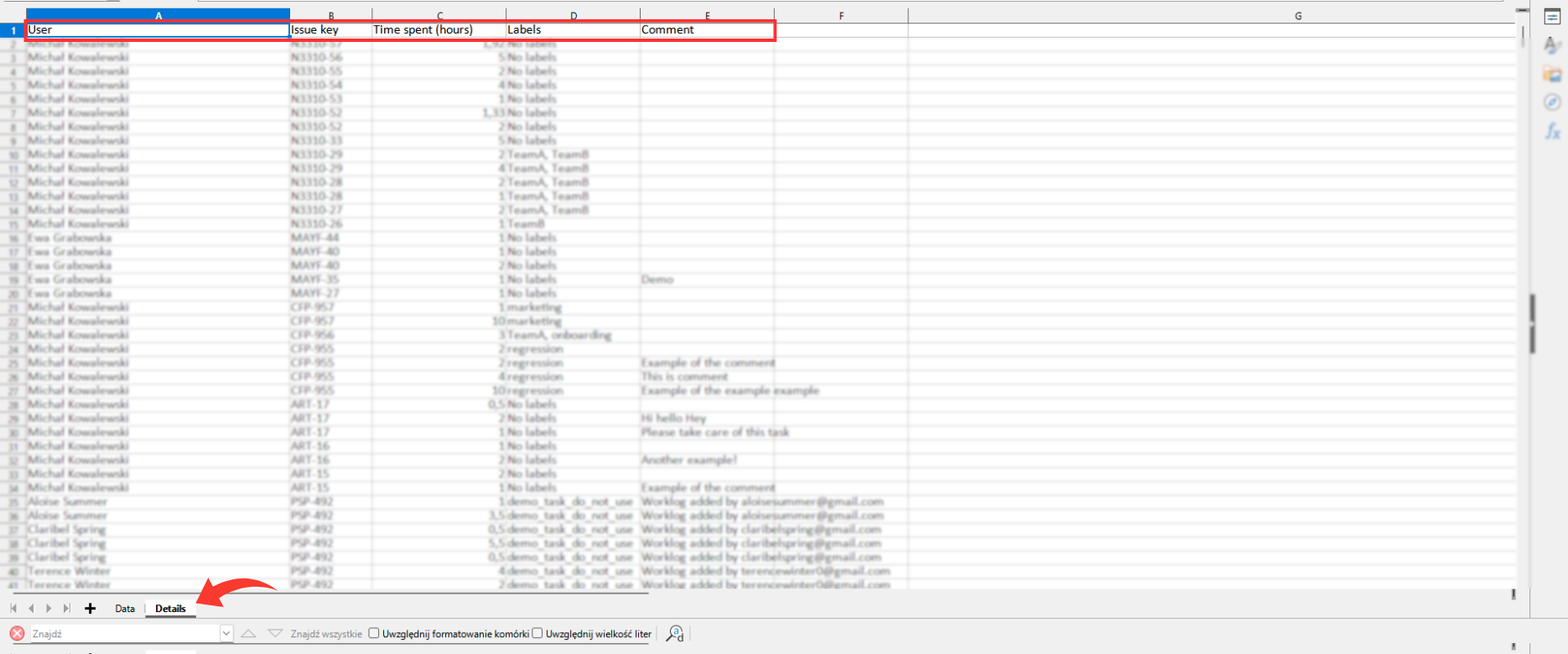
The selected fields will be available under ‘Details’ tab in the exported file.
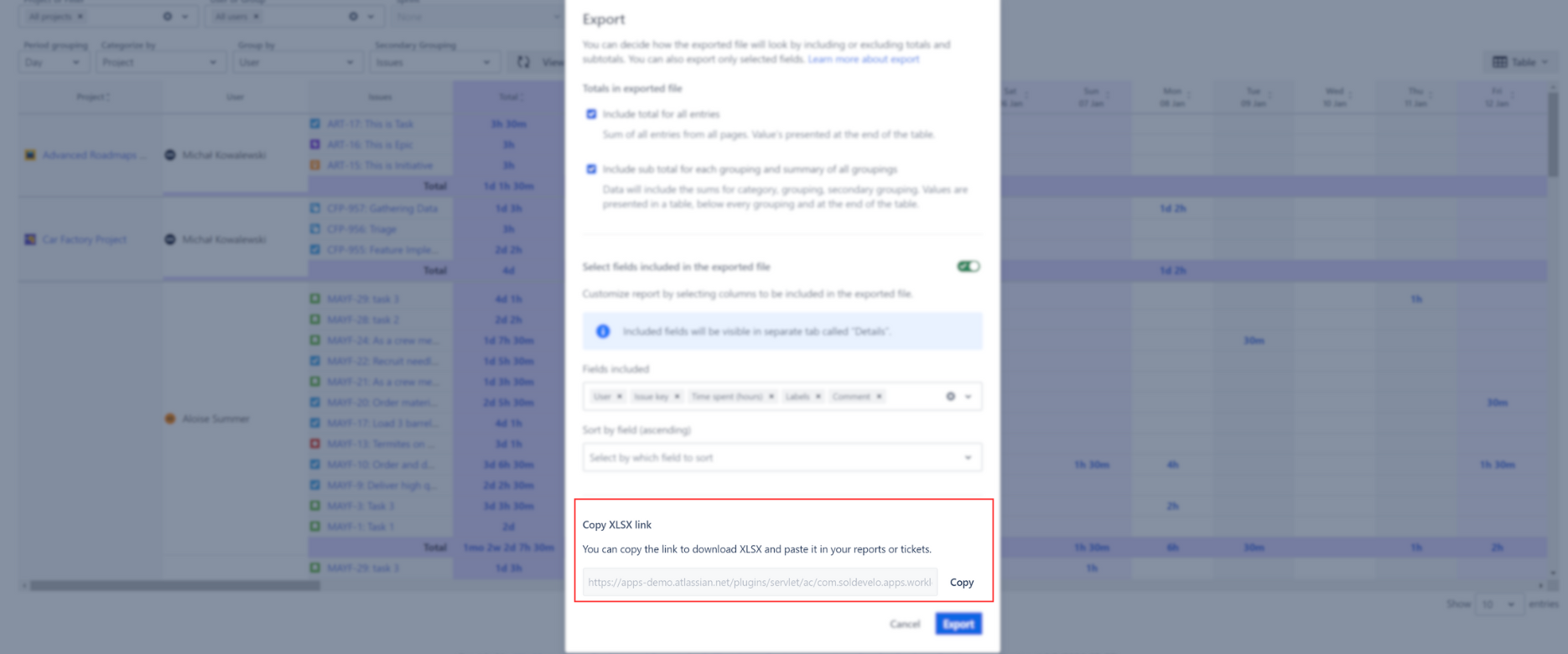
Your Worklogs data can also be shared with a link. To do that, click Copy button in the ‘Copy XLSX link’ section. The link will be automatically saved to your clipboard. Opening the link in a browser will result in downloading the XLSX file.
The exported XLSX file will include two tabs:
-
Data view which replicates what you see on your Worklogs page - your groupings, filters, date range, and others.
-
Details view which allows you to view all the time entries that were submitted and that contribute to the reported times (in case of exporting a report with selected fields, only the fields of your choice will be included here).
Do you have any questions or feedback? Feel free to contact us here 💡