
Please keep in mind that these options are only available if you have the "Edit own worklogs" and "Delete own worklogs" permissions enabled in a given project.
For a quick walkthrough of this feature, watch the video below 📽️.
Cloud
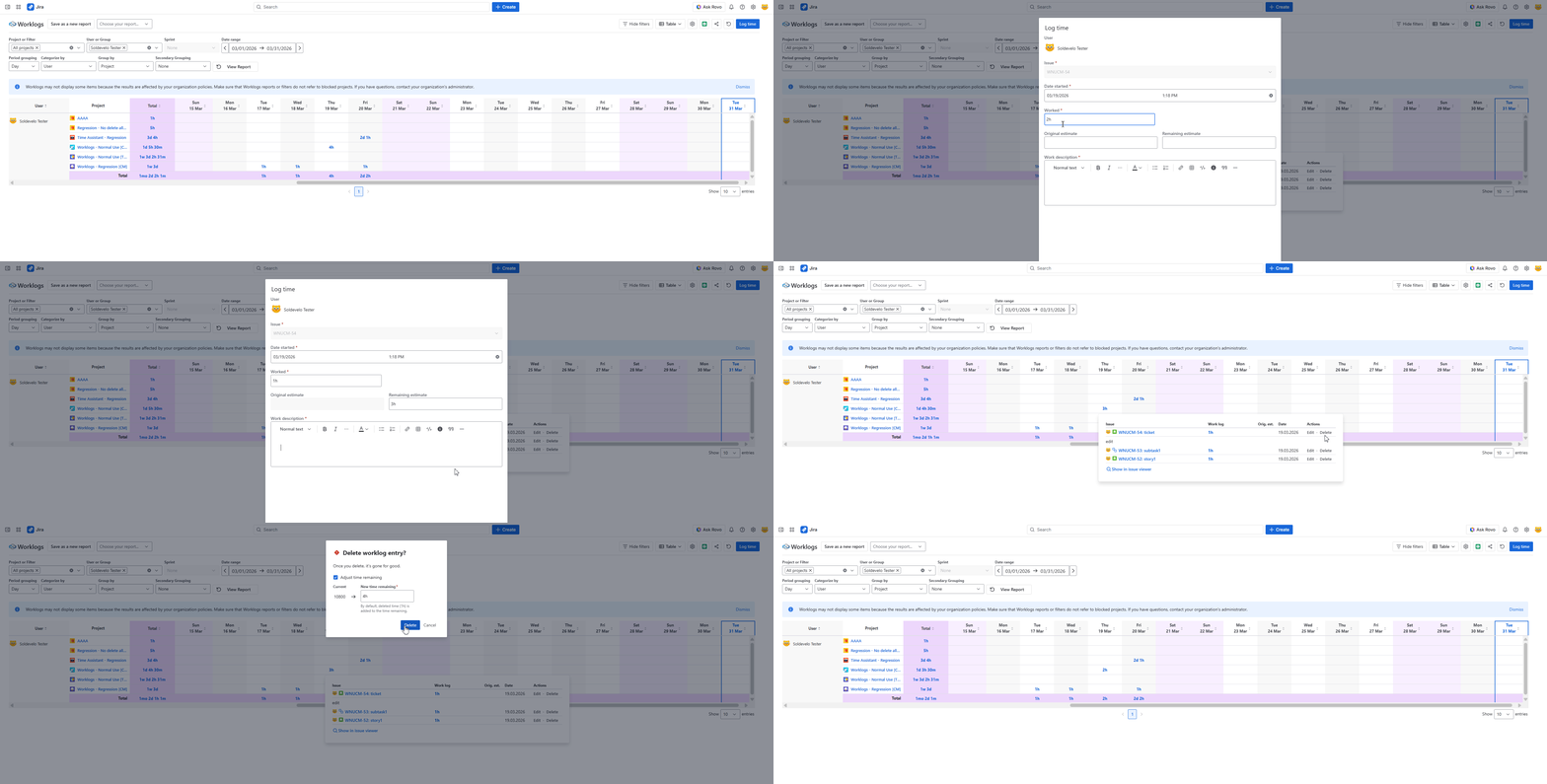
Cloud users can manage worklogs directly from the Worklogs report, without opening the Jira work item.
When you click a time value in the report, a worklog details pop-over appears. For each entry, you’ll see an Actions column with Edit and Delete buttons (or icons), the Date of the entry, and the avatar of the user who logged the time.
-
Edit: Opens the Worklogs Log time modal, allowing you to update and save changes to the specific entry.
-
Delete: Opens a confirmation dialog. Once confirmed, the entry is removed from both the report and the Jira work item.
DC
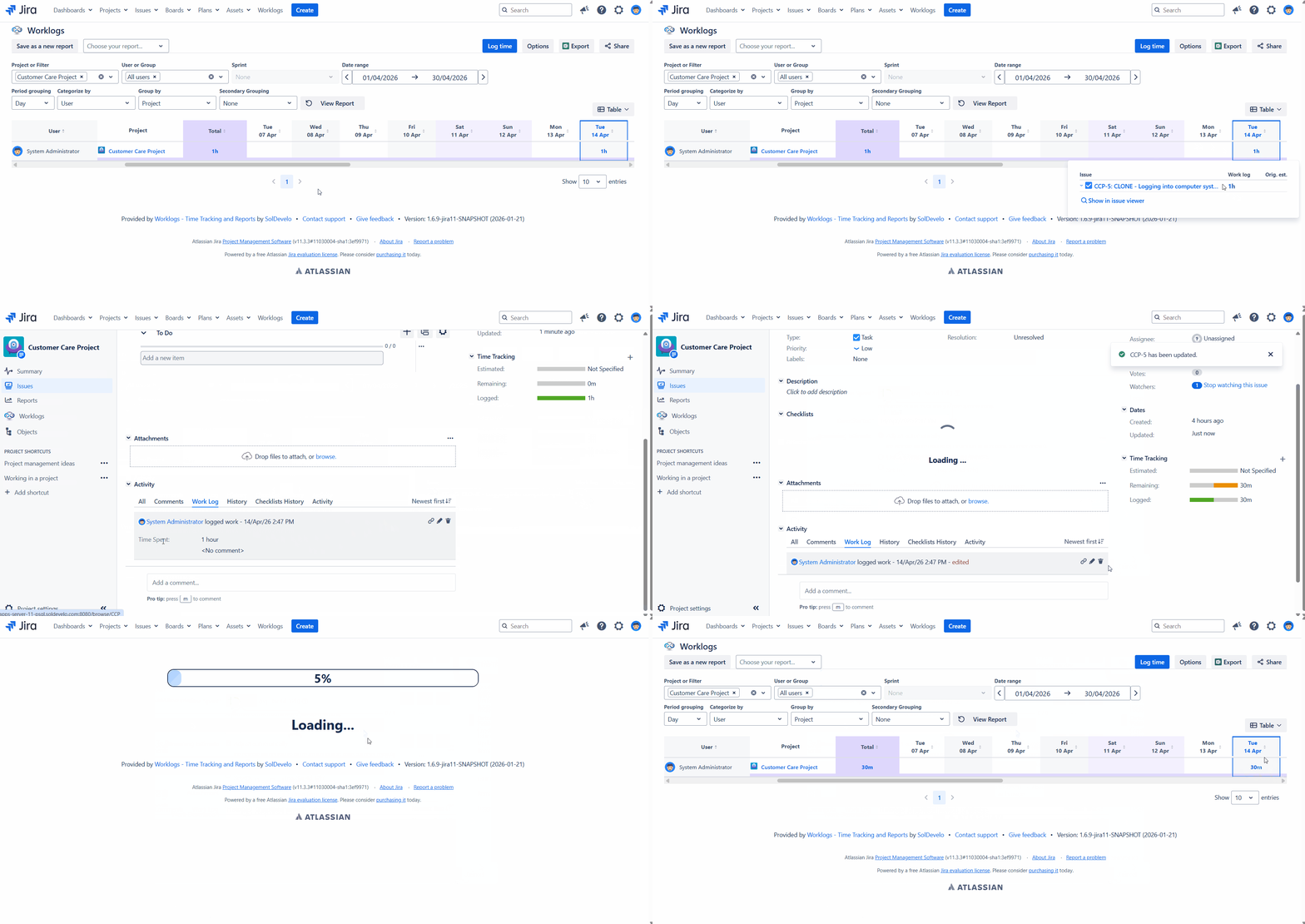
In DC, you can edit or delete a worklog in the work item view, where you'll be redirected by clicking the worklog in the report. To do it:
-
Find the entry you wish to change in the time log table.
-
Click on the time value for that entry.
-
You will be automatically redirected to the Jira ticket view, where your selected log will be highlighted.
-
From there, simply select Delete to remove the entry or Edit the values as needed.
Do you have any questions or feedback? Feel free to contact us here 💡