.png)
Project permissions and their settings may affect the functionality of the Worklogs app. If updated incorrectly, they might prevent the user from performing certain app-related actions.
Even if you're a Jira Admin, it doesn't mean you have all the required permissions for a project, which can cause problems using the app.
It is helpful to understand how each permission affects the app’s features. That’s why we’ve listed the most common cases below, along with a table that shows how certain features are impacted if specific permissions aren’t granted.
Legend:
🔴 When a given permission is restricted, it means actions cannot be performed by the user.
🟢 When a given permission is restricted, it means actions can be performed by the user.
🟠 When a given permission is restricted, it means some actions can be performed by the user and some cannot. The description contains a detailed explanation.
First, let’s take a look at the Data Center projects and Company-managed projects within Cloud instance permissions:
|
Pages/'Subpages' |
No 'browse projects’ permission |
No 'work on issues’ permission |
No ‘edit issue’ permission |
|---|---|---|---|
|
Worklogs app main page 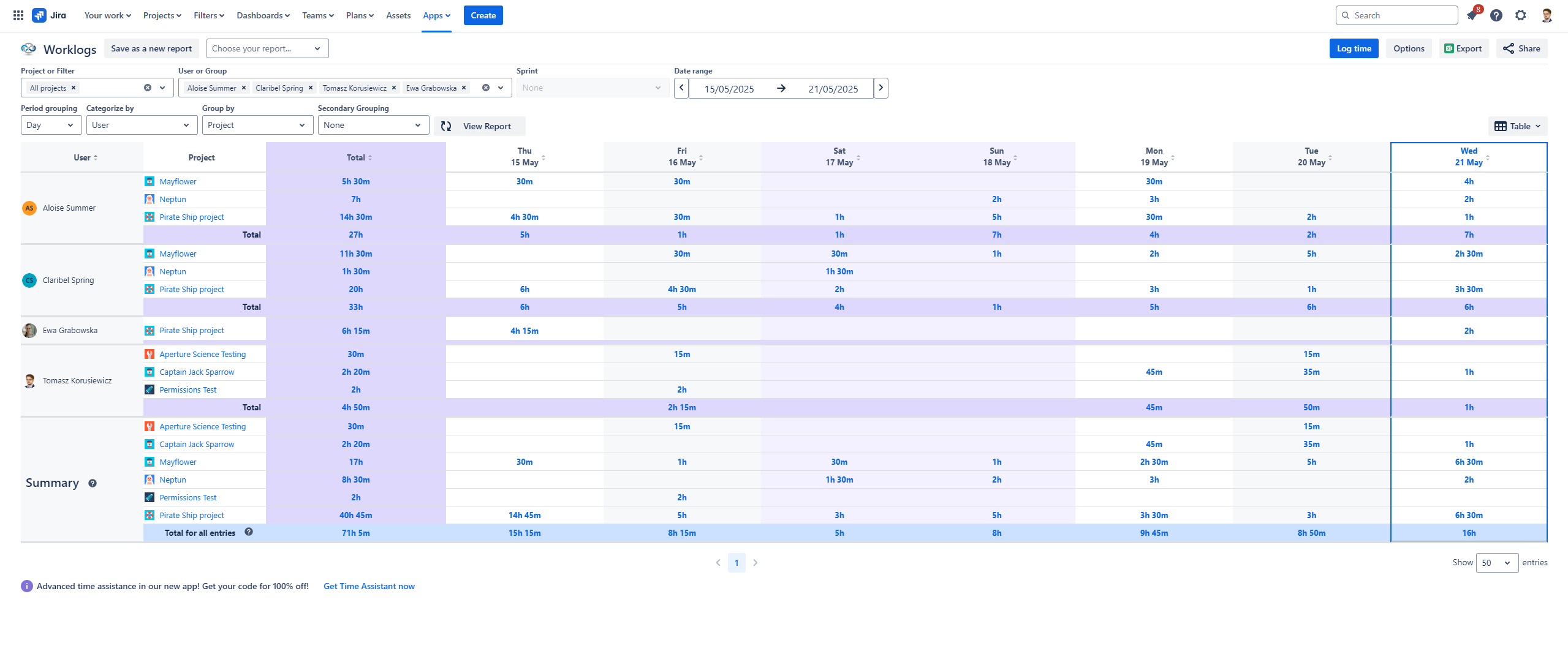
|
🔴 Description🔴 The selected project won't appear in the Project or Filter fields and won’t be included in the report." Work items from the project will not appear in the report once it has been generated. 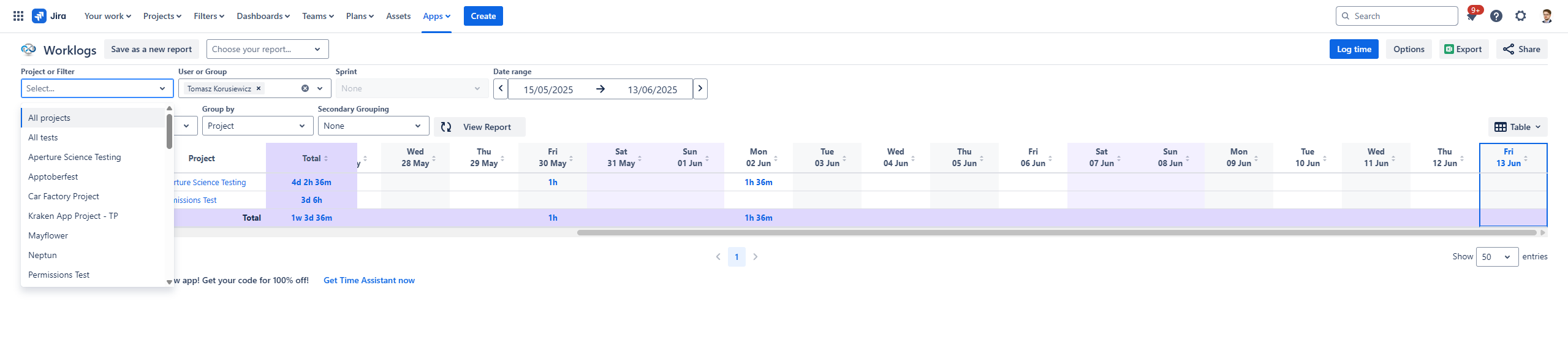
|
🟠 Description🟢 The selected project is visible in the Project or Filter field and can be viewed on the report. 🔴 The user cannot log time on the project’s work items. 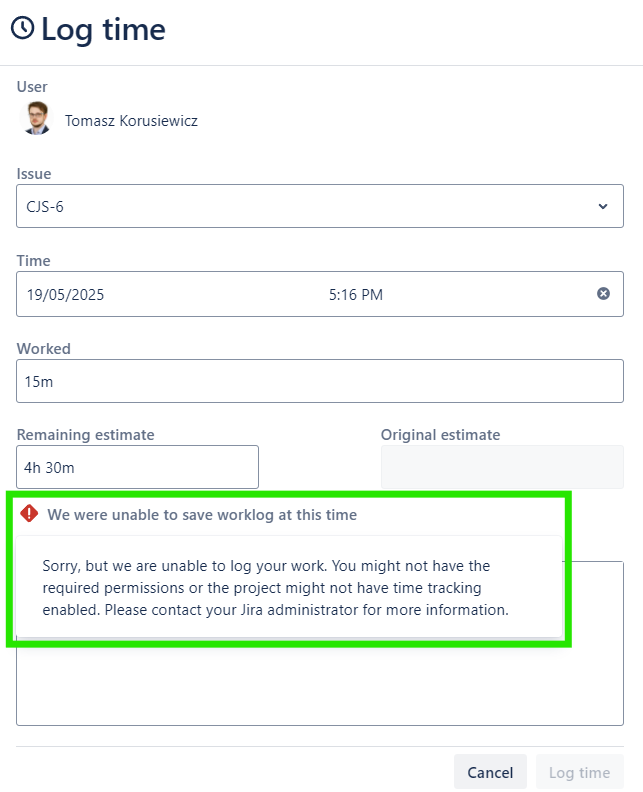
|
🟠 Description🟢 The selected project is visible in the Project or Filter field and can be viewed on the report. 🟢 The user can log time on work items. 🔴 The user cannot edit the Original estimate field while logging time on work items within the Worklogs report. 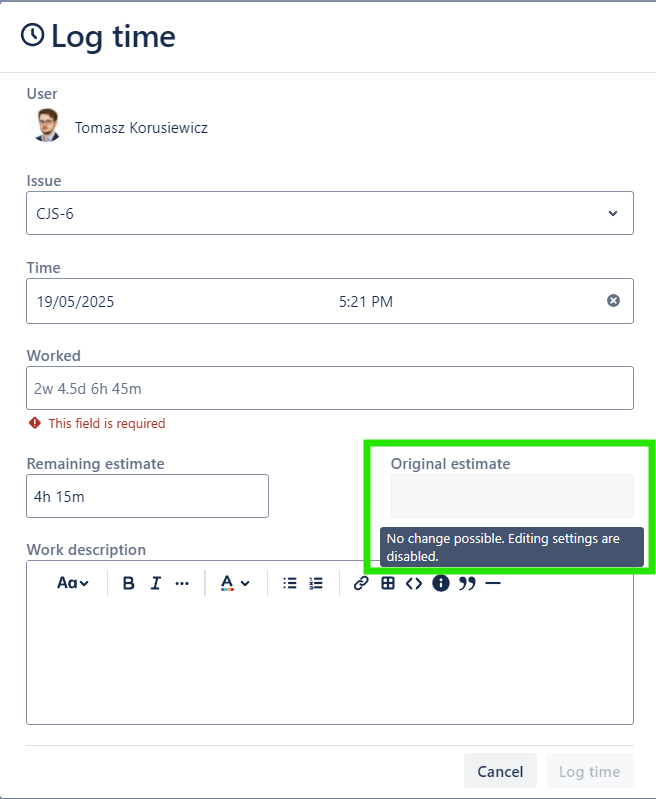
|
|
Worklogs dashboard gadget 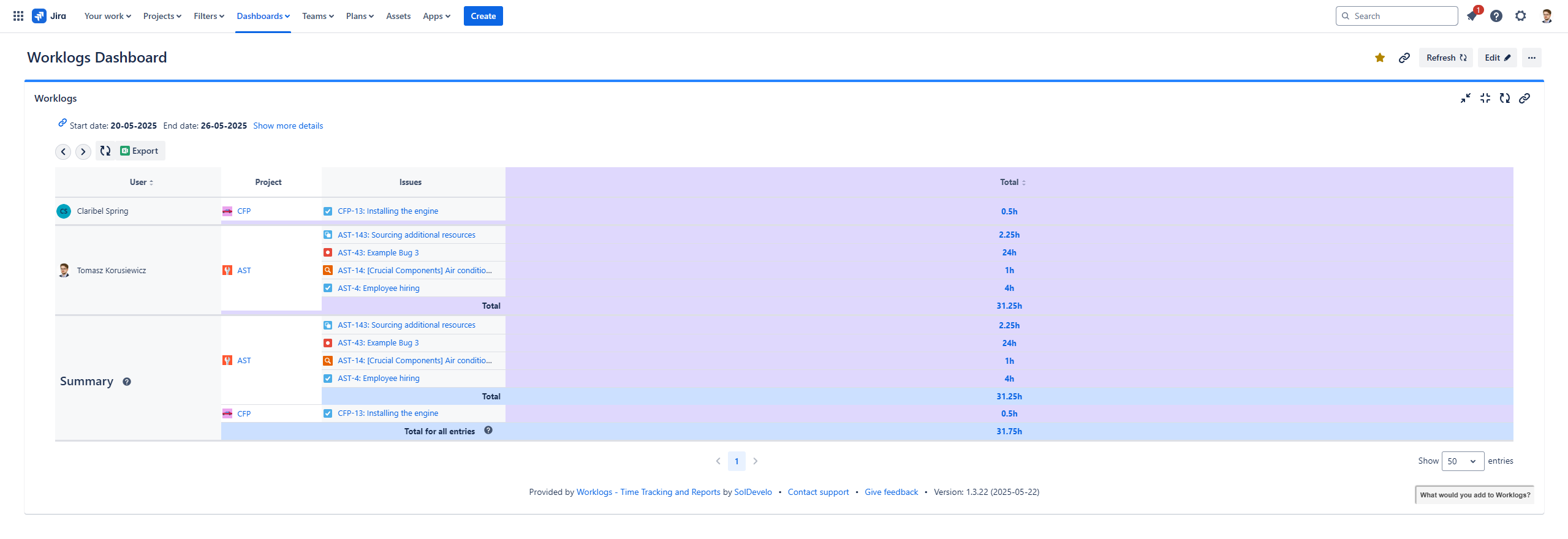
|
🔴 Description🔴 The selected project and its work logs won’t be visible in the dashboard gadget. It cannot also be selected in the Project or Filter field within the gadget configuration. Work items from the project will not appear in the report once it has been generated. 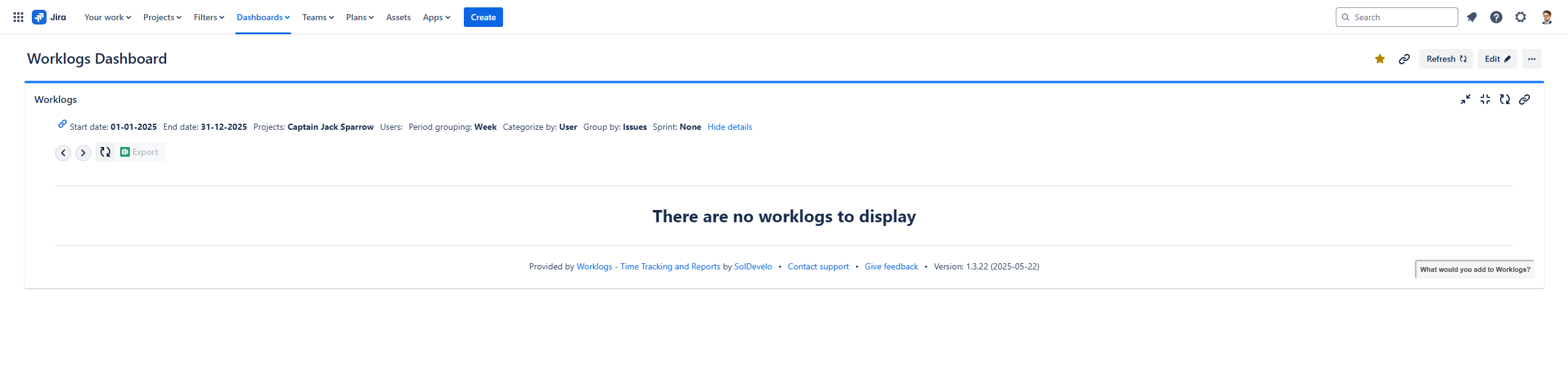
|
🟠 Description🟢 The selected project is visible in the Project or Filter field within the gadget configuration and can be viewed in the dashboard gadget. 🔴 The user cannot log time on the project’s work items. 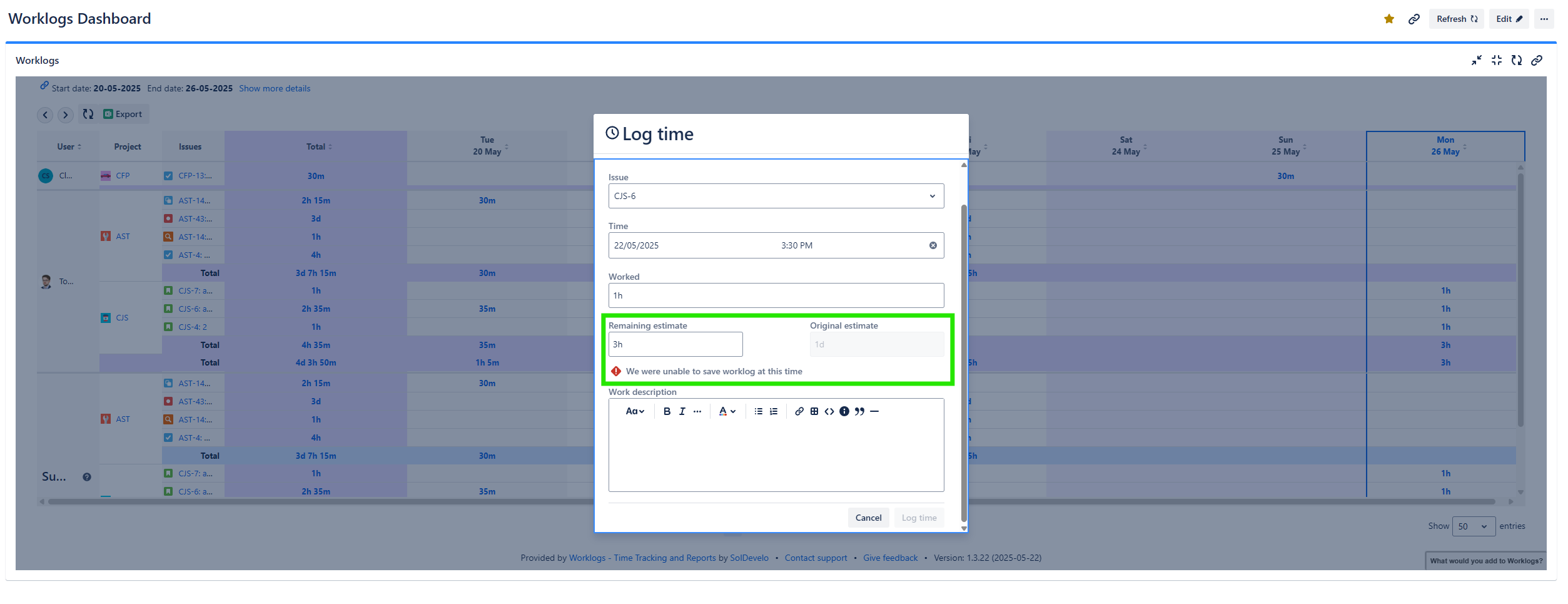
|
🟠 Description🟢 The selected project is visible in the Project or Filter field within the gadget configuration and can be viewed in the dashboard gadget. 🟢 The user can log time on work items within the dashboard gadget. 🔴 The user cannot edit the Original estimate field while logging time on work items within the dashboard gadget. 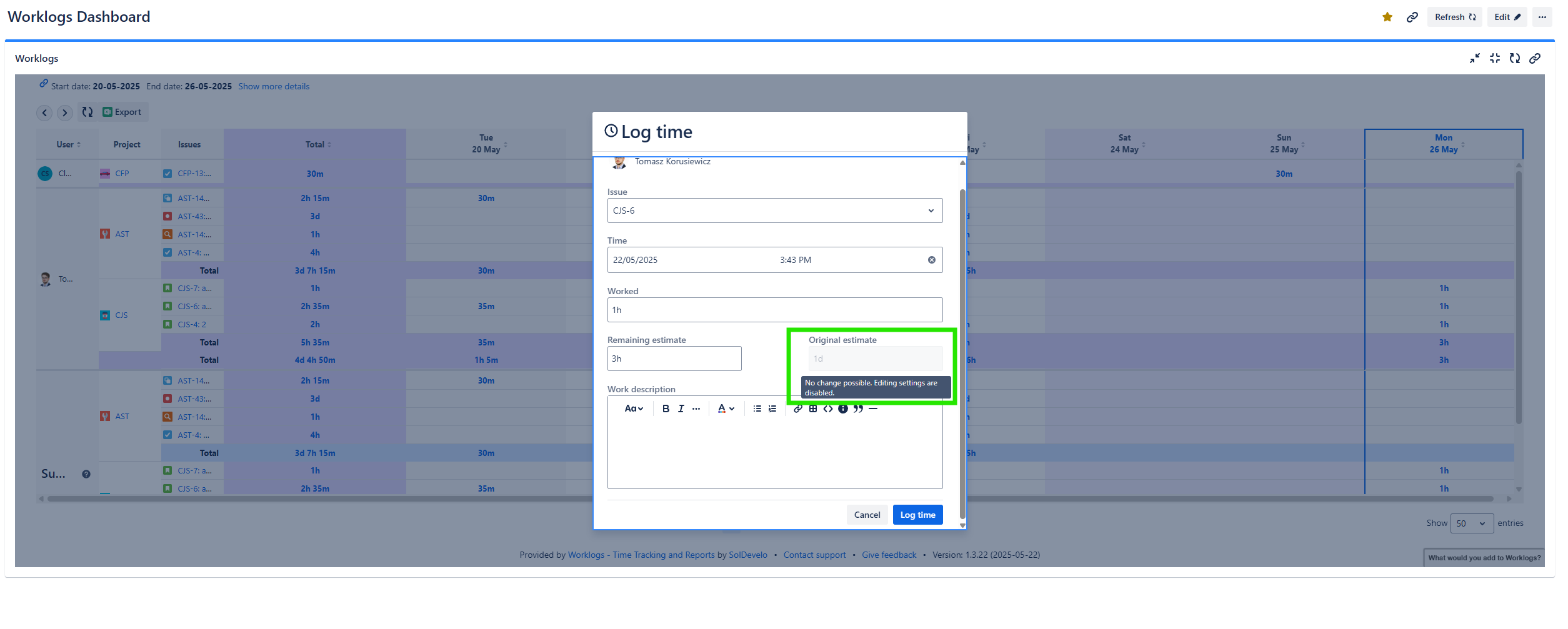
|
Next are the permissions assigned to three default roles (Viewer, Member, and Administrator) within the Cloud instance Team-managed projects:
|
Project Access |
No defined role |
Viewer 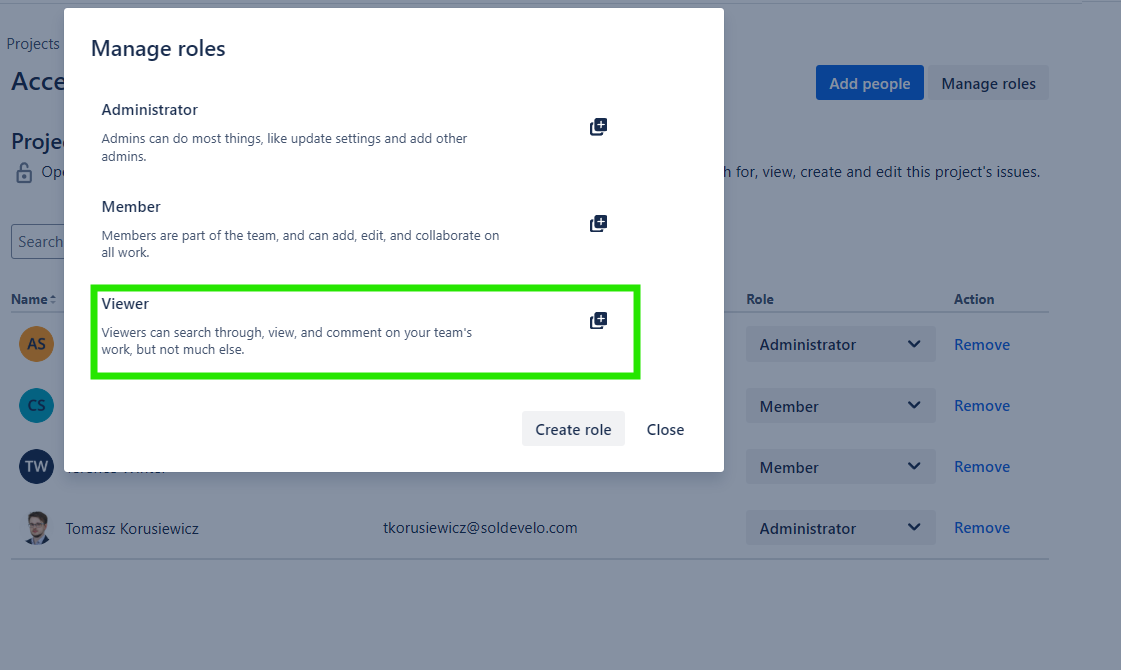
|
Member 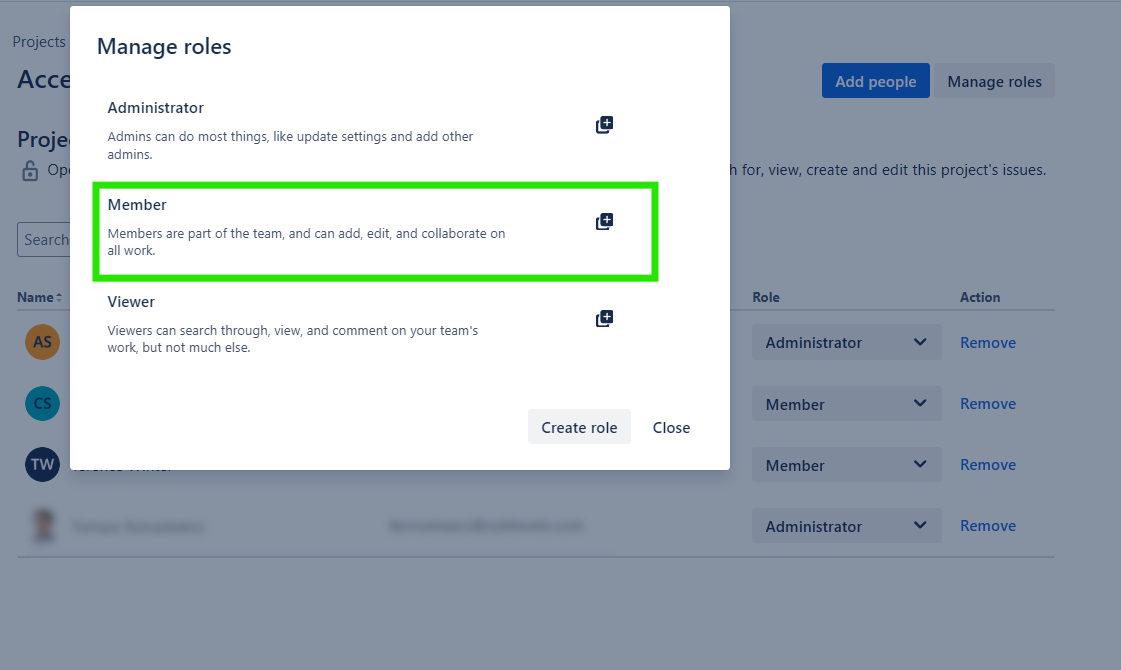
|
Administrator 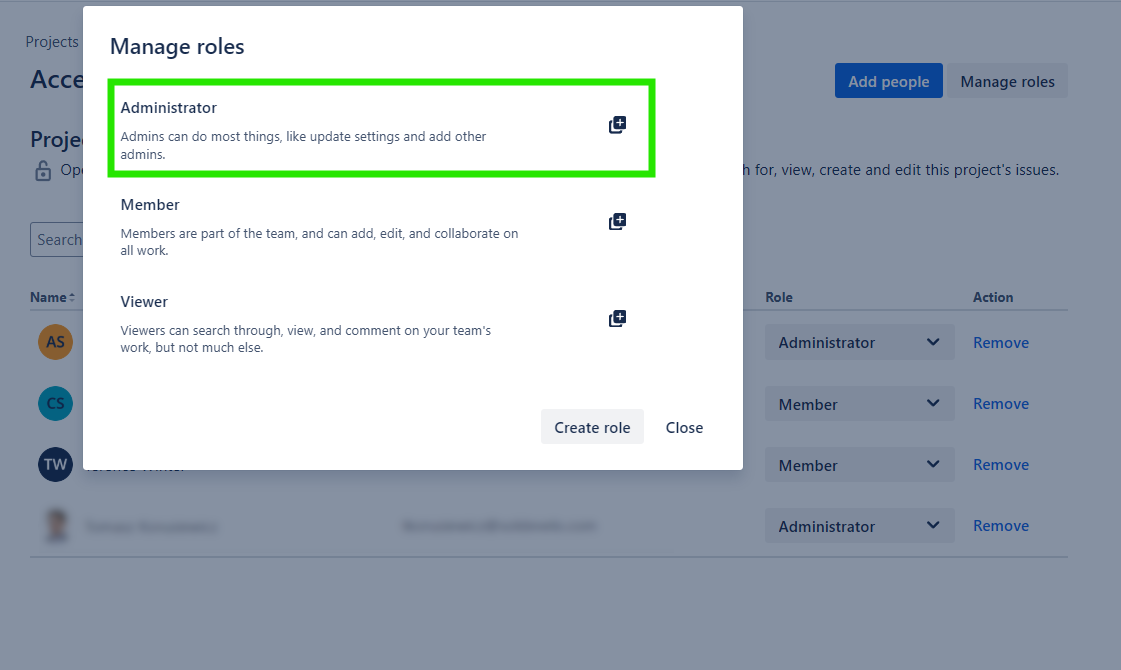
|
|---|---|---|---|---|
|
Private 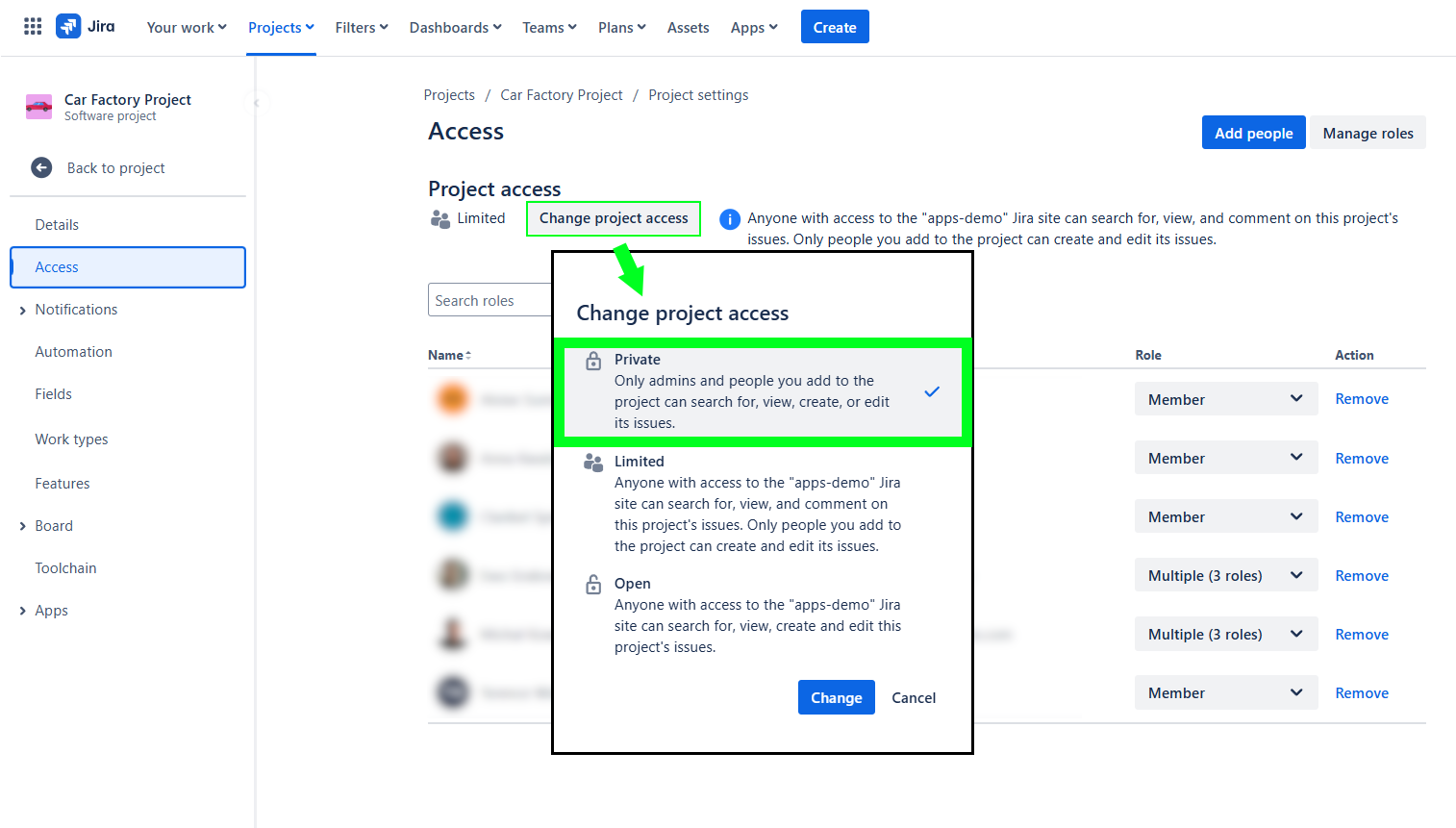
|
🔴 Description🔴 The user with no defined role within a project cannot access their work logs and log time on them. 
|
🟠 Description🟢 The user with a role defined as Viewer can access the project’s work logs, filter its work items, and export them. 🔴 The user cannot log time into work items within the Worklogs report. 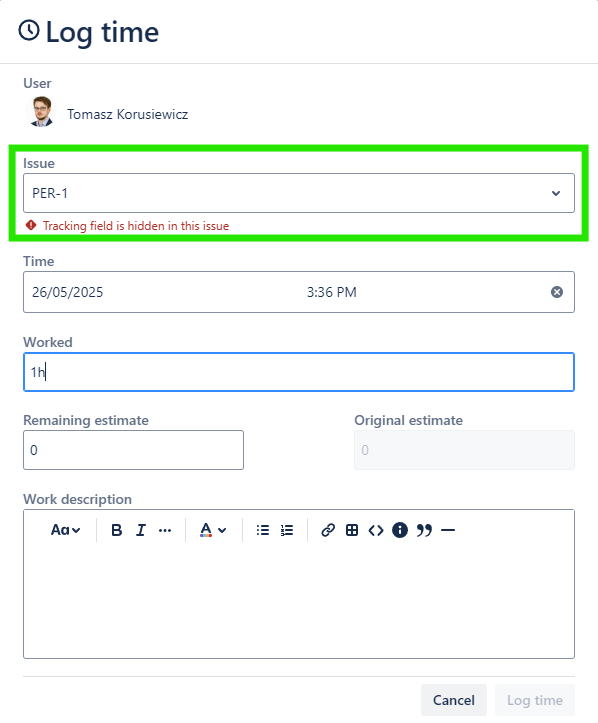
|
🟢 |
🟢 |
|
Limited 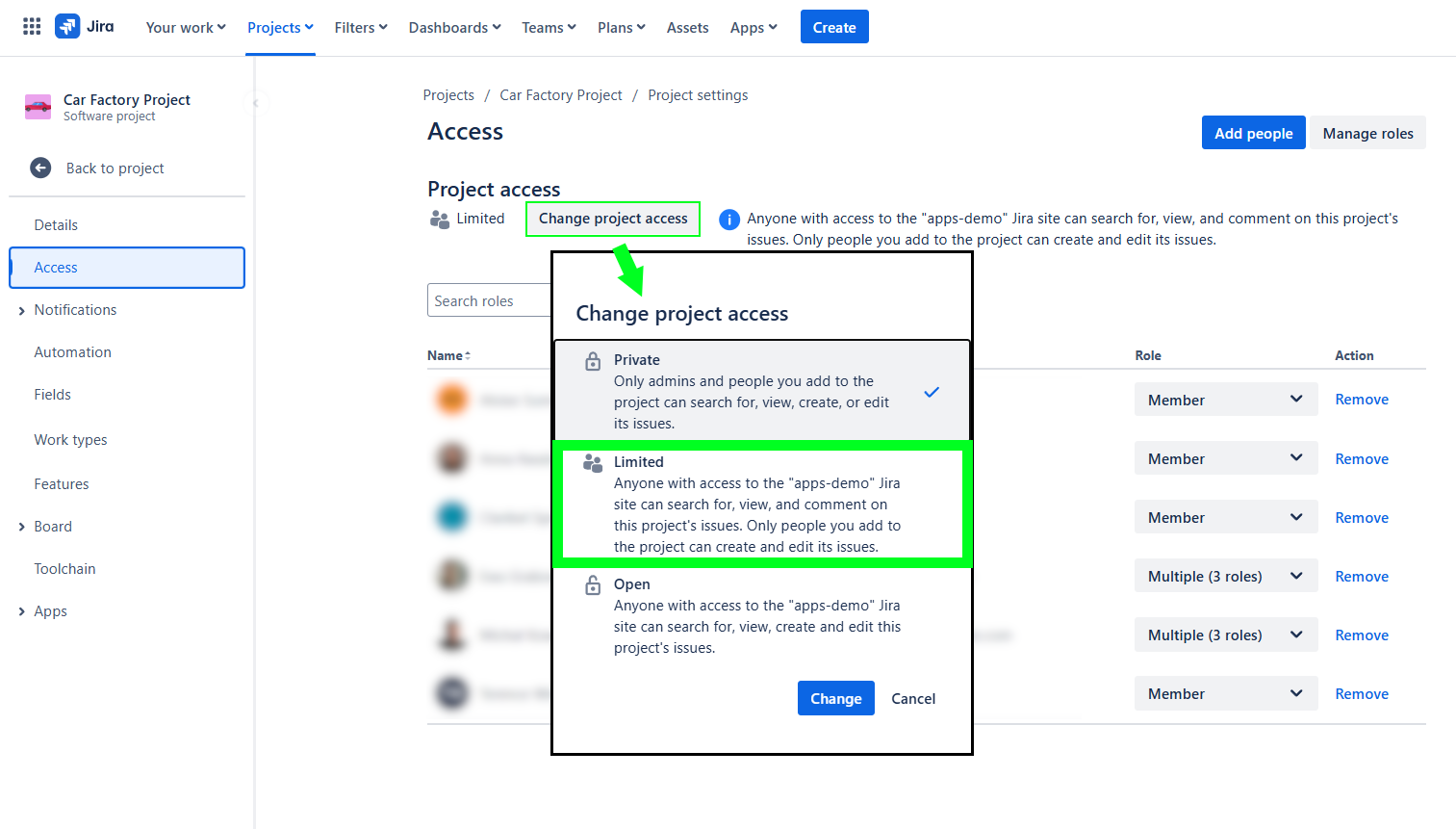
|
🟠 Description🟢 The user can access the project’s work logs, filter its work items, and export them. 🔴 The user cannot log time into work items within the Worklogs report.
|
🟠 Description🟢 The user can access the project’s work logs, filter its work items, and export them. 🔴 The user cannot log time into work items within the Worklogs report.
|
🟢 |
🟢 |
|
Open 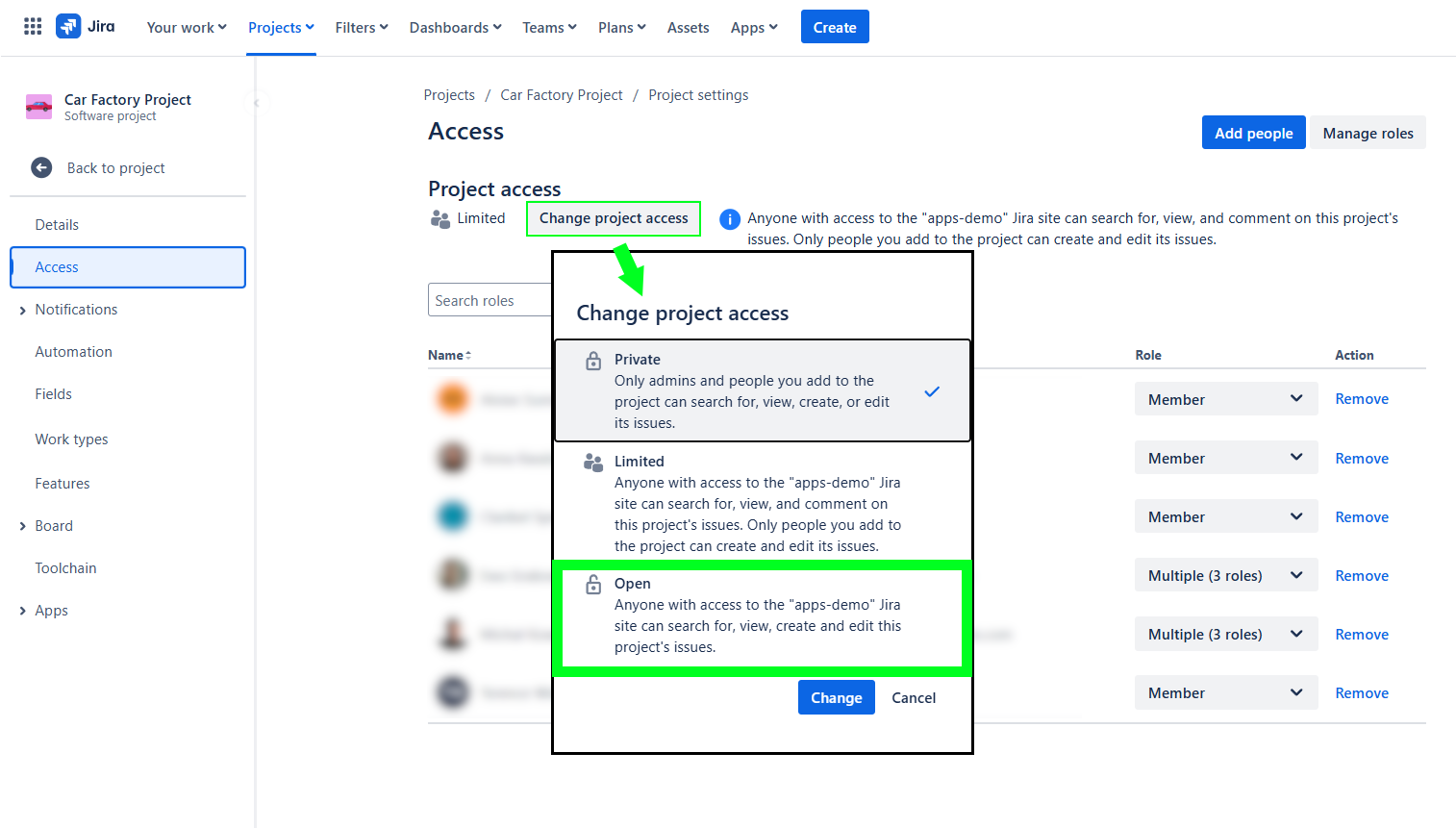
|
🟢 |
🟢 |
🟢 |
🟢 |
Lastly, in the Cloud instance Team-managed projects, disabling Time tracking in the Field settings leads to the same results as disabling ‘work on issues’ permission in the Company-managed projects:
|
Time tracking field 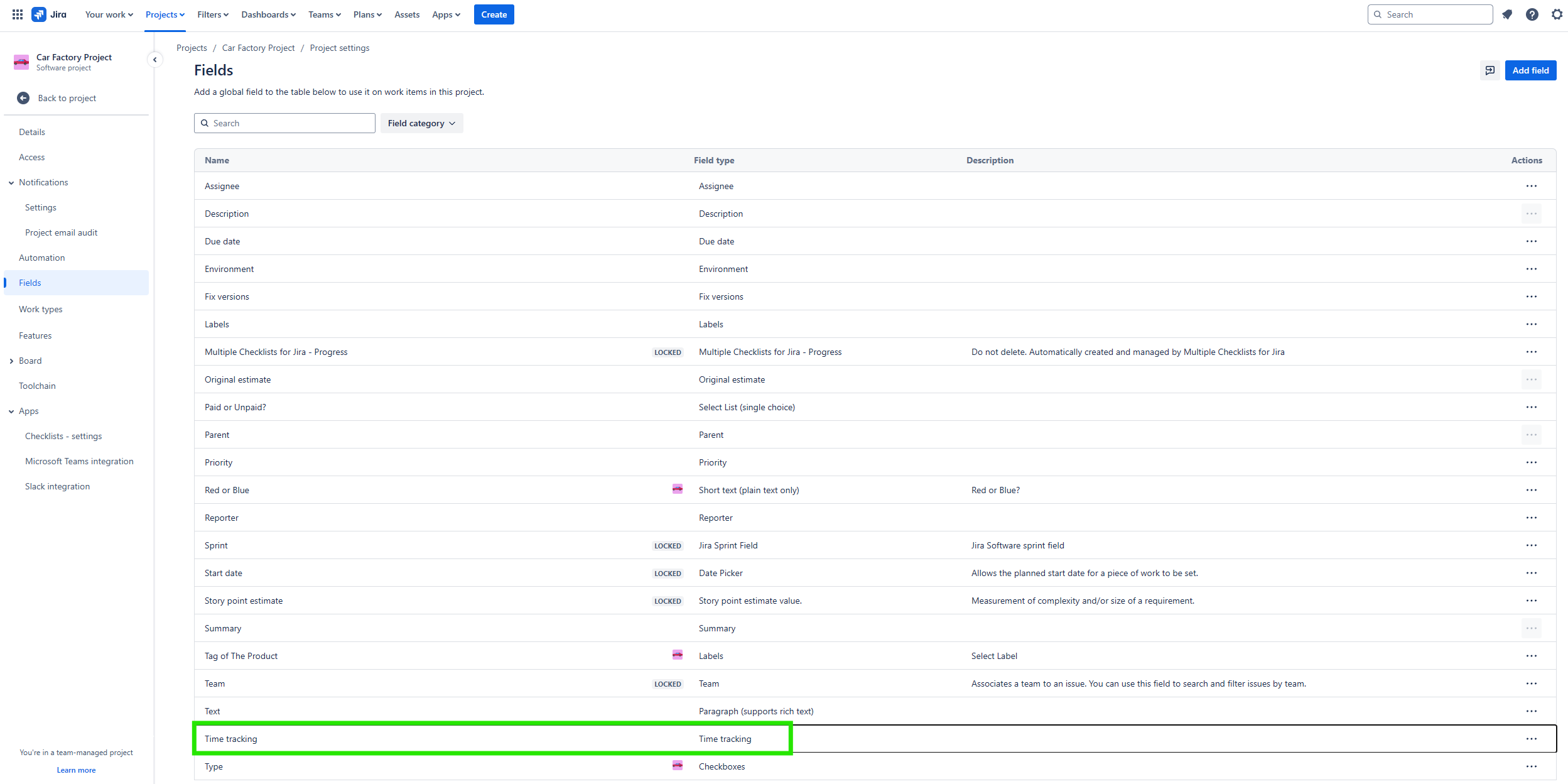
|
Result on the Worklogs app main page
|
Result on the Worklogs dashboard gadget
|
|---|---|---|
|
Removed from the project 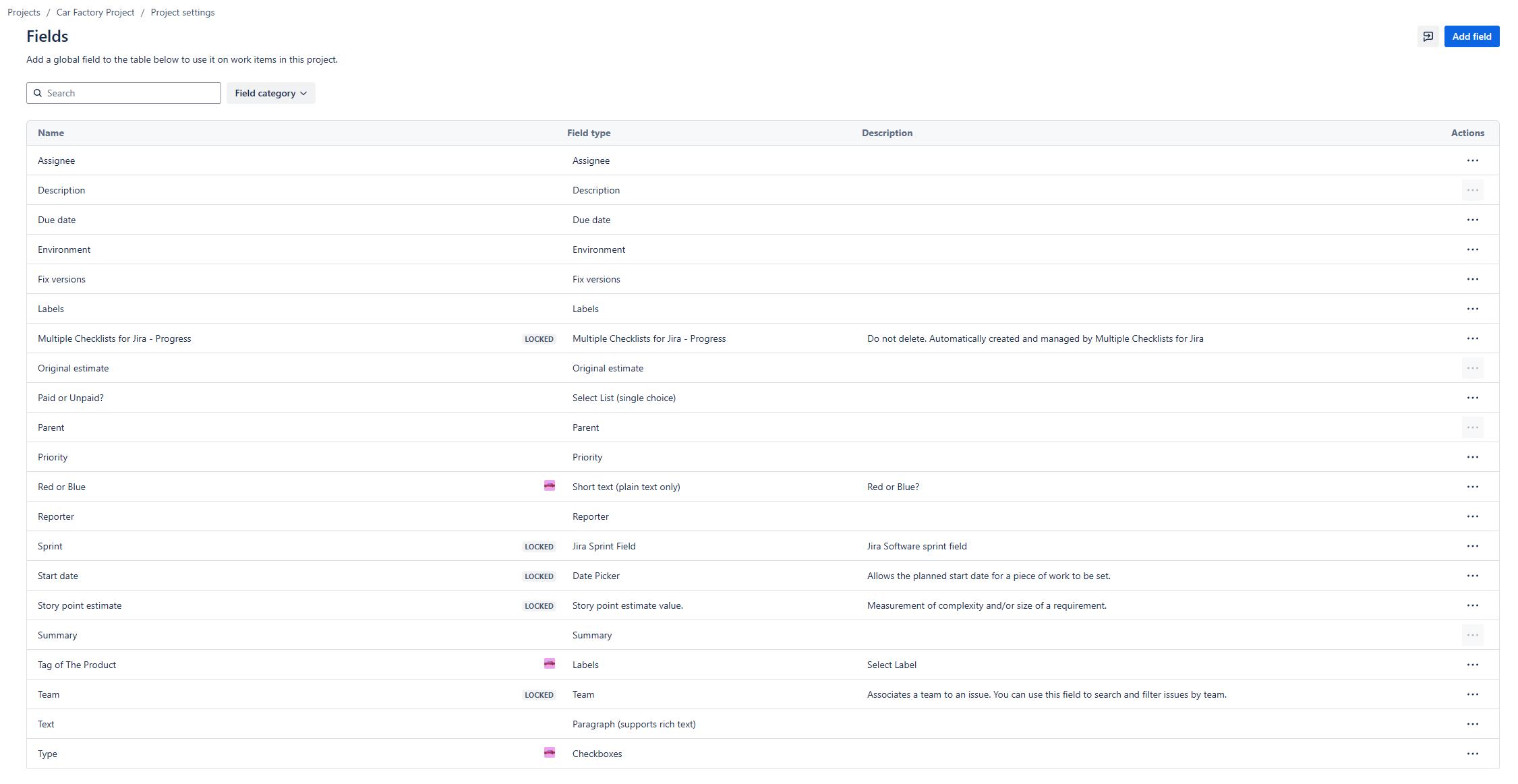
|
🟠 Description🟢 The selected project is visible in the Project or Filter field and can be viewed on the report. 🔴 The user cannot log time on the project’s work items. 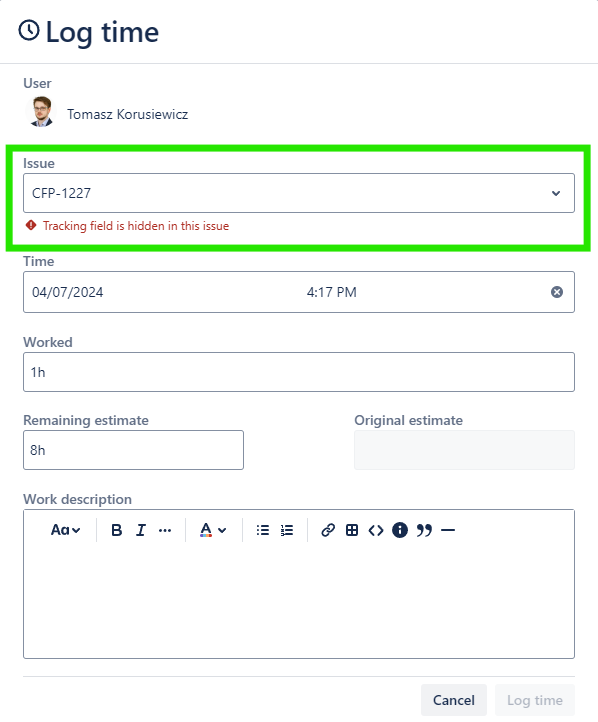
|
🟠 Description🟢 The selected project is visible in the Project or Filter field within the gadget configuration and can be viewed in the dashboard gadget. 🔴 The user cannot log time on the project’s work items. 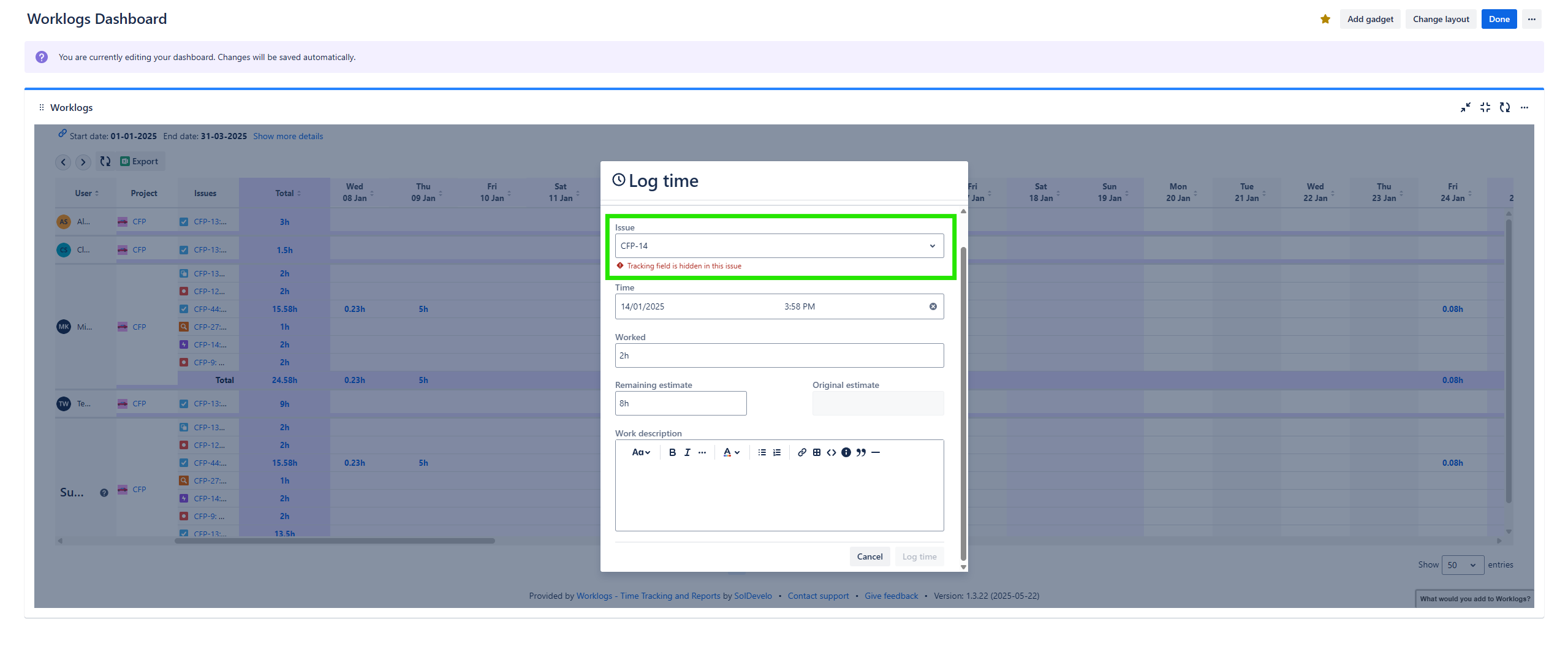
|