.png)
My Worklog is a premium feature. To use it, you need to upgrade your plan to Premium.
My Worklog provides a personal overview of the time you have logged across your initiatives and monday.com items. It allows you to review your worklog for a selected period and see how your logged time is distributed across individual items and days.
Viewing Your Logged Time
Your time entries are grouped by initiative and the monday.com items associated with that initiative.
.jpg?cb=36deb776efb651f7e026cd657bd3e5bf)
For each initiative, you can see:
-
Total - the total amount of time you logged for the item or initiative during the selected period.
-
Daily breakdown - the amount of time logged on each individual day.
-
Items and subitems - the time logged against specific monday.com items and subitems.
Click the expand/collapse icon next to an initiative to show or hide the items included in the total.
.jpg?cb=f770e11688aa233c1b2d6c7fe1f957ce)
At the bottom of the table, the Total row shows the total time you logged across all initiatives and items for the selected period.
.jpg?cb=10c2902e3590a0ddbc72b65974c8cdc8)
This view gives you a quick way to review your worklog and understand how your time was distributed throughout the selected period.
The worklog is displayed day by day, making it easy to see when your time was logged and how much time you spent on each item.
Selecting a time period
At the top of the view, you can select the period you want to review.
.jpg?cb=827b90ed1a99a341afa2c61f9d74a0c8)
Use the previous and next buttons to move between periods, or click Today to return to the current period. The selected date range is displayed at the top of the view.
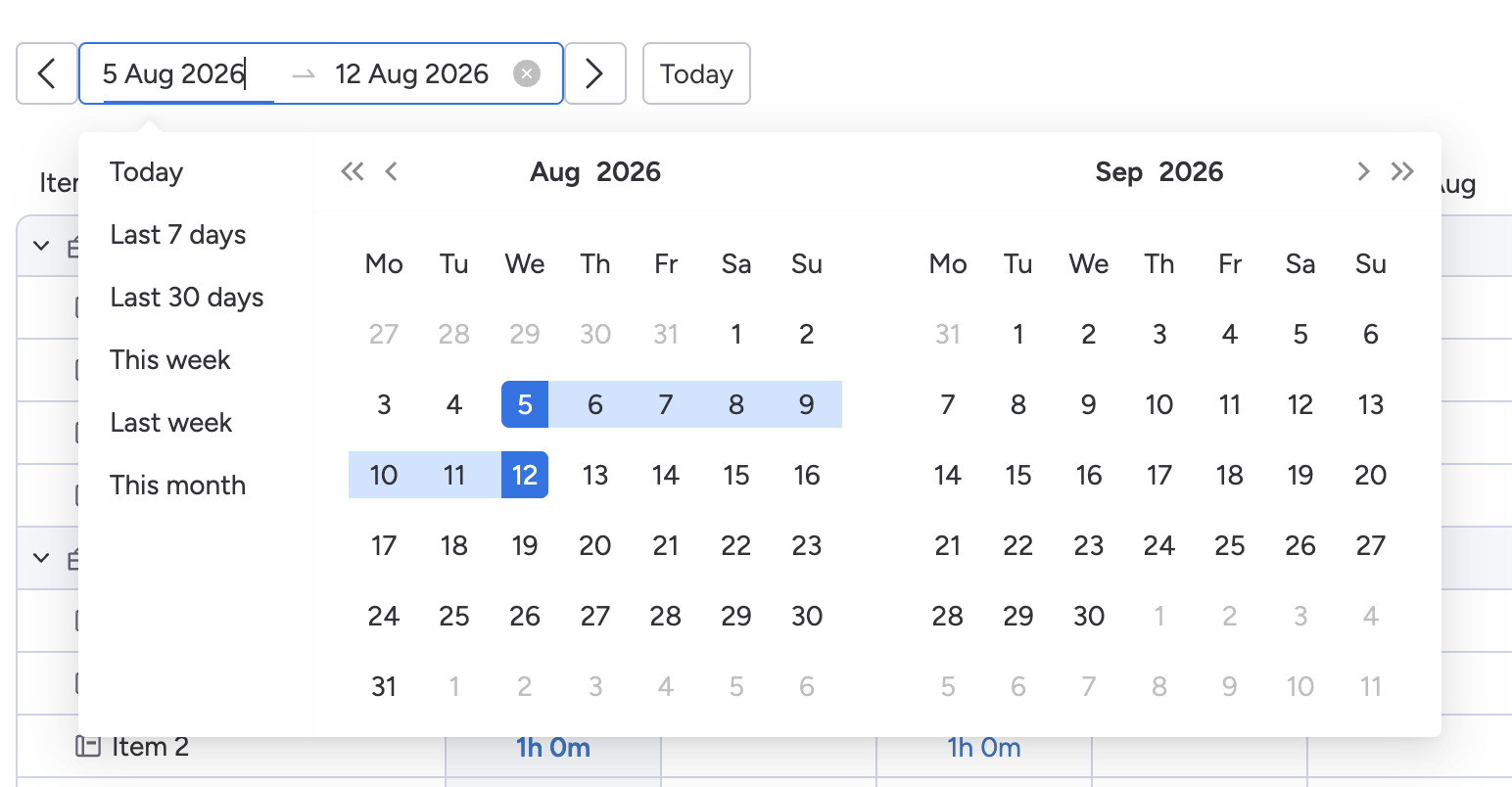
Click the date range to open the date picker. You can either select a predefined period or choose a custom date range.
Predefined periods
The following predefined options are available:
-
Today - shows time logged today.
-
Last 7 days - shows time logged during the previous 7 days.
-
Last 30 days - shows time logged during the previous 30 days.
-
This week - shows time logged during the current week.
-
Last week - shows time logged during the previous week.
-
This month - shows time logged during the current month.
Custom Date Range
To select a custom period, choose the start date and end date directly from the calendar.
You can navigate between months using the arrow buttons and select dates from the displayed calendar. The selected date range is shown at the top of the view.
Export to CSV
You can export the data displayed in the My Worklog view as a CSV file for further analysis, reporting, or sharing.
To export your worklog:
-
Select the time period you want to export using the date picker.
-
Click Export in the top-right corner of the view.
-
Worklogs will generate a CSV file containing the data for the selected period.
-
Open the downloaded file in your preferred spreadsheet or data analysis tool.
The export reflects the currently selected time period and includes the time logged across your initiatives and monday.com items for that period.
Tip: Select the required date range before clicking Export to make sure the CSV contains exactly the period you want to report on.