
When users on your Jira instance are from different time zones, it is important to know which of the time zones is used to display the Worklogs data.
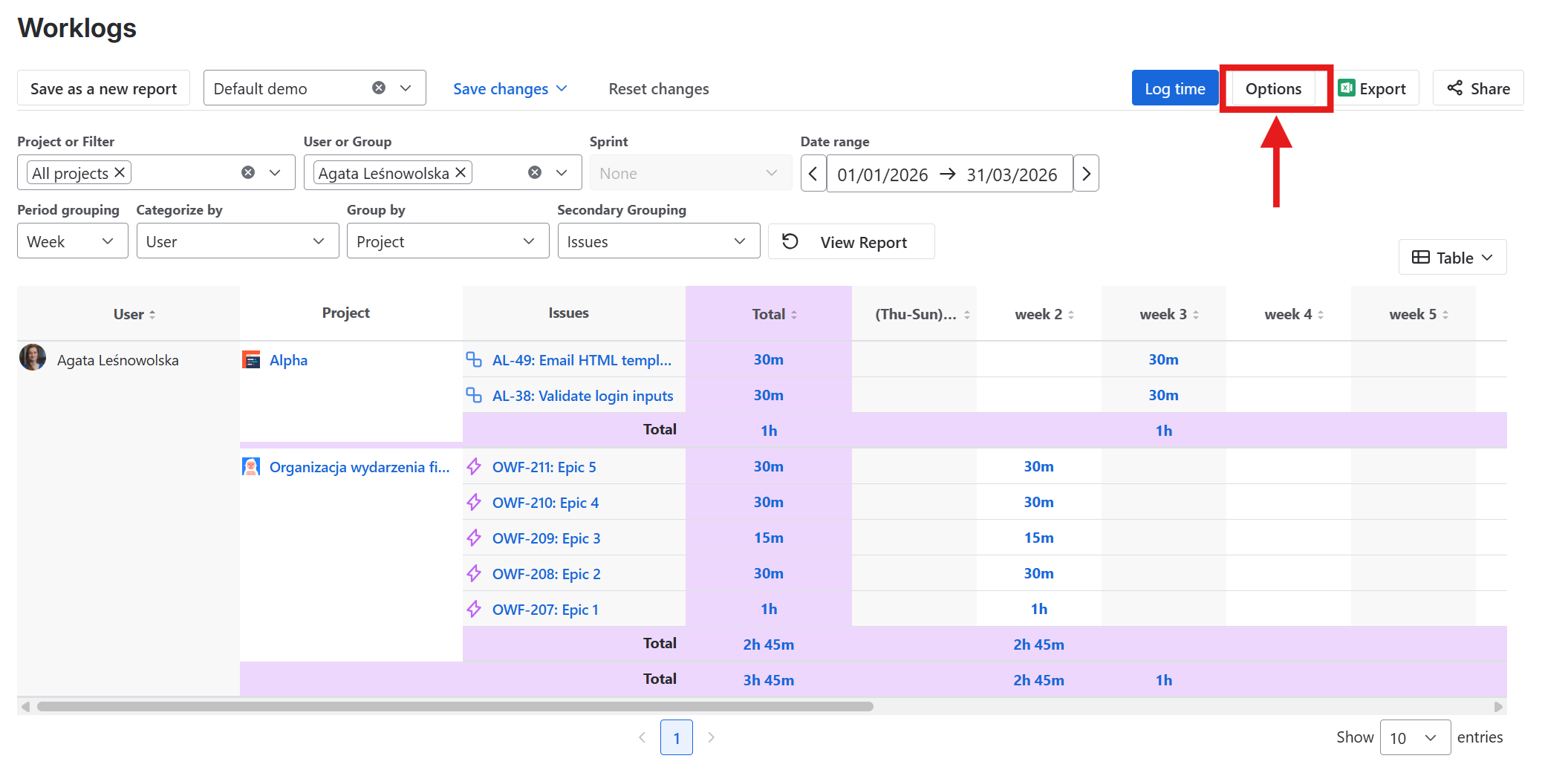
You can access these settings from the Options menu:
-
Open the Apps menu in your Jira navigation bar.
-
Select Worklogs.
-
Click on Options, located in the top-right corner of the page.
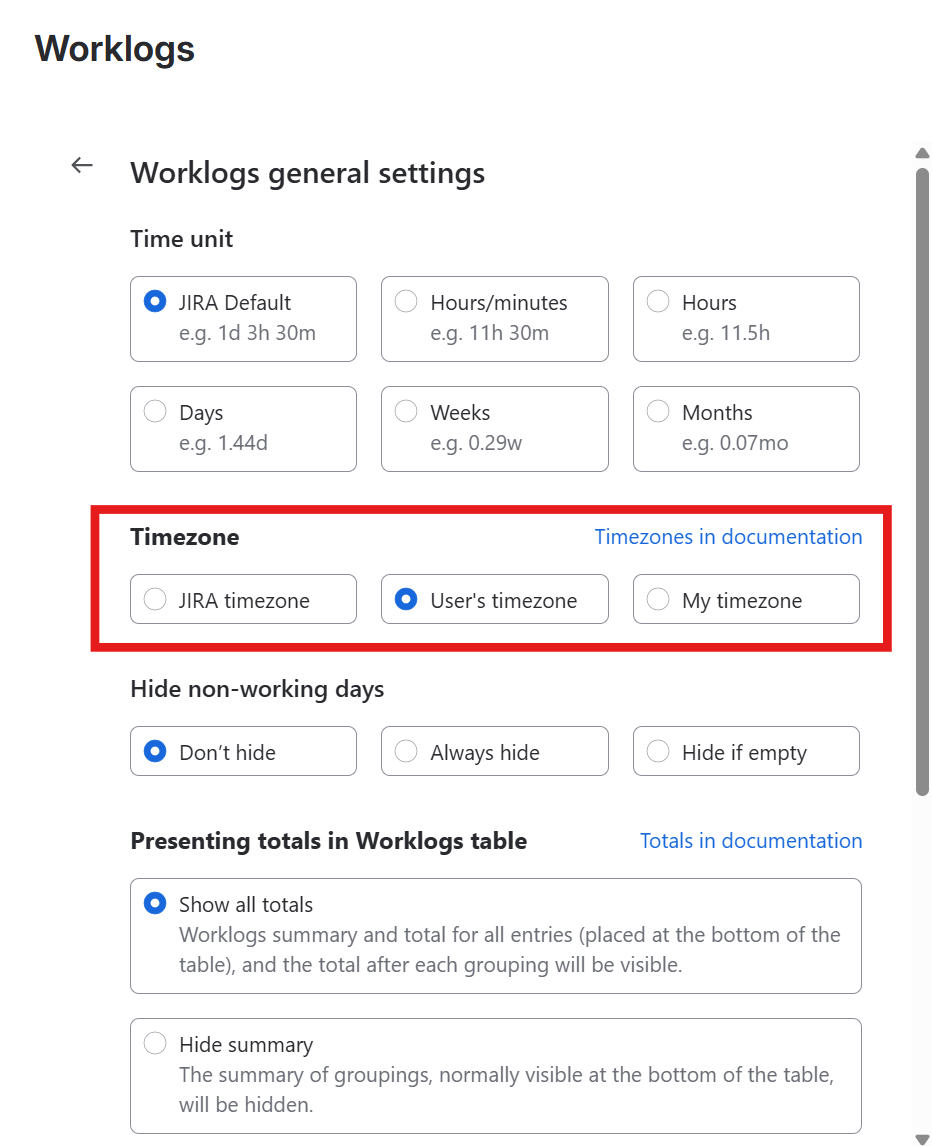
The timezone configuration in Worklogs offers 3 options.
-
User's timezone is default, displays logged hours using the time zone of the user who logged the time
-
My timezone displays logged hours using your own timezone
-
Jira timezone displays logged hours using your Jira instance’s time zone
User's timezone
'User's timezone' option is based on the user's personal settings timezone (if it's not selected, then the timezone from Jira settings will be used). This means that, for example, even though it may be already Saturday 1 a.m in Australia, if someone located in the US logs his work hours it will count towards the work time on Friday.
Why is this important? If your employees are located across multiple time zones, you need to make sure that their time zones are set properly so that the report is consistent.
Important cases
User has incorrect timezone set
As we said before, we will use the user's timezone. This means that someone can be located in the US, but use the Australian timezone. In that case, his time, when he logs, will count towards the current date in Australia.
User changes his timezone multiple times.
This will result in overall inaccuracies since logged time always uses the current user’s timezone. For example: You set your timezone as +0, then you log 8h of work at 1 a.m and 11 p.m. When you change your timezone to, for example, +10 or -10, you will notice that the logged hours have shifted to a different day. To avoid this behavior, it is recommended to always have the same timezone.
Example
User1 logged: 4h August 6, 2019, 12:00 AM
User1 logged: 1d August 7, 2019, 11:00 PM
User2 logged: 4h August 6, 2019, 12:00 AM
User2 logged: 1d August 7, 2019, 11:00 PM
They changed their time zones to the following:
The timezone in which this time was logged does not matter - only the personal timezone settings of the user at the given moment matters.
|
|
User1 personal settings |
User2 personal settings |
System settings |
Results in Worklogs seen by all users |
Comment |
|---|---|---|---|---|---|
|
Example 1 |
User had this timezone at the beginning: (GMT+00:00) Europe/London |
User had this timezone at the beginning: (GMT+00:00) Europe/London |
Server had this timezone at the beginning: (GMT+00:00) Europe/London |
User 1: 06-08 → 4h 07-08 → 1d User 2: 06-08 → 4h 07-08 → 1d |
Everyone see the same results in both worklogs and issue page under "log work list" |
|
Example 2 |
(GMT+00:00) Europe/London |
User changed his timezone to: (GMT+11:00) Pacific/Auckland |
(GMT+00:00) Europe/London |
User 1: 06-08 → 4h 07-08 → 1d User 2: 06-08 → 4h 08-08 → 1d |
Everyone see the same results in worklogs but the logged time has shifted from 07.08 to 08.08. The reason behind this is: when the Jira API send us the times it uses the current user timezone. So every time entry is changed to the current timezone, in this case +11 hours. Since we logged work at 11 p.m it changed to 10 a.m on the next day. Another issue with this case is that on issue page under "log work list" users see logged time according to their timezone. That's why you see different time than the author. |
|
Example 3 |
User changed his timezone to: (GMT-11:00) Pacific/Midway |
User changed his timezone to: (GMT+11:00) Pacific/Auckland |
(GMT+00:00) Europe/London |
User 1: 05-08 → 4h 07-08 → 1d User 2: 06-08 → 4h 08-08 → 1d |
same as above |
|
Example 4 |
(GMT+00:00) Europe/London |
User changed his timezone to: (GMT+11:00) Pacific/Auckland |
(GMT-11:00) Pacific/Midway |
User 1: 06-08 → 4h 07-08 → 1d User 2: 06-08 → 4h 08-08 → 1d |
same as above + changing server time doesn't meter unless user don't have personal timezone set, because in this case we use the server timezone. |
Where to find personal settings in Cloud?
-
Click your avatar in the top-right corner.
-
Select Account settings.
-
Navigate to Local time.
Where to find personal settings in Server?
-
Click your avatar in the top-right corner.
-
Select Profile.
-
Scroll down to the Preferences section.
-
Locate the Time zone field.
My timezone
'My timezone' option is based on the user's personal settings timezone (if it's not selected then the timezone from Jira settings will be used) and displays all logged hours in 'My timezone'. Why is this important? If your employees are located across multiple timezones, you need to make sure that their timezones are set properly so that the report is consistent.
Example
|
User |
Time zone |
Worklog value |
Worklog date |
|---|---|---|---|
|
User1 |
Asia/Singapore, UTC+8 |
1h |
March 10, 2019, 01:00 AM |
|
User2 |
Asia/Singapore, UTC+8 |
2h |
April 10, 2019, 8:00 PM |
|
User3 |
Europe/Warsaw, UTC+1 |
3h |
May 10, 2019, 08:00 PM |
|
User4 |
America/New_York, UTC-5 |
4h |
June 10, 2019, 05:00 PM |
|
User5 |
America/Los_Angeles, UTC-8 |
5h |
July 10, 2019, 05:00 PM |
|
|
My personal settings |
Results in Worklogs plugin seen by me |
|---|---|---|
|
Example 1 |
Asia/Singapore, UTC+8 |
User 1: March 10 → 1h User 2: April 10 → 2h User 3: May 11 → 3h User 4: June 11→ 4h User 5: July 11 → 5h |
|
Example 2 |
Europe/Warsaw, UTC+1 |
User 1: March 09 → 1h User 2: April 10 → 2h User 3: May 10 → 3h User 4: June 10→ 4h User 5: July 11 → 5h |
|
Example 3 |
America/New_York, UTC-5 |
User 1: March 09 → 1h User 2: April 10 → 2h User 3: May 10 → 3h User 4: June 10→ 4h User 5: July 10 → 5h |
|
Example 4 |
America/Los_Angeles, UTC-8 |
User 1: March 09 → 1h User 2: April 10 → 2h User 3: May 10 → 3h User 4: June 10→ 4h User 5: July 10 → 5h |
Where to find personal settings in Cloud?
-
Click your avatar in the top-right corner.
-
Select Account settings.
-
Navigate to Local time.
Where to find personal settings in Server?
-
Click your avatar in the top-right corner.
-
Select Profile.
-
Scroll down to the Preferences section.
-
Locate the Time zone field.
Jira timezone
'Jira timezone' option is based on the 'Default user time zone' from System/General configuration, and displays all logged hours in that timezone. Why is this important? If your employees are located across multiple timezones, you need to make sure that their timezones are set properly so that the report is consistent.
Example
|
User |
Time zone |
Worklog value |
Worklog date |
|---|---|---|---|
|
User1 |
Asia/Singapore, UTC+8 |
1h |
March 10, 2019, 01:00 AM |
|
User2 |
Asia/Singapore, UTC+8 |
2h |
April 10, 2019, 8:00 PM |
|
User3 |
Europe/Warsaw, UTC+1 |
3h |
May 10, 2019, 08:00 PM |
|
User4 |
America/New_York, UTC-5 |
4h |
June 10, 2019, 05:00 PM |
|
User5 |
America/Los_Angeles, UTC-8 |
5h |
July 10, 2019, 05:00 PM |
|
|
Default user time zone |
Results in Worklogs plugin seen by me |
|---|---|---|
|
Example 1 |
Asia/Singapore, UTC+8 |
User 1: March 10 → 1h User 2: April 10 → 2h User 3: May 11 → 3h User 4: June 11→ 4h User 5: July 11 → 5h |
|
Example 2 |
Europe/Warsaw, UTC+1 |
User 1: March 09 → 1h User 2: April 10 → 2h User 3: May 10 → 3h User 4: June 10→ 4h User 5: July 11 → 5h |
|
Example 3 |
America/New_York, UTC-5 |
User 1: March 09 → 1h User 2: April 10 → 2h User 3: May 10 → 3h User 4: June 10→ 4h User 5: July 10 → 5h |
|
Example 4 |
America/Los_Angeles, UTC-8 |
User 1: March 09 → 1h User 2: April 10 → 2h User 3: May 10 → 3h User 4: June 10→ 4h User 5: July 10 → 5h |
Where to find 'Default user time zone' in Cloud?
-
Navigate to Jira settings.
-
Select System.
-
Choose General configuration.
-
Scroll to the Internationalization section.
-
Locate the Default user time zone field.
Where to find 'Default user time zone' in Server?
-
Select Administration.
-
Click on System.
-
Go to General configuration.
-
Scroll down to the Internationalization section.
-
Locate the Default user time zone field.
Do you have any questions or feedback? Feel free to contact us here 💡