
Application access rules are an Atlassian feature that allows you to restrict and control access to specific user-generated content for applications. Adding an application access rule can affect applications that have previously used data in a particular space. Blocking a specific space (project) for Worklogs may result in incomplete data deleted by our application
In response to this, we inform the user whenever Worklogs learns that any data for reports is blocked or restricted by the organization.
If you want to view all the necessary data for your report, you should contact the Jira administrator and ask to unlock the requested spaces (projects) for the Worklogs application. You can read specific instructions on how to set up your App Access Rules in Atlassian documentation here.
In the Worklogs interface, you can check for information about the risk of incomplete data in several places:
Your currently saved reports
Whenever you load a saved report, Worklogs will check if any content is blocked and display two flags in the user interface:
-
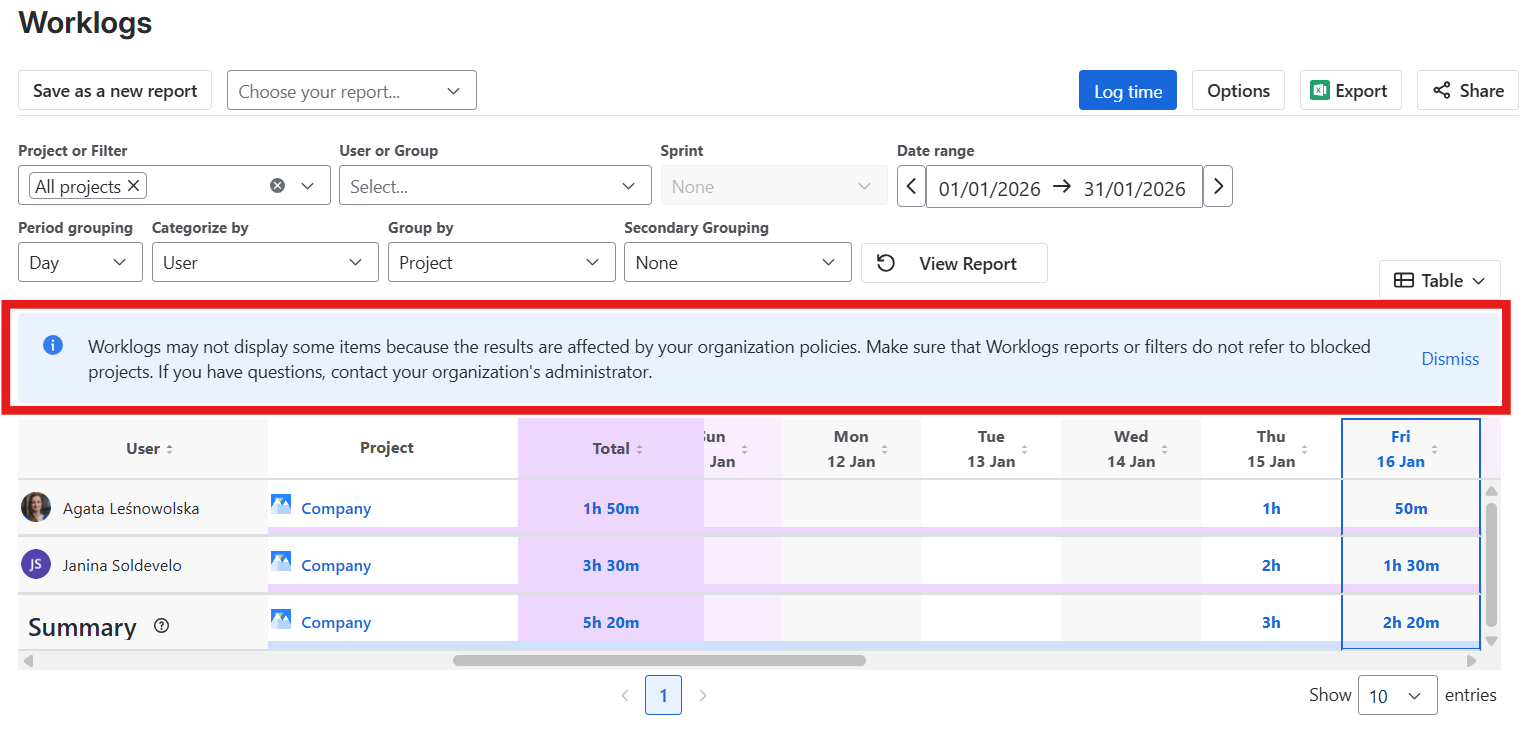
A blue flag with information that data may be incomplete. It can be dismissed, but it will appear whenever you load a report with blocked content.
-
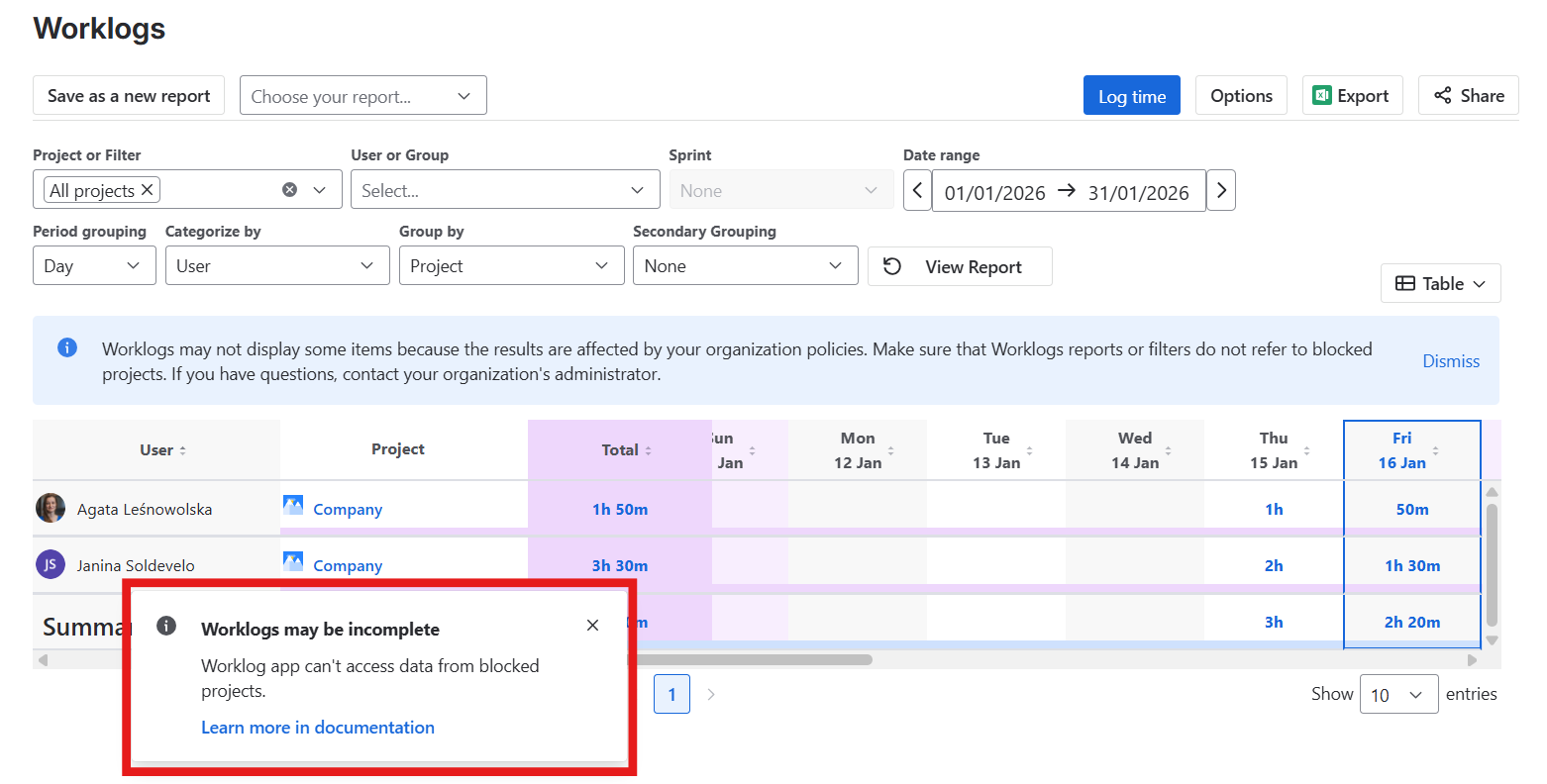
A pop-up info flag informing you that our app can’t access data from a blocked space (project).
-
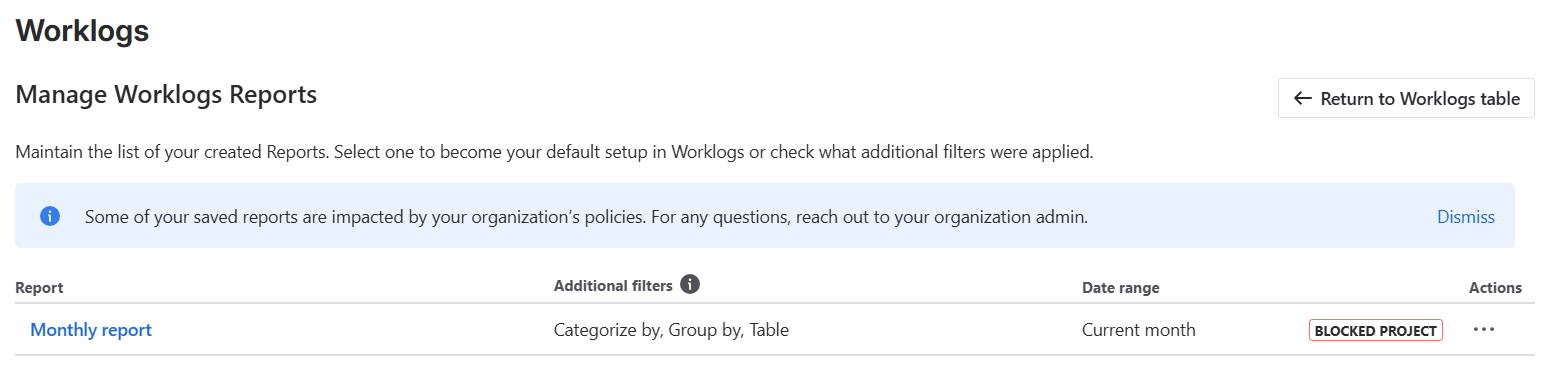
On Worklog’s ‘Manage Worklogs Reports’ page, all reports that contain data from a blocked space (project) will have the label ‘Blocked project’ next to it.
When creating a new Worklogs report
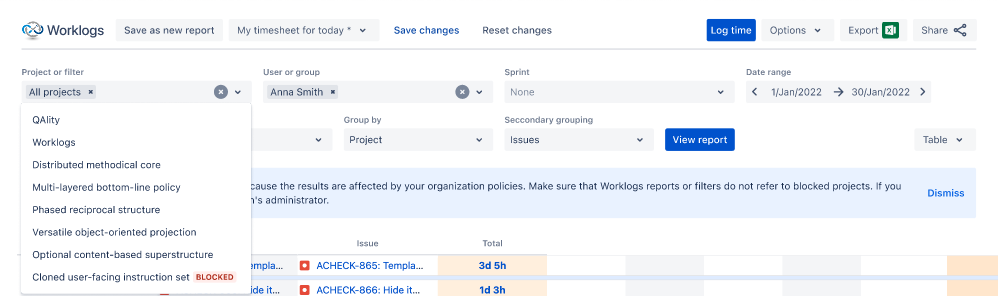
Whenever you want to create a new report and select a space (project) or a saved filter from the selector, all items blocked by the administrator will be disabled and you will see a ‘blocked’ label next to them. You will see blocked results at the end of the selection list.
Do you have any questions or feedback? Feel free to contact us here 💡