.png)
For a quick walkthrough of this feature, watch the video below 📽️.
The Repeat work log feature allows users to automatically log time across a date range in a single action, eliminating the need to manually create repetitive work log entries for multi-day tasks.
To enable Logging time by bulk Admin needs to:
-
Switch the Jira’s Time Tracking Provider into Worklogs Time Tracking Provider. To learn how to change the provider, see: Worklogs Time Tracking Provider.
The Repeat work log (bulk time logging) functionality enables users to set up a recurring schedule when logging time. Instead of entering work logs one by one for every working day or week, Worklogs automatically generates individual work log entries for each specified day within the selected period.
-
Saves time: Easily log recurring daily tasks, multi-day project work, or consistent weekly schedules in one step.
-
Granular work log creation: Generates individual, independent work log entries for each date, ensuring complete transparency in both native Jira issue tabs and Worklogs reports.
-
Automatic remaining estimate calculation: Remaining estimates update automatically based on the total accumulated time logged across all generated entries.
How it works
The repeat work log functionality is located inside the standard Log time modal, available across all Worklogs views (Report view, Issue view, and Dashboard gadgets).
-
Open the Log time modal.
-
Fill in the main fields (User, Issue, Time spent, and Date started).
-
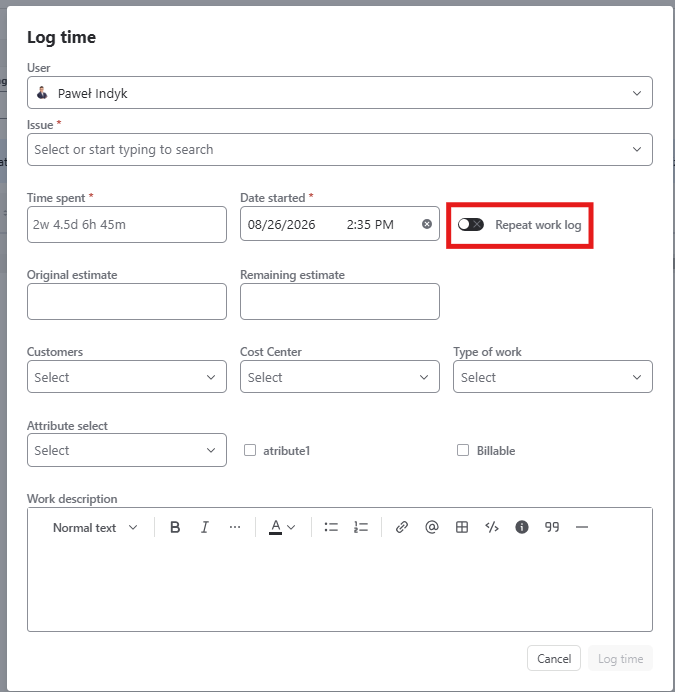
Locate the Repeat work log toggle to the right of the Date started field
-
Switch the toggle ON to expand the bulk configuration options.
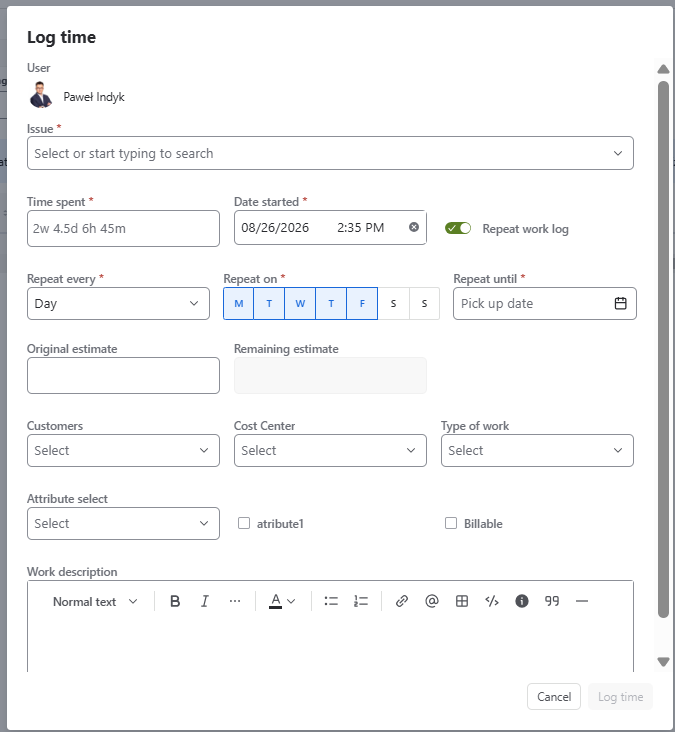
When Repeat work log is enabled, additional configuration fields appear:
-
-
Repeat every: Select the repetition interval:
-
Day: Repeats entries on daily intervals.
-
Week: Repeats entries on weekly intervals.
-
-
Repeat on: Select the specific days of the week on which work occurred (M, T, W, T, F, S, S):
-
Repeat until (Date picker): Use the date picker to set the end date for repeating entries. Work logs will be generated starting from Date started up to and including the Repeat until date.
-
Review & validation before creation
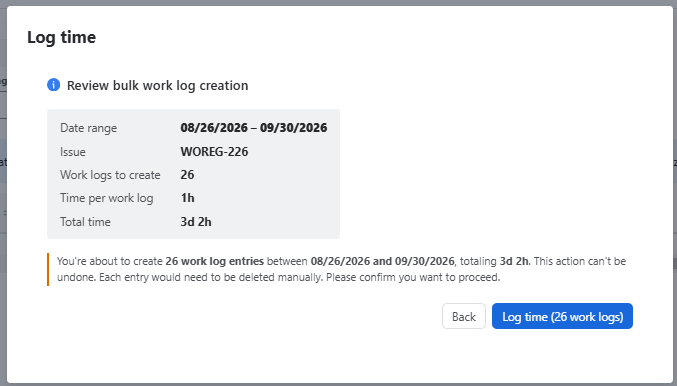
Before work logs are written to Jira, Worklogs opens a Review bulk work log creation confirmation modal summarizing the operation to ensure that number of entries created by Worklogs is correct and no errors during set up occured.
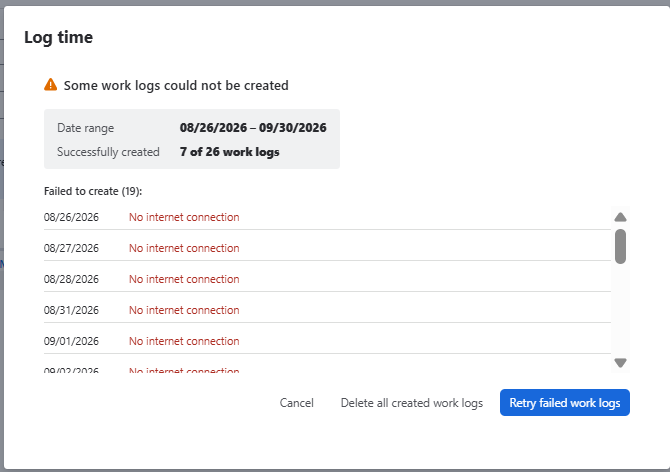
If connection or Jira API issues occur during bulk entry creation, Worklogs provides a guided resolution prompt:
-
Status summary notification: An error modal displays:
-
The number of work log entries successfully created.
-
The number of work log entries that failed to create (along with failure reasons).
-
-
User options for partial failures:
-
Confirm creation: Keep all successfully generated work log entries and manually add the missing entries that failed.
-
Cancel creation (Rollback): Automatically delete all entries created during the session, restoring the state prior to logging so you can safely retry the bulk action without leaving duplicate entries.
-
Safe limit & Jira rate limit protection
To guarantee system performance and prevent hitting Jira API rate limits during batched creation:
|
Aspect |
Detail |
|---|---|
|
Maximum 60 entries limit |
To ensure seamless experience and avoid Jira’s API rate limits connectibity issues, a hard safeguard limits bulk operations to a maximum of 60 work log entries per single submission. |
|
Calendar picker entries limit |
Dates in the Repeat until date picker that would result in creating more than 60 entries are automatically disabled and unselectable. |