.png)
Custom permission roles let you fine-tune worklog visibility inside the Worklogs app. With custom roles you can grant specific users or groups access to view worklogs of selected other users or groups - without exposing all worklogs across your organization.
By default, all users can see only their own worklogs. To give someone broader visibility, create a custom permission role.
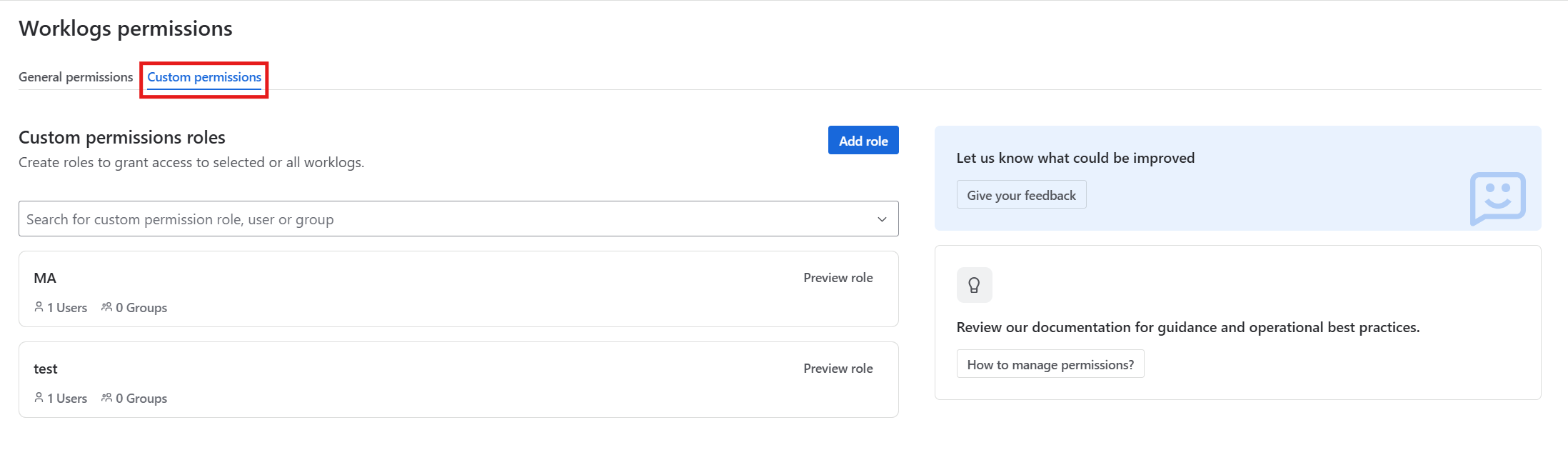
To manage custom permissions, go to Jira side panel → Apps → Worklogs app settings – three dots (…) next to Worklogs name → Permissions → Custom permissions tab.
How custom permissions work
Custom permissions work alongside the General permissions settings. The effective permission level a user receives is determined by the following hierarchy:
|
# |
App access |
All users' worklogs (General tab) |
Custom role(s) assigned? |
What user sees |
|---|---|---|---|---|
|
1 |
OFF |
— |
— |
No access to the app — no data shown |
|
2 |
ON |
Yes |
— |
All users' worklogs (custom roles are irrelevant) |
|
3 |
ON |
No |
No roles assigned |
Only own worklogs |
|
4 |
ON |
No |
One custom role |
Own worklogs + worklogs of users/groups specified as targets in the role |
|
5 |
ON |
No |
Multiple custom roles |
Own worklogs + union of all roles' target users/groups |
A user can be assigned to multiple custom roles. In that case, the user sees the combined (union) worklogs from all their roles.
💡 Custom permissions only control visibility inside the Worklogs app. They do not affect and fully respect native Jira time tracking permissions. Jira project-level permissions (e.g. "Browse project") still apply independently — a user without Jira browse permission for a project will not see worklogs from that project, regardless of their Worklogs custom role.
Adding a new Custom permission role
If no custom roles have been created yet, an empty state is displayed with an option to add your first role.
-
On the Custom permissions tab, click the Add role button.
-
Enter a Role name - must be unique (no two roles can share the same name).
-
In the "Users in this role" section, use the picker to search for and add users or groups who should receive this permission role.
-
In the "Whose worklogs can this role access" section, use the picker to search for and add the users or groups whose worklogs the role members should be able to see.
-
Click Add role to save the new role, or Cancel to discard changes and return to the role list.
After creating the role, a confirmation message is displayed and you are redirected to the Custom permissions tab where the new role appears on the list.
-20260708-223228.gif?cb=20c8dcd2f1f254f1d7a8ec20c77425b9)
Searching for Roles assigned to user or group
You can search for a specific custom permission role, user, or group using the search field at the top. When you search based on string for a user or group, only the roles where that user or group is assigned will be displayed.
-20260708-224023.gif?cb=1229bb55bf72b30d43fd47f71aa627f8)
Previewing a role
To view the details of an existing role, click the Preview role button next to the role on the Custom permissions tab.
The preview shows the role's configuration:
-
Role name
-
List of users and groups assigned to the role (alphabetically ordered)
-
List of users and groups whose worklogs the role provides access to
From the preview, you can:
-
Edit role to modify the role's configuration.
-
Delete role to remove the role.
-
Go back to Custom permissions to return to the role list.
Editing a role
-
Open the role preview by clicking Preview role on the Custom permissions tab.
-
Click the Edit role button in the top-right corner.
-
In edit mode, you can:
-
Change the role name (same validation rules apply — unique, 1–255 characters).
-
Add or remove users and groups in both the "Users in this role" and "Whose worklogs can this role access" sections.
-
Use Clear all to remove all entries from a specific list.
-
-
Click Save to apply changes, or Cancel to discard them and return to the preview.
The Save button remains inactive if no changes have been made.
Deactivated and deleted users or groups
Custom permission roles handle deactivated and deleted users and groups as follows:
Users:
-
Deactivated (or suspended) users remain visible in the role with a "(deactivated)" label in a disabled state. They are still counted in the user counter and can be removed manually.
-
Deleted users are automatically removed from the role and are no longer counted or displayed.
Groups:
-
Renamed groups are displayed with their new name. The group counter remains accurate.
-
Deleted groups are automatically removed from the role and are no longer counted or displayed.
If all members or targets of a role are removed (e.g., because all assigned users/groups have been deleted), the role remains but becomes effectively empty. The administrator can modify or delete it manually.
How custom permissions affects report’s data?
The Worklogs report table, dashboard gadget, exports, and shared report links all respect Custom permission roles. A user will only see worklog data for users within their permitted scope.
The user/group picker in the report view and dashboard gadget also respects custom permissions - it only lists users and groups that fall within the current user's visibility scope.
For example: When user has access only to the users assigned to their Jira group: jira-admins, then they will see in the picker only those users who are part of this group and the group itself.
If a user has no custom roles assigned and "All users' worklogs" is not enabled, the picker will only show the user themselves as it is shown in General Permissions section of this documentation.