.png)
See also: Worklogs permissions - administrator's guide 🎥
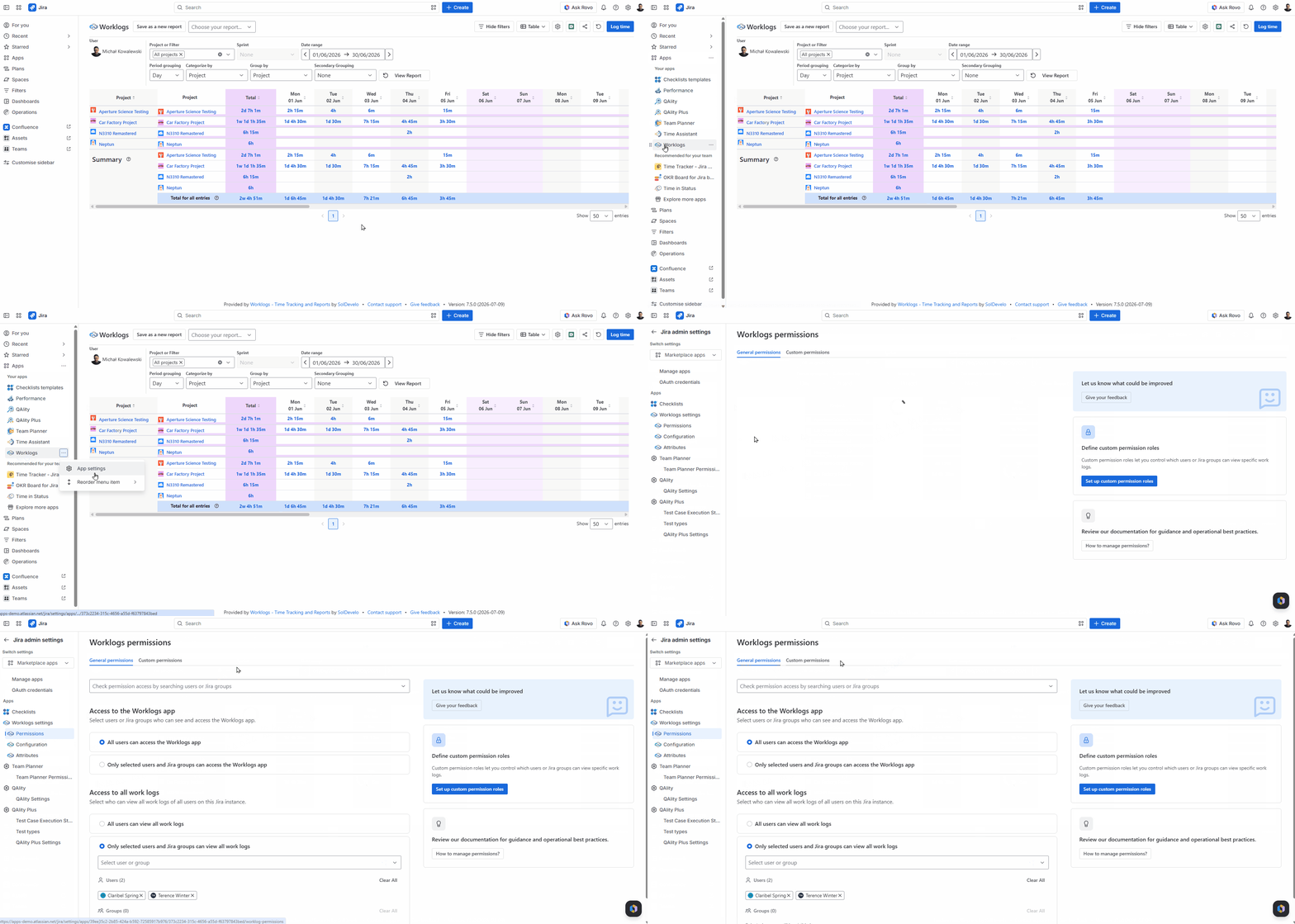
By default, all users have access to all work logs. However, you can restrict it as a Jira administrator. To change the permissions, go to Jira side panel → Apps → Worklogs app settings - three dots (…) next to Worklogs name → Permissions
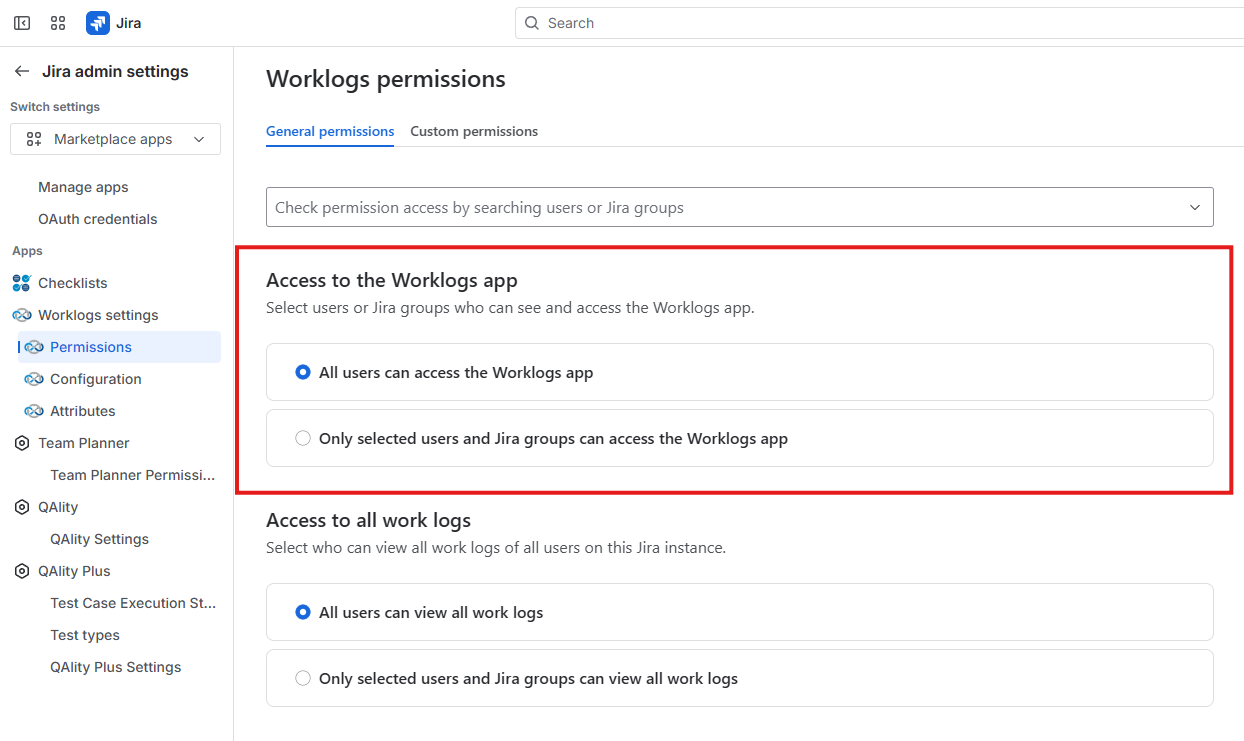
First, you can select users or groups who can access and use Worklogs. To do that, toggle the switch off and choose particular users or groups.
When users without the required permissions attempt to open the app, they will see a notification explaining that they do not have access to Worklogs and should contact their Jira administrator for more information.

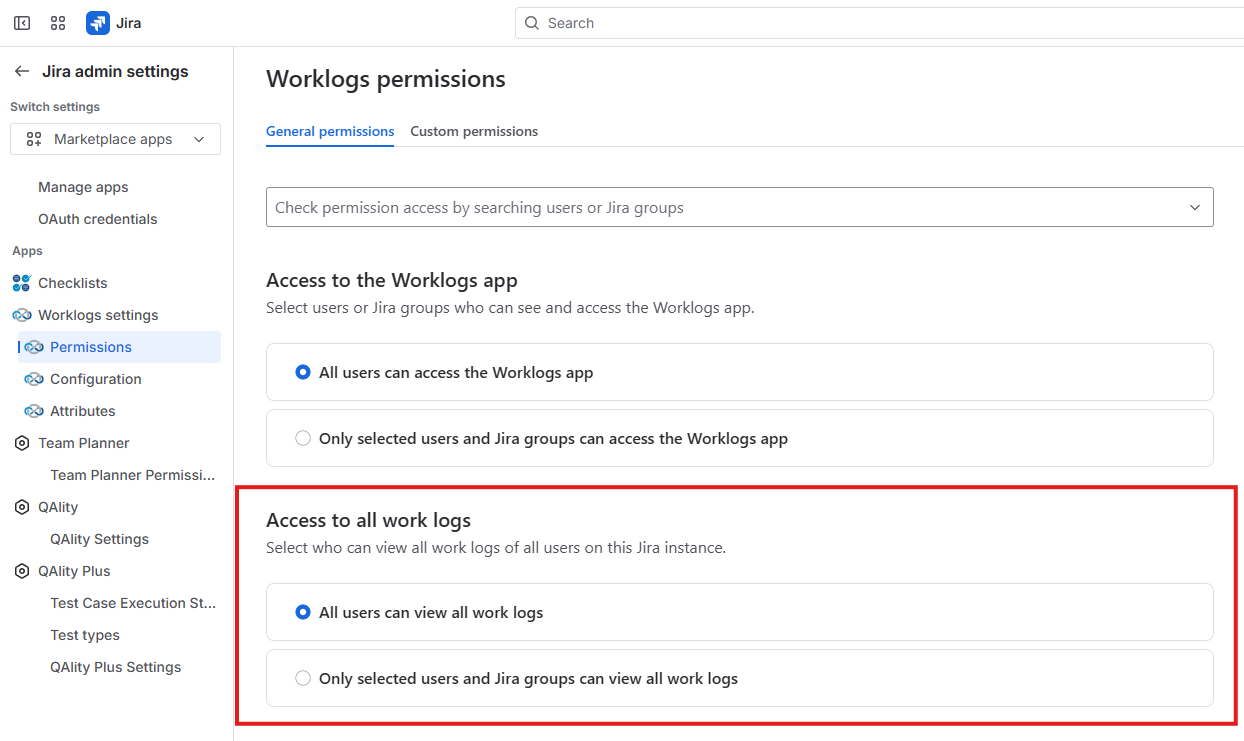
Similarly, you can also choose who can see other users' Worklogs. By default, all users can do that. If you switch the option off, only users and groups selected will be able to view other users’ logged time. Those that are not on the list will still have access to Worklogs, but they will only see their own time entries.
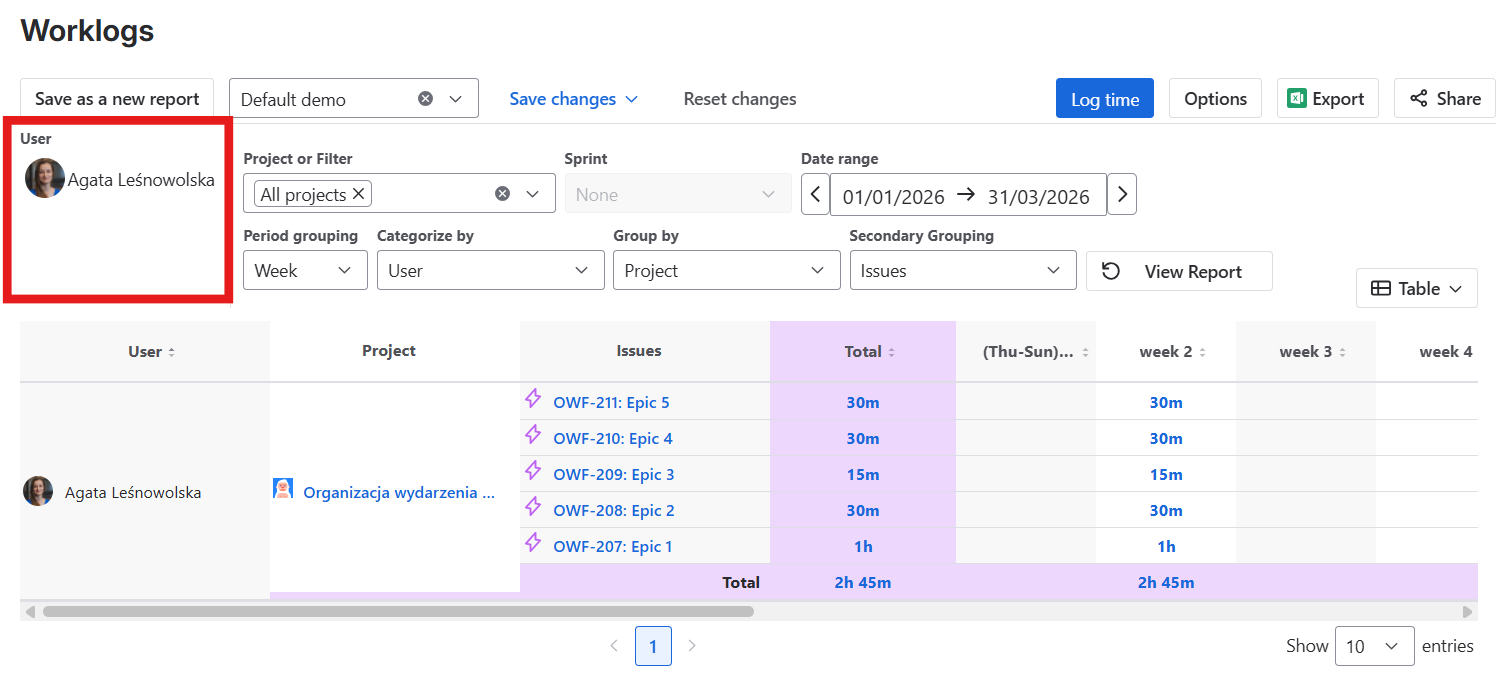
Users without permission to view others' worklogs will find the user selection field locked to their own name, without the option to select any other user.
Logging time for other user (LFO)
Admin can configure who will be able to log time for other users. To do so Admin needs to switch the Jira’s Time Tracking Provider into Worklogs Time Tracking Provider. To learn how to change the provider, see: Worklogs Time Tracking Provider.
To add LFO permission to specific user you need to simply add him to the list of allowed users:
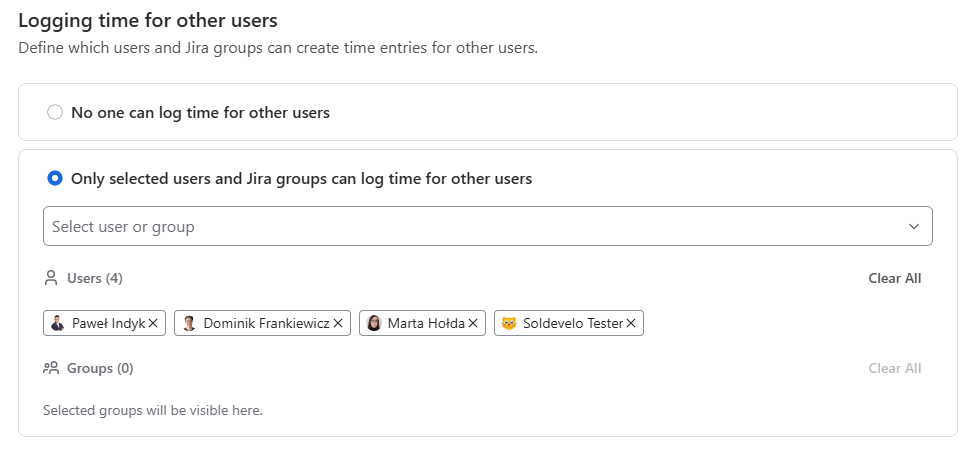
After doing so, pointed users will be able to create and edit entries for other users. You can see how it works in Logging time for other user (Worklogs Advanced)section.