.png)
As a Jira Administrator, you can configure the global settings for the Worklogs app, including defining working and non-working days, adding company holidays, selecting the week's start day, and setting the default time range for display.
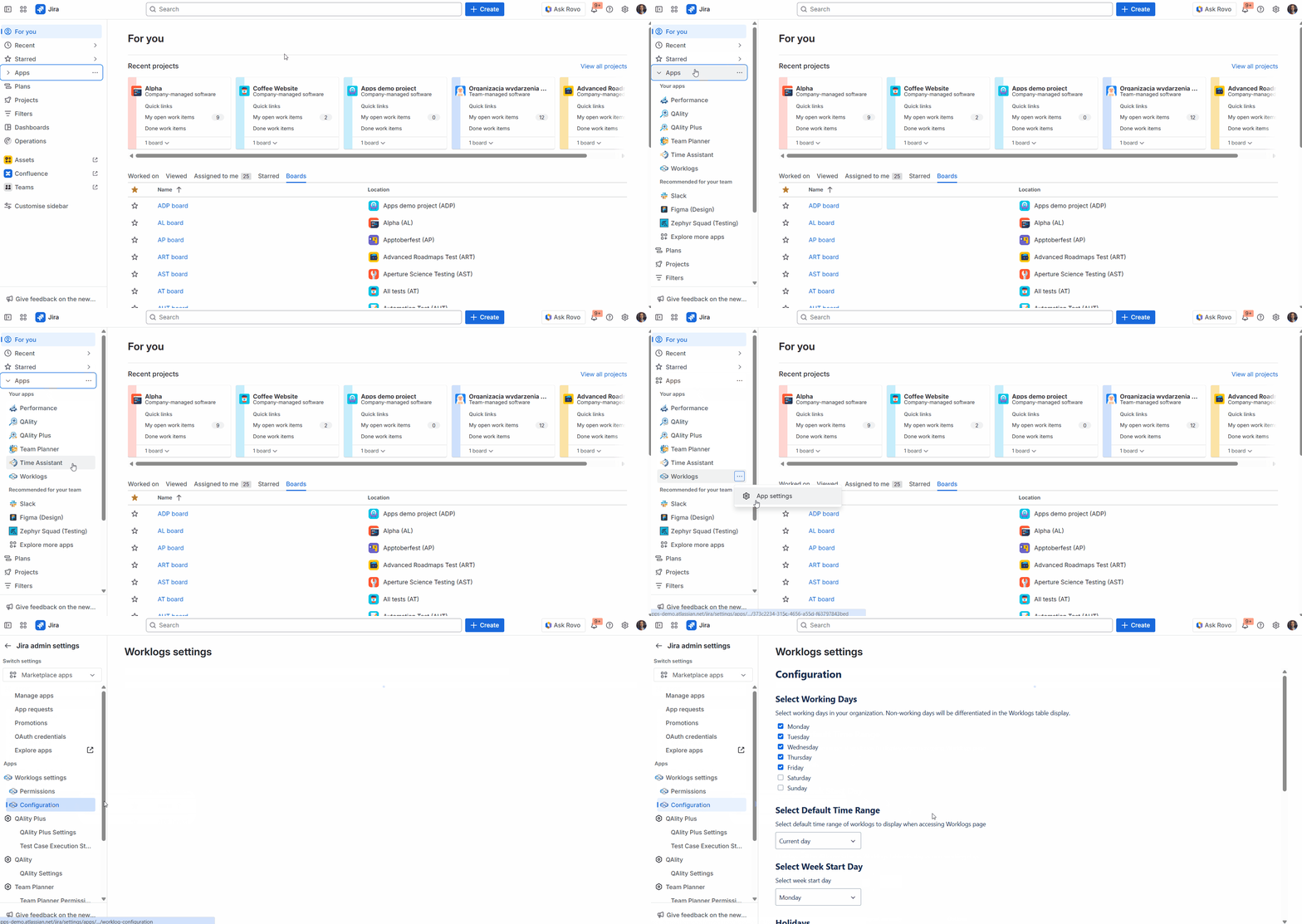
To do that, go to Jira side panel → Apps → Worklogs app settings - three dots (…) next to Worklogs name → Configuration.
Configure working and non-working days
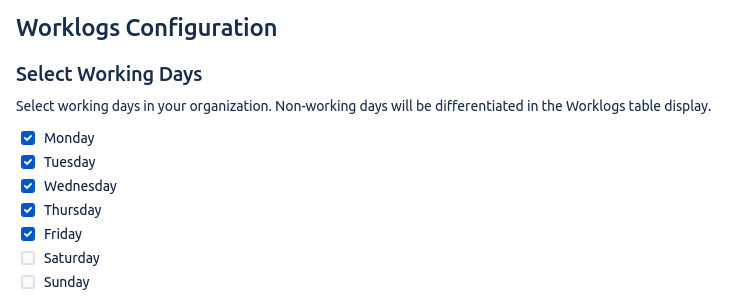
To define working and non-working days, go to the Select Working Days section of the page, check the boxes for the working days, and leave the non-working days unchecked.
Select the default time range
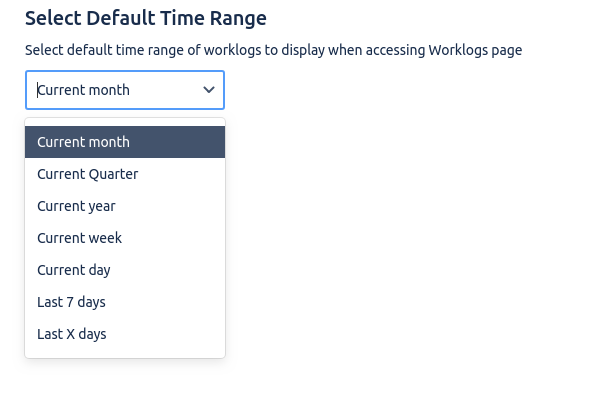
It’s possible to select the Default Time Rage of Worklogs to display when accessing the page. There are several predefined time ranges to choose from. The setting will also be applied to the newly added Worklogs gadgets.
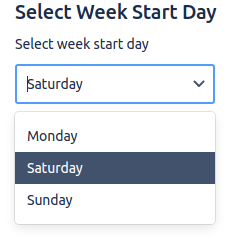
Select the week’s start day
It’s possible to configure the first day of the week to be displayed when accessing the calendar or week view of the Worklogs. You can select Monday, Saturday, or Sunday as the first day of the week. The setting will also be applied to the newly added Worklogs gadgets.
Time logging validations (work description requirement)
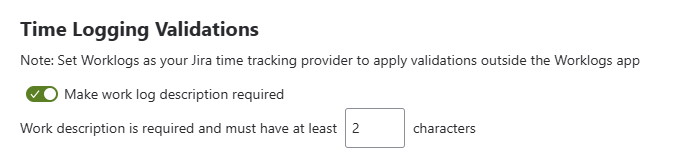
When this option is enabled by your Jira admin, the Work Description field in the Log time modal becomes mandatory when creating or editing a worklog. The modal validates that the description meets a minimum character count (spaces are not counted).
If the requirement is not met:
-
An error message appears: “Work description is required and must have at least X characters.”
-
The Log time button remains inactive until the requirement is met.
Configuration
To enable this validation, a Jira administrator must:
-
Navigate to Worklogs App Settings → Configuration → Time Logging Validations.
-
Toggle the validation switch to On.
Once enabled, the Worklogs Log time modal will validate the description for every time entry.
Note: To apply these validations at the work item level (and not just within the Worklogs app), you must set Worklogs as your primary Jira time tracking provider (see:Worklogs Time Tracking Provider).
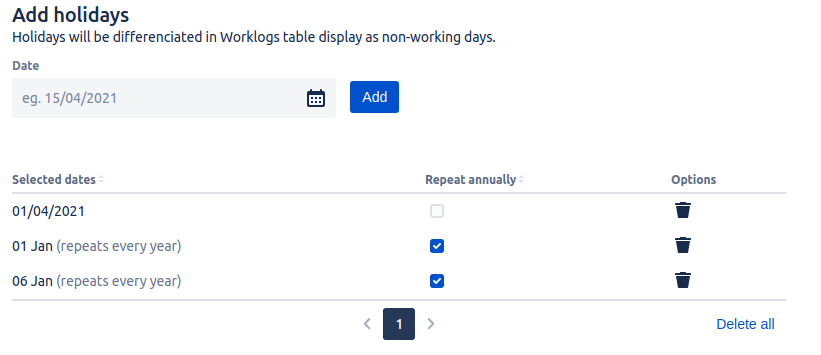
Adding holidays
It’s possible to add holidays that will be marked as non-working days in the Worklogs table and gadget. You can add a single day or select an annual holiday that will be repeated every year.