.png)
Initiatives are time budgets dedicated to achieving a specific objective. Every time logged against an Initiative is deducted from its allocated pool of hours, allowing you to track progress against the available budget.
To create an Initiative, navigate to:
Workspace Apps → Worklogs for monday.com
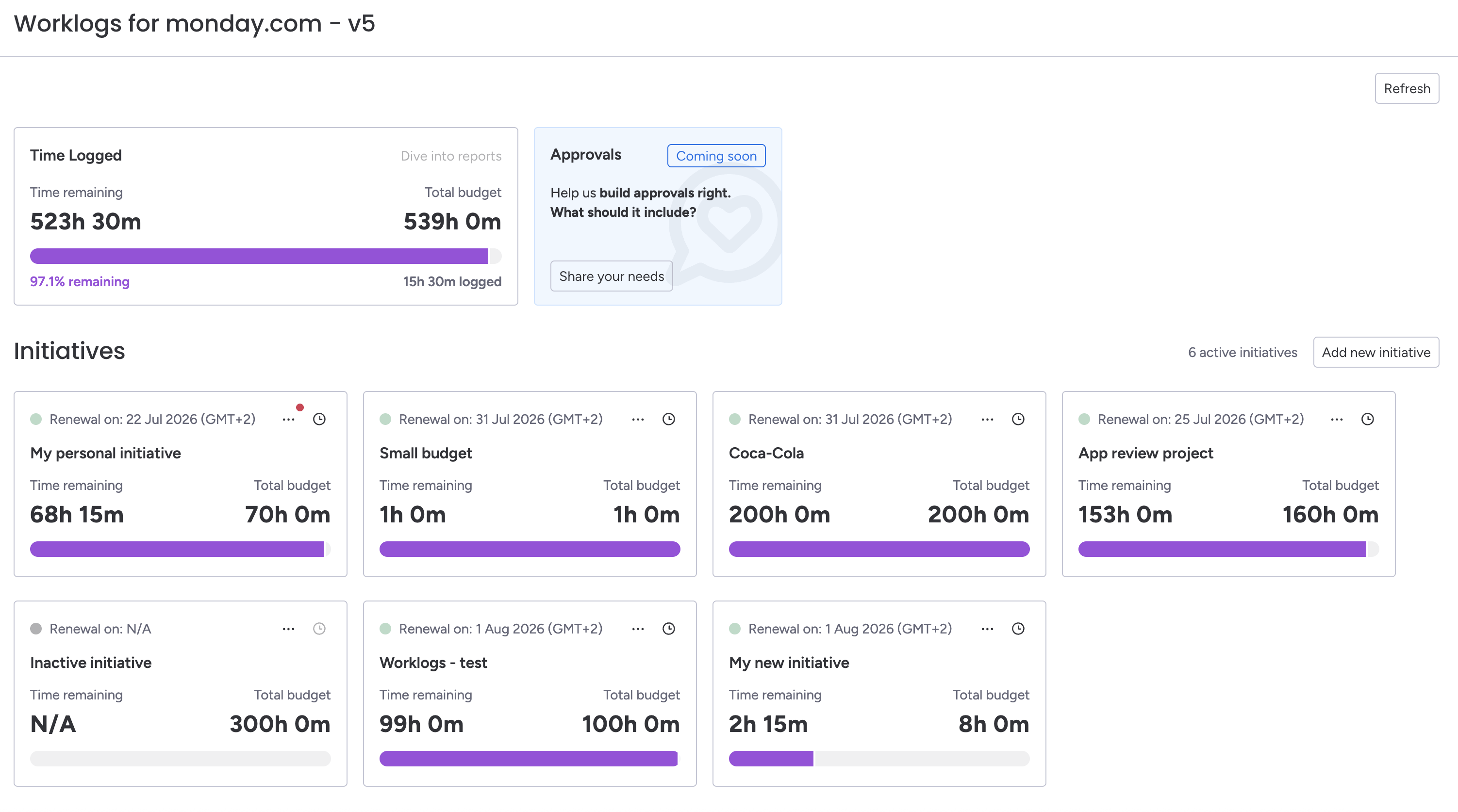
Here, you'll find a summary of all time logged across Initiatives in the current billing period, as well as a list of existing Initiatives.
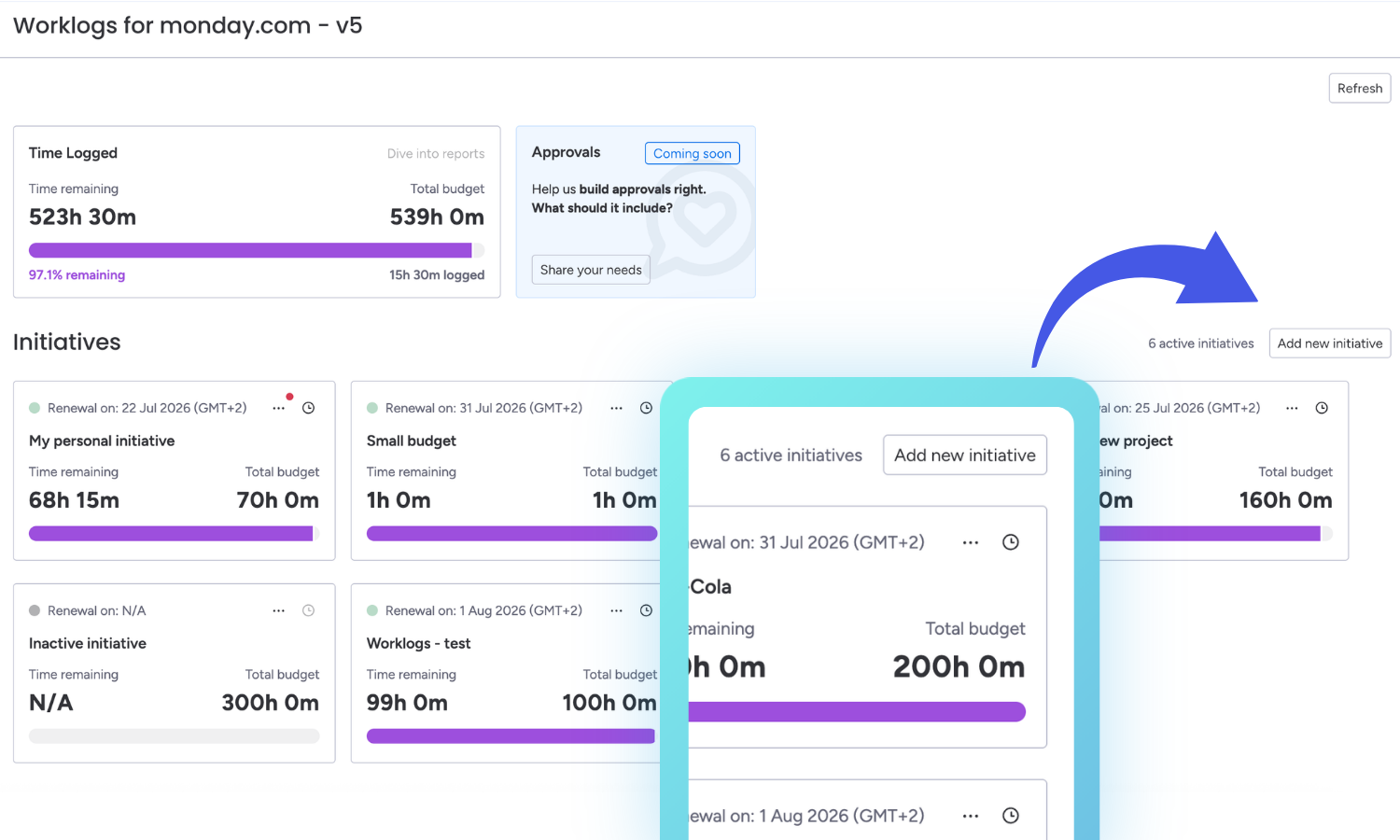
Click Add New initiative.
Name the initiative
Start by giving your initiative a name. Depending on your use case, this could represent a client, project, department, contract, or any other objective.
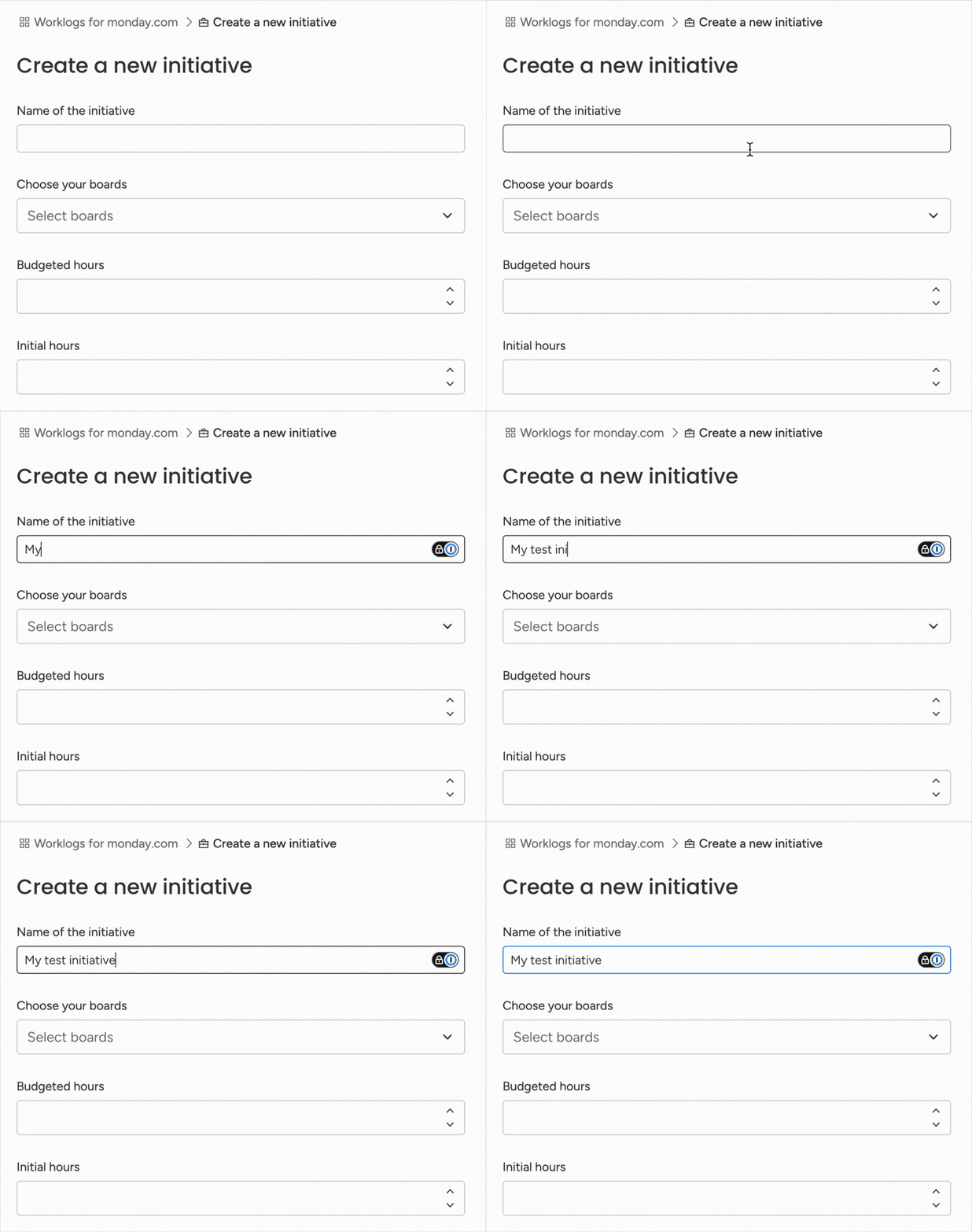
The Initiative name will be displayed both in the Worklogs dashboard and in the Time Logged columns created on connected boards.
Assign Boards
Select the boards that are associated with this initiative. You can connect multiple boards to a single initiative, enabling teams to collaborate toward a shared time budget across different boards.
.gif?cb=e30cbcc8c79a2fba16e13f14f86ab955)
Once a board is connected, Worklogs automatically creates a dedicated Time Logged column for the initiative on each selected board.
Boards can be used in multiple initiatives at the same time.
Set the Time Budget
Define the number of hours allocated to the initiative by entering a value in the Budgeted Hours field.
If work has already been performed before creating the initiative, you can record previously spent time using the Initial Hours field. This ensures that the remaining budget accurately reflects the total time already invested.
.gif?cb=13d8b8b4875901163103342917368be2)
Configure the Budgeting Period
Select the budgeting period's start date. Choosing today sets your Initiative to Active, allowing immediate time logging. If your project starts later, select a future date to set your Initiative to Pending.
At the end of each budgeting period, the Initiative automatically refreshes and resets its time budget, letting you track a new allocation. This suits recurring monthly retainers, service agreements, or ongoing projects with regular time budgets. You can select the exact day your budgeting period resets. It can be:
-
the first day of the month
-
the last day of the month
-
a specific day of the month.
Select a Time Zone
Choose the time zone that should be used for the Initiative. This setting determines how time entries and budgeting periods are calculated and displayed.
.gif?cb=cffaf0be477cbe31fc69302b1d68de71)
Do you have any questions or feedback? Please make sure to contact us 💡