.png)
You can log time directly to an Initiative from the Worklogs dashboard.
Log time from the Worklogs app
Navigate to:
Workspace Apps → Worklogs
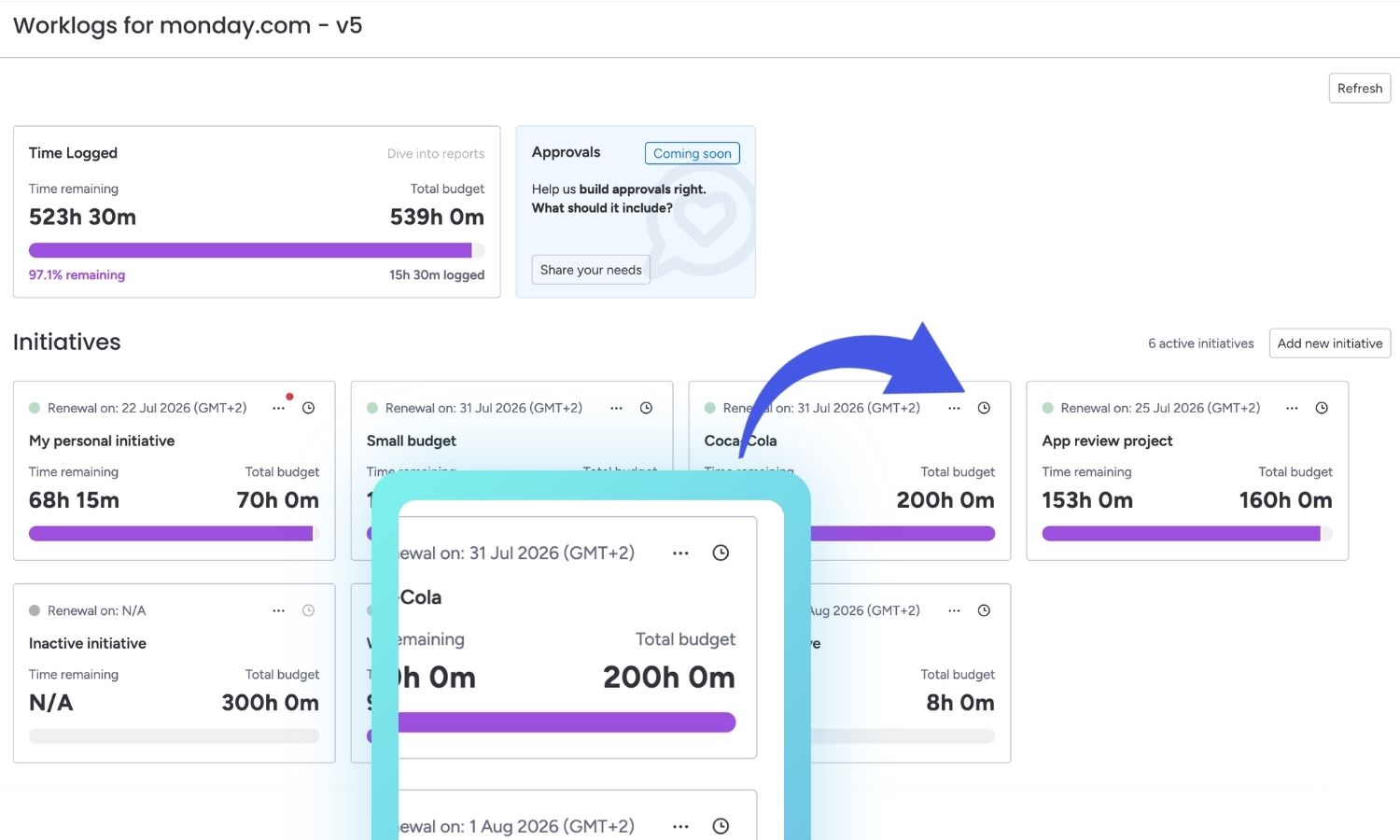
In the Worklogs dashboard you can see the list of initiatives and its details. The initiative details provides an overview of:
-
Time spent during the current period
-
Remaining budgeted hours
-
Time remaining until the end of the current budgeting period
To add a new entry, click on the clock at the right corner of initiative. Alternatively, you can also click to open the initiative and select Log time button at the right.
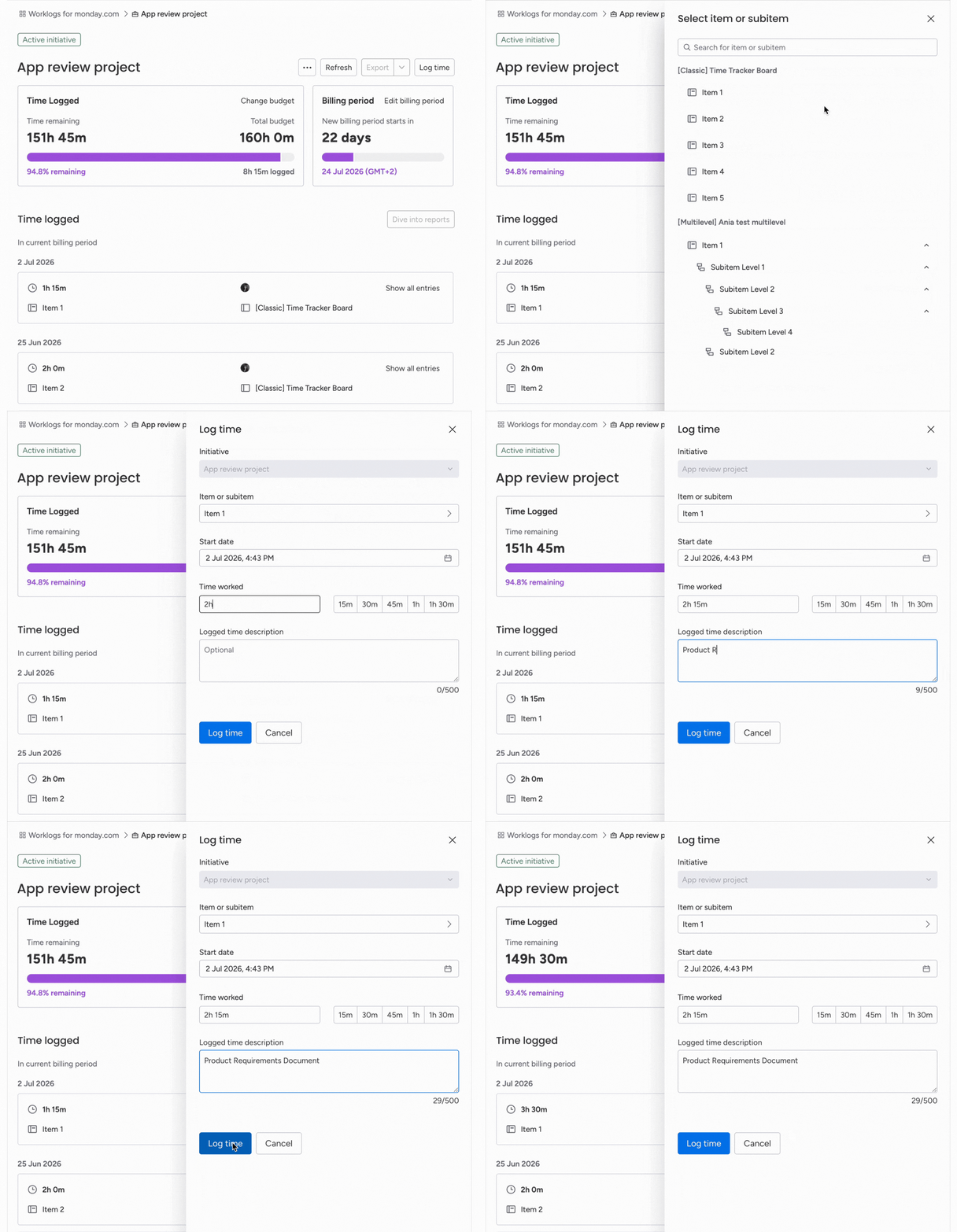
The selected initiative will be pre-filled automatically. Then you can choose a specific board item or subitem to associate the time entry with. Multiple users can log time to the same item at the same time. As an example - when they collaborate on a task in a meeting.
Finally, enter the amount of time spent and add an optional description of the work performed. The description will be stored with the time entry and displayed in the entries section.
Added time entry will be synced to the column on a respective board.
Review previous entries
Click on the initiative to open its details page. At the bottom of the initiative details page, you'll find a list of all time entries recorded against the initiative during the current budgeting period.
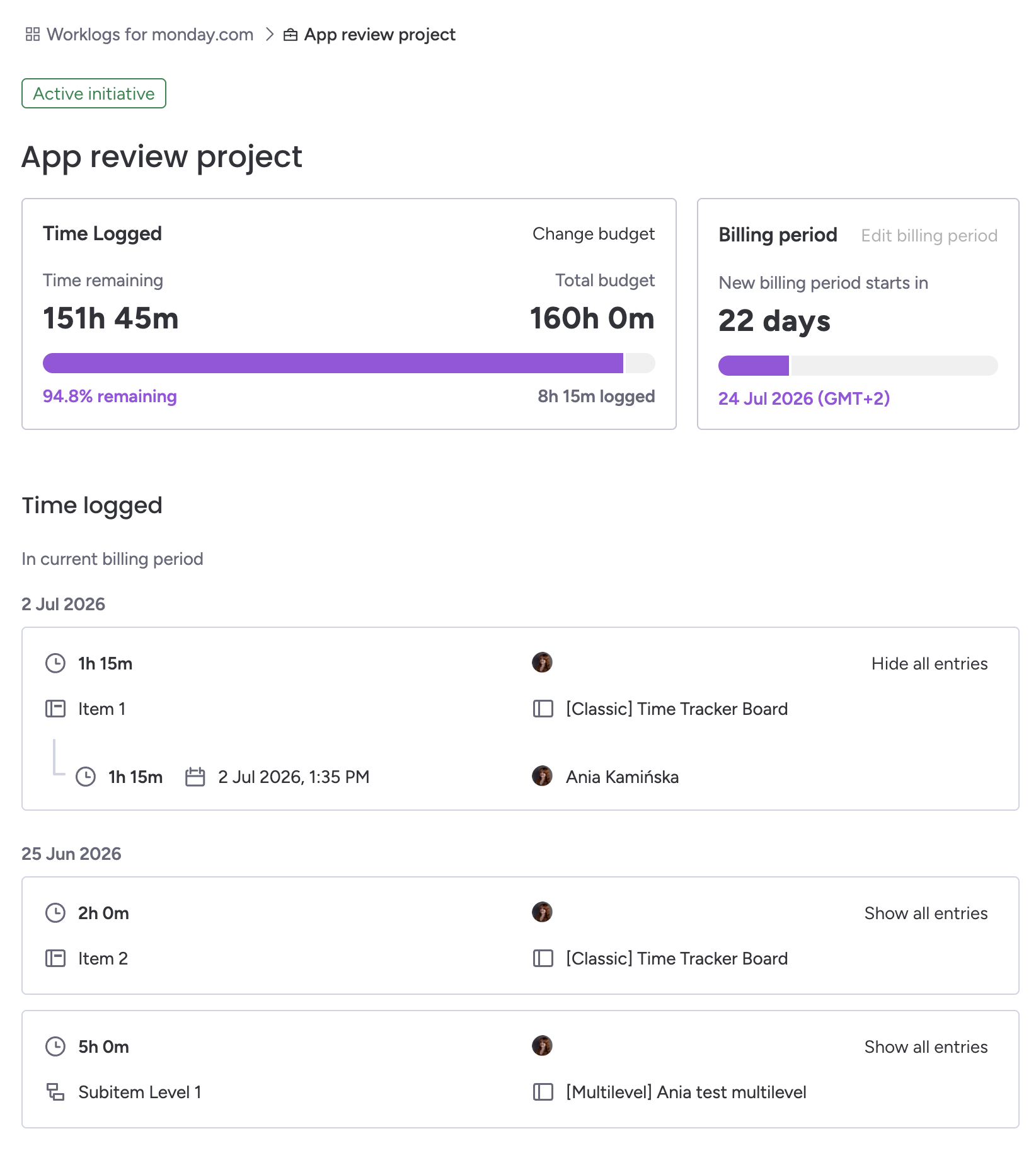
Each entry includes information such as the user who logged the time, the amount of time recorded, the associated work item or subitem, and any description that was provided.
Edit and delete time entries
Users can edit or delete their own time entries directly from the Initiative view.
-
Open the Initiative profile.
-
Under the initiative details, navigate to the list of time entries for the current billing period.
-
Click on “Show all entries”.
.jpg?cb=e871e3dd91a70a9abc678aac23d05171)
-
Locate the time entry you want to modify and choose one of the available actions:
-
Edit – click the pencil icon.
-
Delete – click the trash icon.
.jpg?cb=e1b0b136e5a1bbcaa245a972c21eaab7)
-
Editing a time entry
Selecting the Edit option opens the time logging drawer pre-filled with the existing time entry details.
When editing a time entry:
-
The associated item cannot be changed. The time entry will always remain linked to the original monday.com item.
-
Users can modify:
-
the logged time,
-
the time entry description.
-
After saving the changes:
-
the initiative's available time budget is recalculated,
-
the updated time entry is synchronized to the corresponding time tracking column on the monday.com board.
Deleting a time entry
Selecting the Delete option opens a confirmation modal.
The user must confirm whether they want to permanently remove the selected time entry. If the action is cancelled, no changes are made.
After a time entry is deleted:
-
the initiative's available time budget is recalculated,
-
the deletion is synchronized with the corresponding time tracking column on the monday.com board.
Resolving time entry synchronization issues
In some cases, Worklogs may be temporarily unable to synchronize a time entry with the corresponding time tracking column on a monday.com board. This can happen due to temporary platform issues or API errors on the monday.com side.
What happens when synchronization fails
When a user logs time:
-
The time entry is created successfully in Worklogs for monday.com.
-
If synchronization with the monday.com board fails, the time entry is not lost. It remains stored in Worklogs.
-
The affected time entry is displayed in the Sync issues section at the top of the time entries list, making it easy to identify entries that require attention.
Available actions
For each item with time entry with a synchronization issue, users can choose one of the following actions:
-
Sync - Attempts to synchronize the time entry with the corresponding monday.com board again.
-
Ignore - Dismisses the synchronization issue. The time entry remains available in Worklogs, but no further synchronization attempts will be made for that entry.
Automatic synchronization
Synchronization issues may also resolve automatically.
If another user logs time against the same monday.com item and the synchronization succeeds, all previously unsynchronized time entries for that item are synchronized automatically. This ensures that temporary synchronization failures do not require manual intervention in every case.
Do you have any questions or feedback? Please make sure to contact us 💡