.png)
Worklogs runs natively on Atlassian's Forge platform. When new Atlassian permission scopes are introduced to support major capabilities (such as custom permissions, enhanced time tracking providers, and bulk logging), Atlassian security requires a Jira Administrator to explicitly review and approve the updated permission scopes.
-
Instances on v6.6.0 or older: Due to Atlassian’s updates requirement when migrating to Forge, automatic updates are paused until manually approved by an admin in Manage apps.
-
Once updated (v7.0.0+): Your app will automatically resume receiving future feature updates, security patches, and performance enhancements with zero downtime.
To find out more about why we migrated to Forge, and what benefits of using app on the new platform, please read our announcement: We’re moving to Forge – here’s why it’s great for You
Below you can find quick info about:
How to check your Worklogs version
You can check which Worklogs version your Jira site is currently using directly in the app. Open Worklogs from the left-hand navigation menu, then look for the version number in the footer:
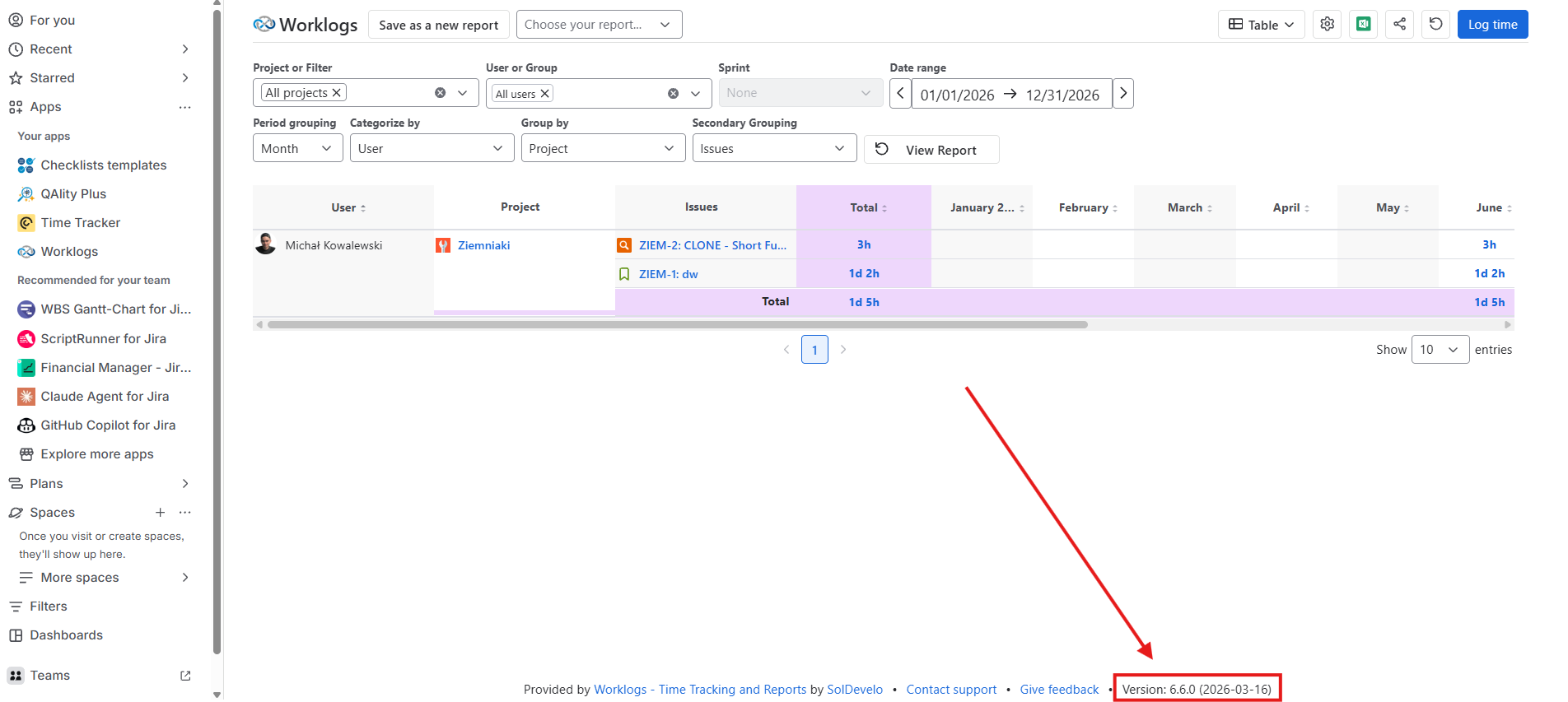
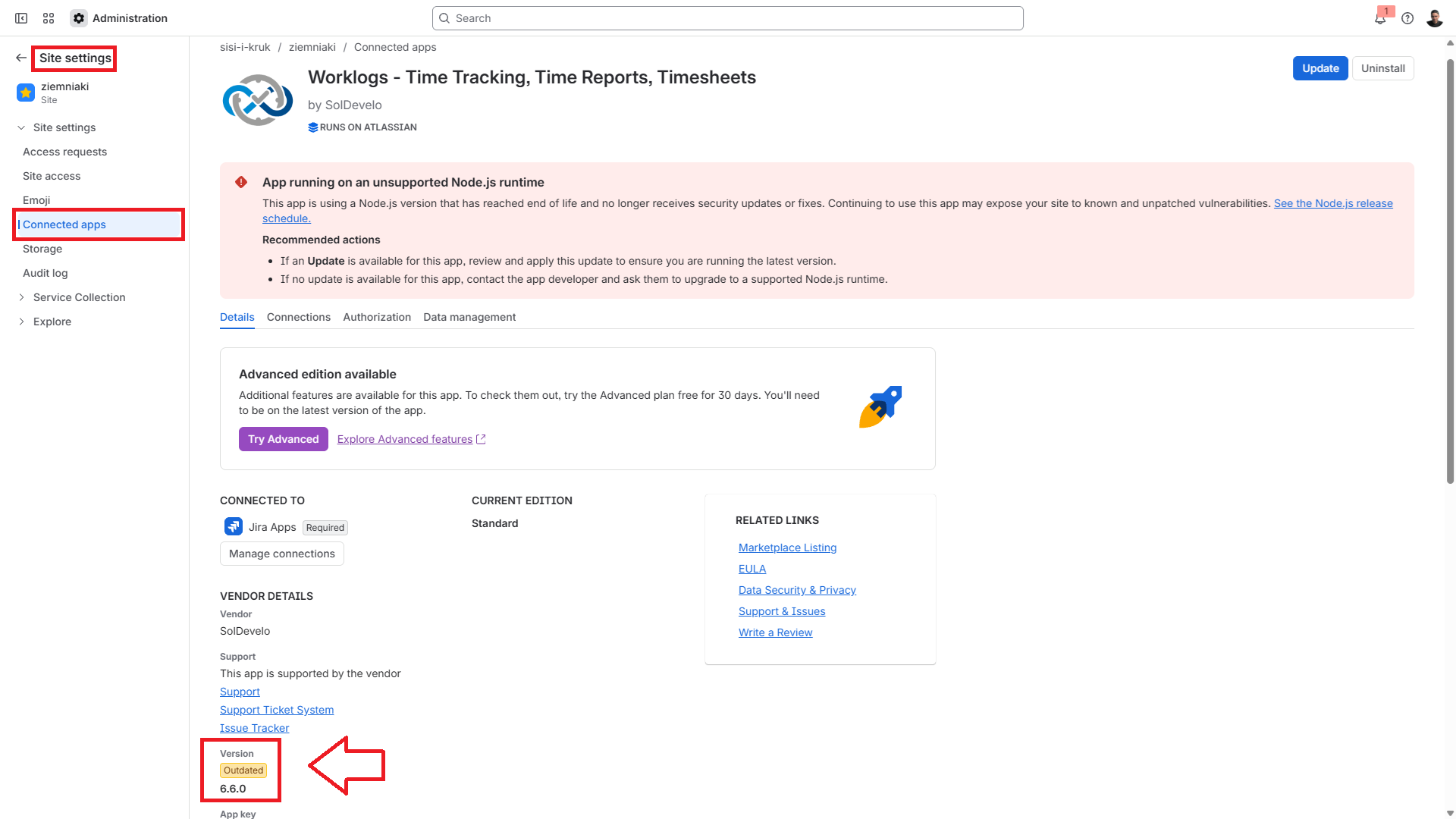
You can also check the app verion from the admin panel by going to Apps in the left-side navigation panel → Click Sites to expand → Select the Jira instance → Connected apps in the left-side navigation panel → Locate Worklogs - Time Tracking and Reports in the installed apps list → Click on the View app details button.
Step-by-Step: How Jira Administrators Can Update
Updating Worklogs takes less than a minute and does not impact your existing time tracking data.
If you are currently viewing a Jira instance that uses an older version of the app:
-
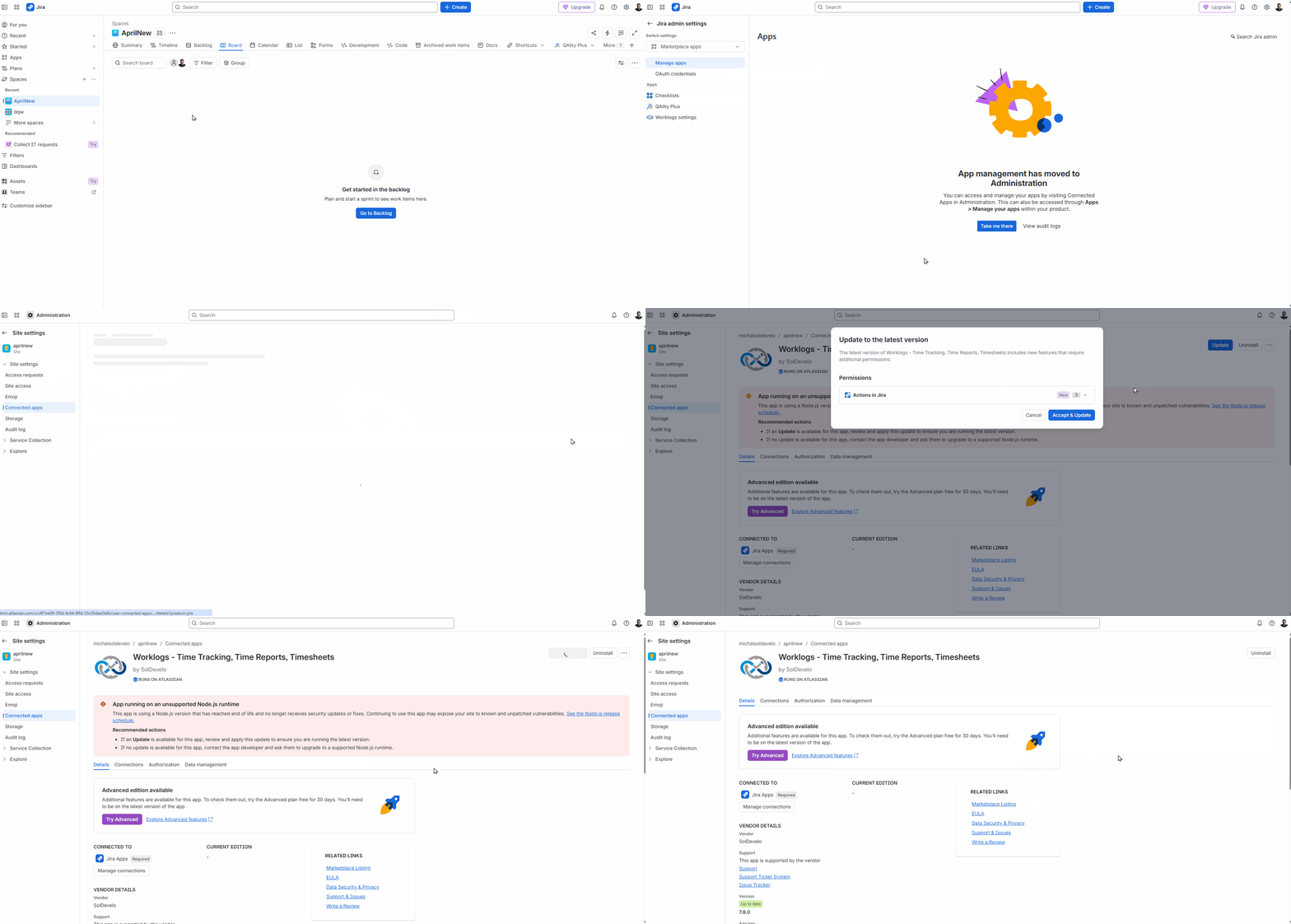
Go to Apps in the left-side navigation panel → Click on the three dots (…) → Choose Manage apps.
-
Click on the Take me there button to go to app management in administration.
-
Locate Worklogs - Time Tracking and Reports in the installed apps list → Click on the View app details button.
-
If an update is pending, an Update button will be displayed next to the app.
-
Click Update and review the required Atlassian permissions.
-
Click Accept & update to confirm.
You can also update the app directly from the admin panel:
-
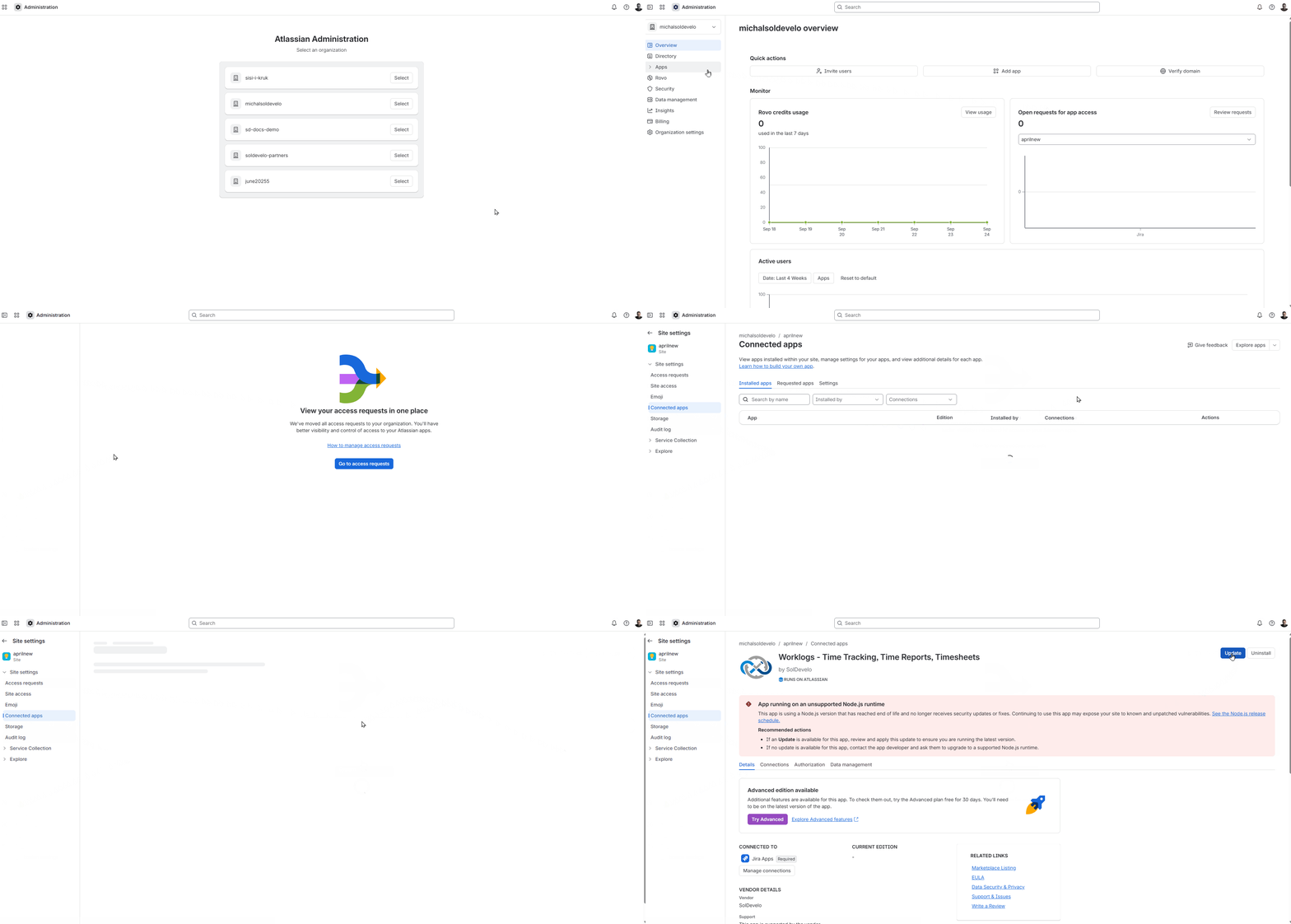
Go to https://admin.atlassian.com/ → Select your Organization.
-
Go to Apps in the left-side navigation panel → Click Sites to expand → Select the Jira instance on which the old version of the app is installed.
-
Go to Connected apps in the left-side navigation panel → Locate Worklogs - Time Tracking and Reports in the installed apps list → Click on the View app details button.
-
If an update is pending, an Update button will be displayed next to the app.
-
Click Update and review the required Atlassian permissions.
-
Click Accept & update to confirm.
What Features Are You Missing on v6.6.0?
By staying on v6.6.0 or older, your team may be missing important improvements that make time tracking faster, more flexible, and easier to manage. Explore the key features released after this version:
-
Repeat Work Log - Log recurring work across multiple days faster.
-
Logging Time for Other Users (Worklogs Advanced) - Allow authorized users to log time on behalf of teammates.
-
Worklog Attributes - Add custom attributes such as billable time, overtime, or internal categories.
-
Worklogs Time Tracking Provider - Use enhanced time tracking provider capabilities directly in Jira.
-
Custom Permissions (Worklogs Advanced) - Manage access with granular permission controls.
Need Assistance?
If you encounter any issues during the update process or have questions regarding permissions:
-
🎫 Customer Support Portal: Contact our Service Desk